
Documentation Index

Fetch the complete documentation index at: https://docs.coreweave.com/llms.txt

Use this file to discover all available pages before exploring further.

With SAML Workload Identity Federation, your workloads obtain a SAML assertion from your Identity Provider (IdP) and exchange it for temporary AI Object Storage credentials. This eliminates the need to store long-lived secrets in your applications. This guide walks through the complete workflow: configuring your SAML provider, creating a WIF configuration in the Cloud Console, setting up organization access policies, and exchanging assertions for credentials.

How SAML WIF works

Your workload obtains a SAML assertion from your identity provider and sends it to the AI Object Storage WIF endpoint. CoreWeave validates the assertion against your WIF configuration, parses the Role and PrincipalName attributes, and returns a temporary Access Key / Secret Key pair for AI Object Storage. What the returned credentials can do is determined by your organization access policies and optional bucket access policies, which must reference the role as a principal.
Workload Identity Federation only generates temporary credentials. It does not manage AI Object Storage access policies, bucket policies, or Terraform state. You must configure policies separately and ensure they reference the correct WIF role principal.
Before using SAML for Workload Identity Federation, configure your organization’s SAML SSO. See Configure SAML SSO for setup instructions.

Prerequisites

Before you begin, ensure you have:
  • A CoreWeave organization with AI Object Storage enabled
  • Administrator privileges for your organization (the IAM Admin role and Object Storage Admin role, or equivalent legacy access)
  • A SAML Identity Provider configured to issue assertions with the required attributes (see Required SAML attributes)

Step 1: Configure your SAML provider

Configure your IdP to issue SAML assertions for the workloads that need AI Object Storage access. The assertions must include the CoreWeave-specific attributes described below.

Required SAML attributes

Every SAML assertion must contain these CoreWeave-specific attributes:
AttributeDescription
https://coreweave.com/SAML/Attributes/RoleThe role for the credentials this call generates. Used in access policy evaluation and audit logs.
https://coreweave.com/SAML/Attributes/PrincipalNameThe principal (actor) making requests. Can be used in access policies and appears in audit logs.
Example: Role attribute
<Attribute Name="https://coreweave.com/SAML/Attributes/Role">
  <AttributeValue>data-ingest</AttributeValue>
</Attribute>
Example: PrincipalName attribute
<Attribute Name="https://coreweave.com/SAML/Attributes/PrincipalName">
  <AttributeValue>svc-data-pipeline@example.com</AttributeValue>
</Attribute>

SAML response configuration

Configure your IdP to set the following elements in the SAML response:
ElementValue
Destinationhttps://console.coreweave.com/m2m-saml-acs
Recipienthttps://console.coreweave.com/m2m-saml-acs
Audiencehttps://console.coreweave.com/accounts/saml/<ORG_UID>/metadata/
Replace <ORG_UID> with your organization’s UID. You can find this on the Settings page in Cloud Console.
Example SAML assertion
<saml2p:Response xmlns:saml2p="urn:oasis:names:tc:SAML:2.0:protocol" xmlns:saml2="urn:oasis:names:tc:SAML:2.0:assertion" xmlns:ds="http://www.w3.org/2000/09/xmldsig#" xmlns:xs="http://www.w3.org/2001/XMLSchema" xmlns:xsi="http://www.w3.org/2001/XMLSchema-instance" ID="ONELOGIN_a99a0b99699054bb10d0b06a9dbc6d46b68941a5" Version="2.0" IssueInstant="2025-06-30T21:06:44.055954Z" Destination="https://console.coreweave.com/m2m-saml-acs">
  <saml2:Issuer Format="urn:oasis:names:tc:SAML:2.0:nameid-format:entity">https://idp.example.com/d350ef80-d88e-4583-995c-704cee7672c6</saml2:Issuer>
  <ds:Signature>
    <!-- Signature content omitted for brevity -->
  </ds:Signature>
  <saml2p:Status>
    <saml2p:StatusCode Value="urn:oasis:names:tc:SAML:2.0:status:Success"/>
  </saml2p:Status>
  <saml2:Assertion ID="ONELOGIN_55a169797ef16fb32a0739ec9fffc5f727531493" Version="2.0" IssueInstant="2025-06-30T21:06:44.055954Z">
    <saml2:Issuer Format="urn:oasis:names:tc:SAML:2.0:nameid-format:entity">https://idp.example.com/d350ef80-d88e-4583-995c-704cee7672c6</saml2:Issuer>
    <saml2:Subject>
      <saml2:NameID Format="urn:oasis:names:tc:SAML:1.1:nameid-format:unspecified">user@example.com</saml2:NameID>
      <saml2:SubjectConfirmation Method="urn:oasis:names:tc:SAML:2.0:cm:bearer">
        <saml2:SubjectConfirmationData NotOnOrAfter="2025-06-30T21:11:44.055954Z" Recipient="https://console.coreweave.com/m2m-saml-acs"/>
      </saml2:SubjectConfirmation>
    </saml2:Subject>
    <saml2:Conditions NotBefore="2025-06-30T21:01:44.055954Z" NotOnOrAfter="2025-06-30T21:11:44.055954Z">
      <saml2:AudienceRestriction>
        <saml2:Audience>https://console.coreweave.com/accounts/saml/c972e1/metadata/</saml2:Audience>
      </saml2:AudienceRestriction>
    </saml2:Conditions>
    <saml2:AuthnStatement AuthnInstant="2025-06-30T21:06:44.055954Z" SessionIndex="ONELOGIN_fddfeaa124b03f20701e1b1d939147c83d0b0c18">
      <saml2:AuthnContext>
        <saml2:AuthnContextClassRef>urn:oasis:names:tc:SAML:2.0:ac:classes:PasswordProtectedTransport</saml2:AuthnContextClassRef>
      </saml2:AuthnContext>
    </saml2:AuthnStatement>
    <saml2:AttributeStatement>
      <saml2:Attribute Name="https://coreweave.com/SAML/Attributes/PrincipalName" NameFormat="urn:oasis:names:tc:SAML:2.0:attrname-format:unspecified">
        <saml2:AttributeValue xsi:type="xs:string">user@example.com</saml2:AttributeValue>
      </saml2:Attribute>
      <saml2:Attribute Name="https://coreweave.com/SAML/Attributes/Role" NameFormat="urn:oasis:names:tc:SAML:2.0:attrname-format:unspecified">
        <saml2:AttributeValue xsi:type="xs:string">data-ingest</saml2:AttributeValue>
      </saml2:Attribute>
    </saml2:AttributeStatement>
  </saml2:Assertion>
</saml2p:Response>

Step 2: Create a WIF configuration in Cloud Console

Create a SAML Workload Identity Federation configuration to tell CoreWeave how to validate assertions from your IdP.
  1. Log in to the Cloud Console and navigate to the Workload Federation page.
  2. Click Create SAML configuration. The configuration form opens:
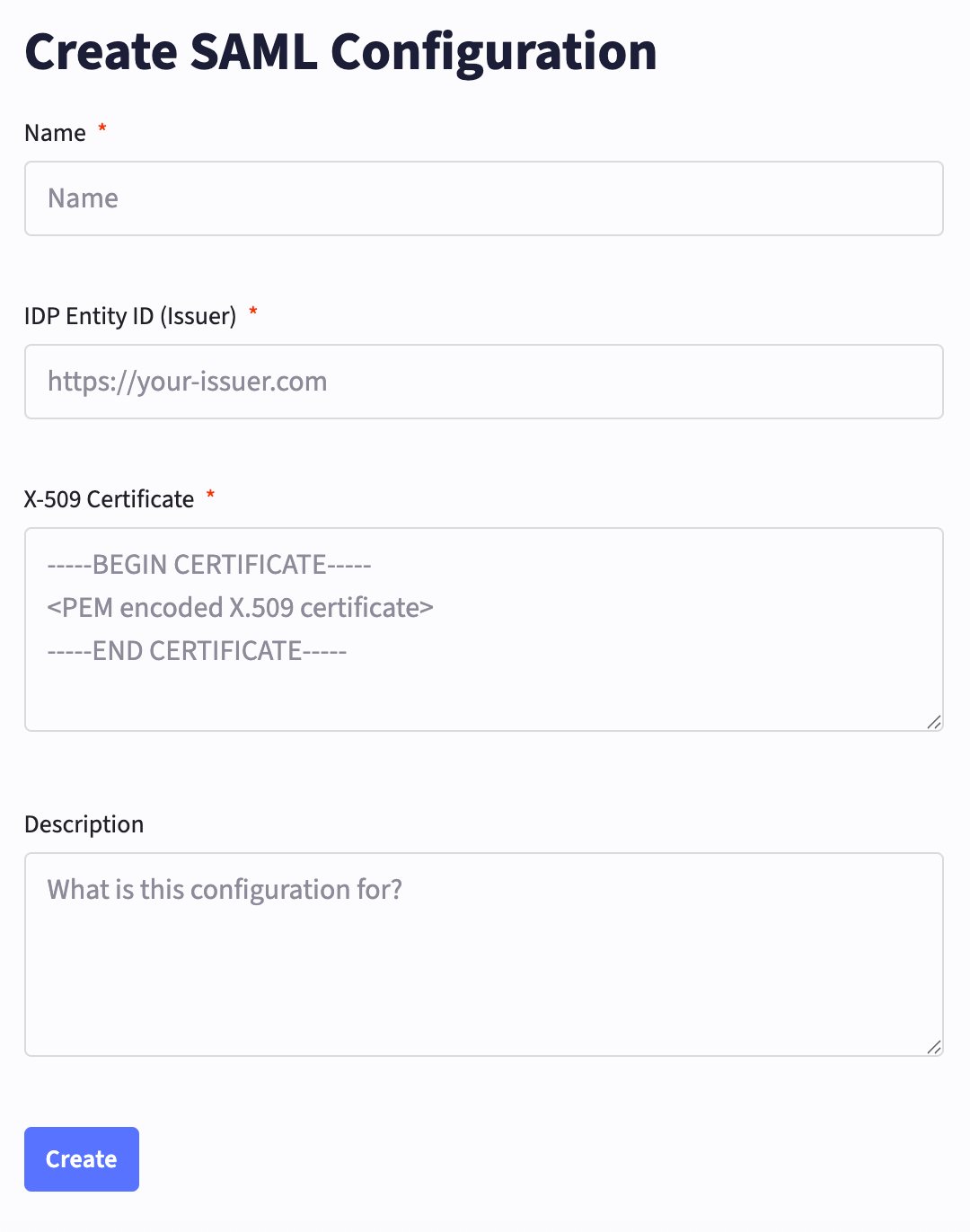
Screenshot of the Workload Identity Federation SAML configuration creation page Provide the following values:
  • Name: A unique name for the configuration.
  • IdP Entity ID: Your identity provider’s unique identifier, typically a URI or URL. You can find this value in your IdP’s SAML metadata or SSO configuration settings. CoreWeave uses this to verify the source of SAML assertions.
  • X.509 Certificate: The PEM-encoded public key certificate from your identity provider. CoreWeave uses this to verify that SAML assertions are digitally signed by your trusted IdP. You can typically find this in your IdP’s SAML/SSO configuration settings.
  • Description: A brief description of the configuration.
Click Create to save the configuration. After creation, a Config ID is generated. You’ll use this ID when exchanging assertions for credentials.

Step 3: Create organization access policies

Organization access policies control what your SAML role can do. Before your workload can exchange SAML assertions for credentials, you must grant the cwobject:CreateAccessKeySAML action to the WIF role. The principal for your SAML role uses the format role/<role-value>, where <role-value> matches the value in your SAML assertion’s Role attribute. The following policy grants the WIF role permission to create temporary credentials via the SAML endpoint. The cwobject: actions are global and must use "resources": ["*"].
{
  "policy": {
    "version": "v1alpha1",
    "name": "allow-saml-key-creation",
    "statements": [
      {
        "name": "allow-create-access-key-from-saml",
        "effect": "Allow",
        "actions": [
          "cwobject:CreateAccessKeySAML"
        ],
        "resources": ["*"],
        "principals": [
          "role/data-ingest"
        ]
      }
    ]
  }
}

Grant S3 permissions

Once your workload can create credentials, you need policies that grant those credentials permission to access buckets. This policy grants read and write access to a specific bucket:
{
  "policy": {
    "version": "v1alpha1",
    "name": "data-ingest-read-write-my-bucket",
    "statements": [
      {
        "name": "allow-data-ingest-rw-my-bucket",
        "effect": "Allow",
        "actions": [
          "s3:Get*",
          "s3:List*",
          "s3:Put*",
          "s3:DeleteObject"
        ],
        "resources": [
          "[BUCKET-NAME]",
          "[BUCKET-NAME]/*"
        ],
        "principals": [
          "role/data-ingest"
        ]
      }
    ]
  }
}

Example: Role-based access control with multiple roles

This policy demonstrates granting different access levels to different SAML roles:
{
  "policy": {
    "version": "v1alpha1",
    "name": "role-based-access",
    "statements": [
      {
        "name": "reader-access",
        "effect": "Allow",
        "actions": ["s3:Get*", "s3:List*"],
        "resources": ["[BUCKET-NAME]/*"],
        "principals": ["role/reader"]
      },
      {
        "name": "writer-access",
        "effect": "Allow",
        "actions": ["s3:*"],
        "resources": ["[BUCKET-NAME]/*"],
        "principals": ["role/writer"]
      },
      {
        "name": "admin-access",
        "effect": "Allow",
        "actions": ["*"],
        "resources": ["*"],
        "principals": ["role/admin"]
      }
    ]
  }
}
See Organization Access Policies for the full schema and additional examples.
CoreWeave does not provide role management for AI Object Storage access. Role management is your responsibility. CoreWeave assumes that any access granted to a role via a SAML assertion from your organization’s IdP is valid.

Step 4: (Optional) Add bucket access policies

In most cases, organization access policies are sufficient. However, you can layer on bucket access policies when you need cross-organization access to specific buckets or bucket-level lifecycle configuration. Organization access policies and bucket access policies have different syntax requirements:
AspectOrganization access policiesBucket access policies
PrincipalsSimple strings (for example, role/data-ingest)Full ARNs (for example, arn:aws:iam::[ORG-ID]:role/data-ingest)
ResourcesShort bucket names ([BUCKET-NAME], [BUCKET-NAME]/*)Full S3 ARNs (arn:aws:s3:::[BUCKET-NAME], arn:aws:s3:::[BUCKET-NAME]/*)
See Bucket Access Policies for the full schema and examples.

Step 5: Exchange a SAML assertion for credentials

Once your IdP, WIF configuration, and organization access policies are in place, your workload can request temporary credentials from CoreWeave. Send an HTTP POST request to the SAML WIF endpoint:
POST https://api.coreweave.com/v1/cwobject/temporary-credentials/saml
Content-Type: application/json

{
  "durationSeconds": 300,
  "orgId": "[ORG-ID]",
  "configId": "[WIF-CONFIG-ID]",
  "samlResponse": "[BASE64-ENCODED-SAML-RESPONSE]"
}
FieldDescription
durationSecondsLifetime of the credentials in seconds, up to a maximum of 12 hours.
orgIdYour CoreWeave organization ID. Find this on the Settings page in Cloud Console.
configIdThe Config ID generated when you created your WIF configuration.
samlResponseThe base64-encoded SAML response from your IdP.
On success, CoreWeave validates the assertion, parses the role and principal, and returns an Access Key / Secret Key pair valid for the requested duration. The credentials inherit permissions from your organization access policies and any applicable bucket policies.

Step 6: Use the temporary credentials

Use the returned Access Key and Secret Key with any S3-compatible client. Configure the client with the AI Object Storage endpoint https://cwobject.com. These credentials are temporary. Your workload should refresh them by calling the SAML WIF endpoint again before they expire. The permissions available to the client are exactly those granted to the WIF role in your access policies. For client configuration examples, see Getting Started with AI Object Storage.

Troubleshooting

Assertion exchange returns “permission denied”

If the /temporary-credentials/saml call returns an error like {"code": 7, "message": "permission denied", "details": []}, check:
  • Missing cwobject permission: Ensure your organization access policy grants cwobject:CreateAccessKeySAML to the WIF role. This permission is required for the assertion exchange to succeed.
  • Assertion validity: Ensure the assertion is signed by your IdP and the signature validates against the X.509 certificate in your WIF configuration.
  • Config ID: Verify you’re using the correct Config ID from your WIF configuration.
  • Timing: Ensure the assertion is not expired (NotOnOrAfter) and is not being used before NotBefore.

Assertion exchange succeeds but S3 operations return AccessDenied

If you receive credentials but S3 operations fail, the issue is in your access policies. Check that at least one organization access policy:
  • Allows the needed s3:* actions (e.g., s3:Get*, s3:List*, s3:Put*)
  • Uses the correct short-form resources ("[BUCKET-NAME]", "[BUCKET-NAME]/*")
  • Lists the correct WIF role in principals using the format role/<role-value>
If you are using bucket access policies in addition to organization policies, confirm they allow the required actions for the relevant principal ARNs. Be aware that explicit Deny statements can override other Allow statements.
Last modified on April 30, 2026