

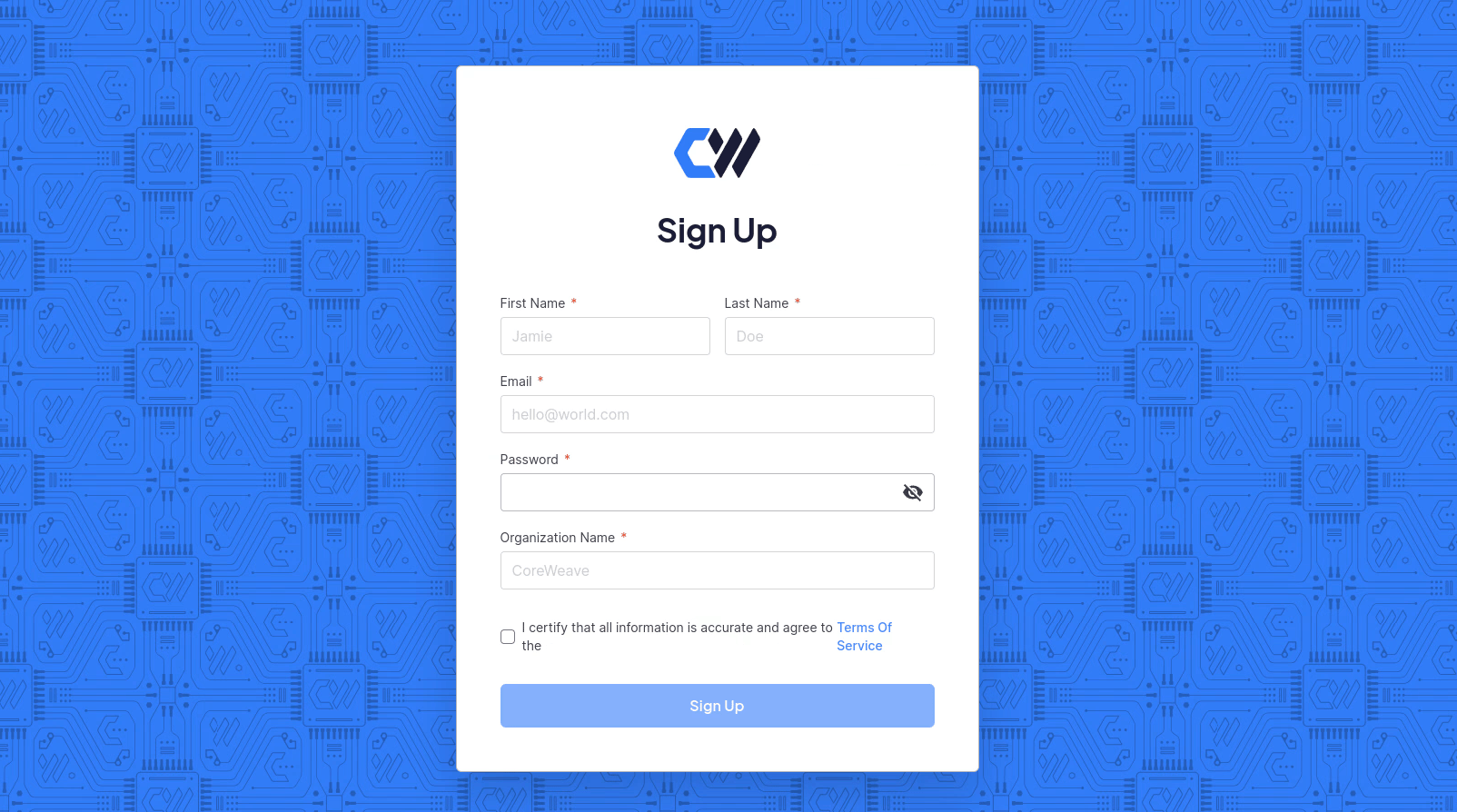
Create first administrator account
In a new CoreWeave organization, the first user to create a CoreWeave account becomes the first administrator by default. No resources (such as CKS clusters) or additional access policies can be created without an administrator. The first administrator has the following IAM roles by default:- IAM Admin
- CKS Admin
- Object Storage Admin
- Access Token User
- Access Request Approver
Invite new users
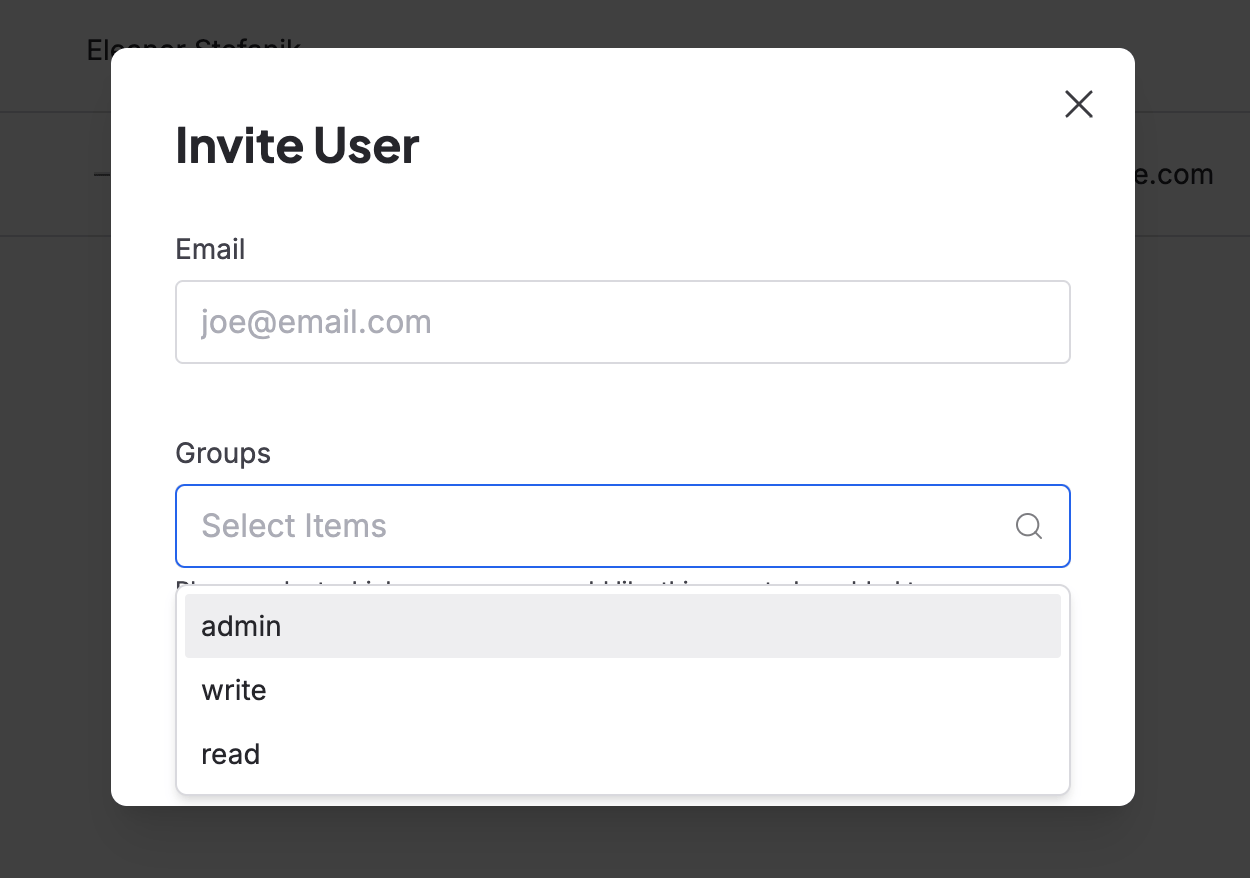
After the administrator sets up an account, they can access all the features of the Cloud Console. For users with theIAM Admin role (or the admin legacy group), this includes the ability to invite other users to their organization’s namespace through the Cloud Console Users page.

IAM Admin user clicks the Invite User button, a modal opens, prompting them to enter information for the user to invite and to decide which permission groups the user is in. After entering the new user’s email, the administrator can then select any desired permission groups from the drop-down menu:
Set up a new user account
After an administrator invites you to an organization, you complete account setup from the invitation email so you can sign in to the Cloud Console. To set up your user account, click the link sent to you by your administrator. You can log in with an email and password combination, a linked social media account, or SAML-based Single Sign-On (SSO) if your administrator has configured it for the organization.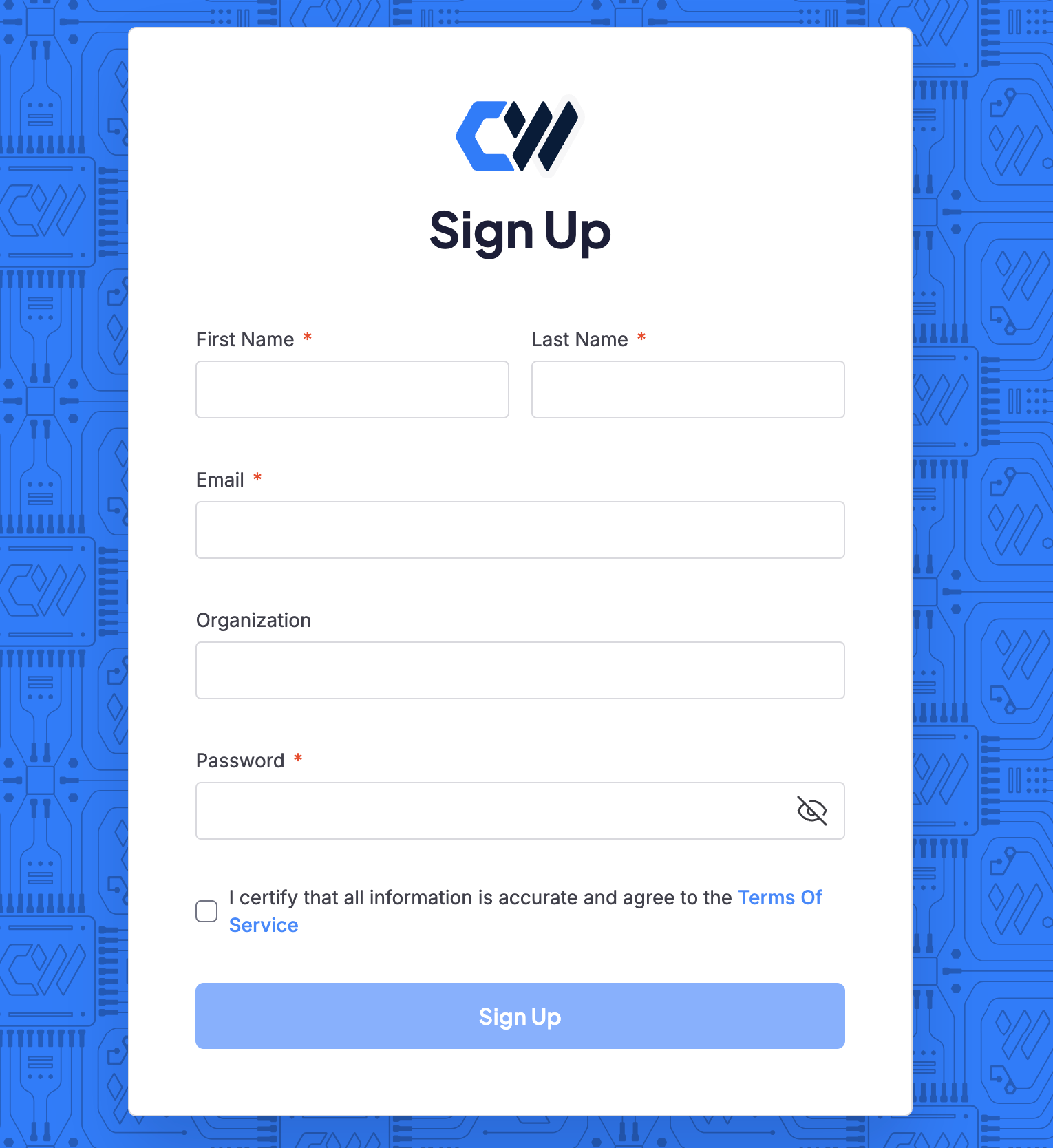
Sign in with email and password
You can create and authenticate an account using the email address your administrator used to invite you, and a secure password.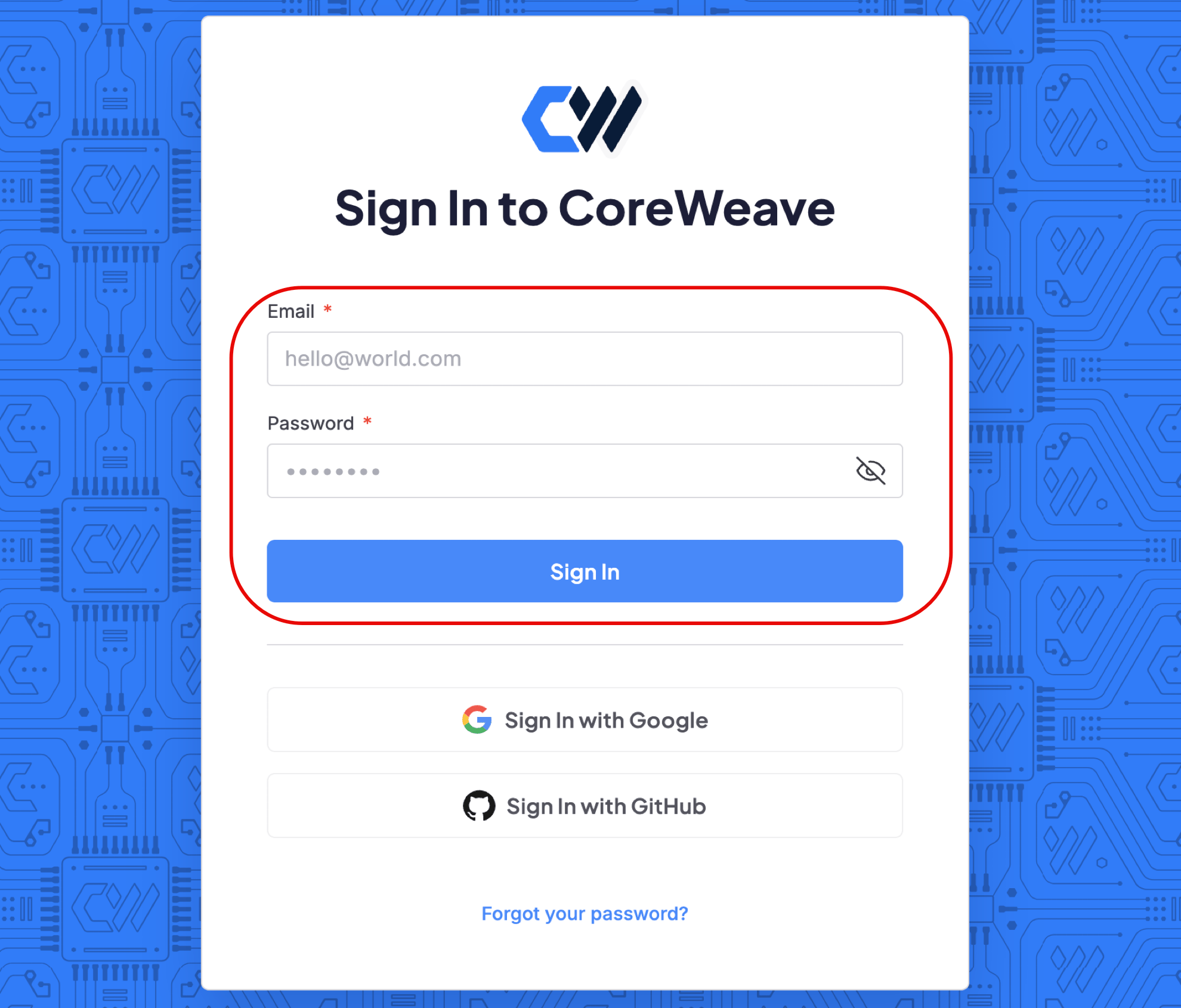
Sign in with social sign-in
If you decide to use email or a pre-existing social media credential, you’ll be prompted to link your account to your organization later.GitHub or Gmail can be used as social sign-on only if the email address for those accounts matches the one used for your CoreWeave invitation.
Change user account settings
The following sections describe the per-user settings available from the Cloud Console Settings page.Update account password
You update your password from the Passwords section of the settings page. After you enter the information and click Save, you receive a confirmation email. If you enter an incorrect current password, your password doesn’t change.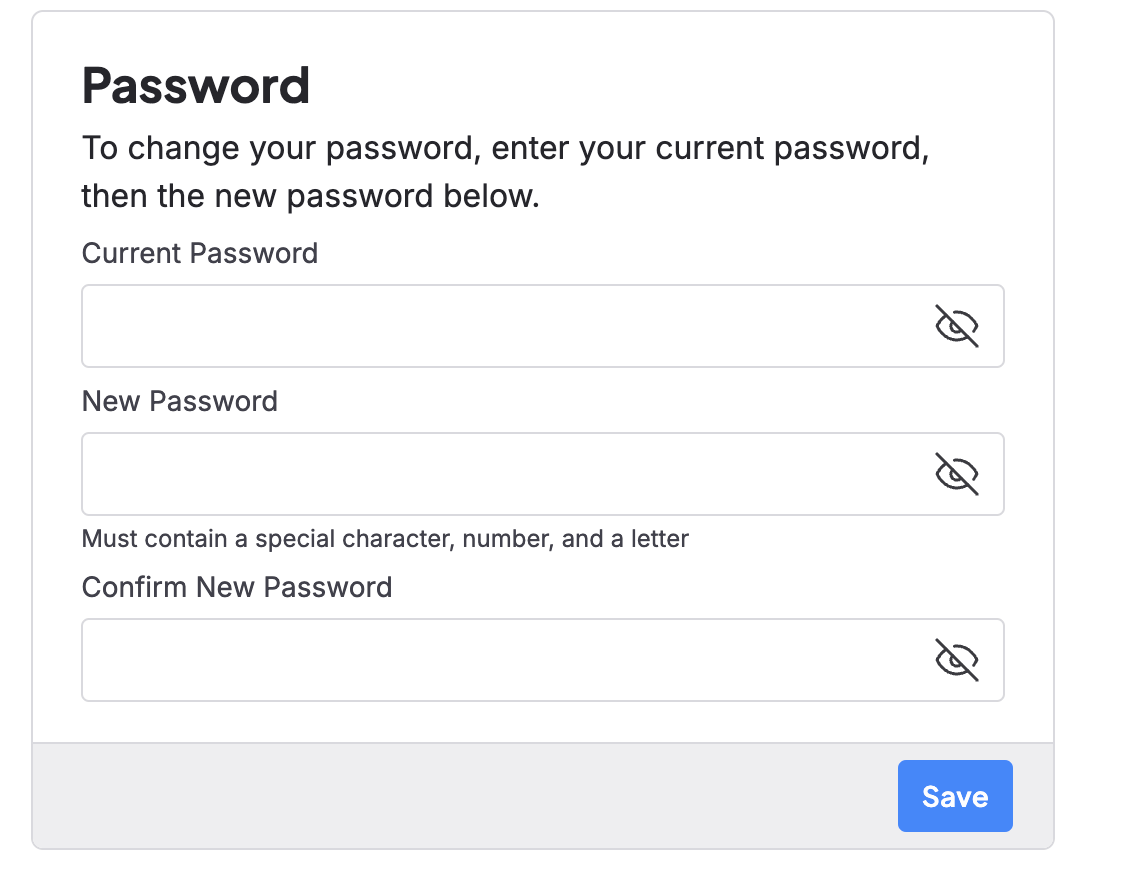
Update Cloud Console theme
You can also change the theme of the Cloud Console from light to dark mode. This option appears in a drop-down window: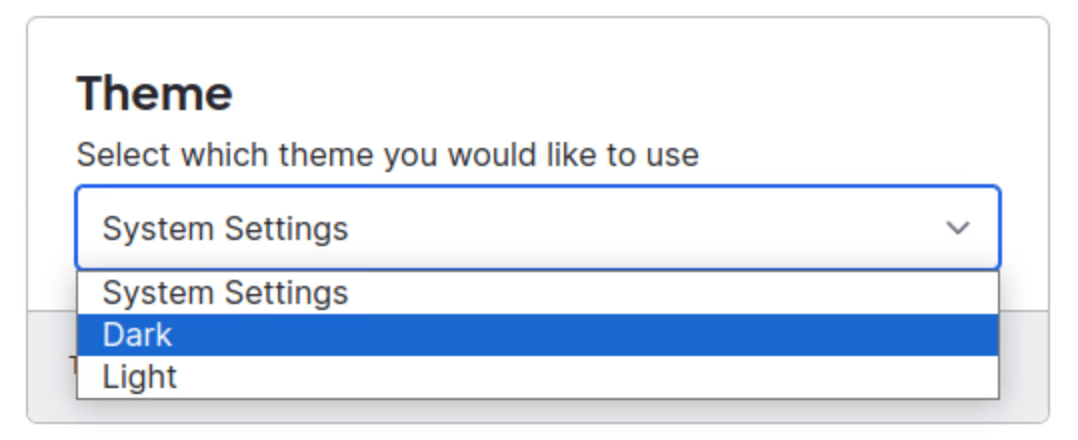
Two-factor authentication (2FA)
At the bottom of the User Settings page you can enable two-factor authentication for your CoreWeave account.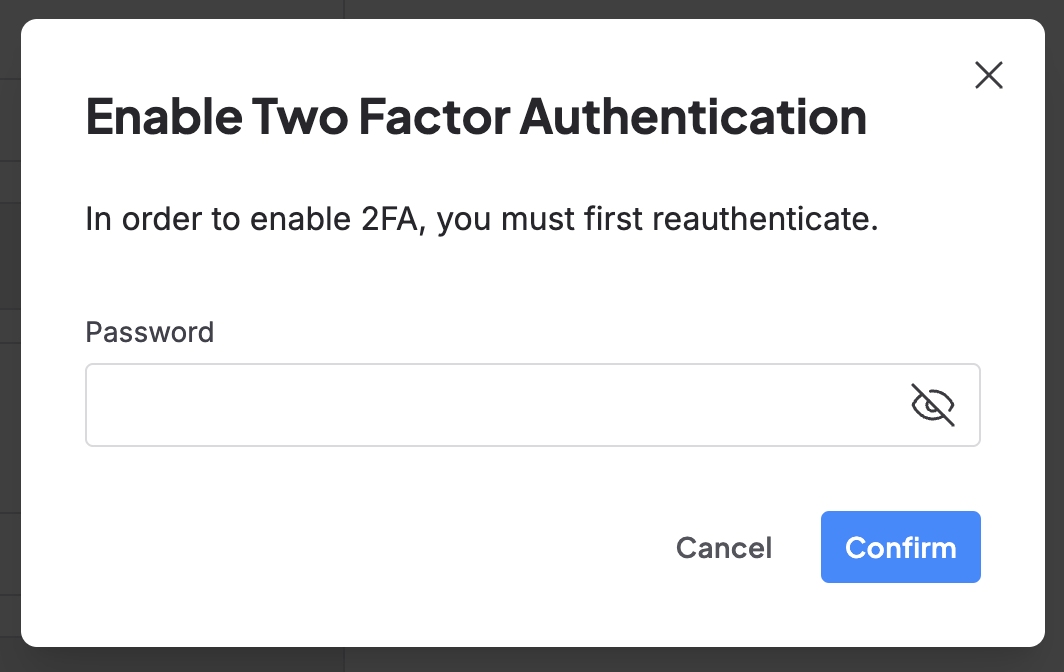
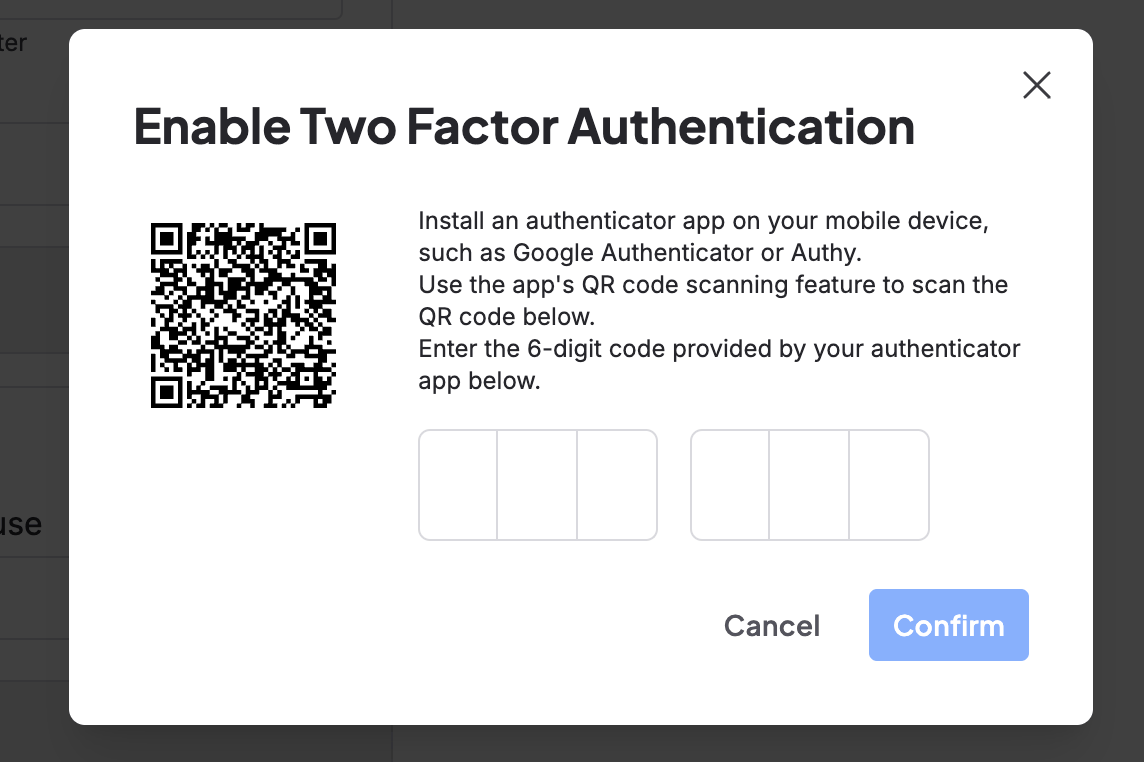
Change a user’s email address
You can’t change a user’s email address from the Cloud Console. To change an email address or migrate users to a new email domain, contact CoreWeave Support. Include a mapping of each user’s current email address to the new address. Support coordinates a rename that keeps the same CoreWeave user. Organization permissions, API access tokens, and Object Storage access keys stay in place. If you use SUNK, the rename also preserves POSIX user and group IDs, so SSH access and file ownership don’t break.Deactivate user accounts
Users with theIAM Admin role (or the admin legacy group) can deactivate user accounts, including other accounts with IAM Admin privileges, but not their own account. Deactivated accounts can’t access the Cloud Console and aren’t authorized to perform any actions outside of the Console.
To deactivate a user in the Cloud Console:
- Go to the Users page in the Cloud Console. All users in the organization are displayed in a table, with a search field above it. Each user’s table row displays their name, User ID, email address, status, and a More options menu behind a vertical ellipsis icon all the way to the right.
- Find the user you want to deactivate. You can search by name, email address, or User ID to filter the list. Click the vertical ellipsis icon to expand the More options menu, then click Deactivate.
- In the dialog that opens, type the user’s email address to confirm, then click Deactivate. Deactivating a user also suspends their Object Storage access keys.
Deactivated accounts are not deleted from the organization. IAM Admins can reactivate a deactivated user account at any time.
Deactivate a SCIM-managed user
If your organization uses Automated User Provisioning (AUP), users provisioned from your identity provider (IdP) are managed through SCIM (System for Cross-domain Identity Management). The IdP controls their active status. You can’t deactivate a SCIM-managed user from the Cloud Console, even with theIAM Admin role.
To deactivate a SCIM-managed user, do one of the following:
- Deprovision the user in your IdP. If your IdP integration deactivates users, AUP deactivates the user in the Cloud Console automatically.
- Mark the user exempt from SCIM, then deactivate them from the Users page.