

Overview
This page explains how to provision users in CoreWeave Identity and Access Management (IAM) for SUNK so they receive POSIX identities, SSH keys, and Slurm accounts in your cluster. It also explains how SUP keeps Slurm users in step with IAM afterward, including when it deletes them. After you complete the steps here, you can continue tonsscache configuration so those identities are available on the cluster.
For the relationship between identity provisioning, authentication, platform IAM, and SUNK-specific authorization, see the CoreWeave authorization model.
SUNK access management refers to the provisioning of users in your SUNK cluster. Provisioned users can connect over SSH to Login Nodes and Individual Login Pods, manage Slurm settings, and use Slurm commands to run experiments. At CoreWeave, this encompasses the flow of user identities from its source of truth to the creation of POSIX and Slurm identities in your SUNK cluster. This end-to-end flow is implemented by Automated User Provisioning (AUP) and SUNK User Provisioning (SUP). You can use SUP alongside or independently of AUP.
AUP connects your organization’s to CoreWeave IAM through SCIM, the modern standard for secure identity synchronization. AUP continuously syncs users and groups from an upstream IdP, such as Okta or Microsoft Entra. Any upstream changes, such as new users, role updates, or deletions, propagate automatically to CoreWeave IAM.
SUP provisions CoreWeave IAM data into SUNK, whether that data was federated from an IdP through AUP or manually created in the CoreWeave Cloud Console. The exception is users marked exempt from SCIM, which SUP doesn’t provision. SUP automatically creates POSIX users and groups, SSH keys, and Slurm users and accounts in your SUNK clusters as soon as a user is added directly to CoreWeave IAM or to an upstream IdP.
The following diagram shows how all three provisioning paths (IdP federation via AUP, manual user and group management, and user SSH keys) flow through CoreWeave IAM and into SUNK clusters via SUP:
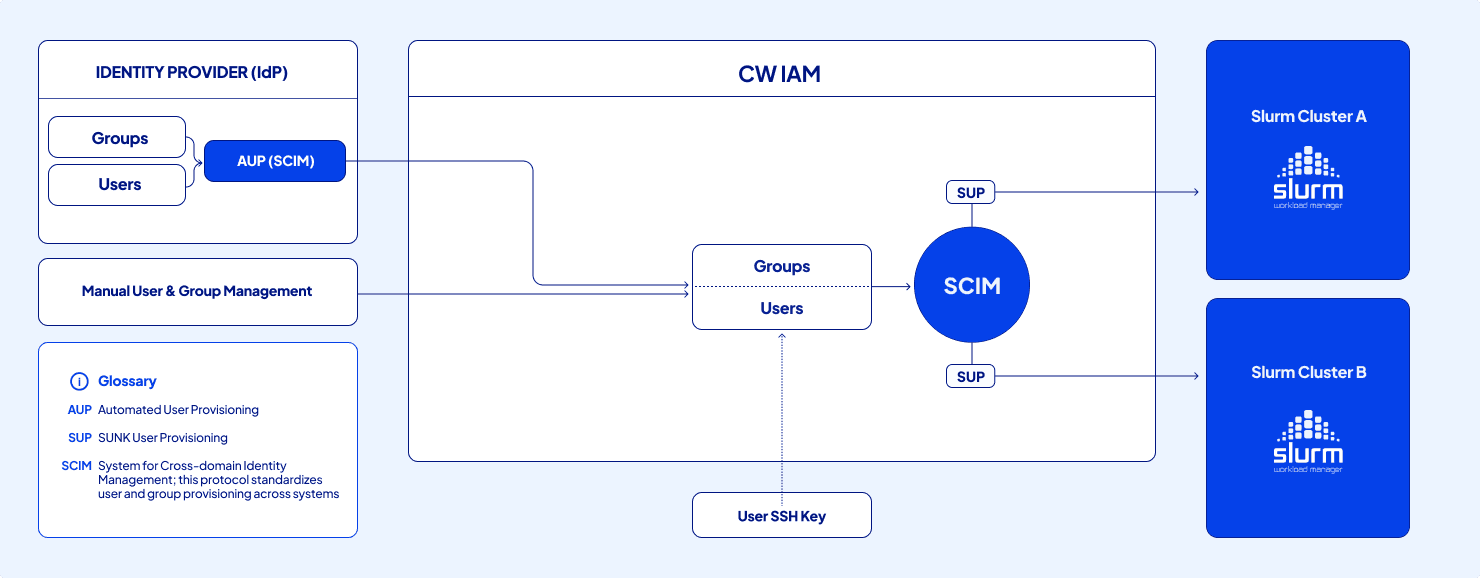
User provisioning flow from identity sources through CoreWeave IAM to SUNK clusters
Provision users in CoreWeave IAM
The following sections describe how to get users into CoreWeave IAM. You can federate from an IdP with AUP, create users manually in the Cloud Console, or create them programmatically through the SCIM API. Follow the instructions for one of these methods before configuring SUP so that SUP has IAM data to sync into the cluster.Prerequisites
Before you provision users in CoreWeave IAM, enable the following settings on the SCIM Configuration page:- Enable SCIM API
- Enable SUNK user provisioning
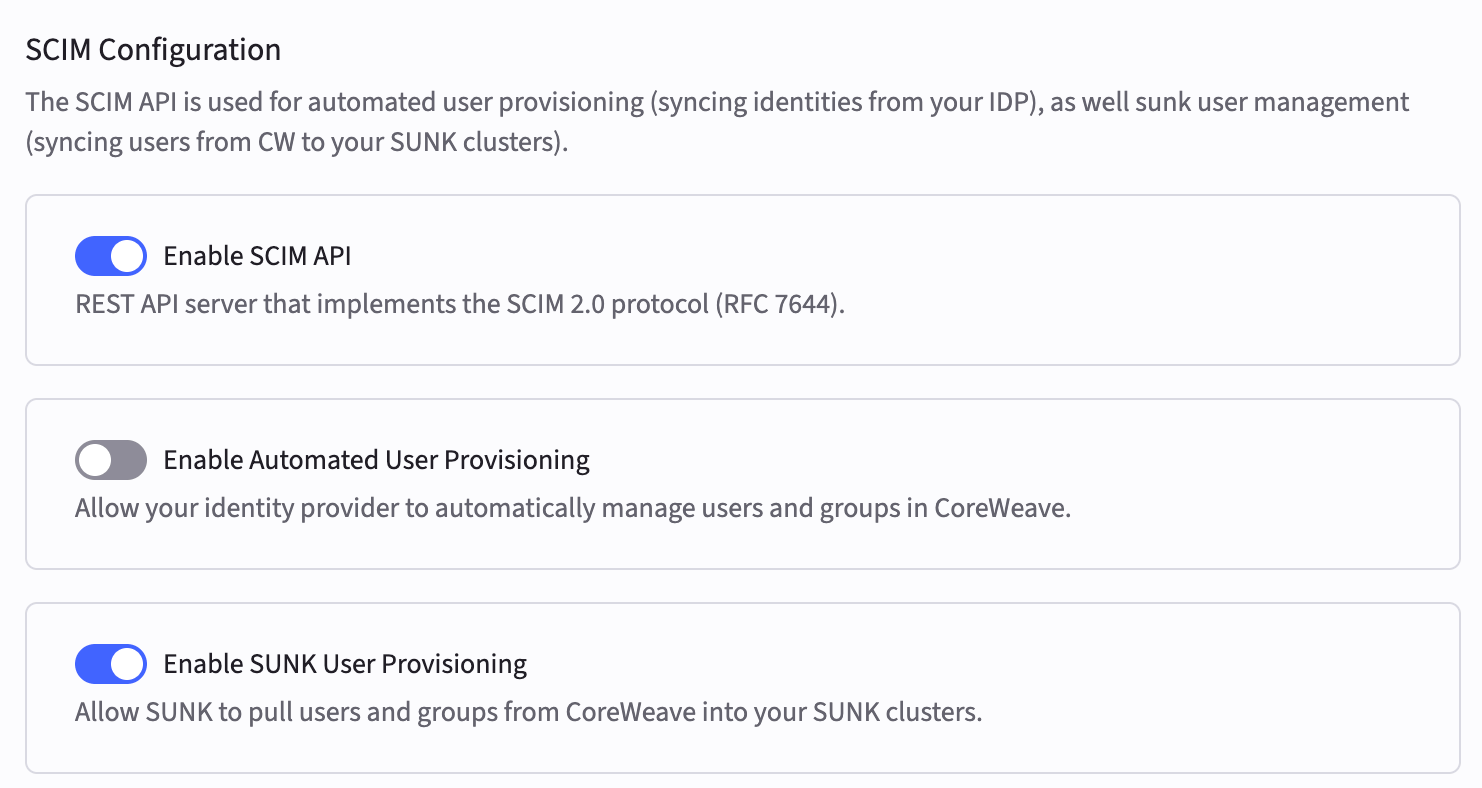
Provision users from an IdP into CoreWeave IAM
This section assumes you’re federating users from an IdP with AUP. Complete configure AUP with Okta or configure AUP with Microsoft Entra first so users and groups exist in CoreWeave IAM before you continue with the steps in this section.-
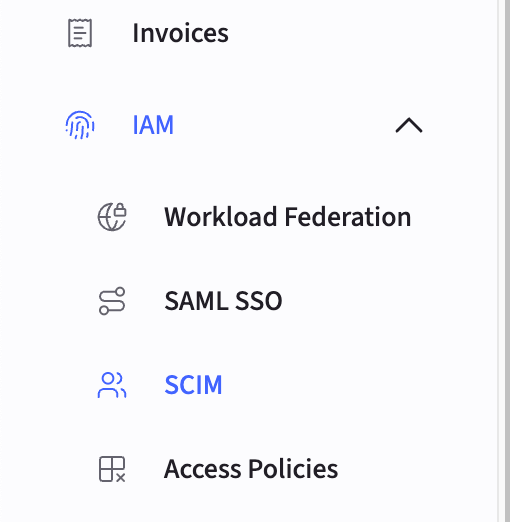
In the Cloud Console, navigate to the SCIM Configuration page.
-
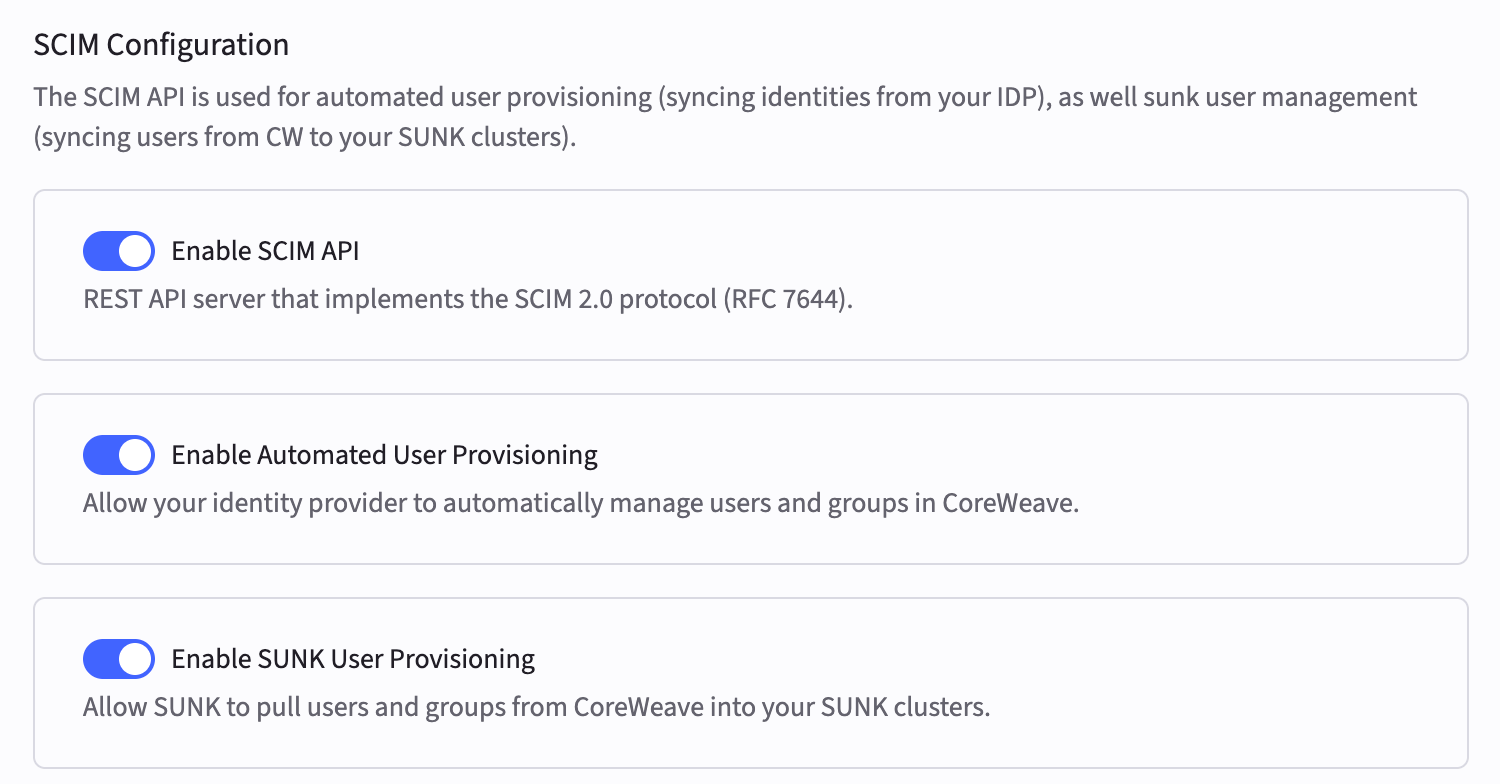
If Enable automated user provisioning isn’t already enabled, click the toggle to enable it. All three toggles must be enabled if you’re federating from an IdP.
-
In your IdP, create custom attributes for the SUNK user attributes and map them to CoreWeave’s SCIM endpoint. CoreWeave IAM needs the SSH key mapping so SUP can install the correct keys on the cluster. The POSIX attributes are optional. Map them only if you want to set POSIX identities from your IdP instead of letting CoreWeave IAM generate them, as described in Slurm user attributes.
All attributes use the SCIM namespace
urn:coreweave:params:scim:schemas:extension:coreweave:2.0:CoreWeaveUser, and the target attribute names must match exactly:For the full list of SUNK attributes, see SUNK SCIM attribute reference. For IdP-specific setup instructions, see: - In your IdP, navigate to the target user’s profile and add their SSH public key to the custom attribute you created.
- In the Provisioning section of your IdP, verify that the SSH key attribute is included in the attribute mappings for the CoreWeave application.
-
In the Cloud Console, navigate to the Users page to view a list of all users in your organization. Click the three-dot menu icon to the right of the target user’s name, and then click View Details.
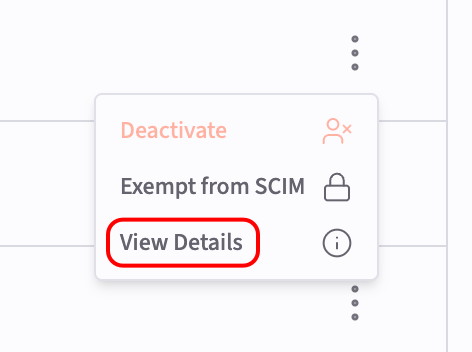
- Verify that SSH keys in the SUNK cluster access section contains the SUNK public SSH key that you added in your IdP. When you use AUP, this field automatically synchronizes with CoreWeave IAM whenever changes are made in your IdP. Users can edit their own keys in the Cloud Console, but the next synchronization overwrites the change. Don’t rely on manual updates for persistent SSH key configuration when using AUP.
-
Continue to
nsscacheconfiguration. At this point, federated users should appear in CoreWeave IAM with SSH keys that SUP can propagate to SUNK. For more information about AUP and integrating it with other CoreWeave services, see the Automated User Provisioning guide.
Provision users directly in CoreWeave IAM
-
In the Cloud Console, navigate to the SCIM Configuration page.
-
If they aren’t already enabled, click the toggle buttons to enable the following settings:
- Enable SCIM API
- Enable SUNK user provisioning
-
Each user who needs cluster access must add at least one public SSH key in their User settings page, also accessible from the profile icon at the top right of the Cloud Console.
- In the SUNK cluster access section, click Add SSH key. If the user already has keys, the button reads Manage SSH keys.
- In SSH public keys, paste one public key per line (newline-separated), not comma-separated. To print a key, run
cat ~/.ssh/id_ed25519.pub, replacing the filename if the key is stored elsewhere. - Click Save SSH keys.
-
Continue to
nsscacheconfiguration. Users who added SSH keys in their User settings page are ready for SUP to create matching POSIX and Slurm identities on the cluster.
Provision users programmatically through the SCIM API
You can call CoreWeave’s SCIM API directly with a SCIM API token, without an IdP. Use this path to script user and group management, for example to create many users at once or to set POSIX attributes that the Cloud Console displays as read-only. The API implements the SCIM 2.0 protocol (RFC 7644), with the CoreWeave extension described in SUNK SCIM attribute reference.- In the Cloud Console, navigate to the SCIM Configuration page and confirm that Enable SCIM API and Enable SUNK user provisioning are enabled.
-
Copy the URL under SCIM base URL. It has the form
https://api.coreweave.com/scim/[ORG-ID], where[ORG-ID]is your organization ID. -
Under SCIM API tokens, click Create Token, and then set the following:
- Token name: up to 20 characters, using letters, numbers, and hyphens.
- Permissions: Read and write. A Read token can’t create or change users and groups.
- Expiration: how long the token stays valid, up to 365 days.
- Click Create Token, and then copy the token. The Cloud Console shows the token only once. Treat it like a password.
-
Export the base URL and the token as environment variables:
-
Create a user. The request must include both the core SCIM
Userschema and the CoreWeave user extension schema, anduserNamemust be the user’s email address. OnlysunkSshKeysis needed for cluster access. Omit the POSIX attributes to let CoreWeave IAM generate them, as described in Slurm user attributes.The response contains the user’sid. Save it for the following steps: -
Create a group. Use a group name that your cluster grants access to, so SUP provisions its members on the cluster: on SUNK Standard, a group in your
nsscacheconfiguration; on aSunkClusterCR, a group inspec.login.groups.The response contains the group’sid. Save it: -
Add the user to the group:
The
'"$USER_ID"'sequence ends the single-quoted JSON body, inserts the value of$USER_ID, and then resumes the body. The request body then contains the user’s ID as a JSON string.
PUT "$SCIM_BASE_URL/Users/$USER_ID" with the user resource in the same format as the create request. The API updates the attributes you include and keeps the stored value of any attribute you leave out. To read a user’s current attributes, send GET "$SCIM_BASE_URL/Users/$USER_ID". To remove a user, send DELETE "$SCIM_BASE_URL/Users/$USER_ID". This permanently deletes the user from your CoreWeave organization, not only from SUNK, and revokes their CoreWeave AI Object Storage access keys. SUP then removes the user from the cluster, as described in When SUP deletes a Slurm user. To remove cluster access without deleting the user, set "active": false instead.
Create a SCIM API token for a SUNK cluster
nsscache on each SUNK cluster reads users and groups from CoreWeave IAM through the SCIM API. It authenticates with a SCIM API token stored in a Kubernetes Secret. How you create that token depends on how you deploy the cluster:
- Cloud Console: when you create a SUNK cluster in the Cloud Console, the form requires Enable SCIM API and Enable SUNK user provisioning to be enabled, and an organization admin can turn them on from the form. The Cloud Console then creates a Read token named
[PREFIX]-scim-[N]that expires after 364 days, and stores it in a Secret named[CLUSTER-NAME]-nsscache-scim-secretin thetenant-slurmnamespace. You don’t need to do anything else until the token nears expiry. See Replace a SCIM API token before it expires. SunkClusterCR: you create the token and the Secret yourself, as described in the following steps.- Helm charts: create the Secret described in
nsscacheconfiguration.
SunkCluster CR:
- In the Cloud Console, navigate to the SCIM Configuration page and enable Enable SCIM API and Enable SUNK user provisioning.
-
Under SCIM API tokens, click Create Token. Enter a token name of up to 20 characters, using letters, numbers, and hyphens. Set Permissions to Read, because
nsscacheonly reads from the API. Choose an Expiration, and then click Create Token. - Copy the token. The Cloud Console shows the token only once.
-
Store the token in a Secret named
[CLUSTER-NAME]-nsscache-scim-secret, in the same namespace as theSunkCluster, under the keynsscache-scim-auth-token. Replace[CLUSTER-NAME]with the name of theSunkCluster,[NAMESPACE]with its namespace, and[SCIM-TOKEN]with the token:The out-of-band operator finds the Secret by its name, so you don’t reference it from theSunkClustermanifest. You can create the Secret before or after you apply the manifest. For the full walkthrough, see Get started with SUNK Self-Service using the SunkCluster CR. The token expires on the date you chose. To keep users in sync after that, see Replace a SCIM API token before it expires.
Replace a SCIM API token before it expires
SCIM API tokens expire, including the token the Cloud Console creates for you. When the token expires,nsscache can’t read from CoreWeave IAM, so new users, SSH key changes, and group membership changes stop reaching the cluster. Replace the token before it expires, whichever way you deployed the cluster:
- On the SCIM Configuration page, under SCIM API tokens, click Create Token and create a token with Permissions set to Read. Copy the new token.
-
Replace the value of
nsscache-scim-auth-tokenin the cluster’s SCIM Secret. Replace[SECRET-NAME]with the Secret’s name, such as[CLUSTER-NAME]-nsscache-scim-secret,[NAMESPACE]with its namespace, such astenant-slurmfor a cluster created in the Cloud Console, and[SCIM-TOKEN]with the new token: -
Restart
nsscache. It reads the token when its Pod starts, so it keeps using the old token until the Pod restarts. Find thensscacheDeployment, and then restart it, replacing[NSSCACHE-DEPLOYMENT]with its name:On SUNK 7.x and earlier,nsscacheruns as a CronJob instead of a Deployment. Each run starts a new Pod that reads the updated Secret, so you don’t need to restart anything.
Slurm user attributes
SUP automatically creates a POSIX User ID (UID), POSIX Group ID (GID), and POSIX username when a user is provisioned in CoreWeave IAM through AUP, the SCIM API, or manual creation. Only an SSH key is required for cluster access. CoreWeave IAM generates the other values when you don’t set them:
To use specific values instead, such as existing IDs from another POSIX environment, set
sunkPosixUsername, sunkPosixUserId, and sunkPosixGroupId from your IdP or through the SCIM API. See SUNK SCIM attribute reference. Users and admins can’t change these values in the Cloud Console.
These IDs belong to the CoreWeave user, not the email address. Don’t change a user’s email address only in your identity provider. If your IdP identifies users by email, that creates a second user with new IDs and breaks SSH access and file ownership. To change an email address without getting new IDs, see Change a user’s email address.
Users can view these values in the SUNK cluster access section of their User settings page, and under Slurm identity in the SSH keys panel. They can open this page through the profile icon at the top right of the Cloud Console.
Admins can view these values on the Users page of the Cloud Console. Click the vertical dot menu icon to the right of a user’s name, click View Details, and then find the SUNK cluster access section.
Slurm user and account lifecycle
SUP keeps the Slurm accounting database consistent with the POSIX users thatnsscache resolves on the cluster. A sync process in the slurmctld Pod reconciles the two about every 60 seconds.
A Slurm user and a Slurm account are separate records. A Slurm user is an individual identity, and a Slurm account is a group that Slurm users are associated with for usage tracking and limits. SUP creates and deletes Slurm users, but it only creates Slurm accounts.
Each sync run does the following:
-
Creates the default SUP Slurm account if it doesn’t already exist on the cluster. The account name comes from
nsscache.slurmUserProvisioning.defaultSlurmAccount, which iscw-supunless you override it. -
Creates a Slurm user for every POSIX user who belongs to a provisioned group. The default account for each new Slurm user is the account from the preceding step. Provisioned groups are the groups you list in
scim_users_parametersin thensscacheconfiguration. If you list no groups there, SUP usesslurm-users. - Deletes Slurm users that no longer map to a provisioned POSIX user, as described in When SUP deletes a Slurm user.
On SUNK 8.0 and later, set the group list in
nsscache.groups. The operator writes it into the groups= parameter of scim_users_parameters, which is the value the sync process reads, and it overrides any groups= value you set yourself under nsscache.nsscacheConfig. On SUNK 7.x and earlier, set groups= in scim_users_parameters directly. SUP creates and deletes Slurm users the same way in both versions.nsscache.slurmUserProvisioning.enabled to false. Slurm users that SUP already created stay in the accounting database, because the sync run is the only process that deletes them. POSIX user and group provisioning continues, and you manage Slurm users yourself with sacctmgr.
When SUP deletes a Slurm user
SUP deletes a Slurm user on the next sync run when either of the following is true:- The POSIX user no longer resolves on the cluster. This happens after you remove or deactivate the user in CoreWeave IAM or in your upstream IdP, and
nsscachestops publishing them. - The POSIX user still resolves, but belongs to none of the provisioned groups. If you drop a group from
scim_users_parameters, every user whose cluster access came from that group meets this condition.
sacctmgr. To restore access, provision the user again and reapply those changes.
Create SUNK user groups
Group names in CoreWeave IAM must match the names you reference in thensscache configuration.
If you’re federating users from an IdP, you can create your user groups there. AUP automatically syncs groups into CoreWeave IAM.
If you aren’t federating users from an IdP, create your user groups in the CoreWeave Cloud Console:
-
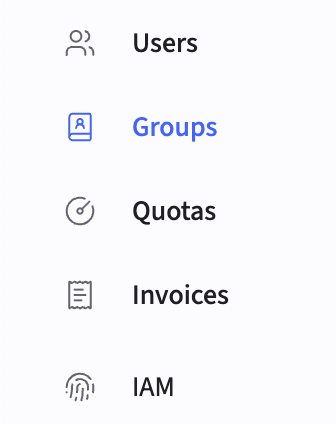
In the CoreWeave Cloud Console, navigate to the Groups tab in the left sidebar.
-
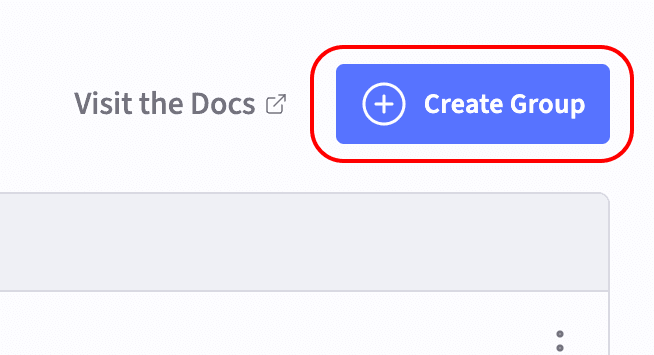
Click the Create Group button at the top right of the page.
-
Enter the group name and click Create. These group names must match the names of the groups specified in the
nsscacheconfiguration. Each new group automatically receives a GID.
SUNK SCIM attribute reference
CoreWeave’s SCIM API accepts the following SUNK attributes, whether they come from an IdP through AUP or from direct SCIM API calls.User attributes
User attributes belong to the CoreWeave user extension schema,urn:coreweave:params:scim:schemas:extension:coreweave:2.0:CoreWeaveUser. Every /Users request must include this schema.
Group attributes
Groups use the core SCIMGroup schema at the /Groups endpoint. The SUNK group attributes are available at a separate /CoreWeaveGroups endpoint, with the schema urn:coreweave:params:scim:schemas:core:coreweave:2.0:CoreWeaveGroup. You can update them with a PATCH request to /CoreWeaveGroups/[GROUP-ID].