

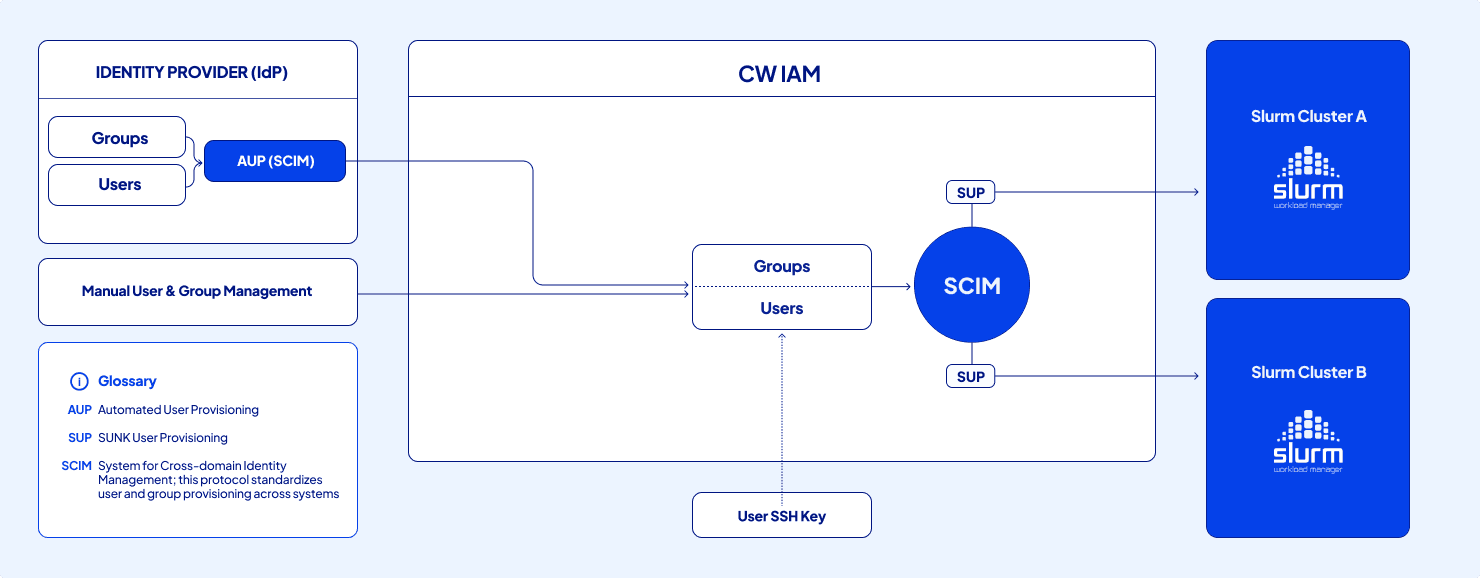
User provisioning flow from identity sources through CW IAM to SUNK clusters
- Identity provider (IdP) via AUP: Federate users and groups from an IdP such as Okta or Microsoft Entra using SCIM. Changes in the IdP propagate automatically to CW IAM. The rest of this page covers AUP in detail.
- Manual user and group management: Create and manage users and groups directly in the Cloud Console on the Users and Groups pages.
- User SSH keys: Users add SSH public keys in their Settings page under Slurm Attributes. SUP uses these keys to enable SSH access to SUNK clusters.
SUNK user provisioning
SUP automatically provisions CW IAM data into your SUNK clusters, whether that data came from an IdP through AUP or was created manually in the Cloud Console. The exception is users you exempt from SCIM, which SUP doesn’t provision. For setup procedures, see Provision users in SUNK.How SCIM differs from SAML SSO
Because AUP builds on SAML SSO, it helps to understand how the two standards divide responsibilities. SAML SSO lets users sign in securely and supports Just-In-Time (JIT) provisioning, which creates accounts on first sign-in. SCIM requires SAML SSO and goes further by syncing entire directories, including hundreds of users and their group memberships, in real time. Users and groups appear automatically in the Cloud Console without individual invitations or first-time SAML sign-ins. SCIM handles user provisioning and deprovisioning, while SAML handles authentication.Users and groups
AUP synchronizes two core resource types from your IdP to the Cloud Console:- Users: Creates new users, updates profile fields (first name, last name, status), and deactivates users in the Cloud Console when they’re deactivated in your IdP.
- Groups: Syncs group memberships and group definitions for better access control. AUP supports only flat groups. Nested groups (groups whose member lists include other groups) aren’t supported and cause provisioning errors.
Key use cases
The following scenarios show how AUP keeps user state consistent between the IdP and the Cloud Console:- Provision users: When you assign a user to the app in the IdP, AUP automatically creates the user in the Cloud Console.
- Update profiles: When you change attributes, first name, last name, or active status in the IdP, those changes overwrite the matching values in the Cloud Console. Email address changes aren’t profile updates. For more information, see Change a user’s email address.
- Deactivate users: When you remove a user from a group assigned to the application in the IdP, AUP deactivates the user in the Cloud Console, so only authorized users retain access.
- Sync groups: You can sync group memberships for application-specific group management beyond access control. To sync a group, you must explicitly add it to the push list in the IdP.
- Force sync (Okta-specific): Okta’s force sync feature lets admins manually push updates, which triggers a synchronization of user attributes between Okta and the Cloud Console. This updates user attributes but doesn’t activate or deactivate accounts. For more information, see Okta’s guide.
Change a user’s email address
AUP updates first name, last name, and active status from the IdP. It doesn’t rename an existing user when the email address changes. Don’t change a user’s email address only in your IdP. SCIM treats an unrecognized email address as a new user and creates a second CoreWeave account. That account has no organization permissions, and the original account remains. If you use SUNK, the new account also receives a new POSIX UID and GID, which breaks SSH access that depends on the original IDs. SAML just-in-time (JIT) provisioning is disabled while AUP is enabled, so a new email address does not create a user at sign-in. To change email addresses or migrate users to a new email domain, contact CoreWeave Support. Support coordinates the change. For more information, see Change a user’s email address.SCIM-managed and exempt users
Users provisioned from your IdP through AUP are SCIM-managed: the IdP is the source of truth for their profile fields, group memberships, and active status. When AUP is enabled, the Cloud Console Users page shows a SCIM Managed column so you can see which users the IdP controls. You can’t deactivate a SCIM-managed user from the Cloud Console, even with theIAM Admin role. To remove a SCIM-managed user’s access, deprovision them in your IdP and let AUP propagate the change, or mark them exempt from SCIM and then deactivate them from the Console.
Exempt a user from SCIM
Marking a user exempt from SCIM removes them from synchronization. The IdP no longer updates the user’s attributes (name, group memberships, or status), and you must manage the account manually from the Cloud Console. If you later deactivate or unassign an exempt user in your IdP, their CoreWeave account stays active until you deactivate it in the Console. An exemption doesn’t block deletion requests. If your IdP sends a SCIM delete request for the user, as Microsoft Entra does when a user is permanently deleted from the tenant, AUP deletes the CoreWeave account as well. Use an exemption when you need to control an account from the Cloud Console instead of the IdP: for example, to deactivate a SCIM-managed user or to manage a user’s group memberships manually. To exempt a user, you need theIAM Admin role:
- In the Cloud Console, go to the Users page.
- Click the vertical ellipsis (More options) next to the user, then click Exempt from SCIM.
- Review the warning, then click Yes, exempt user.
Set up SCIM
After you configure SAML SSO, set up SCIM to synchronize users and groups from the IdP to the Cloud Console. The exact procedure depends on your IdP, but the overall flow is the same:- Enable SCIM in the Cloud Console: Because SCIM controls organization-wide user data, you must explicitly enable it.
- Enable SCIM in the IdP: In your IdP, open the Provisioning section in the application configuration. This is usually next to the Single Sign-On (SSO) section.
- Configure the SCIM API base URL: This URL is usually prefixed with the organization ID in the Cloud Console.
- Select synchronization options: Choose to push new users, push profile updates, and push groups, depending on the level of synchronization you want.
- Set up authentication: Configure a bearer token for secure communication between the IdP and the Cloud Console.
- Assign users and groups: In the IdP, assign users and groups to the SCIM-enabled application to provision them in the Cloud Console.