

- Download the JAX example notebook from the marimo-operator repository.
- Deploy it to CKS with a single CLI command.
- Run training interactively and watch results update live in the browser.
What you'll need
Before you start, you must have:
- A CKS cluster with at least one GPU Node.
- The marimo operator installed on your cluster.
kubectlinstalled and configured to access your cluster.kubectl-marimoinstalled (uv tool install kubectl-marimo).
What you'll use
You’ll use these tools and libraries:
- JAX: High-performance numerical computing with GPU acceleration.
- Flax: Neural network library built on JAX.
- Optax: Gradient processing and optimization for JAX.
- marimo-operator: Manages notebook deployments on Kubernetes.
- kubectl-marimo: CLI plugin for running notebooks on Kubernetes.
About the container imageThis example uses the standard
ghcr.io/marimo-team/marimo:latest image, no custom Dockerfile needed. The jax[cuda12] package bundles its own CUDA runtime, so GPU support is installed automatically as a dependency when the notebook first starts.Get the example notebook
Download the JAX example notebook from the marimo-operator repository:kubectl-marimo plugin reads the header to configure GPU resources and storage, while marimo uses the dependency list to provision an isolated environment on first run.
jax_example.py (header)
marimo edit jax_example.py locally), as a deployed pod on CKS, or checked into a larger project alongside other notebooks and source files.
Deploy the notebook
Deploy to your cluster with a single command:[NAMESPACE] with the namespace you want to deploy into.
The plugin parses the header, generates and applies the MarimoNotebook manifest, waits for the pod to be ready, and opens a port-forward:
First-run install time
jax[cuda12] bundles CUDA libraries (about 700 MB). The initial pod startup takes 2 to 3 minutes while marimo installs packages. The 5 Gi PVC caches the environment, so subsequent restarts skip the download.Run the notebook
The notebook usesauto_instantiate = false, so cells don’t run automatically on load. Click Run all to start training.
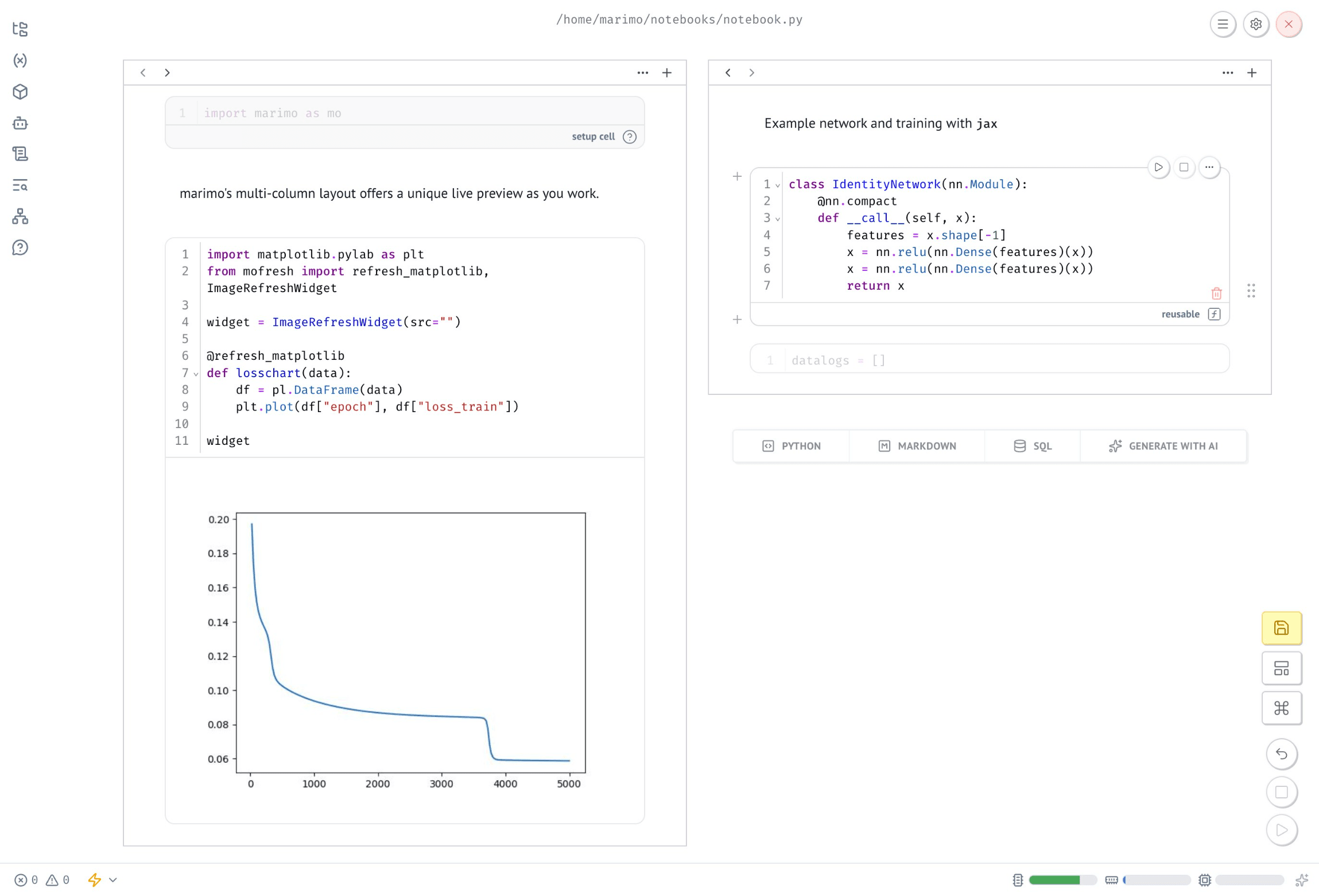
The notebook opens in a two-column layout: a live loss chart on the left streams updates from the GPU as training progresses, with the training code visible on the right.
Clean up
When you’re done with the notebook, clean up the cluster resources to avoid consuming GPU capacity. PressCtrl-C to stop the port-forward. The plugin syncs any edits back to your local jax_example.py before exiting.
To delete the cluster resources:
Additional resources
- marimo-operator JAX example: Notebook source and frontmatter configuration.
- Run marimo notebooks on CKS: General setup guide for the marimo operator and CLI plugin.
- JAX documentation: Getting started, GPU setup, and transformation reference.
- Flax documentation: Neural network modules and parameter management.
- Optax documentation: Optimizers and gradient processing.