

WEBUI_AUTH to "true" in the example manifest. Use the localhost port-forward in this guide to create your administrator account before exposing the service publicly.
You’ll complete the following steps:
- Create a cluster in CKS.
- Create a Node Pool.
- Connect to your cluster and schedule a GPU Pod using
kubectl. - Deploy and interact with an LLM using Open WebUI.
Before you begin
Before completing the steps in this guide, you must have the following:kubectlinstalled on your machine.kubectlis the command-line tool for interacting with Kubernetes clusters. If needed, see the kubectl installation instructions.- Access to the CoreWeave Cloud Console. For more information, see Activate and sign in to your CoreWeave organization.
- A Hugging Face access token. See the Hugging Face instructions at User access tokens. Be sure to copy and store the token in a secure location. You will need it later in this guide.
- Access to the
Llama-3.1-8B-Instructmodel at Hugging Face. Go to meta-llama/Llama-3.1-8B-Instruct and request access. Note that approval for restricted models can take a few hours or longer.
Create a CKS cluster and Node Pool
CKS clusters and Node Pools are the core infrastructure for running and managing workloads. To create a cluster and Node Pool, complete the following steps:Open the Clusters page
Create Cluster
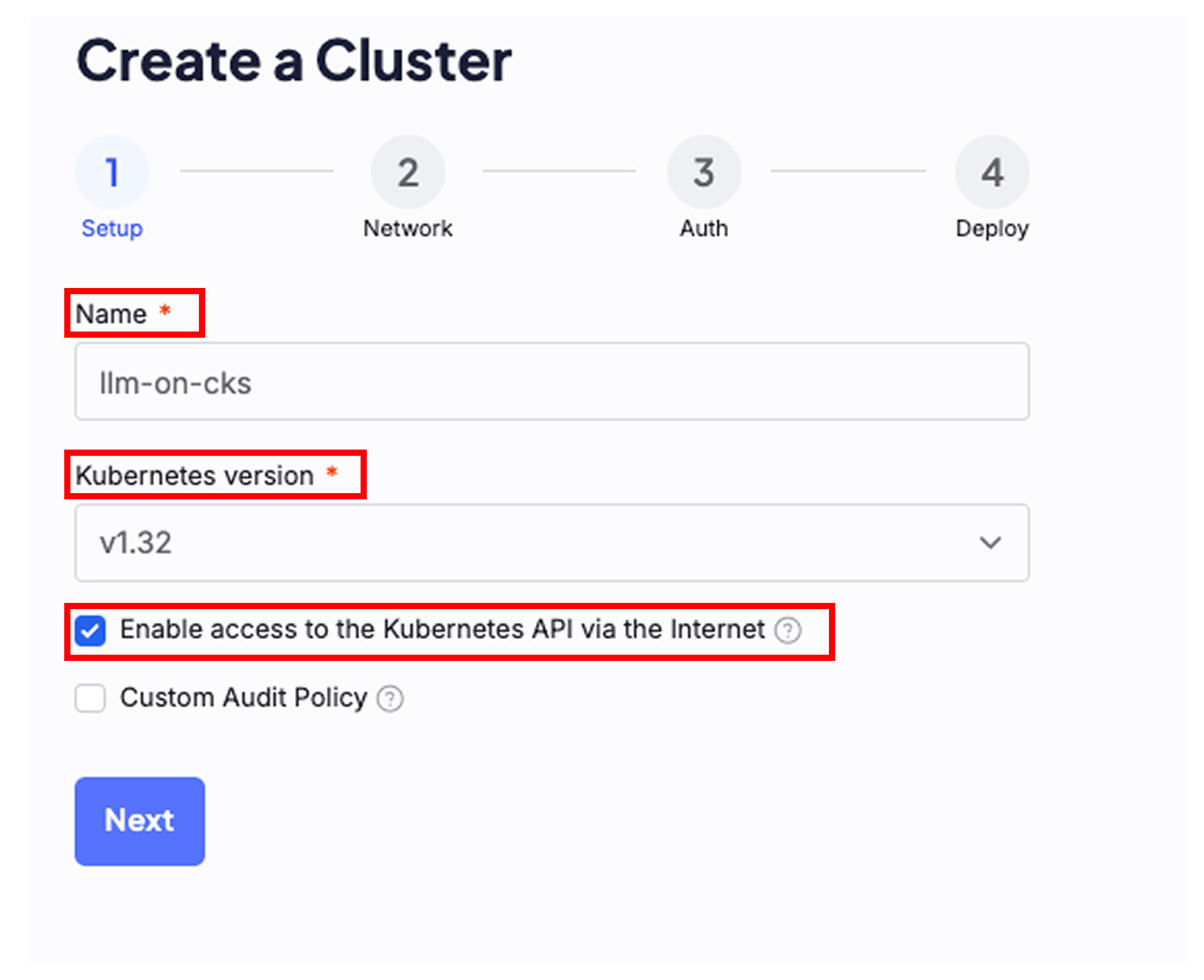
Name the cluster and enable API access
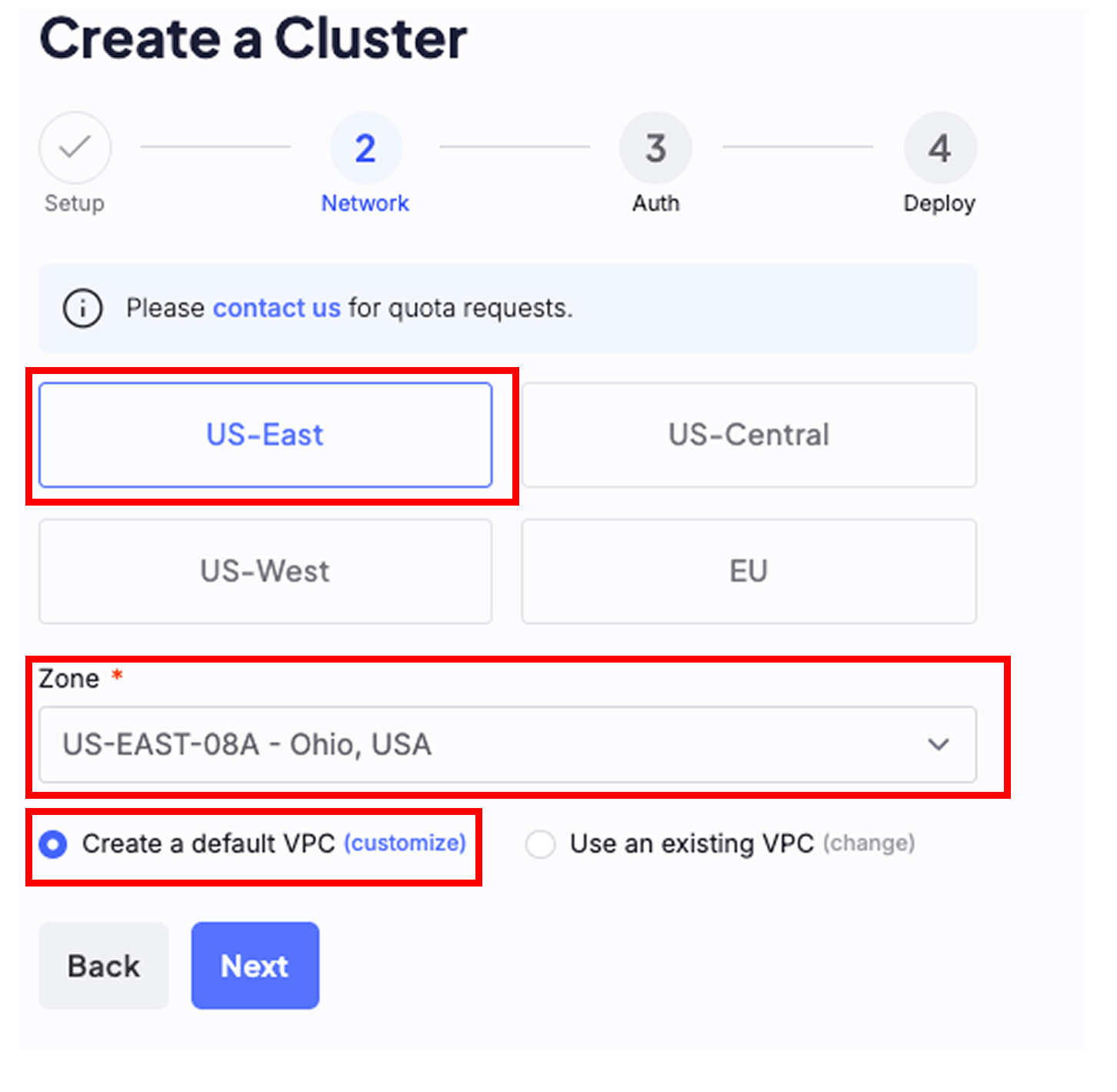
Select a region with GPU quota
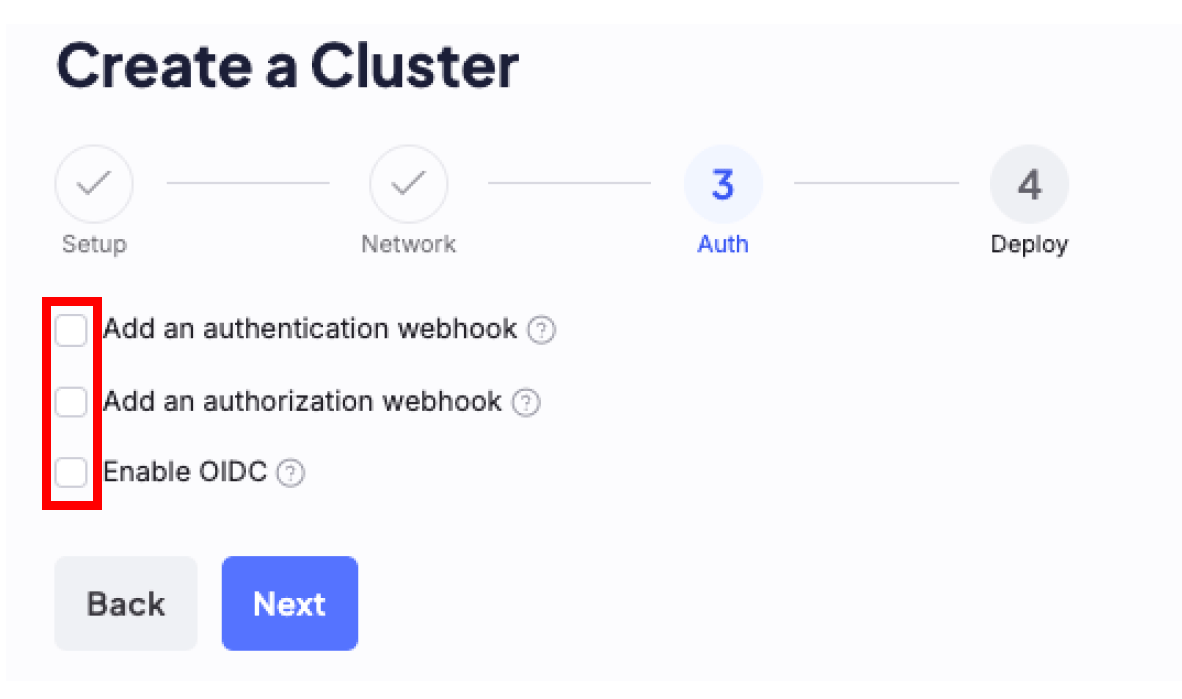
Skip authentication options
Submit the cluster
Create a Node Pool
Configure the Node Pool
- Name the Node Pool.
- Pick a GPU instance.
- Set Target Nodes to
1. - Leave all other fields empty.
- Click Submit.
Healthy, your cluster has GPU capacity ready to serve the model, and you can continue to the following steps.
Do not install the NVIDIA GPU Operator on CKS clusters
Generate a CoreWeave access token
Access tokens let you authenticate to your Kubernetes resources throughkubectl. You must create one for the cluster you just provisioned before you can run commands against it.
To create an access token, complete the following steps:
Open the Tokens page
Name the token and set an expiration
Select the cluster and download
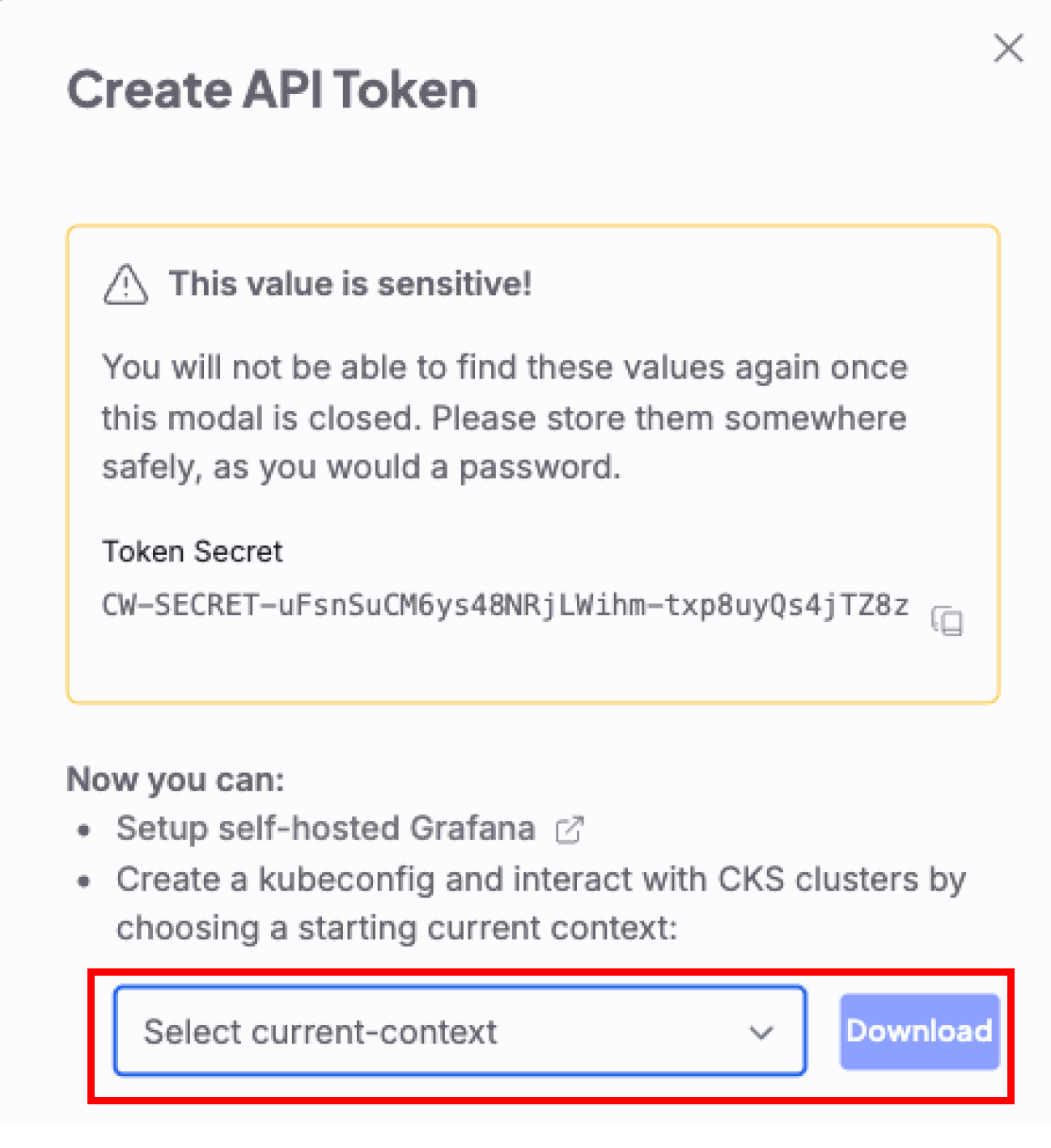
Use kubectl with your cluster
To communicate with your cluster using kubectl, complete the following steps:
Set the KUBECONFIG environment variable
KUBECONFIG environment variable that points to the kubeconfig file you just downloaded. Replace [CW-KUBECONFIG-FILENAME] with the name of the file you downloaded in the previous step:Confirm the connection
Schedule a GPU Pod
A GPU Pod requests GPU resources withnvidia.com/gpu and selects an instance type with the node.coreweave.cloud/type Node label. Before deploying the model, run a Pod that checks whether it can access a GPU.
Use the instance type you provisioned in your Node Pool:
Save the GPU Pod manifest
gpu-check.yaml. The example selects an H100 Node. For B200 or RTX PRO 6000, replace gd-8xh100ib-i128 with the corresponding value from the table.requests and limits, their values must be equal. A nodeSelector restricts the Pod to Nodes with the matching label. It doesn’t provision a Node or reserve a GPU by itself. For more detail, see Target specific GPUs or CPUs.Apply the manifest and check GPU access
Completed. Read its output:nvidia-smi output lists the GPU available to the container, including its name and driver version.If the Pod stays Pending, inspect its events:Remove the test Pod
Create a Hugging Face secret
For CKS to download thellama-3.1-8B-Instruct model from Hugging Face, you must create a Kubernetes secret that holds your Hugging Face access token. The model deployment in the next section reads this secret at runtime to authenticate with Hugging Face.
Complete the following steps to create the secret:
Create the secret
[HUGGING-FACE-TOKEN]: This is the token Hugging Face provides you. For more information about creating a Hugging Face token, see User access tokens.
Download and apply a YAML configuration file
Kubernetes uses YAML files to configure resources. The example manifest defines four resources that together deploy the model and a chat interface, so you can create them all with a single command:llama-3-1-8b-deploymentruns the model. Itsvllm-servercontainer starts the vLLM inference server withvllm serve, loads the model named in theMODELenvironment variable (meta-llama/Llama-3.1-8B-Instruct), and reads your Hugging Face token from thehf-token-secretyou created. The container requests one GPU and mounts a 2Gi/dev/shmvolume that vLLM uses for shared memory.llama-3-1-8b-svcis aClusterIPService that exposes the model inside the cluster on port11434and forwards to the container’s port8000. Open WebUI reaches the model through this Service athttp://llama-3-1-8b-svc:11434/v1.open-webuiruns the Open WebUI chat interface. Its environment variables point it at the model Service, so the UI sends inference requests to the deployed model.open-webui-svcis aClusterIPService that exposes Open WebUI inside the cluster on port80and forwards to the container’s port8080.
ClusterIP type, so they’re reachable only from inside the cluster. Later steps use kubectl port-forward to reach Open WebUI from your machine. To expose it on the internet instead, see Expose Open WebUI publicly.
vllm-server container uses the ghcr.io/coreweave/ml-containers/vllm-tensorizer image, which CoreWeave builds in the ml-containers repository. It packages the open source vLLM inference server on CoreWeave’s CUDA and PyTorch base image and integrates CoreWeave’s tensorizer library for fast model loading from storage.nvidia.com/gpu: 1 under requests and limits. Add the same instance selector to the model Deployment so its Pods use your chosen hardware.
To deploy the Llama-3.1-8B-Instruct model, complete the following steps:
Download the manifest
Enable Open WebUI authentication
llm-on-cks.yaml file, set WEBUI_AUTH to "true" in the open-webui Deployment’s container environment variables. Keep ENABLE_SIGNUP and ENABLE_LOGIN_FORM set to "true" for initial account setup:open-webui-svc as a ClusterIP Service while you create the administrator account. Don’t apply a manifest with WEBUI_AUTH set to "false".Select the model GPU instance
llm-on-cks.yaml file, add nodeSelector under spec.template.spec of llama-3-1-8b-deployment, alongside volumes and containers. Use the same instance type as the test Pod. The following excerpt selects an H100 Node:requests and limits. For B200 or RTX PRO 6000, use the corresponding selector from Schedule a GPU Pod. Add the selector only to the model Deployment. Open WebUI doesn’t request a GPU.Apply the manifest
Llama-3.1-8B model. Visit the meta-llama/Llama-3.1-8B-Instruct page to verify your access.Confirm the resources deployed
Verify the services are working
-
[LLAMA-POD-NAME]: The Pod name beginning withllama-*thatkubectl get podsreturns. -
In the logs, look for the following line:
INFO: Application startup complete.
Verify the model endpoint
The model runs an OpenAI-compatible inference server. Before you open Open WebUI, confirm the model responds to a chat completion request. The model Service (llama-3-1-8b-svc) is a ClusterIP Service, so you can only reach it from inside the cluster. The following command runs a temporary Pod that sends a request to the in-cluster Service:
choices array confirms the model is serving inference. If the request fails, recheck the Pod status and logs from the previous step before continuing.
Get the Open WebUI endpoint
The Open WebUI service is not exposed to the internet. To access Open WebUI from your machine, use port-forwarding:Start port-forwarding
Open the UI in your browser
http://localhost:8080 in your browser.Create your administrator account
WEBUI_AUTH is set to "true" in the open-webui Deployment.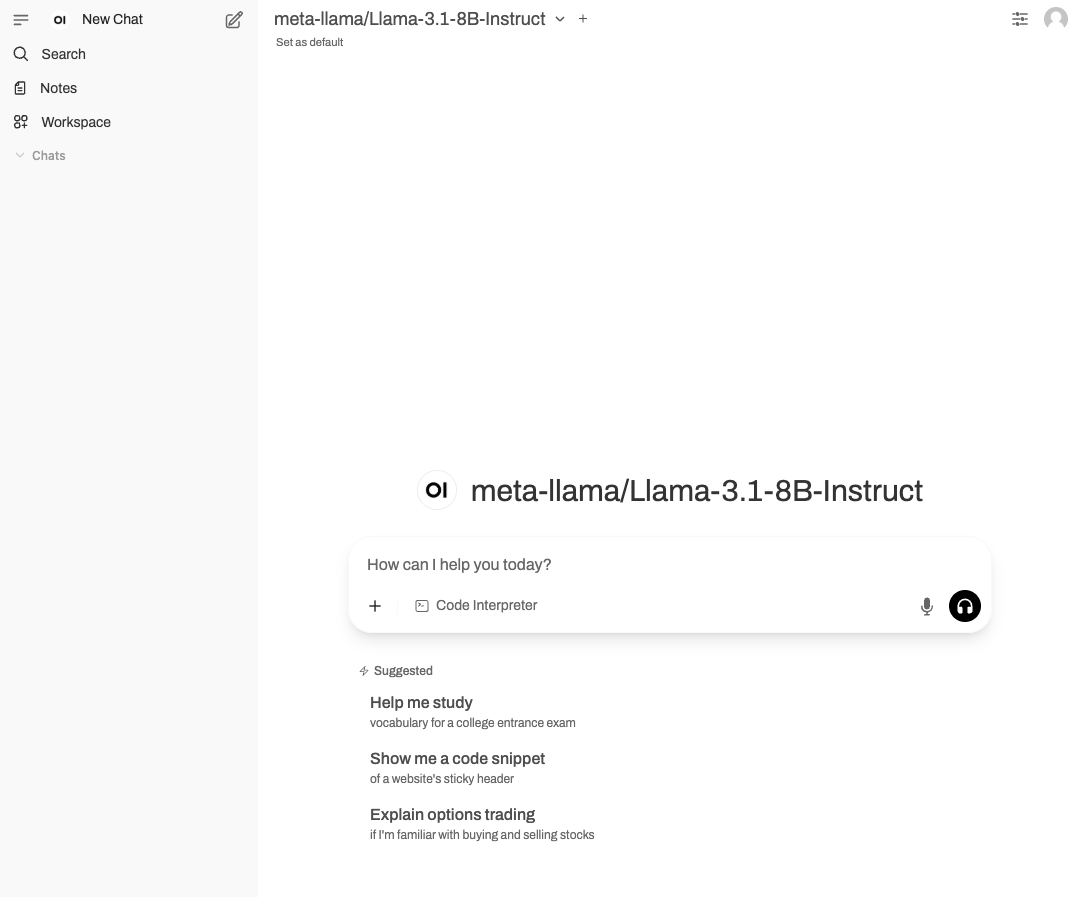
Expose Open WebUI publicly (optional)
The port-forward provides local access without making the Service public. To expose Open WebUI publicly, complete the following steps:Verify authentication before public exposure
WEBUI_AUTH is set to "true" in the open-webui Deployment in llm-on-cks.yaml. If you changed the value, apply the edited manifest while open-webui-svc is still a ClusterIP Service:Change the Service to a public LoadBalancer
type to LoadBalancer and add the CoreWeave public load balancer annotation:Reapply and get the external address
coreweave-load-balancer-type: public annotation provisions a public IP for the Service. For more detail, including how to assign a public DNS name, see Expose a Service.
Use a different model
This guide deploysLlama-3.1-8B-Instruct, but the same manifest works for other models that vLLM serves. To deploy a different model, edit the manifest before you apply it:
Change the model ID
llama-3-1-8b-deployment, change the MODEL environment variable to the Hugging Face model ID you want to serve. If the model is gated, make sure the Hugging Face token in your hf-token-secret has access to it.Scale GPUs for larger models
TENSOR_PARALLEL_SIZE to the number of GPUs to shard the model across, and set the nvidia.com/gpu requests and limits to the same number. Choose a Node Pool GPU instance that provides those GPUs.Point Open WebUI at the model
open-webui deployment, the OPENAI_API_BASE_URL environment variable points at the model Service (http://llama-3-1-8b-svc:11434/v1). Update it only if you rename the model Service or change its port.llama-3-1-8b-svc, are labels only. You can keep them as-is for any model, or rename them for clarity. If you rename the model Service, update the endpoint references in the open-webui deployment to match.Next steps
You’ve deployed an LLM on CKS and confirmed it serves inference. Consider these next steps:- Monitor your workload. Use CoreWeave’s managed Grafana to track GPU usage and model performance. See Managed Grafana.
- Scale your cluster. Add Node autoscaling so capacity grows and shrinks with demand. See Node autoscaling.
- Run batch and burst workloads. Use CoreWeave SUNK to run Slurm on Kubernetes for training and HPC jobs. See SUNK.
- Manage infrastructure as code. Provision clusters and Node Pools with Terraform. See Terraform.
- Learn more about CKS clusters. See Introduction to clusters.
- Learn more about Node Pools. See Introduction to Node Pools.