

Available only in W&B Multi-tenant Cloud.
Model imports consume sandbox compute and count against your organization’s sandbox quota. Imports don’t require GPU-enabled sandboxes.Registry automatically creates and stops the import sandbox. You don’t need to configure or manage it.
Permissions
To import a model from Hugging Face Hub, you must have the following:- A Registry role with create and write access for the destination registry.
- A Full Models seat in the organization.
- A Member or Admin role in the team where the import logs the artifact.
- Access to CoreWeave Sandboxes and sufficient sandbox compute quota.
- Sufficient artifact storage for the imported model files.
Import limits and failures
Model imports have a 90 GB size limit based on the import sandbox’s disk capacity. An import can fail at different stages:- If your organization doesn’t have sufficient sandbox quota, Registry can’t create the import sandbox and the import fails before the model transfer begins.
- If your organization doesn’t have sufficient artifact storage, the import can fail after the model transfer begins.
Import a model
- Navigate to Registry.
- Select Import model.
- In the Repository link field, enter the Hugging Face Hub model URL or repository ID. For example, to import
bert-base-uncased, enter https://huggingface.co/google-bert/bert-base-uncased orgoogle-bert/bert-base-uncased. - Optional: From Version, specify the commit, branch, or tag to import.
- Select Next.
- Enter the name of the team and project where you want to log the imported model.
- From Registry, select the destination registry.
- From Collection, select the destination collection.
- Select Next.
- Optional: Add aliases to help organize and find the imported model.
- Review the import settings, then select Import.
Models imported from Hugging Face Hub are assigned a
model collection type.Check import status
To check the status of an import:- Navigate to Registry.
- Select the action menu (), then select View import activity.
View an imported model
After the import completes, the imported model version appears in the destination collection. Registry adds an alias in the formathf-<commit-hash>, where <commit-hash> is the resolved commit hash of the source repository.
To view an imported model:
- Navigate to Registry.
- Select the destination registry.
- Select the destination collection.
- Select the imported model version.
- Select the Metadata tab.
Imported model metadata
In addition to the standard metadata available for linked artifact versions, imported model versions include the following fields:
For example, suppose you import the YOLOS small model from Hugging Face Hub. After the import completes, its metadata might look like the following:
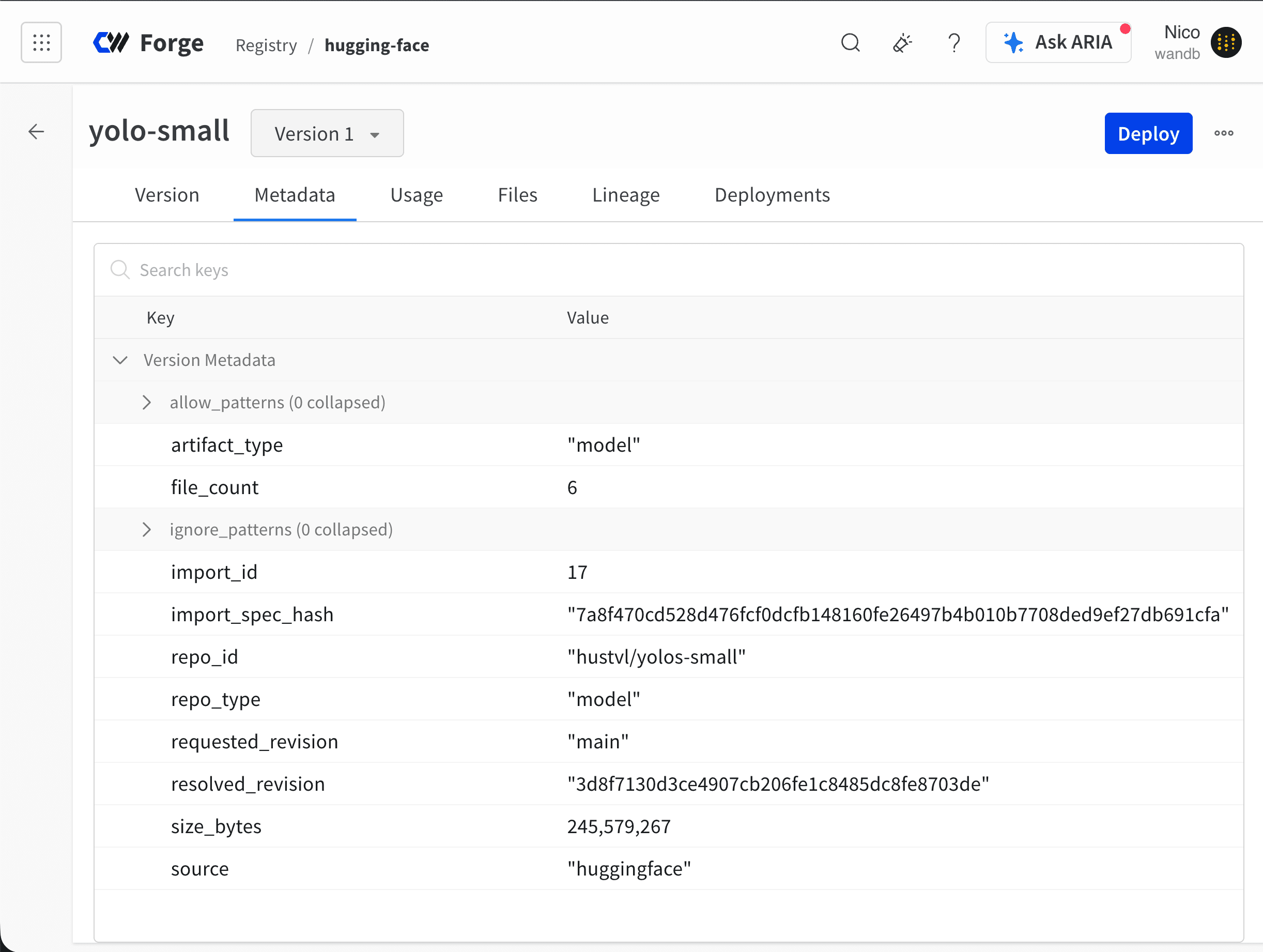
repo_idishustvl/yolos-small.resolved_revisionis3d8f7130d3ce4907, the commit to whichmainresolved at the time of import.size_bytesis 245,569,443 bytes, or approximately 245.6 MB or 234.2 MiB.sourceishuggingface.