- Header bar shows the current folder and the path to that folder.
- On the left side is the navigator.
- On the right side all currently selected files are shown.

Browse files
An icon before each entry shows you whether it is a file or folder. Clicking on a folder opens it and shows the content of that folder. Unless you are in a root folder the top row always is Back one folder which closes the current folder and moves you back to the folder above. You can also click on any part of the path in the header bar to jump directly into that folder.Select files
If you click on a file it will be selected. After selecting files you can change the folder and select further files. That’s why you have an overview of all selected files in the right part of the File selection dialog. All selected files will show up there (see screenshot below). If you want to select all files in a folder you can click the button in the bottom left corner of the dialog (marked in the screenshot below). It directly adds all files in the current folder to the list of selected files. If all required files are selected you apply your selection by hitting the red button Import selected datasets. That closes the file selection dialog and brings you back to the importer settings.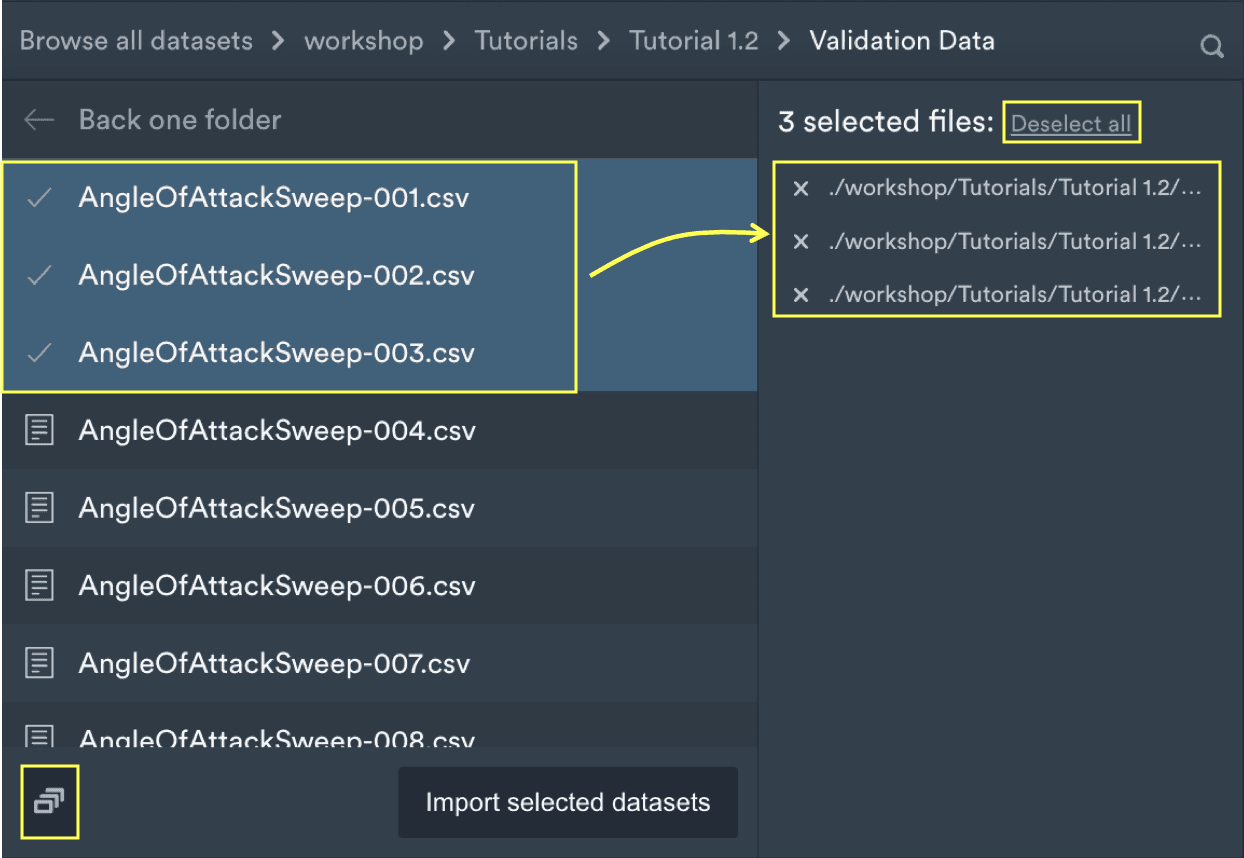
Deselect files
If you want to remove files from your selection you can do this on two ways:- Click on a selected file in the left part of the dialog box and the file will be deselected and removed from the list on the right side.
- Click the x in front of a file in the list on the right side. That will also remove it from the list. If you can’t read the filenames hover the mouse pointer over any of the and a screen tip appears showing you the full path and file name.
Search and filter list of selected files
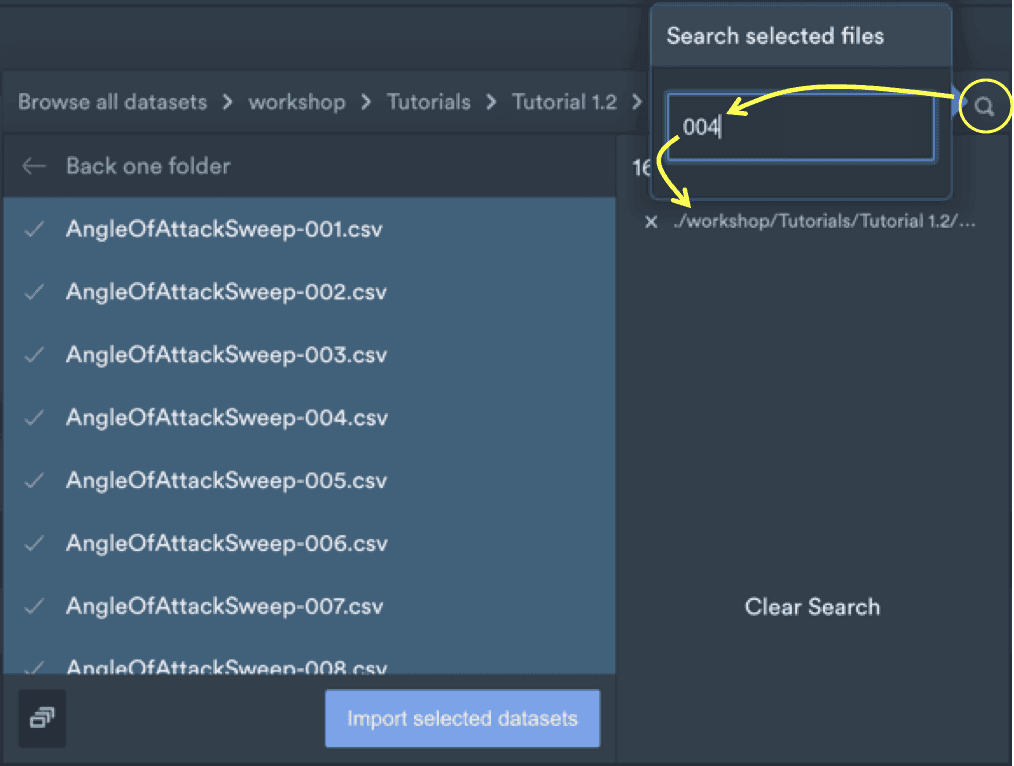
If you have a large number of selected files and want to check if a specific file is already on that list or you want to remove a specific file from the list a simple search/filter tool is available. Simply click on the lens in the top right corner of the dialog and a small box with a text field appears. Start typing. The selection list will be filtered down to all files which contain the string you entered. See the screenshot below. In that example still 16 files are selected but only one file is shown in the list which contains the String004. That way you can easily check or change your selection.