Description
Based the ranges of an existing dataset or defined by the user, this function creates a sampling of the design space using various sampling methods and granularities.Application
You can create a new sampling of your dataset based on the min- and max-values of the columns in a dataset or based on user-defined ranges . Latin hypercube, random and grid methods are used to create the sampling of the dataset.You can use this manipulator for example to create a DoE plan based on the range of values of the input columns in your dataset. Alternatively, you could create the parameters of your design space and their respective ranges from scratch.How to use
-
First of all, you will have to decide if you want to define the design space from scratch or if you prefer to Use a dataset as a starting point. Tick or untick the first option depending on your preference.
⚠️ When this tickbox is updated, all existing parameters below in the step will be deleted.
- If the option is ticked, you will be asked to select the Data set that you want to use as the starting point.
-
You can then add parameters to your design space by clicking on Add new parameter (to add a single parameter) or Add all parameters (to add every eligible numeric column at once). Depending on your option for the starting point, the parameter will be defined in a different way:
- If you selected a dataset as a starting point, you will be able to select a numeric column from that dataset. Once the column is selected, you can set a custom range (or fixed value) to sample new values from. However, if you leave the range value blank, sampling will automatically be made within the min-max range of the starting dataset.
- If you haven’t selected a dataset as a starting point, you will be able to directly type the name of the parameter and the values that you want to use to define the range (or fixed value) of the parameter.
Note that in both cases, if the min value is higher or equal to the max value, the step will return an error.
Which columns can be used as parameters?
When you use a dataset as a starting point, only numeric (floating-point) columns from that dataset appear in the column picker. The following columns are intentionally excluded:- Categorical / text columns (for example, labels, names, identifiers).
- Boolean columns.
- Integer-typed columns: only true floating-point columns are sampled. If you need to sample over an integer column, first convert it to a numeric type using the Specify Data Types step.
- Once you have added all the desired parameters, the design space is fully defined. Now, you will define how the sampling is performed.
- First, specify the Method that you want to use for the sampling. The different methods as well as their benefits are listed below:
| Random Sampling | Method Benefits |
| Grid Sampling | Method Benefits |
| Latin Hypercube Sampling | Method Benefits |
- Secondly, specify the number of samples the new dataset should have (Granularity). You can choose from three predefined options or specify a custom size.
| Coarse | 100 Samples |
| Medium | 1,000 Samples |
| Fine | 10,000 Samples |
| Custom | Specify any integer > 0 (If the number is too high, you will receive an error saying that the platform ran out of memory). |
- You can then choose the Output name and click Apply.
Examples
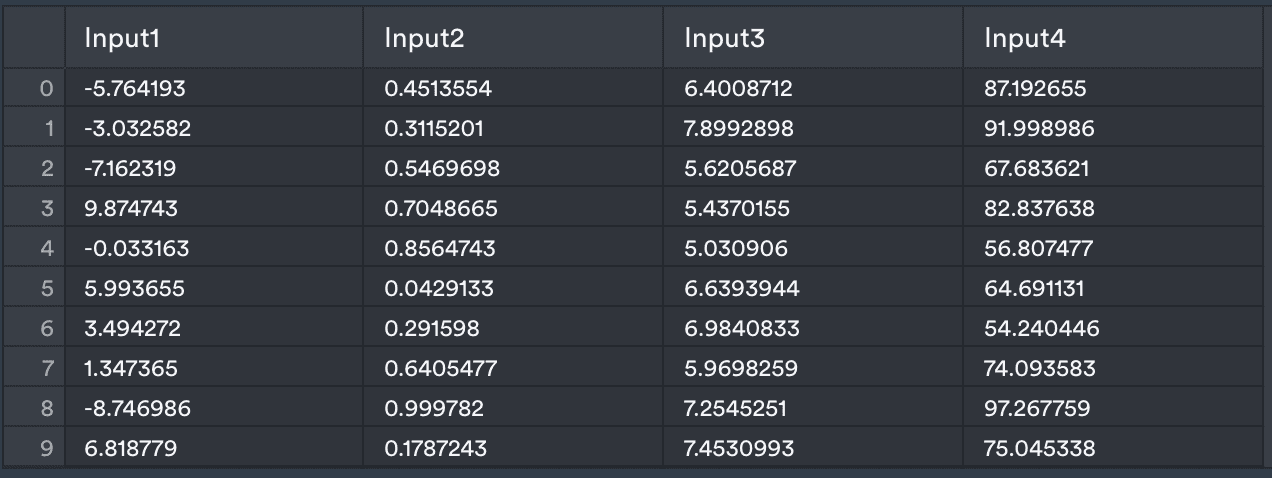
Consider the following table with four inputs. The table contains just two row with the min and max values for each column. The ID column is just a label to increase clarity.