

Pre-requisites
Some media types require additional dependencies. To install the Weights & Biases SDK with media dependencies, run:Images
Usewandb.Image to log images from NumPy arrays, PIL images, or local files. Log images to inspect inputs, outputs, filter weights, and activations.
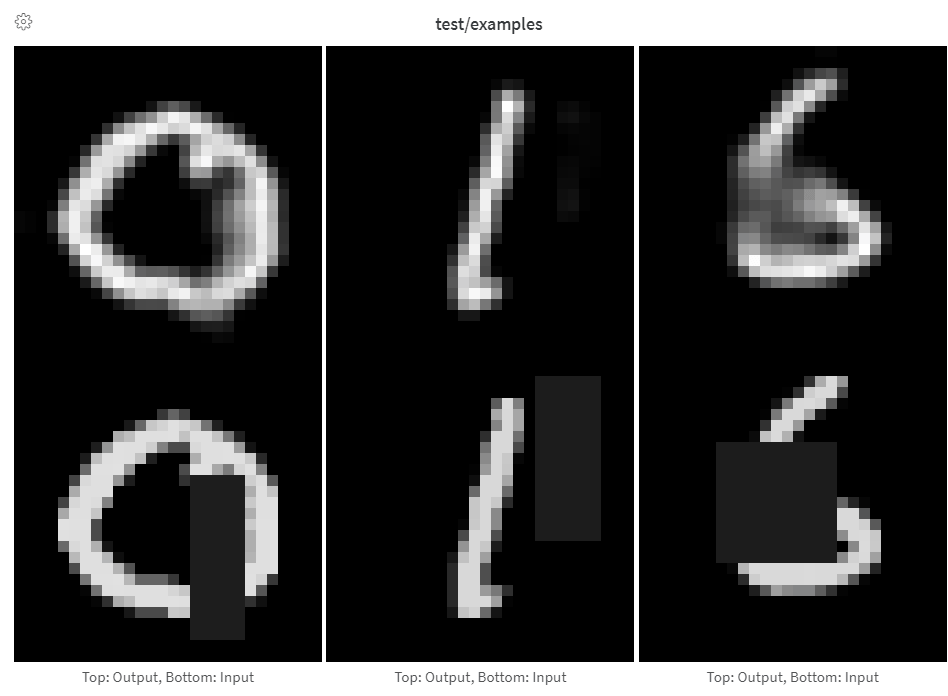
CoreWeave recommends logging fewer than 50 images per step to reduce the impact on training performance and image loading times.
- Arrays
- PIL Images
- Image files
Provide arrays directly when constructing images manually, such as by using For NumPy arrays, use the shape
make_grid from torchvision.Weights & Biases converts arrays to PNG images using Pillow.
(height, width, channels). Weights & Biases infers grayscale, RGB, or RGBA from a channel count of 1, 3, or 4, respectively. Images are saved as PNG files by default.Pixel values are normalized to the range 0–255 if values fall outside that range or all values fall within 0–1. To turn off normalization, pass normalize=False. For more control over array conversion, create a PIL image as shown in the PIL images tab.Image overlays
Log semantic segmentation masks to adjust their opacity and inspect changes across steps in the Weights & Biases App UI.- Segmentation Masks
- Bounding Boxes
Log images with segmentation masks or bounding boxes to inspect model predictions and ground truth in the Weights & Biases App UI.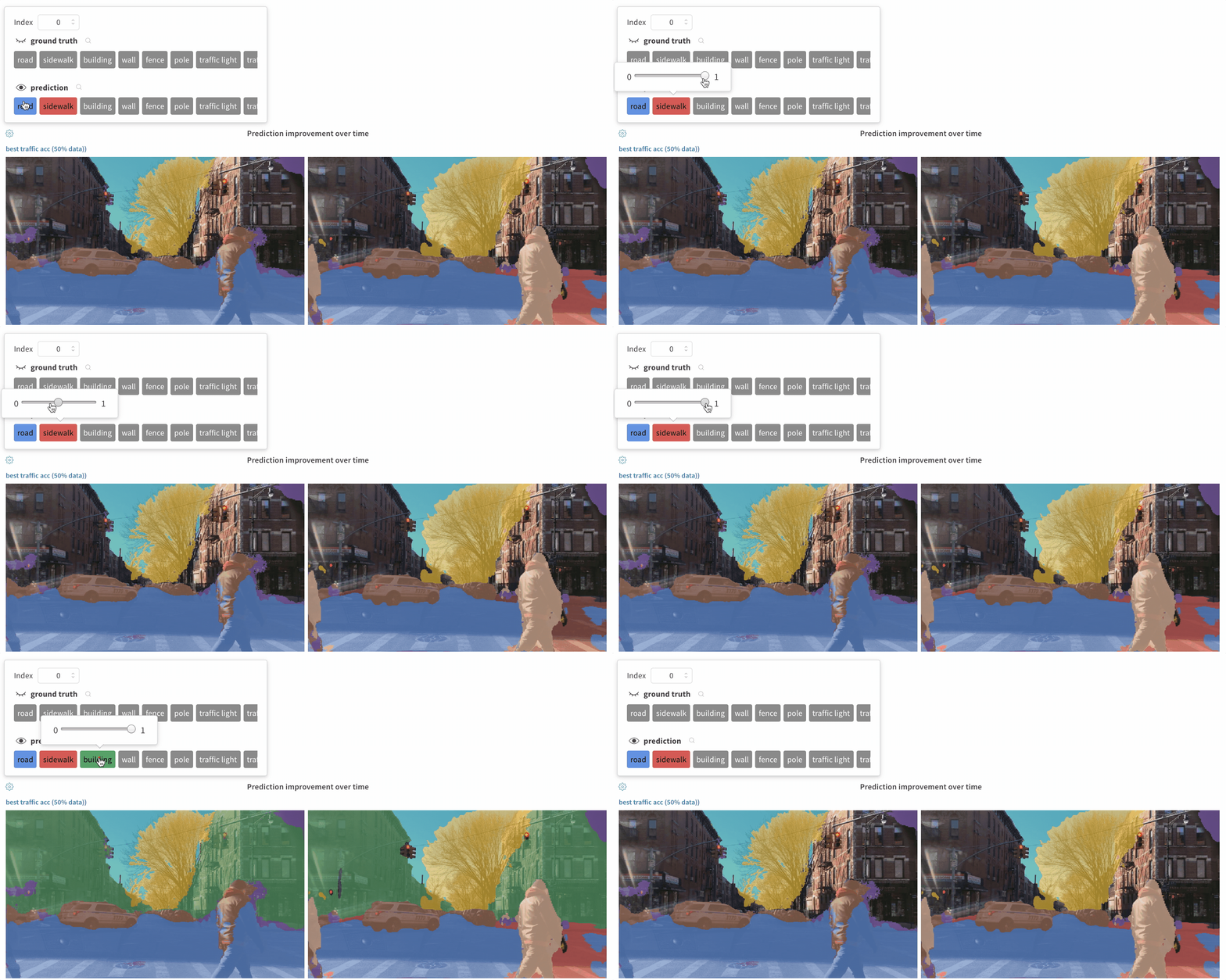
masks argument of wandb.Image. Each key names a mask, such as predictions or ground_truth. Each value is a dictionary with the following fields:To log multiple masks for an image, provide a separate dictionary for each mask:
wandb.Run.log()).- If steps provide different values for the same mask key, only the most recent value for that key is applied to the image.
- If steps provide different mask keys, the visibility controls show all keys, but only masks defined at the selected step are applied to the image. Toggling a mask that is not defined at that step does not change the image.
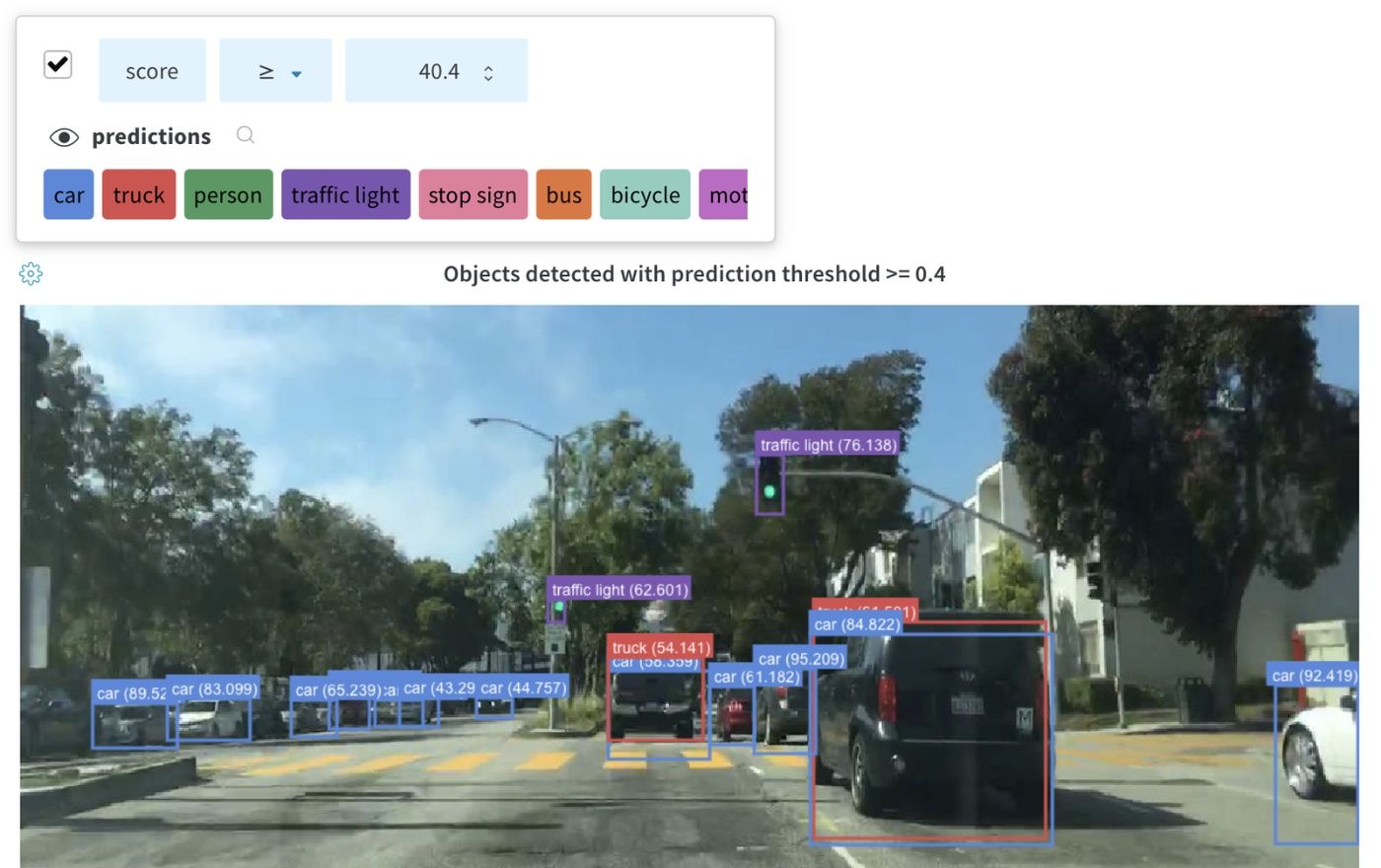
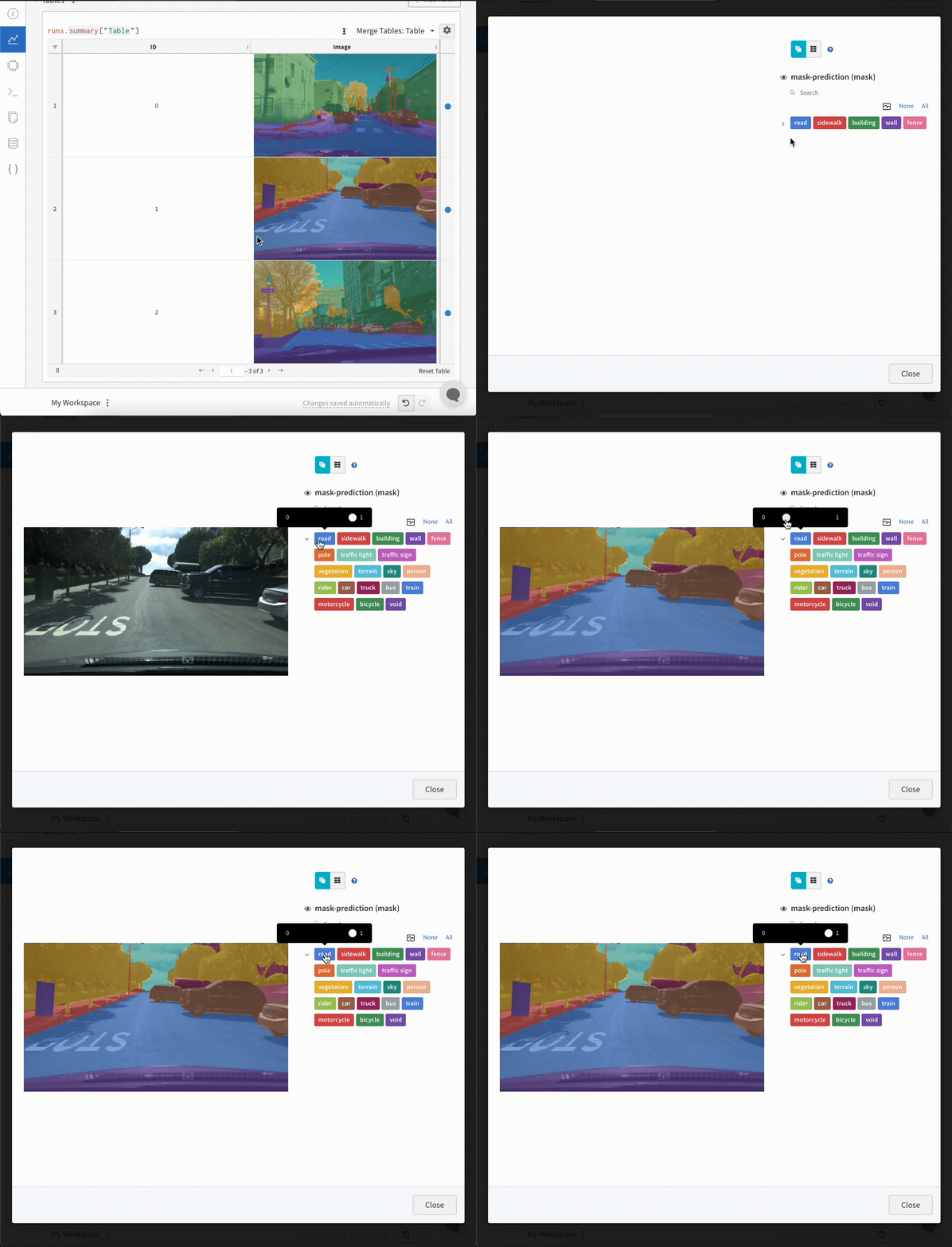
Image overlays in Tables
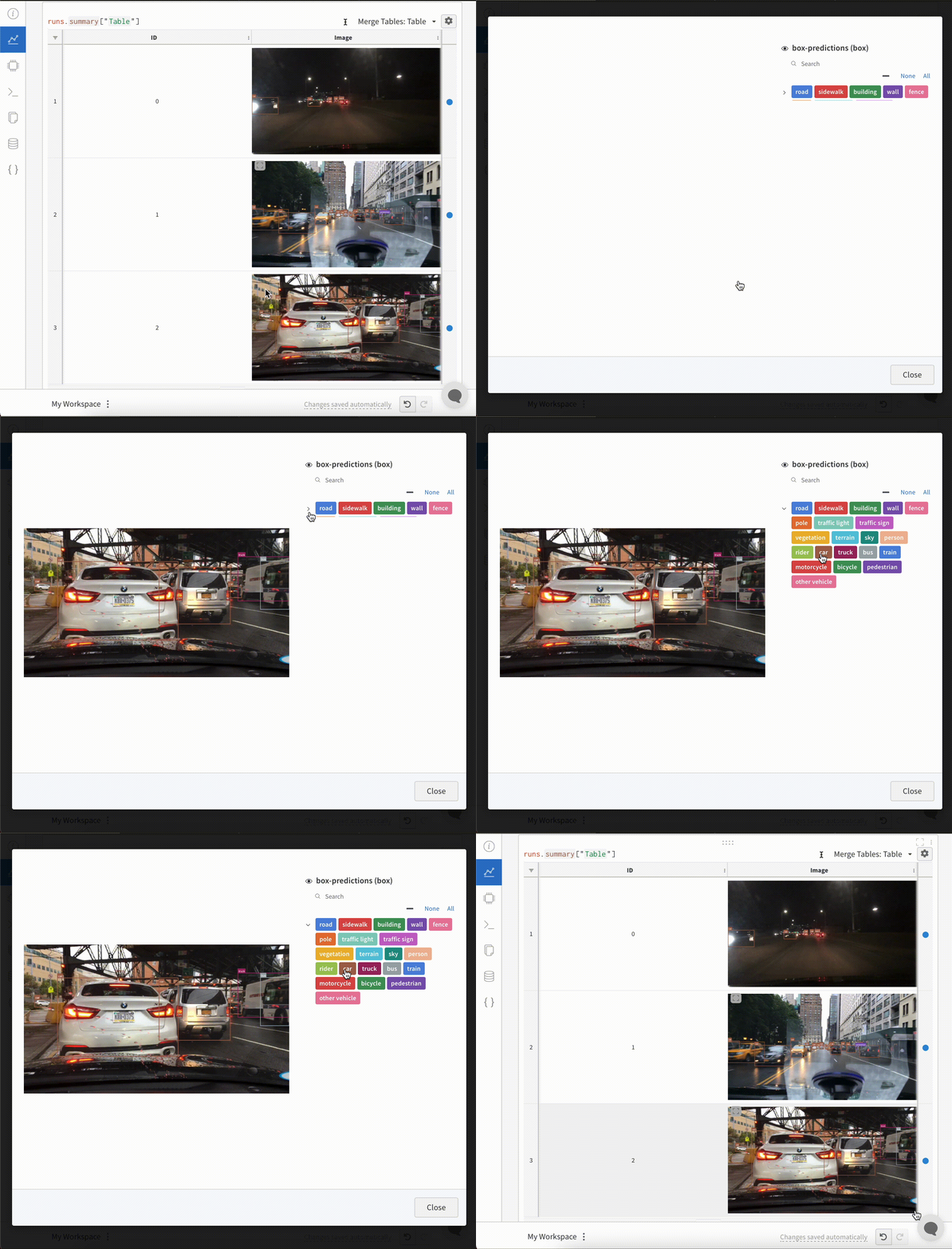
To display image overlays in a Weights & Biases Table, add awandb.Image object with masks or bounding boxes to each row.
- Segmentation Masks
- Bounding Boxes
Histograms
Usewandb.Histogram to log numeric distributions, such as model gradients. In the Weights & Biases App UI, the x-axis shows training steps, the y-axis shows metric values, and color represents the count in each bin.
- Basic Histogram Logging
- Flexible Histogram Logging
Pass a sequence of numbers, such as a list, array, or tensor, to 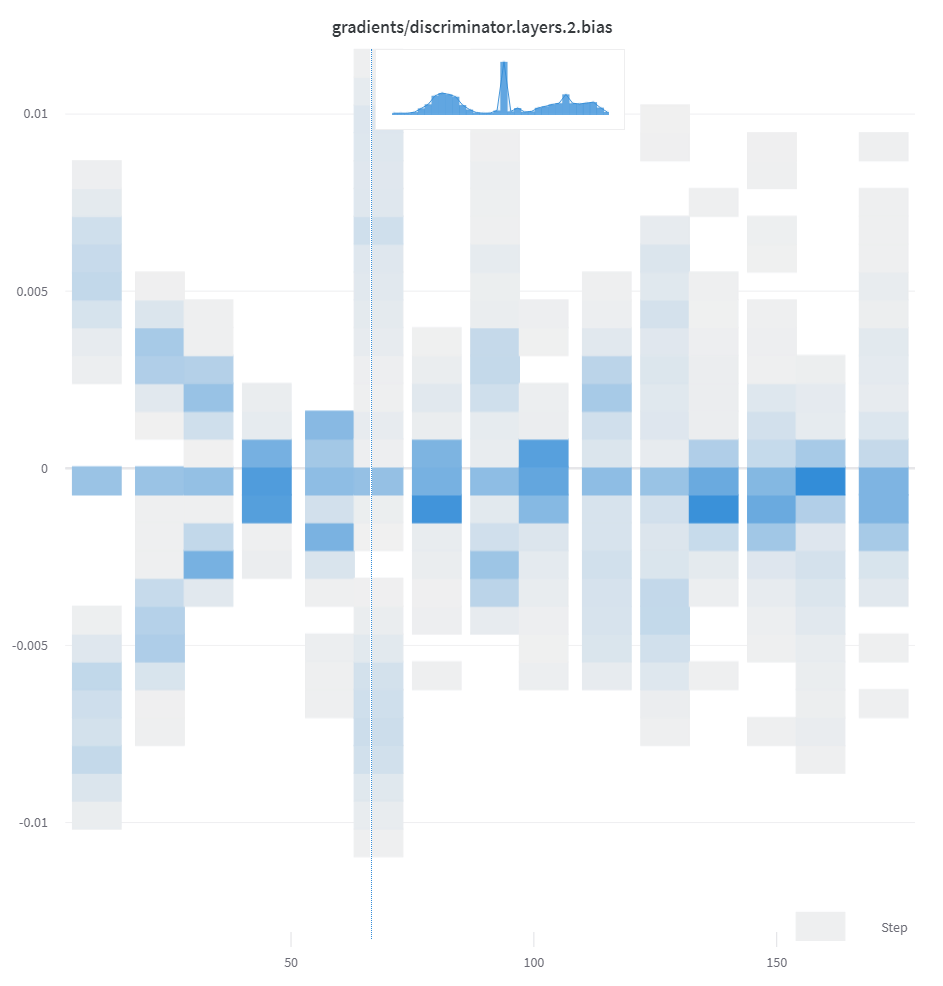
wandb.Histogram. Weights & Biases flattens arrays and tensors and uses numpy.histogram() to calculate the histogram.By default, histograms use 64 bins. To customize the number of bins, set num_bins a value up to 512.density=True to represent bin values as a probability density rather than counts.
3D visualizations
Usewandb.Object3D to log 3D point clouds and lidar scenes with bounding boxes. Provide a NumPy array with point coordinates and optional colors or category labels.
Point clouds are interactive in the Weights & Biases App UI. Drag to rotate the view, zoom to inspect details, or hold Control while using the mouse to move through the scene.
The following report shows scenes from the Lyft dataset with 3D bounding boxes:
The Weights & Biases App UI displays up to 300,000 points per point cloud.
NumPy array formats
Use one of the following array formats, wheren is the number of points:
Python object
Usewandb.Object3D.from_point_cloud() to create a scene with points, bounding boxes, and vectors.
Point cloud files
Usewandb.Object3D.from_file() to load point cloud data from a JSON file:
NumPy arrays
Usewandb.Object3D.from_numpy() with any of the supported array formats:
Molecules
Usewandb.Molecule to log molecular data and inspect 3D structures in the Weights & Biases App UI.
pdb, pqr, mmcif, mcif, cif, sdf, sd, gro, mol2, and mmtf.
You can also log SMILES strings, RDKit mol files, and rdkit.Chem.rdchem.Mol objects. These examples require RDKit.
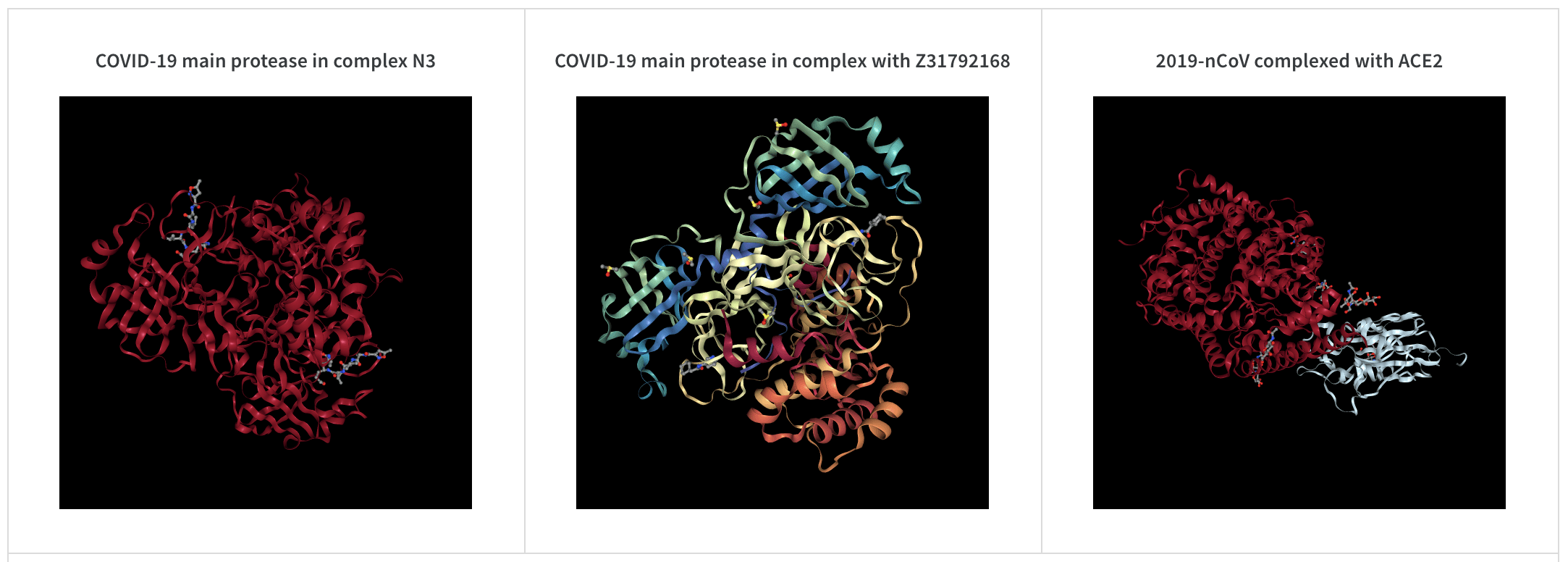
2D view of a molecule
You can log a 2D view of a molecule using thewandb.Image data type and rdkit:
Other media
Weights & Biases also supports logging of a variety of other media types.Audio
Usewandb.Audio to log audio data. Set sample_rate to the recording’s sample rate in hertz.
audio-file.
Video
Usewandb.Video to log a video file:
(frames, channels, height, width) for a single video or (batch, frames, channels, height, width) for a batch. Encoding NumPy arrays requires FFmpeg and MoviePy.
Supported formats are "gif", "mp4", "webm", and "ogg". When passing an array or an in-memory stream, specify format. When encoding raw frames, the default frame rate is 4 frames per second.
When you provide a file path, Weights & Biases checks that the file exists and uses a supported format. When you provide a BytesIO object, Weights & Biases creates a temporary file with the specified format as its extension.
To view and play videos, open a media panel in your project workspace, run workspace, or report. Use Compare mode to compare videos across runs or steps.
Text
Usewandb.Table to display text alongside predictions, labels, or other values. Specify column names when you create the table.
By default, the column headers are ["Input", "Output", "Expected"]. To ensure optimal UI performance, the default maximum number of rows is set to 10,000. However, you can explicitly override the maximum with wandb.Table.MAX_ROWS = {DESIRED_MAX}.
wandb.Table.add_data():
dataframe:
string.
HTML
Usewandb.Html to display custom HTML in a panel on the run page. Pass an HTML file or a string:
inject=False. To turn off this behavior pass inject=False:
html-file.