

When to use a tag versus using an aliasUse aliases when you need to reference a specific artifact version uniquely. For example, use an alias such as ‘production’ or ‘latest’ to ensure that
artifact_name:alias always points to a single, specific version.Use tags when you want more flexibility for grouping or searching. Tags are ideal when multiple versions or collections can share the same label, and you don’t need the guarantee that only one version is associated with a specific identifier.Add a tag to a collection
Use the W&B App UI or Python SDK to add a tag to a collection:- W&B App
- W&B Python SDK
Use the W&B App UI to add a tag to a collection:
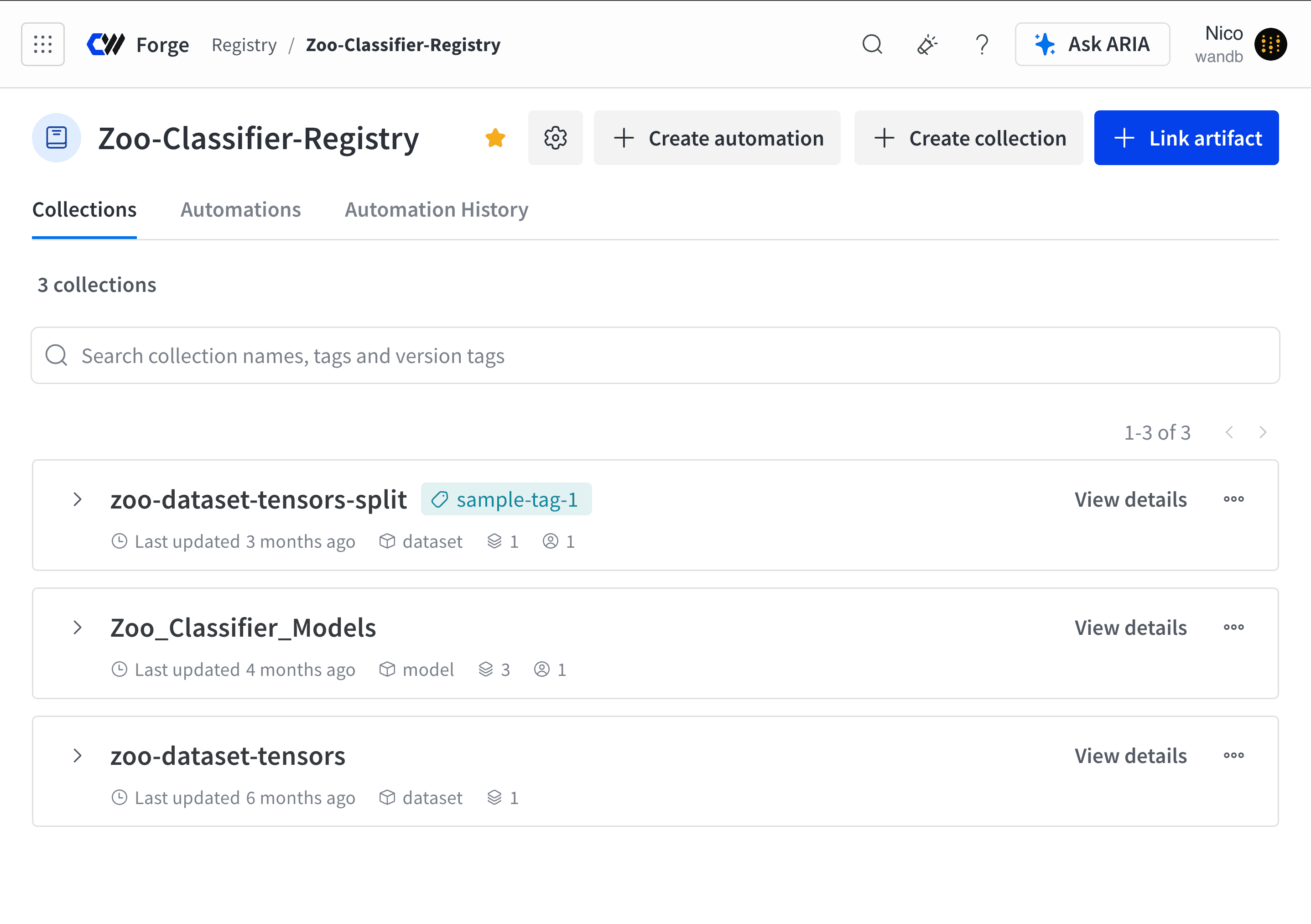
- Navigate to Registry.
- Select a registry.
- Click View details next to the name of a collection.
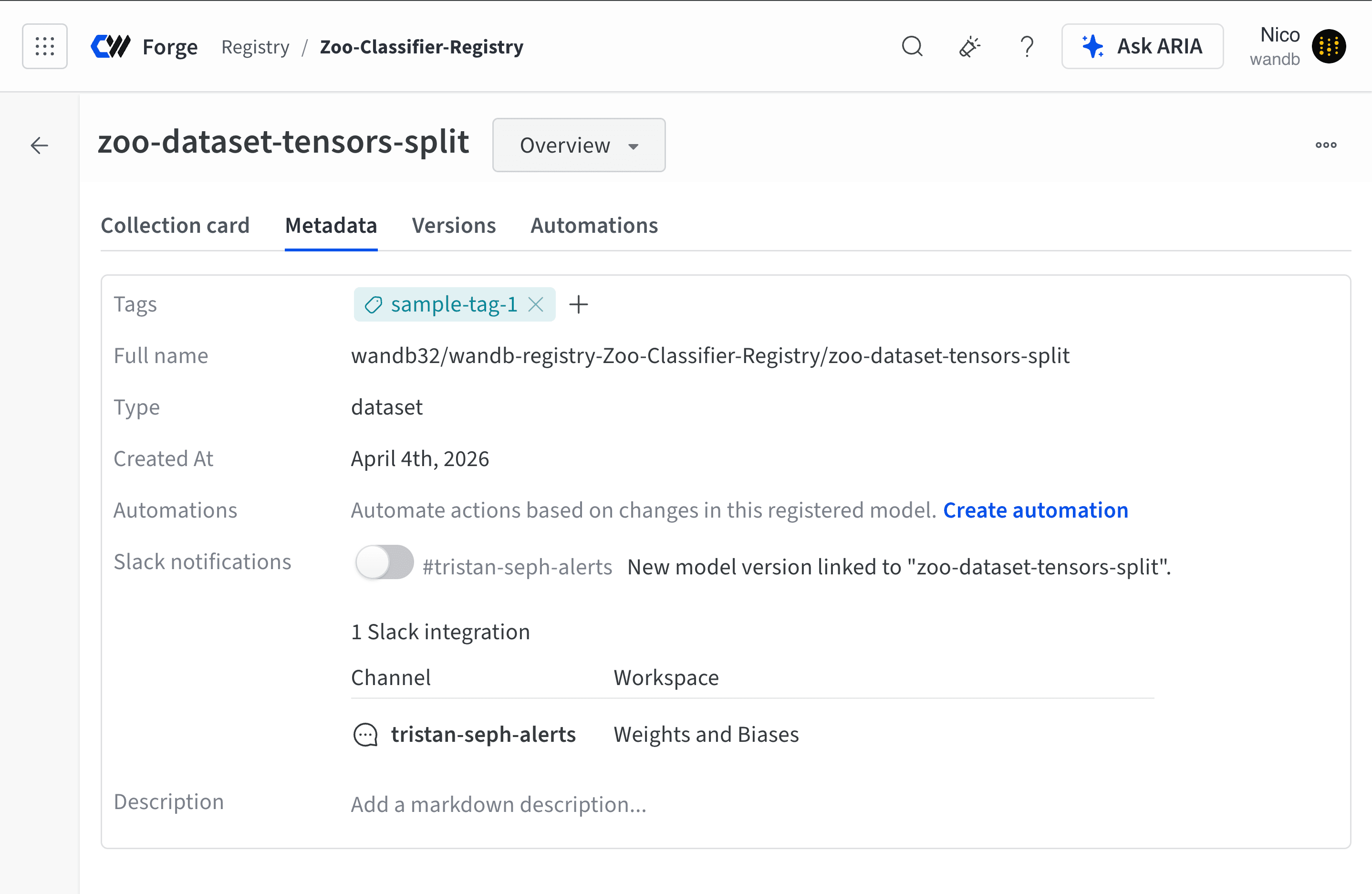
- Within the collection card, click on the plus icon (+) next to the Tags field and type in the name of the tag.
- Press Enter on your keyboard.
Update tags that belong to a collection
Update a tag programmatically by reassigning or by mutating thetags attribute. W&B recommends, and it is good Python practice, that you reassign the tags attribute instead of in-place mutation.
For example, the following code snippet shows common ways to update a list with reassignment. For brevity, we continue the code example from the Add a tag to a collection section:
View tags that belong to a collection
Use the W&B App UI to view tags added to a collection:- Navigate to Registry.
- Click on a registry card.
- Click View details next to the name of a collection.
- Click Metadata.
- View the tags listed under the Tags field.
zoo-dataset-tensors-split with sample-tag-1 tag.
Remove a tag from a collection
Use the W&B App UI to remove a tag from a collection:- Navigate to Registry.
- Click on a registry card.
- Click View details next to the name of a collection.
- Within the collection card, hover your mouse over the name of the tag you want to remove.
- Click on the cancel button (X icon).
Add a tag to an artifact version
Add a tag to an artifact version linked to a collection with the W&B App UI or with the Python SDK.- W&B App
- W&B Python SDK
- Navigate to Registry.
- Click on a registry card.
- Click View details next to the name of the collection you want to add a tag to.
- Scroll down to Versions.
- Click View next to an artifact version.
- Within the Version tab, click on the plus icon (+) next to the Tags field and type in the name of the tag.
- Press Enter on your keyboard.
Update tags that belong to an artifact version
Update a tag programmatically by reassigning or by mutating thetags attribute. W&B recommends, and it is good Python practice, that you reassign the tags attribute instead of in-place mutation.
For example, the following code snippet shows common ways to update a list with reassignment. For brevity, we continue the code example from the Add a tag to an artifact version section:
View tags that belong to an artifact version
View tags that belong to an artifact version that is linked to a registry with the W&B App UI or with the Python SDK.- W&B App
- W&B Python SDK
- Navigate to Registry.
- Click on a registry card.
- Click View details next to the name of the collection you want to add a tag to.
- Scroll down to Versions section.
Remove a tag from an artifact version
- Navigate to Registry.
- Click on a registry card.
- Click View details next to the name of the collection you want to add a tag to
- Scroll down to Versions
- Click View next to an artifact version
- Within the Version tab, hover your mouse over the name of the tag
- Click on the cancel button (X icon)
Find artifact versions with a specific tag
Use the W&B Python SDK to find artifact versions that have a set of tags:Tag limits
Artifact tags have the following limits:- Length: 1 to 256 characters.
- Characters: Letters in any language, numbers, underscores (
_), hyphens (-), and spaces. Spaces can appear only between words, so a tag can’t start or end with a space. - Tags per entity: Up to 1,000 distinct tags.
prod tag, adding Prod applies prod.
The 1,000-tag limit counts tag names, not uses. Adding a tag that already exists in the entity to another artifact version or collection doesn’t count toward the limit. In Registry, tags count against your organization, so all registries share one limit.
When an entity reaches the limit, adding a new tag fails with the error tag limit reached for entity. please consider deleting a tag. To make room for a new tag, remove a tag you no longer need from every artifact version and collection that has it.
Your plan can also limit tags across your whole organization. When that limit is reached, the error reads <N> of <M> tags used. You’ve reached the limit. If a change would add more new tags than the limit allows, the error reads <N> of <M> tags used. This change would exceed the limit.