

Project resources
Projects store the following resources:Project paths
Teams (also called entities) own and manage projects in your Forge organization. Your team name and project name make up the path to your project in the Weights & Biases UI. You also use this path in your code to associate your Weave resources with the project. For example, if your team’s name ismy-team and your project’s name is my-project, the path to your project is:
Create and find projects
You can create a Weave project using the Weights & Biases UI or by setting a new project path in your code.- Weights & Biases UI
- Weave SDK
To create a new project using the Weights & Biases UI:
- Navigate to Forge.
- Select New project. This opens the Create a new project modal dialog.
- In the modal, configure the following fields:
- Team: The existing team to associate the project with.
- Name: A name for your project.
- Project visibility: The scope of who can view and edit the project.
- Description: (Optional) A short description of the project to help you track and organize its purpose.
- After you configure the necessary fields, select Create project. Weights & Biases creates the project and opens its workspace.
View projects in the UI
To access a project in the Weights & Biases UI:- Navigate to Forge.
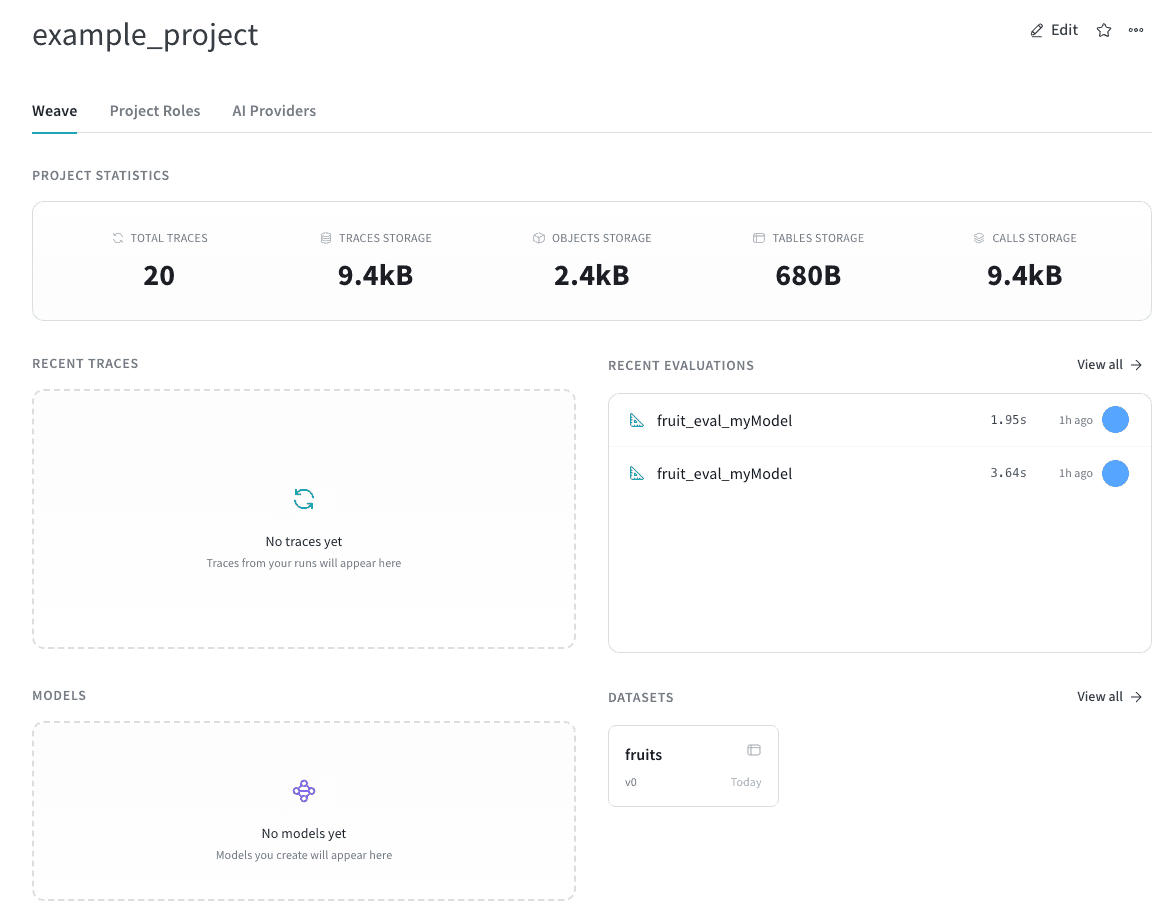
- Select the Weights & Biases logo in the upper-left corner to open the Global navigation menu, then select your project from the Projects sidebar. This opens the project’s overview page, or the Traces page if you’ve already logged traces to the project.
- From the overview page, you can:
- Review your project’s statistics, such as the number of traces logged to the project and how much storage the project uses.
- Navigate to traces, evaluations, and other resources using the sidebar.
- Navigate to recently logged traces, evaluations, models, and datasets.
Delete a project
To delete a project from your CoreWeave Forge account:- Navigate to Forge.
- Select your project from the Projects sidebar. This opens the project’s overview page, or the Traces page if you’ve already logged traces to the project.
- Select the Project () button in the sidebar to open the project’s overview page if it isn’t already open.
- Select the action () menu and choose Delete Project from the list. This opens the Delete project modal dialog.
- In the modal, enter the project name in the confirmation field and select Delete. Weights & Biases permanently deletes the project from your account.