

- Set up your training code
- Define the search space with a sweep configuration
- Initialize the sweep
- Start the sweep agent
Set up your training code
The sweep agent calls your training function with each combination of hyperparameter values to try, so the first step is to write a function that accepts those values and reports a metric back to Weights & Biases. Define a training function that takes in hyperparameter values fromwandb.Run.config and uses them to train a model and return metrics.
Optionally provide the name of the project where you want to store the output of the run (project parameter in wandb.init()). If you don’t specify a project, Weights & Biases puts the run in an “Uncategorized” project.
Both the sweep and the run must be in the same project. Therefore, the name you provide when you initialize Weights & Biases must match the name of the project you provide when you initialize a sweep.
Define the search space with a sweep configuration
With the training function in place, the next step is to tell Weights & Biases which hyperparameters to vary and how to search over them. Specify the hyperparameters to sweep in a dictionary. For configuration options, see Define sweep configuration. The following example shows a sweep configuration that uses a random search ('method':'random'). The sweep randomly selects a set of values listed in the configuration for the x and y parameters.
Weights & Biases minimizes the metric specified in the metric key when "goal": "minimize" is associated with it. In this case, Weights & Biases optimizes for minimizing the metric score ("name": "score").
Initialize the sweep
Initializing the sweep registers your search space with Weights & Biases and returns an identifier that the agent uses to request hyperparameter combinations. Weights & Biases uses a Sweep Controller to manage sweeps in the cloud (standard) or locally (local) across one or more machines. For more information about Sweep Controllers, see Search and stop algorithms locally. Initializing a sweep returns a sweep identification number:Start the sweep
With the sweep registered, start an agent to execute the runs and explore the search space. To start a sweep, use thewandb.agent() API call.
Optional: Visualize results
Once the sweep is running, you can explore how different hyperparameter combinations affect your metric in the W&B App. Open your project to see your live results in the W&B App dashboard. In a few clicks, build interactive charts such as parallel coordinates plots, parameter importance analyses, and other chart types.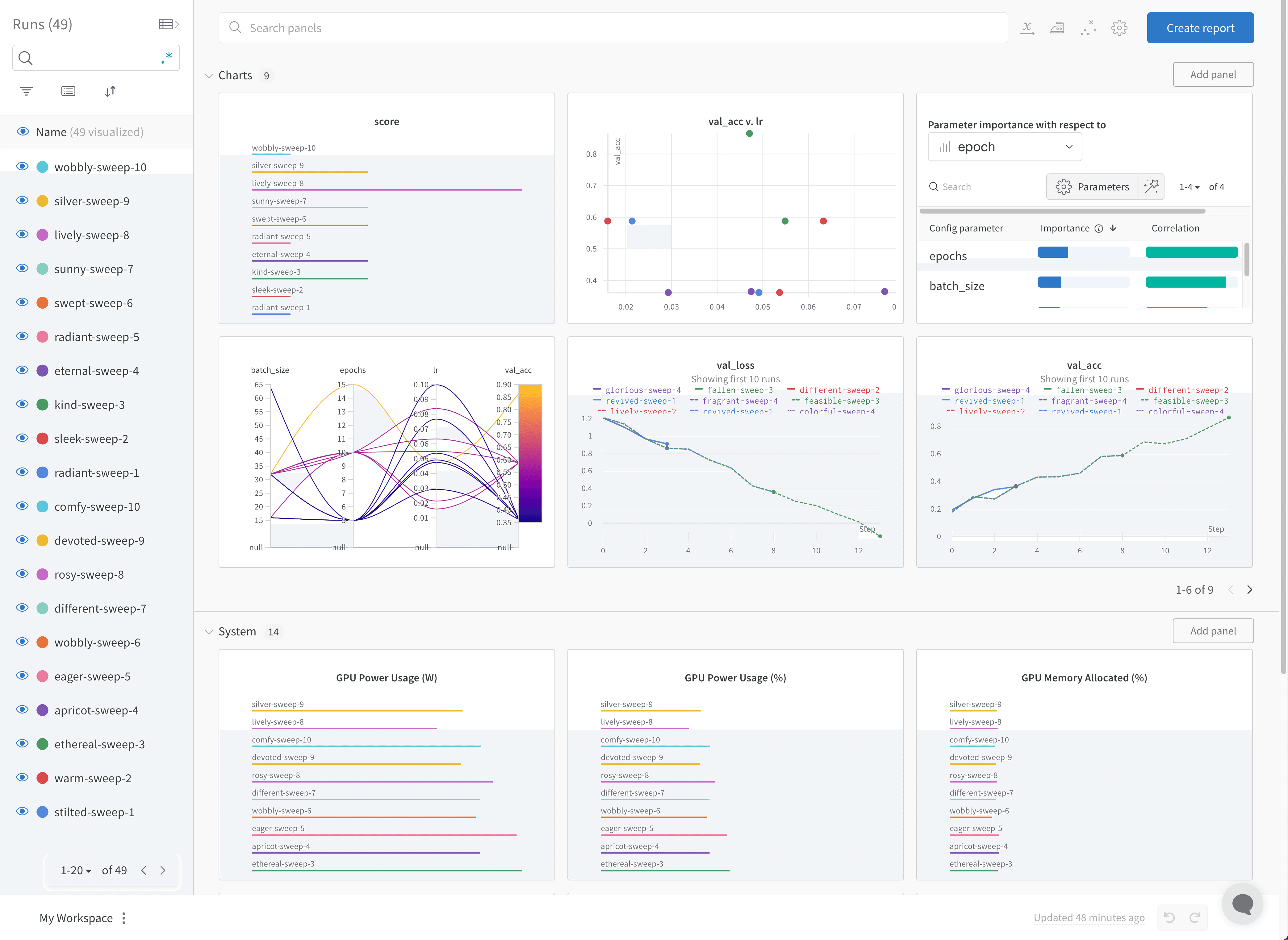
Optional: Stop the agent
In the terminal, pressCtrl+C to stop the current run. Press it again to end the agent.