

- In the top right corner, click your user icon.
- From the dropdown, choose Billing, or choose Settings and then select the Billing tab.
Plan summary
The Plan summary section names your organization’s current plan and lists its main allowances, such as seats, storage, and Weave data ingestion, with current usage against each. To change your plan, click Talk to sales.Current usage
The Current usage section shows one tile per product, with usage for the current billing period against its limit. Tiles are grouped into Plan allowances, for products included in your plan, and Trials, for products on a free trial, which show when the trial expires. From a tile, you can take the following actions:- To see details and a list of users, click Manage users on the Models seats tile.
- To manage storage in use or purchase more, click Manage storage on the Models storage tile. Learn more about storage settings.
- To open that product’s usage chart, click View usage. To explore usage trends over time, see View usage over time.
View usage over time
Organization admins can visualize usage trends for each category in the Usage & Alerts tab.This feature isn’t enabled for every organization yet. If you don’t see it, contact Support or your AISE.
- Multi-tenant Cloud
- Dedicated Cloud and Self-Managed
- In the top right corner, click your user profile icon.
- In the Account section, click Billing.
- Click the Usage & Alerts tab.
- From the sidebar, select a category to display its Usage over time chart.
Organization admins see usage across all teams. Team admins see the same charts, limited to the teams they administer.
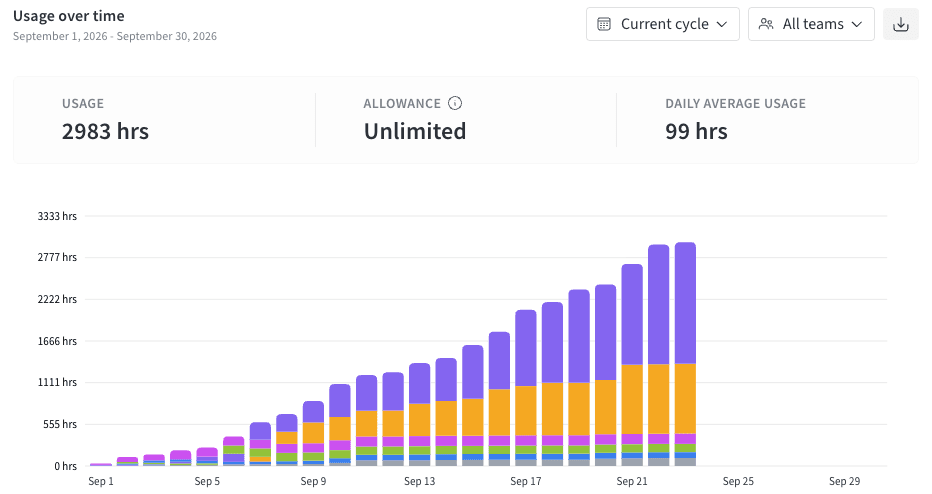
- Time range: Choose Current cycle (the default for most categories), Last 30 days, Last 90 days, Last 12 months, or Last 24 months. Storage defaults to Last 12 months.
- Team: Choose All teams to see organization-wide usage, or select an individual team to see only its usage. The searchable dropdown lists teams from highest to lowest usage.
Current cycle compared to historical views
The Current cycle view is cumulative: each bar adds to the previous one to show your running total usage since the start of the current billing period. Use this view to see how your usage is pacing against its allowance. Granularity depends on the length of your billing cycle. For example, a monthly cycle shows daily bars and an annual cycle shows monthly bars. The Last 30 days, Last 90 days, Last 12 months, and Last 24 months views are historical: each bar shows the usage for a single day or month rather than a running total. Use these views to compare usage across past periods. Because the top five teams are recalculated for the selected range, the colored teams can differ from those in the current cycle. Storage is always cumulative, because it measures the total volume currently stored (a 30-day weighted average, in GB) rather than usage consumed during a period.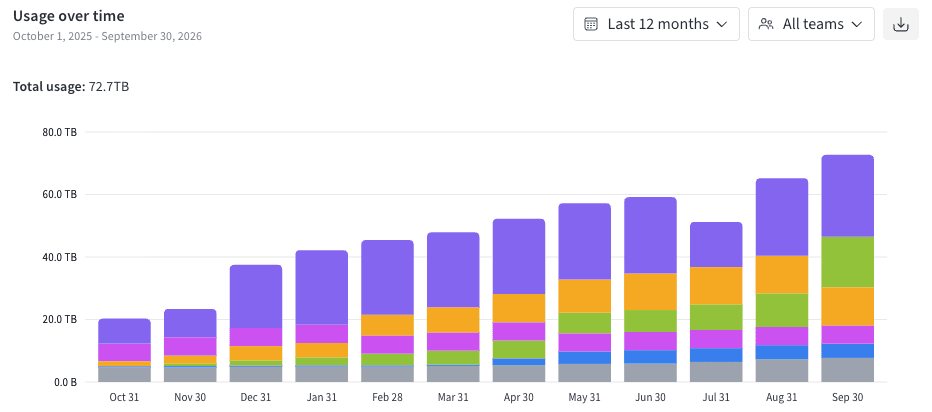
Stats bar and threshold lines
When both Current cycle and All teams are selected, a stats bar above the chart summarizes Usage, Allowance, and Daily Average Usage. Storage charts do not display a stats bar or daily average usage. Instead, Total usage above the chart shows the storage volume for the most recent period in the selected range. When a category has a defined allowance, the chart displays two threshold lines: a gold line at 85% of the allowance and a red line at 100%. These lines mark where usage alerts are sent to admins. Usage can exceed these thresholds. The lines are visual guides only.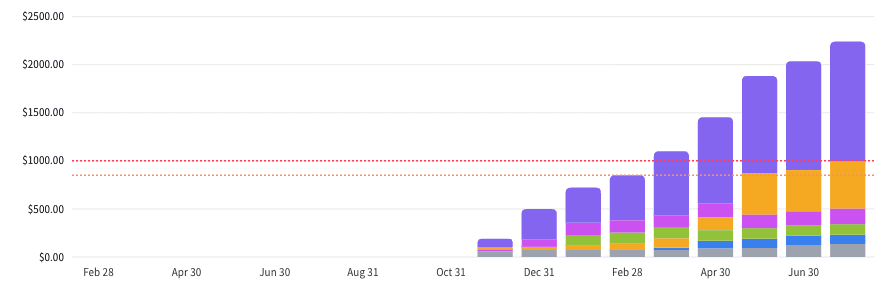
View and manage usage Alerts
Usage alerts notify organization and billing admins by email when your organization reaches 85% and 100% of its usage limit for the current billing period in a given category. Configure usage alerts to monitor consumption and avoid unexpected overages. Usage alerts are available for the following categories:
Which categories support alerts depends on your plan:
Training, Sandboxes, ARIA, and user seats do not support usage or spend alerts on any plan. Alerts are also unavailable during a trial.
forge-support@coreweave.com. The thresholds are not configurable, but you can selectively turn off one or both alerts per category.
To configure usage alerts for your organization, you must be an Organization admin or Billing admin.
- In the top right corner, click your user profile icon.
- In the Account section, click Billing or Settings, then click the Usage & Alerts tab.
- From the sidebar, select a category.
- Select Usage alerts to view your organization’s usage and alert settings for that category.
- Turn on or off the 85% usage alert or 100% usage alert for that category.
View and manage spending Alerts
In a given billing period, spending alerts notify organization and billing admins by email when your organization reaches one or more customizable spending thresholds expressed in USD. Use spending alerts to track costs against a budget you define. You can configure up to five unique spending alerts per category:
Spend alerts follow the same per-plan availability as usage alerts.
- Spending alerts are not available for categories with no spending limit or during a trial.
- You aren’t billed for tracked hours, which are unlimited for all plans.
forge-support@coreweave.com.
On the Enterprise plan:
- All Organization admins and Billing admins receive spending alerts.
- No spending alerts are configured by default.
- Only the Billing admin receives spending alerts.
- By default, spending alerts are configured at 450, 1,000.
- In the top right corner, click your user profile icon.
- In the Account section, click Billing or Settings, then click the Usage & Alerts tab.
- From the sidebar, select a category.
- Initially, the Usage tab displays. To view spending alerts, click Spend alerts. All configured spending alerts for the category display.
- To add an alert, click Add alert. a. Enter a threshold amount in USD. a. Click Create alert.
- To delete a spending alert, click the trash icon next to it.
Payment methods
The Payment methods section shows the payment methods on file for your organization. If you haven’t added a payment method, you’re prompted to do so when you upgrade your plan or add paid storage.Billing admin
The Billing admin section shows the current billing admin. The billing admin is an organization admin, receives all billing-related emails, and can view and manage payment methods.In W&B Dedicated Cloud, multiple users can be billing admins. In W&B Multi-tenant Cloud, only one user at a time can be the billing admin.
- Click Manage roles.
- Search for a user.
- Click the Billing admin field in that user’s row.
- Read the summary, then click Change billing user.
Invoices
If you pay using a credit card, the Invoices section lets you view monthly invoices. The following exceptions apply:- For Enterprise accounts that pay through wire transfer, this section is blank. For questions, contact your account team.
- If your organization incurs no charges, no invoice is generated.