

- Developers and AI practitioners can review past sessions, search their team’s history, and improve how they work with coding agents.
- Engineering leaders can track AI coding adoption, spend, and outcomes across teams and repositories.
Quickstart
1. Install the HiveMind daemon
On each team member’s local system, install the client, authenticate, and start the daemon. Choose the method that fits your platform.- Install script (macOS or Linux)
- uv (macOS or Linux)
Download and run the HiveMind install script:
- On macOS, the install script requires Apple Silicon. On an Intel Mac, use
uvinstead. - On an Apple Silicon Mac with Homebrew, the script installs the
wandb-hivemindHomebrew cask. Everywhere else, it downloads a signed binary to~/.local/bin. - Privileged access (
sudo) is not required. hivemind startwalks you through the terms of service and sign-in, then registers a background service (launchd on macOS, systemd on Linux) so the daemon keeps running and starts on login.- The daemon upgrades itself, with no action required.
hivemind config set daemon.disabled true. The background service stays loaded, so launchd and mobile device management (MDM) presence checks still pass. However, the daemon idles instead of uploading sessions, and hivemind status reports Disabled. To resume syncing, set daemon.disabled back to false.
2. Access the HiveMind dashboard
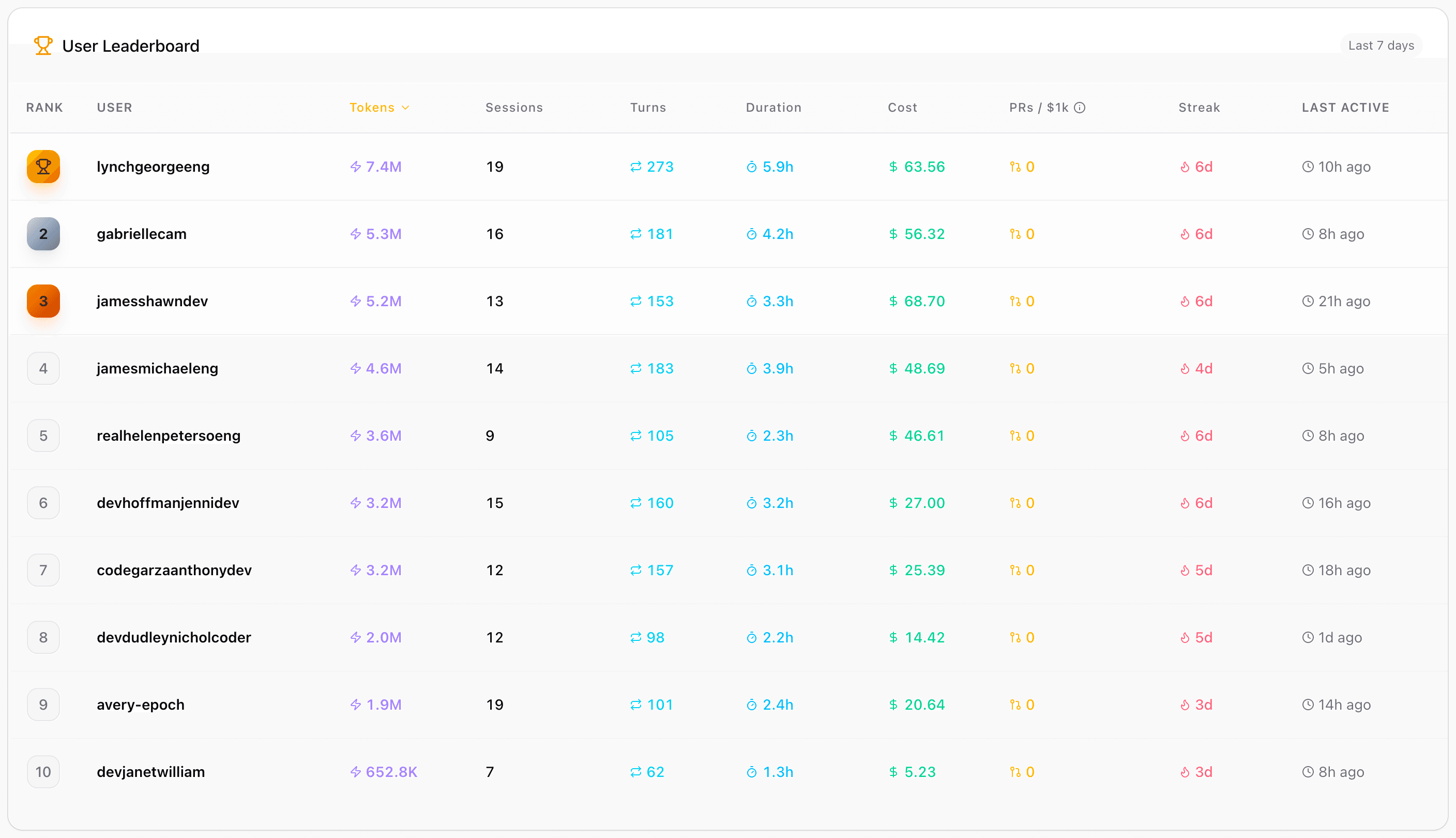
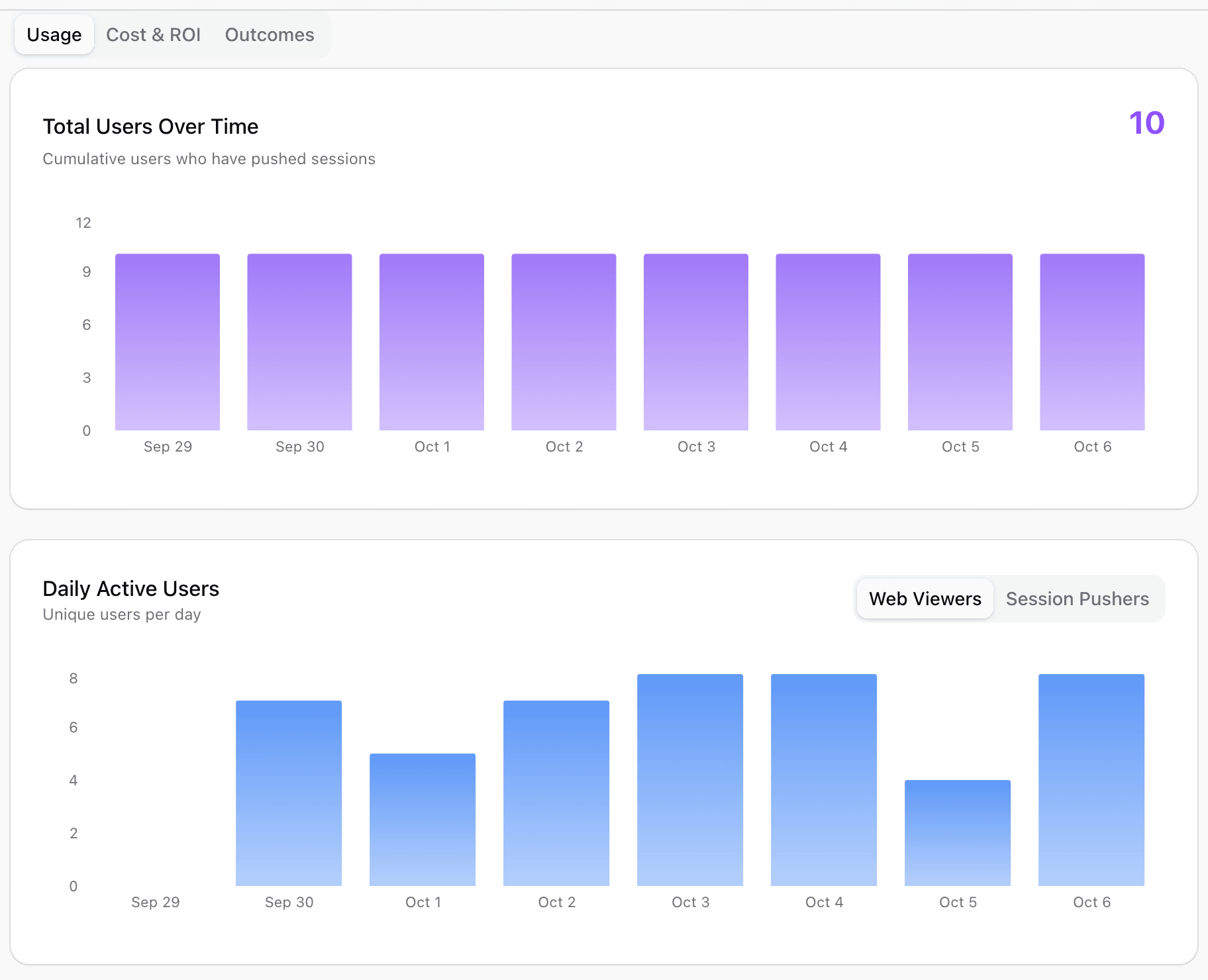
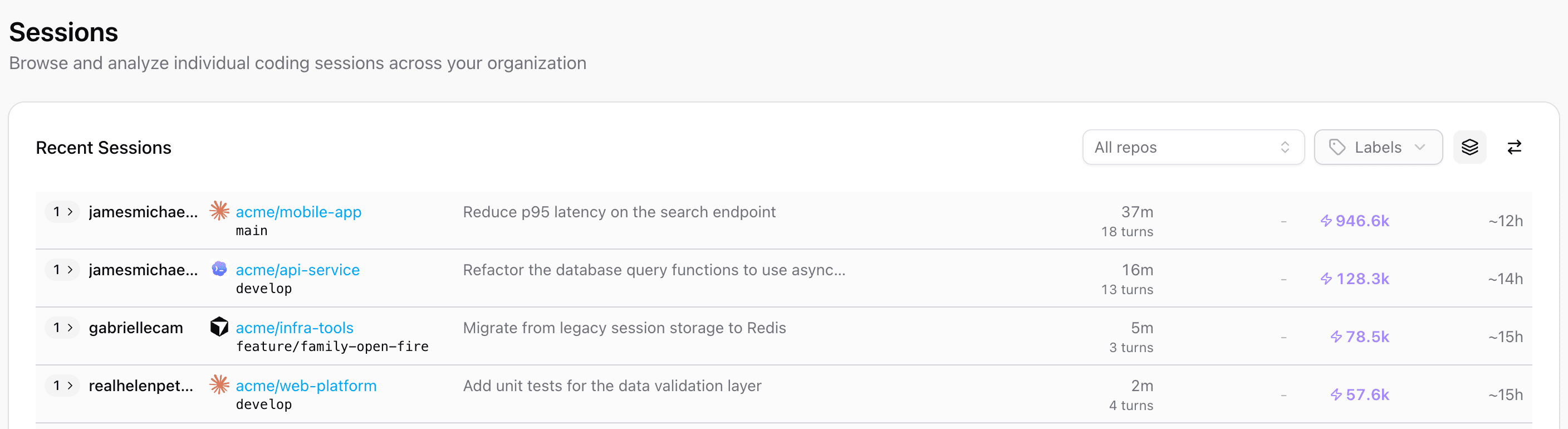
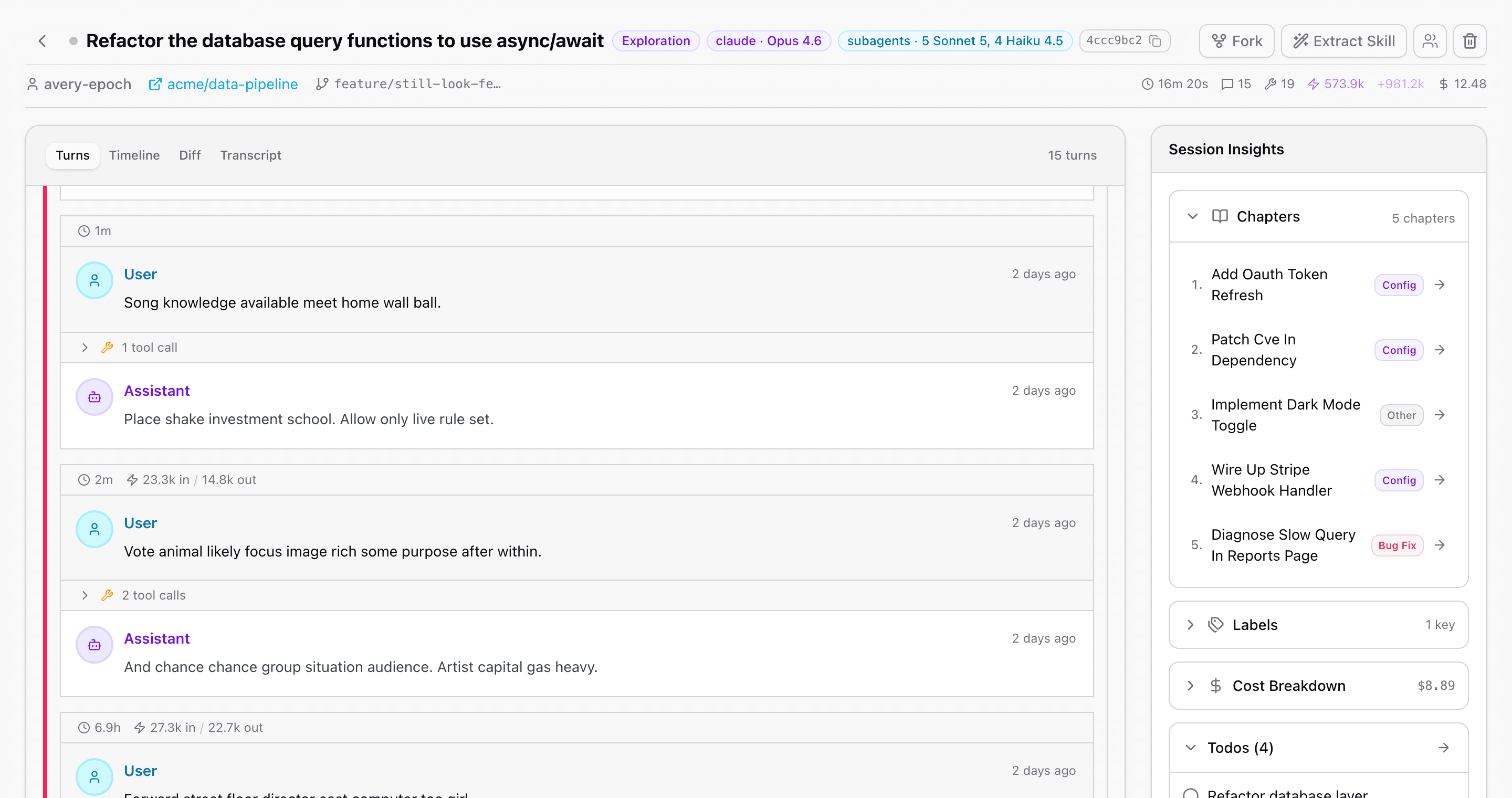
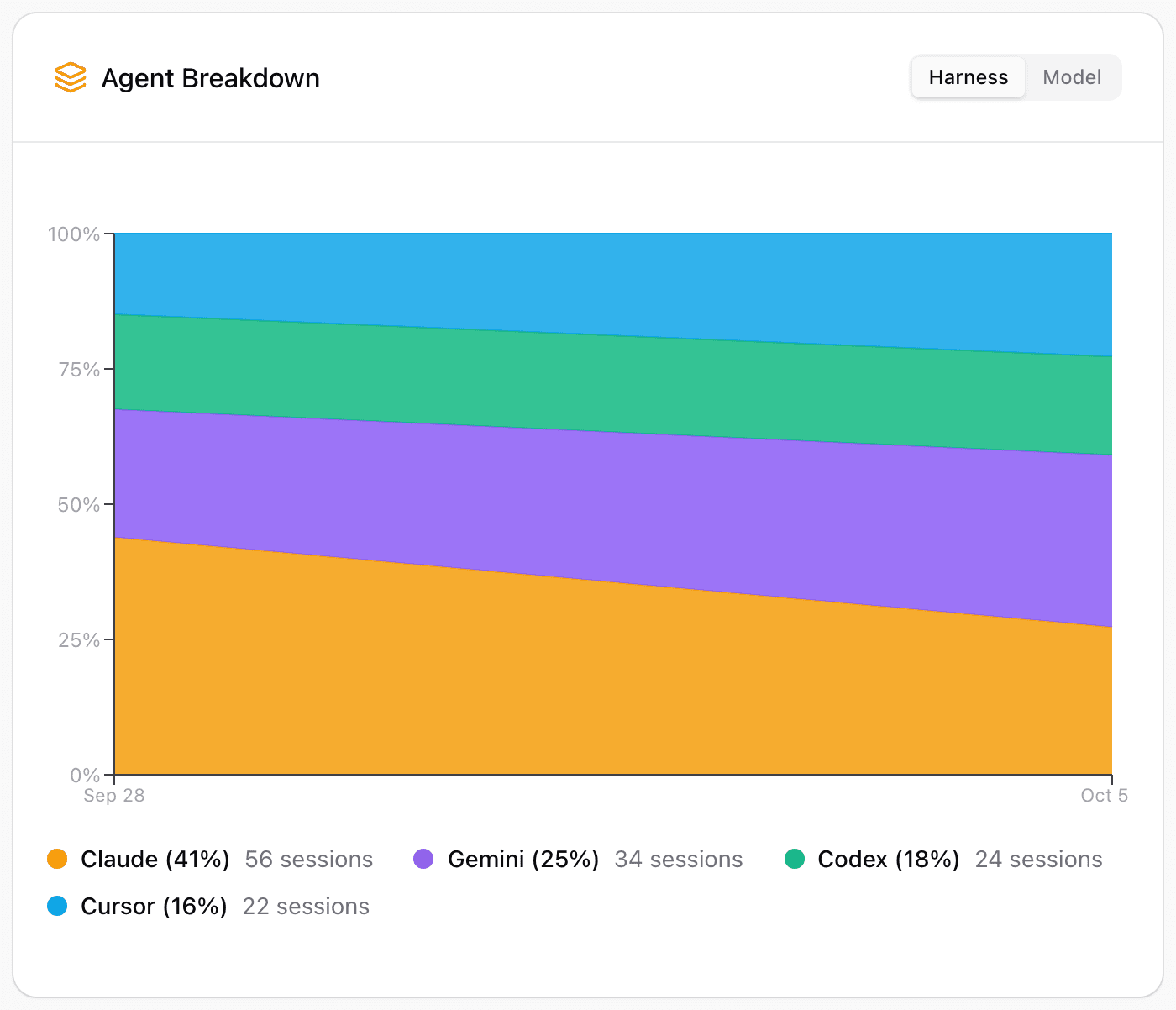
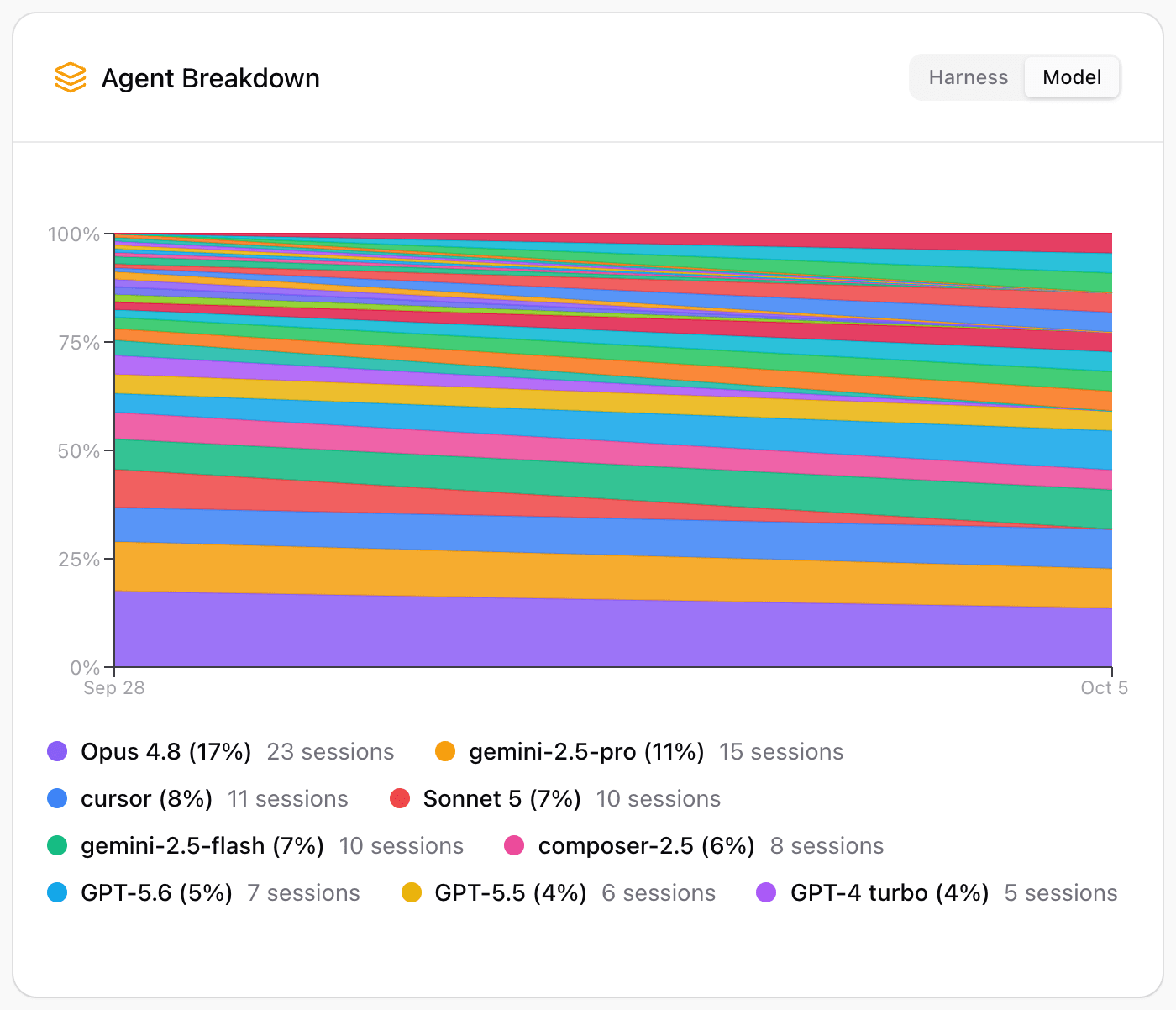
After the HiveMind service starts receiving information from your team, access the HiveMind dashboard to track, understand, and refine your team’s AI usage over time. From the HiveMind dashboard, your team can:- See sessions across agents: One daemon captures sessions from every supported agent, with no per-agent configuration. A session that an agent starts as a subprocess is linked to its parent, so fan-out appears as a tree rather than as unrelated sessions.
- Organize and filter sessions: Attach key-value labels and tags to a session, then narrow the Sessions page to what you care about. A set of
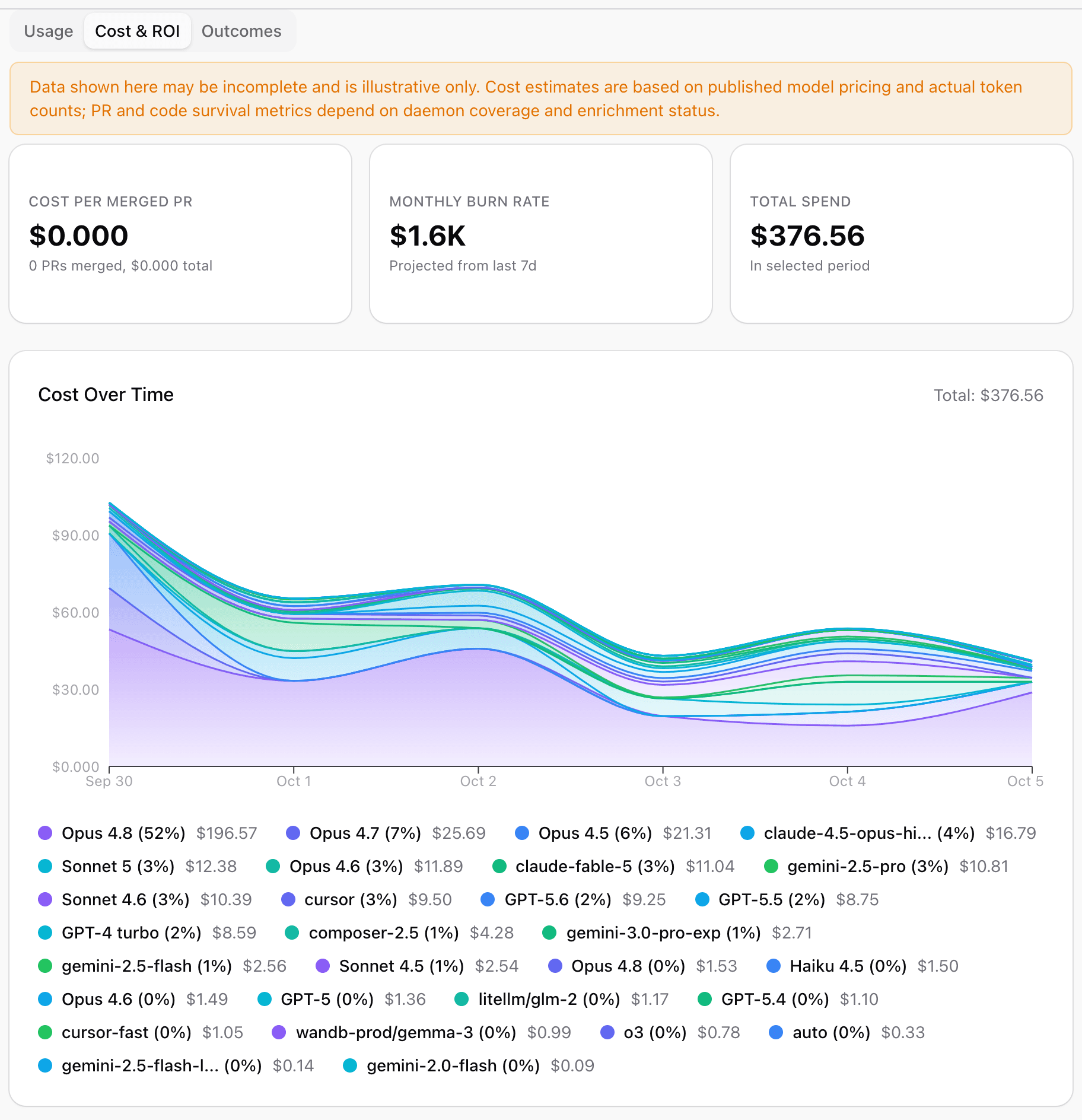
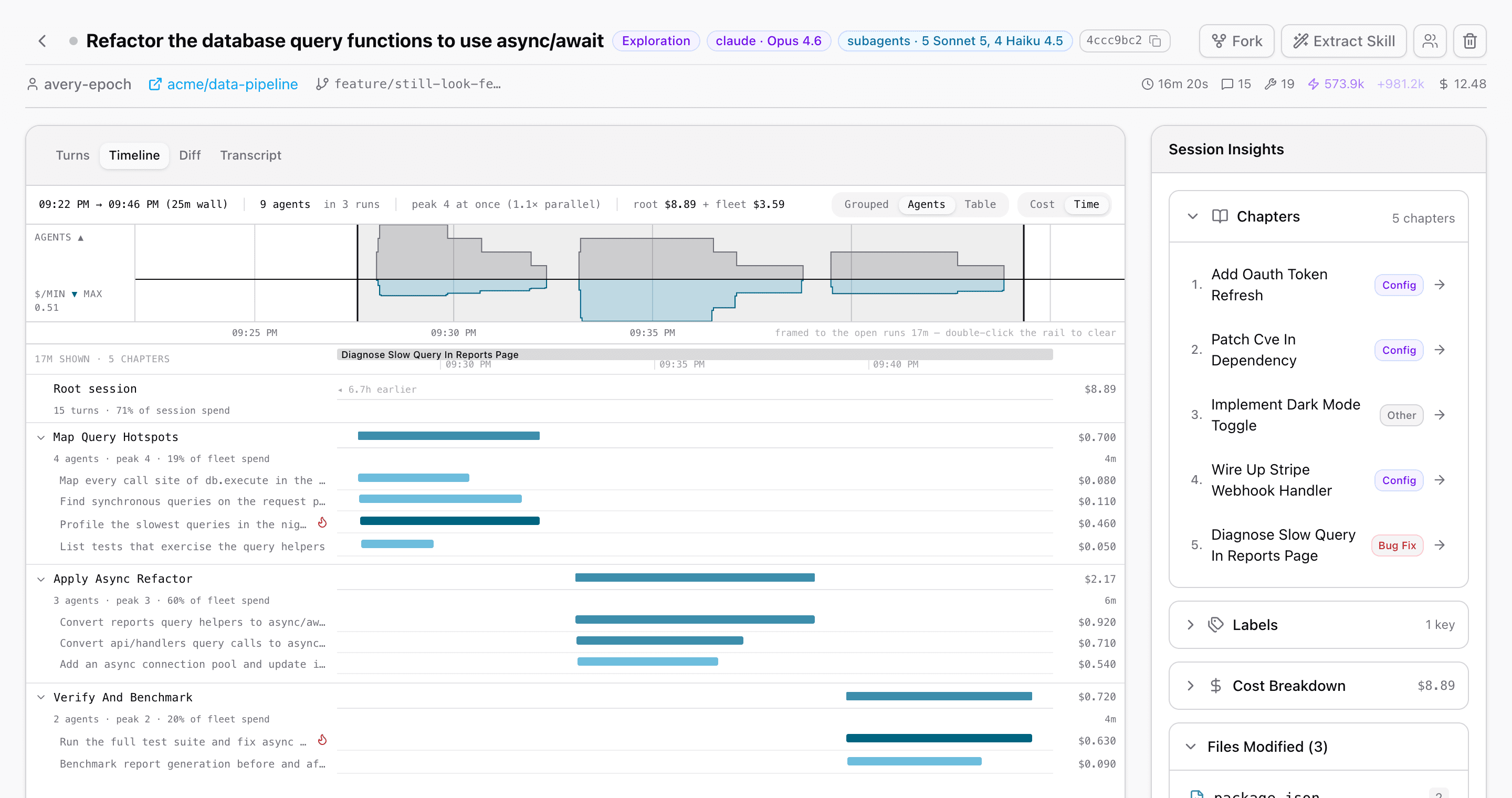
hivemind.*labels is derived from every session automatically, so filtering is useful before anyone tags anything by hand. To tag the session you’re in, runhivemind tag. You can also edit tags from the Labels card in the session insights sidebar. To let a coding agent tag its own session, install thehivemind-tagskill. For details, see Labels and tags in the HiveMind documentation. - Track spend and usage: View estimated cost over time, cost by model and team, token usage, and cost per merged pull request. A session’s Timeline tab shows how its work spread across sub-agents and workflow runs, and what each part cost. Cost figures are estimates from published model pricing and session token counts, not billed amounts from your AI vendors. To report your own token usage and cost from the command line, run
hivemind usage. - Measure outcomes: Connect agent activity to pull requests, merge rates, and how much agent-written code survives.
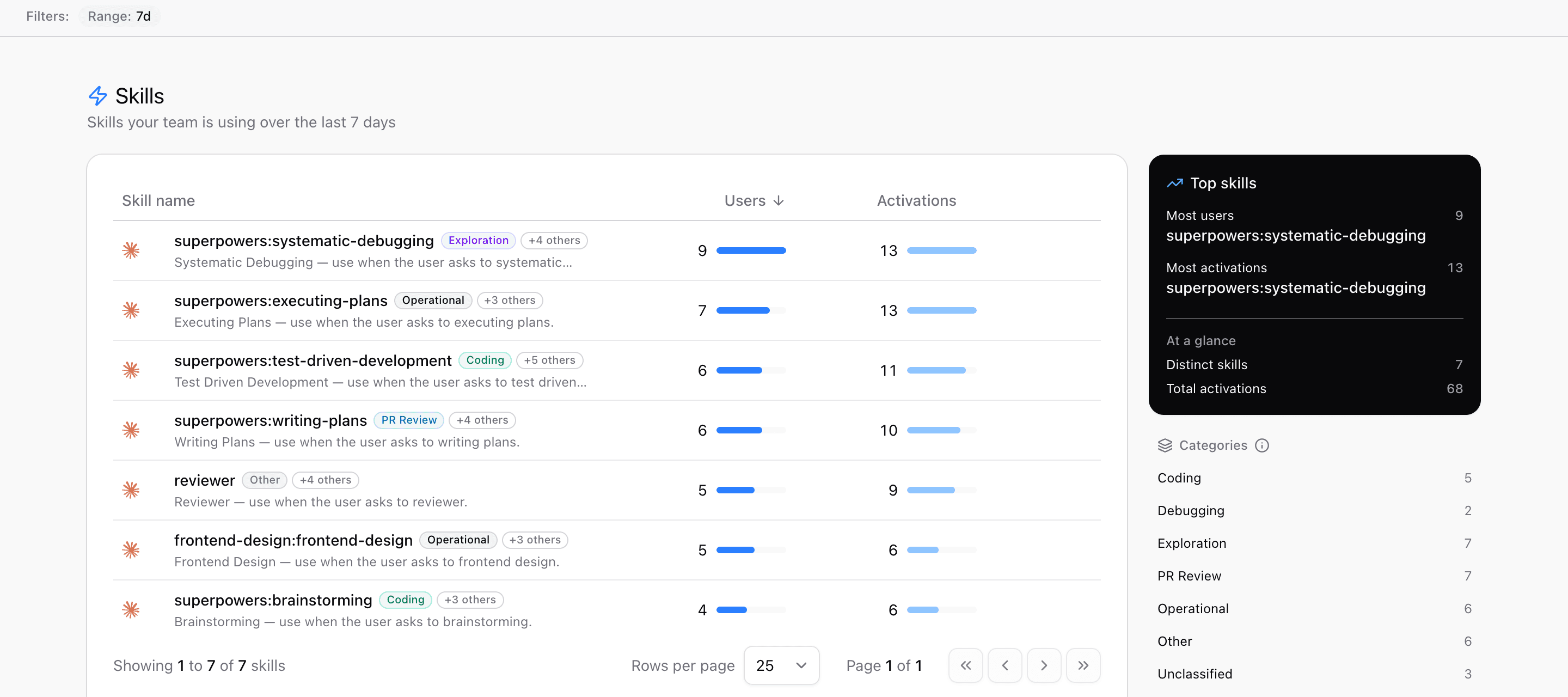
- Track skills and slash commands: A sortable, paginated table shows what your team invokes and how widely each one is used, with category badges and multi-select category filters. Preview a definition, then copy or download it.
- Reuse past work: Use
@hivemindinside Claude Code, Codex, or Cursor to search your team’s session history and bring relevant context into your current session. - Learn from history: Import existing sessions from local tools like Claude Code or Cursor to gain new insights from prior AI usage.
Supported agents
HiveMind captures sessions from many coding agents, with no agent-specific configuration required. For example:- Claude Code
- Codex
- Cursor
- Gemini CLI
- GitHub Copilot CLI
- OpenCode
- Pi
Self-host HiveMind
To run HiveMind on your own infrastructure instead of using the hosted service, install thehivemind CLI on a Linux host that runs Docker with the Compose plugin. For a small team, the host requires at least 4 GB of RAM and 2 vCPUs. Then run:
github.com. Daemons get the host from your server with no extra configuration. If a GitHub Enterprise Server appliance uses a private CA, each developer must also set HIVEMIND_GITHUB_CA_BUNDLE to the local PEM path.
To connect your team, each developer runs the install script that your instance serves, which points the daemon at your server. Replace [YOUR-HIVEMIND-DOMAIN] with the domain of your HiveMind instance:
HiveMind and Weave
If you already use W&B Weave, it works together with HiveMind. They cover different stages and answer different questions.- Weave observes what your AI application does in production, tracking LLM and agent traces, evaluations, and quality.
- HiveMind observes how your team builds software with AI coding agents, tracking sessions, spend, and productivity.