

Available only in W&B Multi-tenant Cloud.
Start a new chat
To start a new chat, open ARIA, then click the pencil icon in the upper right corner of the chat window. You can run multiple chats in parallel at a time. ARIA notifies you when it responds to a chat, even if you have closed the chat window. Starting a new chat does not delete your previous conversations. To view previous conversations, click (Reveal chat history) to open the chat history sidebar.Send a message
Type a message and press Enter to send it.- Press Shift+Enter to add new lines.
- Click + to add images.
- To add a run reference, type
@and select a run from the list. Type to filter and fuzzy-search the list. - For more flexibility, compose a more complex message in a text editor and paste it. Plain text is supported, and pasted
@characters are not resolved to run references.
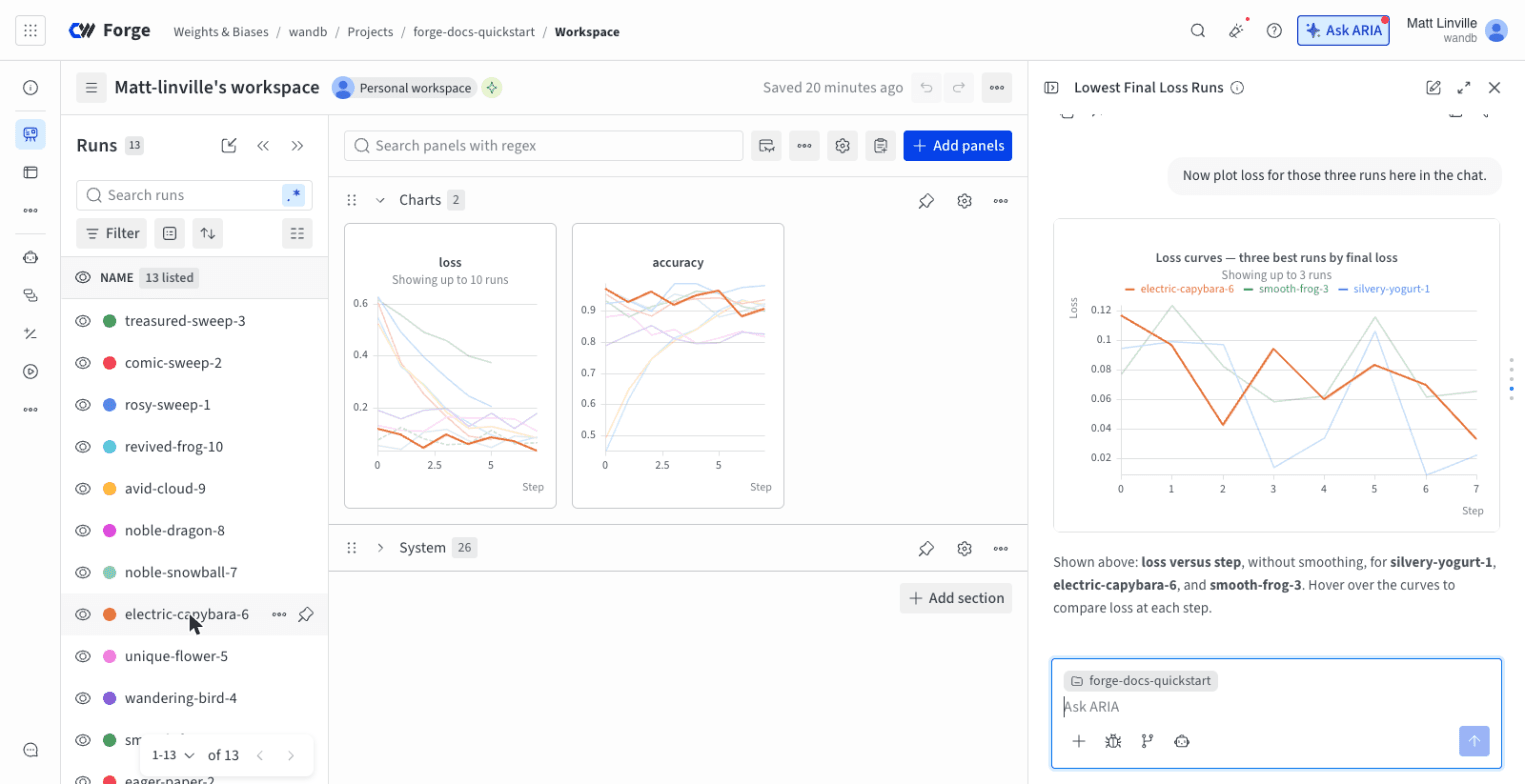
User prompt
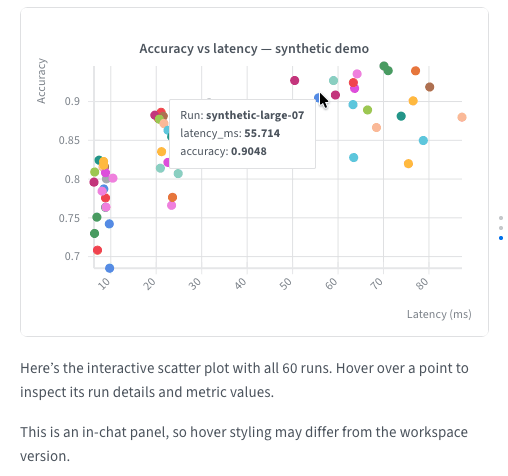
Queue messages
The message queue holds follow-up tasks and questions you send to ARIA while it works. ARIA runs each queued message in order using the full conversation as context. The next message runs as soon as the previous one finishes. Use the queue to line up several steps at once and step away, rather than returning to the chat to send each one. For example, you might start with a comparison: While ARIA works, send additional requests to the chat window. W&B adds pending requests to ARIA’s queue. This example sends two messages at once:Queued messages
- Pencil icon (): Edit the message before ARIA runs it. ARIA moves the message into the message box and removes it from the queue, so send it again to requeue it. This control is unavailable while the message box already holds a draft.
- Up arrow icon (): Run the message now instead of waiting its turn. ARIA stops what it’s working on and runs this message next. The other queued messages keep their order.
- Trash can icon (): Delete the message from the queue.
Jump to an earlier message
In a long conversation, use the turn rail to return to an earlier message without scrolling. After you send your second message in a conversation, the rail appears along the right edge of the chat window. The rail has one mark for each message you sent.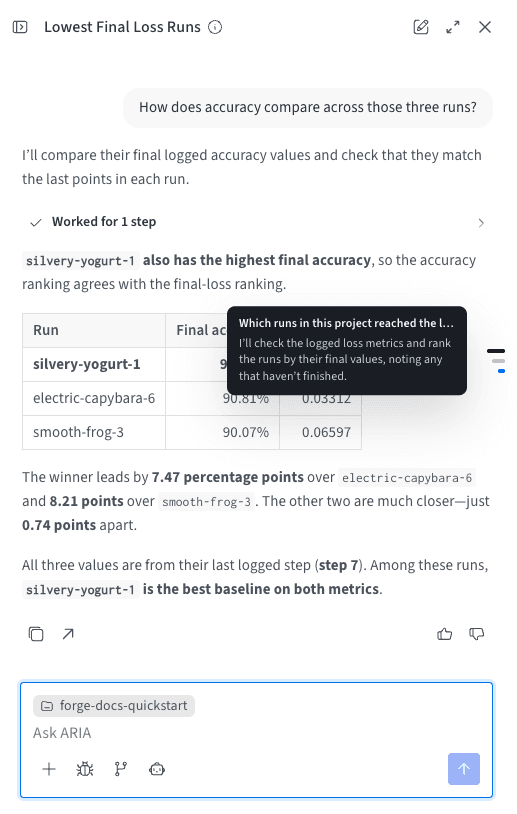
- Preview a message: Move the pointer along the rail. The marks near the pointer widen, and a card shows the start of your message and a preview of ARIA’s response.
- Jump to a message: Click a mark. The chat scrolls until your message is at the top of the chat window.
- See where you are: The mark for the message at the top of the chat window stays highlighted as you scroll.
Manage conversations
The following sections describe how to view, rename, pin, and delete your conversations.View chat history
To view previous conversations:- Open ARIA.
- Click (Reveal chat history) to open the chat history sidebar. It’s collapsed by default. The same control reads Collapse chat history while the sidebar is open.
- Select a conversation to resume it.
- (Pin chat / Unpin chat): see Pin a conversation.
- (Chat actions): opens a menu with Rename chat and Delete chat. See Rename a conversation and Delete previous conversations.
Rename a conversation
When you send the first message in a new chat, ARIA generates a title for the conversation. The title shimmers in the chat history sidebar while ARIA writes it. If ARIA can’t generate a title, the conversation keeps an excerpt of your first prompt as its title. ARIA titles a conversation only once. Follow-up messages don’t change the title. To give a conversation a different title:- In the chat history sidebar, hover over the conversation you want to rename.
- Click (Chat actions), then select Rename chat. The title becomes an editable field.
- Type a title, up to 255 characters.
- Press Enter or click (Save chat title) to save. Press Escape or click (Cancel rename) to discard your change.
Pin a conversation
Pin a conversation to keep it at the top of the chat history sidebar instead of letting it slide down as new chats accumulate.- In the chat history sidebar, hover over the conversation you want to pin.
- Click (Pin chat). The conversation moves under the Pinned header.
- To unpin, click (Unpin chat) on a pinned conversation.
Delete previous conversations
To delete a previous conversation:- Open ARIA.
- Click (Reveal chat history) to open the chat history sidebar.
- Hover over the conversation you want to delete, click (Chat actions), then select Delete chat.
- In the Delete this chat? dialog, click Delete to confirm. You can’t undo this action.
Undock chat window
You can undock the chat window into a separate window, which allows you to view ARIA’s response side-by-side with your project data. To undock the chat, click the undock icon in the upper right corner of the chat window next to the close (X) button.Add context to a conversation
Attach runs, workspace panels, and Weave traces and evaluations to a chat to give ARIA the exact context for your question. Each item appears in the message box as a removable tag. You can attach several items to a message. Adding context doesn’t send the message on its own. When you’re ready, click Send. When you add context from a page, ARIA adds it to the conversation that’s open in the chat window. If no conversation is open, ARIA starts a new one.Mention a run
Type@ in the message box and select a run. For example, you can ask ARIA to analyze a specific run by including the run’s name in your prompt:
User prompt
Add a workspace panel
To attach a workspace panel to a chat:- In your workspace, hover over the panel and click its action () menu.
- Select Ask ARIA. ARIA opens with the panel attached.
- Type your question, such as
Why does loss spike after step 2,000?, then send it.
Add Weave traces and evaluations
In Weave, click the ARIA button to attach traces, evaluations, or evaluation results to a chat. Hover over the button to see its label, such as Ask ARIA about this trace or Ask ARIA about these evals. The button appears in these places:- Traces or Evals table: Select one or more rows. The button appears in the table toolbar and attaches every selected row.
- Trace or evaluation details page: The button appears in the page header.
- Evaluation comparison: When you compare evaluations and view an example’s details, the button attaches the predictions and scores for that example.
User prompt
Add an image to a conversation
Click the plus icon (+) in the lower left corner of the chat window to add an image to your conversation. You can then ask ARIA to analyze the image or provide information about it.
Grant network access
When a task needs a domain that ARIA’s sandbox blocks, ARIA asks you for network access and waits for your answer. For example, a task that installs a Python package needspypi.org and files.pythonhosted.org. By default, the sandbox where ARIA runs code can reach W&B services but blocks most other domains on the internet.
The request appears in the chat under The agent is requesting network access. It shows the reason for the request and lists the requested domains, all selected. Respond to the request in one of these ways:
- To grant access, clear any domains you don’t want to allow, then click Grant access. ARIA continues its work and can reach the granted domains.
- To deny access, click Deny. ARIA continues without the extra access.
Review or revoke network access
After you grant access in a conversation, (Manage network access) appears in the message box, next to the plus icon (+).
To revoke access:
- Click (Manage network access). A list of the conversation’s granted domains opens.
- Clear the domains you want to revoke.
- Click Update access.