The Slurm Cluster dashboard provides an overview of all the SUNK jobs within a specific Namespace. It aggregates metrics by relevant properties, such as job state, resource type, and user, to illustrate trends in jobs.You can use this dashboard to:
Monitor the resource usage of SUNK jobs across all clusters.
Track the rate of filesystem operations of SUNK jobs across all clusters.
View information about SUNK jobs on a per-user or per-partition basis.
Use these filters at the top of the page to choose the data you want to view:
Field
Value
Data Source
The Prometheus data source selector.
Logs Source
The Loki logs source selector.
Org
The organization that owns the cluster.
Cluster
The specific Kubernetes cluster in the organization to view.
Namespace
The Kubernetes namespace where the Slurm cluster is located.
slurm_cluster
The Slurm cluster containing the job to view.
nodeset
Node Conditions
Toggled on by default. Click to disable.
Pending Node Alerts
Toggled off by default. Click to enable.
Firing Node Alerts
Toggled off by default. Click to enable.
InfiniBand Fabric Flaps
Toggled off by default. Click to enable.
MaxJobCount Limit Reached
Toggled on by default. Click to disable.
The dashboard also includes a button with a link to the Slurm Job Metrics dashboard.Set the time range and refresh rate parameters at the top-right of the page. The default time range is 5 minutes, and the default refresh rate is 1 minute.
The Slurm Jobs section lists information about the Slurm jobs running in the selected Namespace. It includes panels that display the jobs according to status.
Panel
Description
Running jobs
A sortable table that lists the currently running Slurm jobs along with quick-reference utilization statistics.
Largest Job by Nodes
A pie chart that shows how many nodes each job is using. Click a section of the pie chart to open the Slurm / Job Metrics dashboard for that job.
Pending jobs
A table that lists jobs currently in the Pending state.
Completing/Completed jobs
A table that lists jobs currently in the Completing or Completed state.
Failed/Suspended/Cancelled/Pre-empted/Timeout/Node-Fail jobs
A table that lists jobs currently in the following states: Failed, Suspended, Cancelled, Preempted, Timeout, Node-Fail
RUNNING/COMPL/PEND Jobs
A graph that plots all jobs in the following states: Completing (green line), Running (yellow line), Pending (blue line), Completed (orange line).
FAIL/SUSP/CANC/PREEMPT/TIMEDOUT Jobs
A graph that plots all jobs in the following states: Timed out (dark red), Failed (yellow), Failed due to NodeFail (light blue), Suspended (orange), Preempted (red)
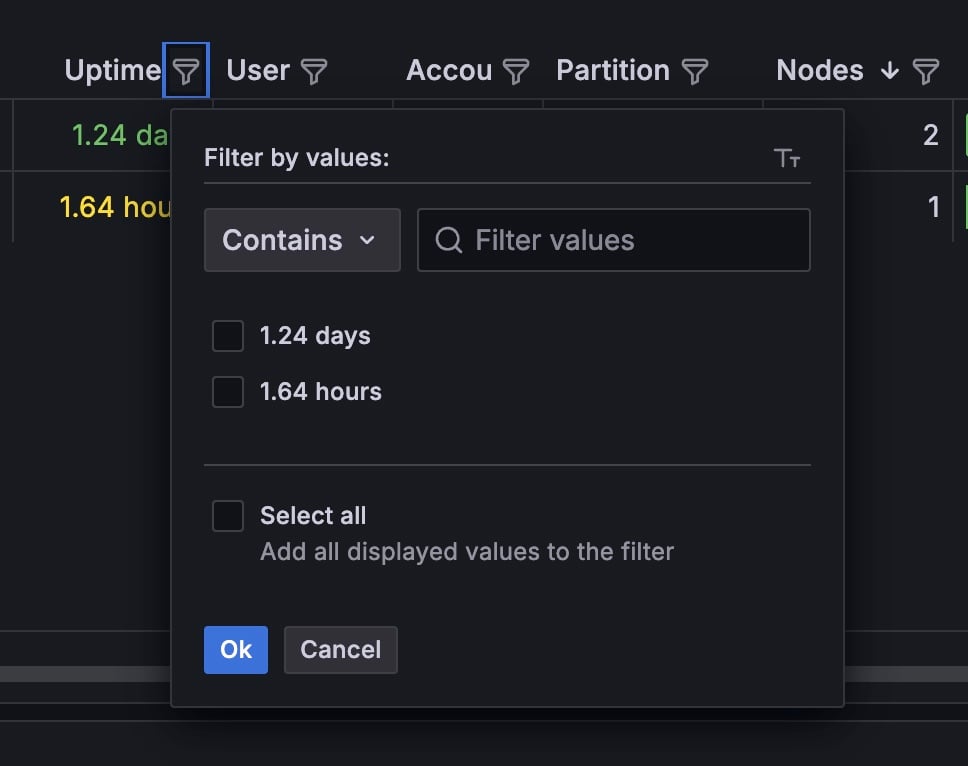
The Running jobs table in the Slurm Jobs section displays all the currently running jobs, along with relevant hardware utilization metrics in a quick-reference format. Click the icon next to the column title to open the Filter by values menu. The data in each column is filterable by the relevant values held within.You may need to use the horizontal scroll bar to view all the available fields.
Field
Description
Job Id
The Slurm job ID.
Job
The name of the Slurm job.
Uptime
The Slurm job uptime in seconds.
User
The user who created the Slurm job.
Account
The user account running the Slurm job.
Partition
The partition where the Slurm job is running.
Nodes
The number of nodes allocated to the Slurm job.
GPU Util
Measures GPU utilization over a 1-hour period.
SM Util
The fraction of time at least one warp was active on a multiprocessor, averaged over all multiprocessors. “Active” does not necessarily mean the warp is computing. For example, warps waiting on memory requests are considered active. The value represents an average over a time interval, not an instantaneous value. A value of 0.8 or greater is necessary, but not sufficient, for effective use of the GPU. A value less than 0.5 likely indicates ineffective GPU usage.
NFS Total W 1h
The total volume of NFS write operations over a 1-hour period, in bytes.
NFS Total R 1h
The total volume of NFS read operations over a 1-hour period, in bytes.
NFS Avg W 1h
The average NFS write operations over a 1-hour period, in bytes.
NFS Avg R 1h
The average NFS read operations over a 1-hour period, in bytes.
NFS Peak W 1h
Maximum NFS write operations during a 1-hour period.
NFS Peak R 1h
Maximum NFS read operations during a 1-hour period.
NFS Retrans 1h
The number of NFS retransmissions over a 1-hour period. Retransmissions indicate packet loss on the network, due to congestion, faulty equipment, or faulty cabling.
The Count field at the bottom of the table displays the total number of running jobs.
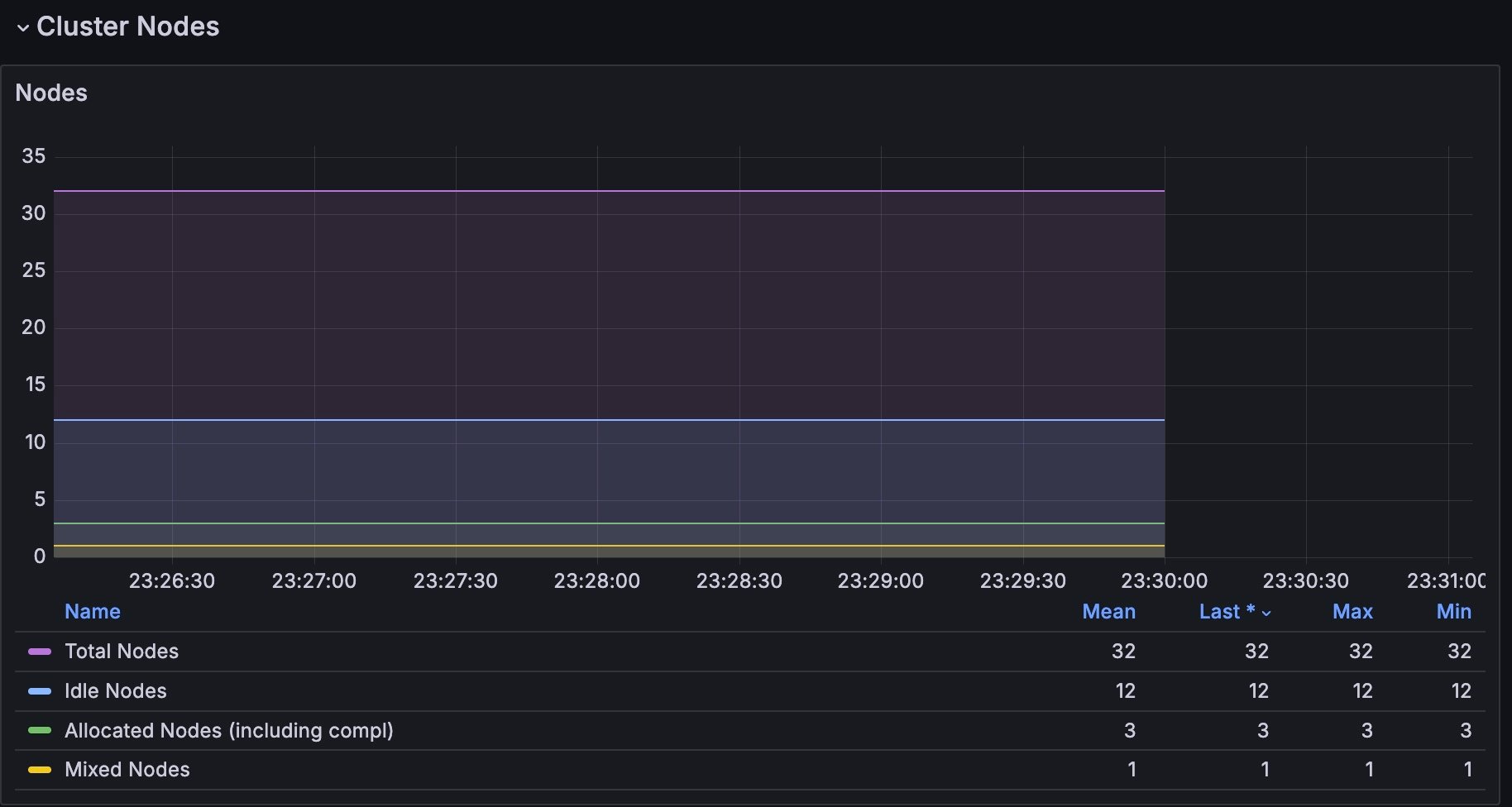
A time-series graph that displays the Total number of nodes in the cluster (purple), along with nodes in the following states: Idle (light blue), Allocated or complete (green), and Mixed (yellow).
Fail/Down/Drain/Err Nodes
A time-series graph that displays all nodes in the cluster with the following states: Down (red), Draining (yellow), Error (light blue), and Fail (purple).
Drain Reasons (TS)
A time-series graph that displays all node drain events.
Drain Reasons
A table showing all the nodes that are in a drain state and the reason for the drain. Alerting reasons are highlighted in red. Timestamp available only on clusters running SUNK v6.2.0 or later.
The Filesystem section includes information about read and write operations on the Network File System (NFS) and local files.
Panel
Description
Local Max Disk IO Utilization (Min 1m)
The green line indicates write operations and the yellow line indicates read operations.
Local Avg Bytes Read / Written Per Node (2m)
The red line indicates write operations and the blue line indicates read operations.
Local Total bytes Read / Written (2m)
The red line indicates write operations and the blue line indicates read operations.
Local Total Read / Write Rate (2m)
The red line indicates write operations and the blue line indicates read operations.
NFS Average Request Time by Operation
The duration each request takes from when it is enqueued to when it is handled for a given operation, in seconds. The green line indicates write operations and the yellow line indicates read operations.
NFS Avg Bytes Read / Written Per Node (2m)
The red line indicates write operations and the blue line indicates read operations.
NFS Total Bytes Read / Written (2m)
The red line indicates write operations and the blue line indicates read operations.
NFS Total Read / Write Rate
The red line indicates write operations and the blue line indicates read operations.
NFS Average Response Time by Operation
The duration from when a request is transmitted to when a reply is received for a given operation, in seconds. The green line indicates write operations and the yellow line indicates read operations.
NFS Avg Write Rate Per Active Node (2m)
The red line indicates write operations and the dashed green line displays active nodes. Only includes nodes writing over 10 KB/s.
NFS Avg Read Rate Per Active Node (2m)
The blue line indicates read operations and the dashed green line displays active nodes. Only includes nodes reading over 10 KB/s.
NFS Nodes with Retransmissions
Retransmissions indicate packet loss on the network, due to congestion, faulty equipment, or faulty cabling.
The NFS Average Response and Request graphs describe the performance of the filesystem. A slowdown or spike could indicate that the storage is too slow, and that the job might perform better with faster or a different type of storage, such as object storage.
The NFS Total Read / Write graphs typically display a large red spike when a job starts, as the model and data are read in. While the job runs, the graph shows smaller write spikes at regular intervals as the checkpoints are written out. Compare these graphs with the panels in the GPU Metrics section to confirm that running jobs behave as expected.
The SUNK Image Info section contains the SUNK Control Plane, Compute and Login Pod Images panel. This panel lists the images used for the SUNK Control Plane, Compute, and Login Pods, sorted by container.