

Ensure that you, or someone on your team, already configured a launch queue. For more information, see Set up Launch.
Add jobs to your queue
Add jobs to your queue interactively with the W&B App or programmatically with the W&B CLI.- W&B App
- W&B CLI
To add a job to your queue interactively with the W&B App:
- Navigate to your Weights & Biases project page.
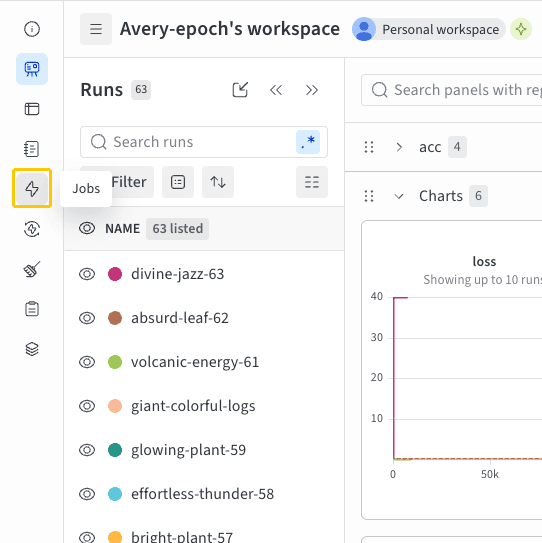
- Click Jobs in the project sidebar. If the sidebar doesn’t show it, click More () in the sidebar, then click Jobs.
- The Jobs page displays a list of W&B launch jobs created from previously executed W&B runs.
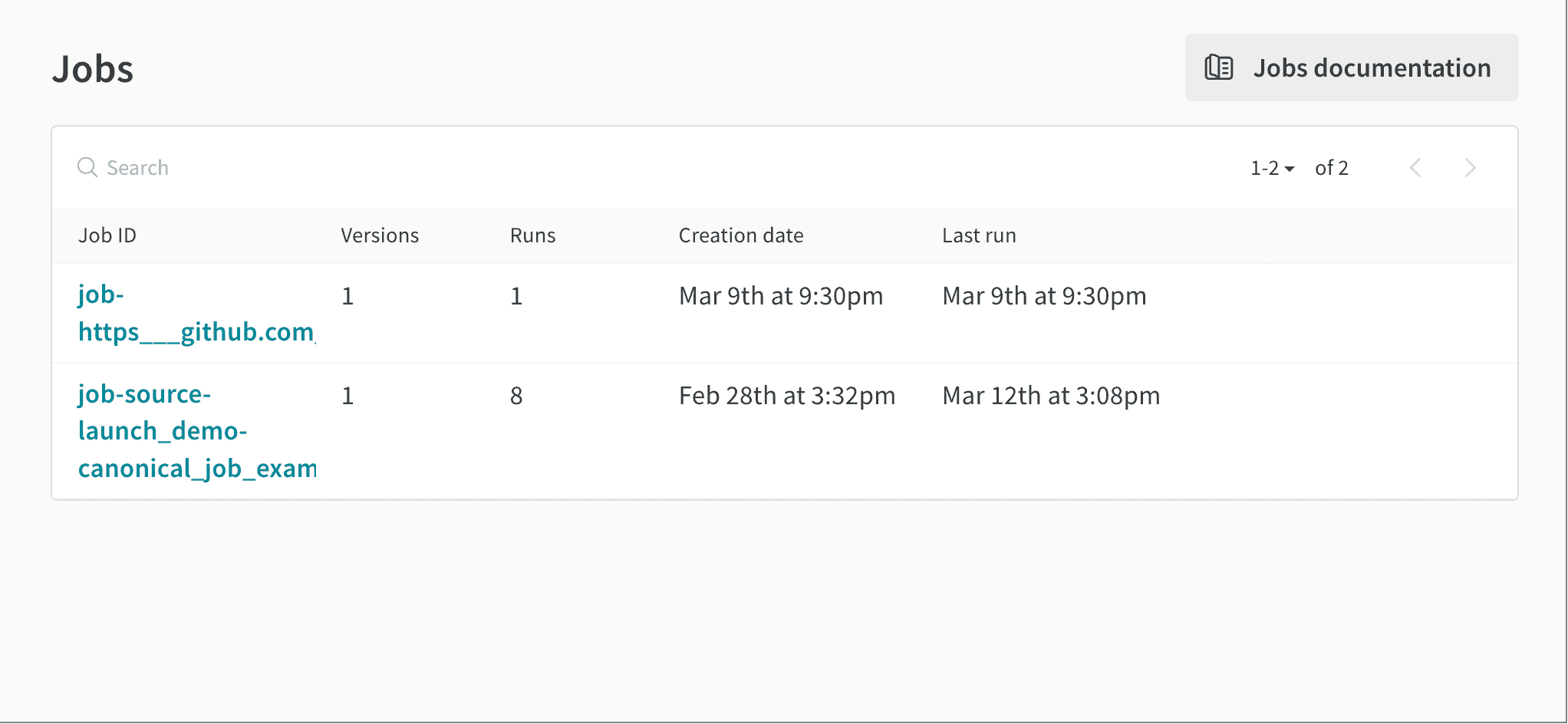
- Select the Launch button next to the job name. A modal appears.
- From the Job version dropdown, select the version of the launch job you want to use. Launch jobs are versioned like any other W&B artifact. Weights & Biases creates different versions of the same launch job if you modify the software dependencies or source code used to run the job.
- Within the Overrides section, provide new values for any inputs configured for your launch job. Common overrides include a new entrypoint command, arguments, or values in the
wandb.Run.configof your new W&B run.To copy and paste values from other W&B runs that used your launch job, select the Paste from… button.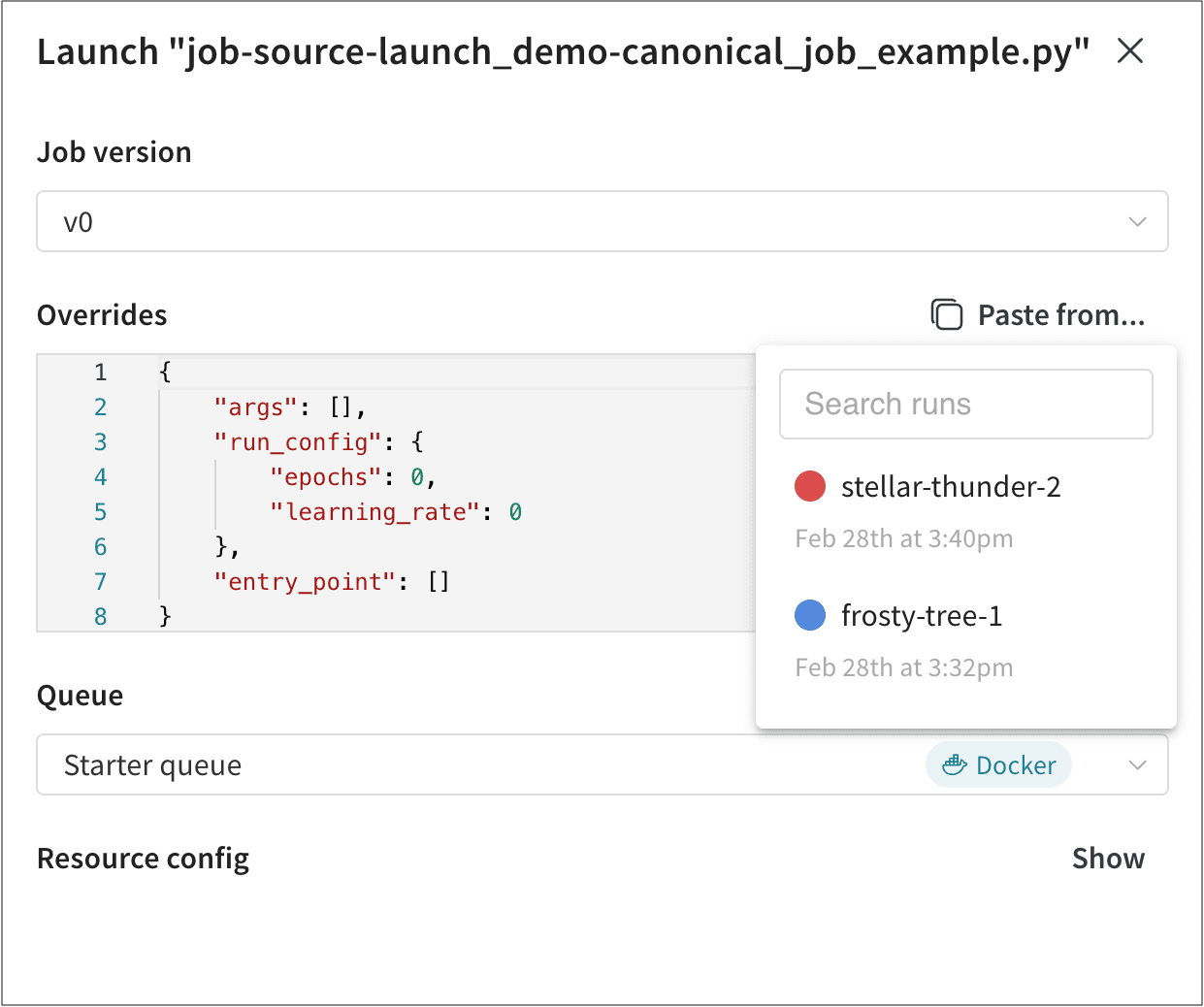
- From the Queue dropdown, select the name of the launch queue you want to add your launch job to.
- Use the Job Priority dropdown to specify the priority of your launch job. If the launch queue doesn’t support prioritization, Weights & Biases sets the priority to
Medium. - Optional: Follow this step only if your team admin created a queue config template. Within the Queue Configurations field, provide values for configuration options that your team admin created. For example, the following image shows a team admin who configured AWS instance types that the team can use. In this case, team members can select either the
ml.m4.xlargeorml.p3.xlargecompute instance type to train their model.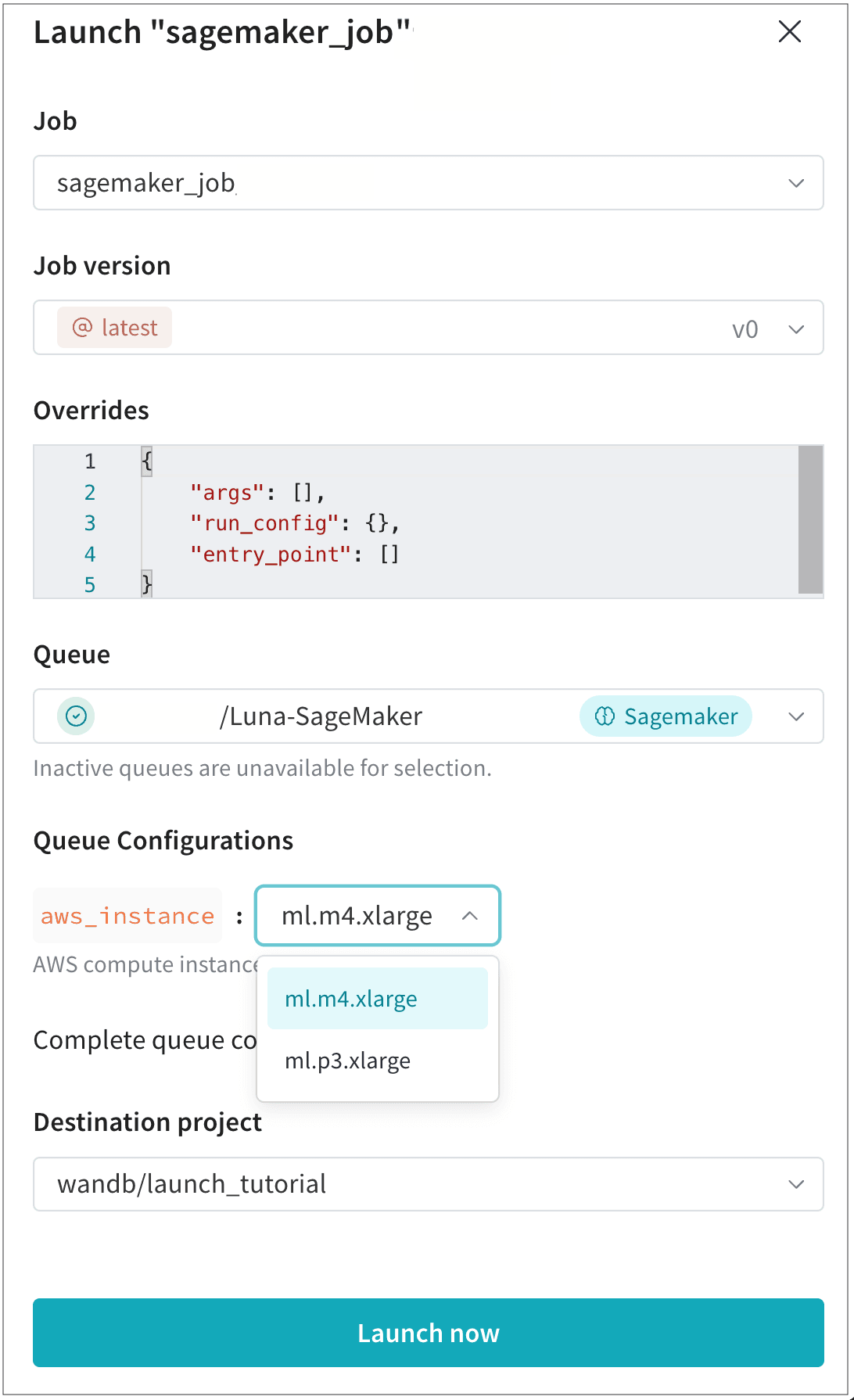
- Select the Destination project, where the resulting run appears. This project must belong to the same entity as the queue.
- Select the Launch now button.