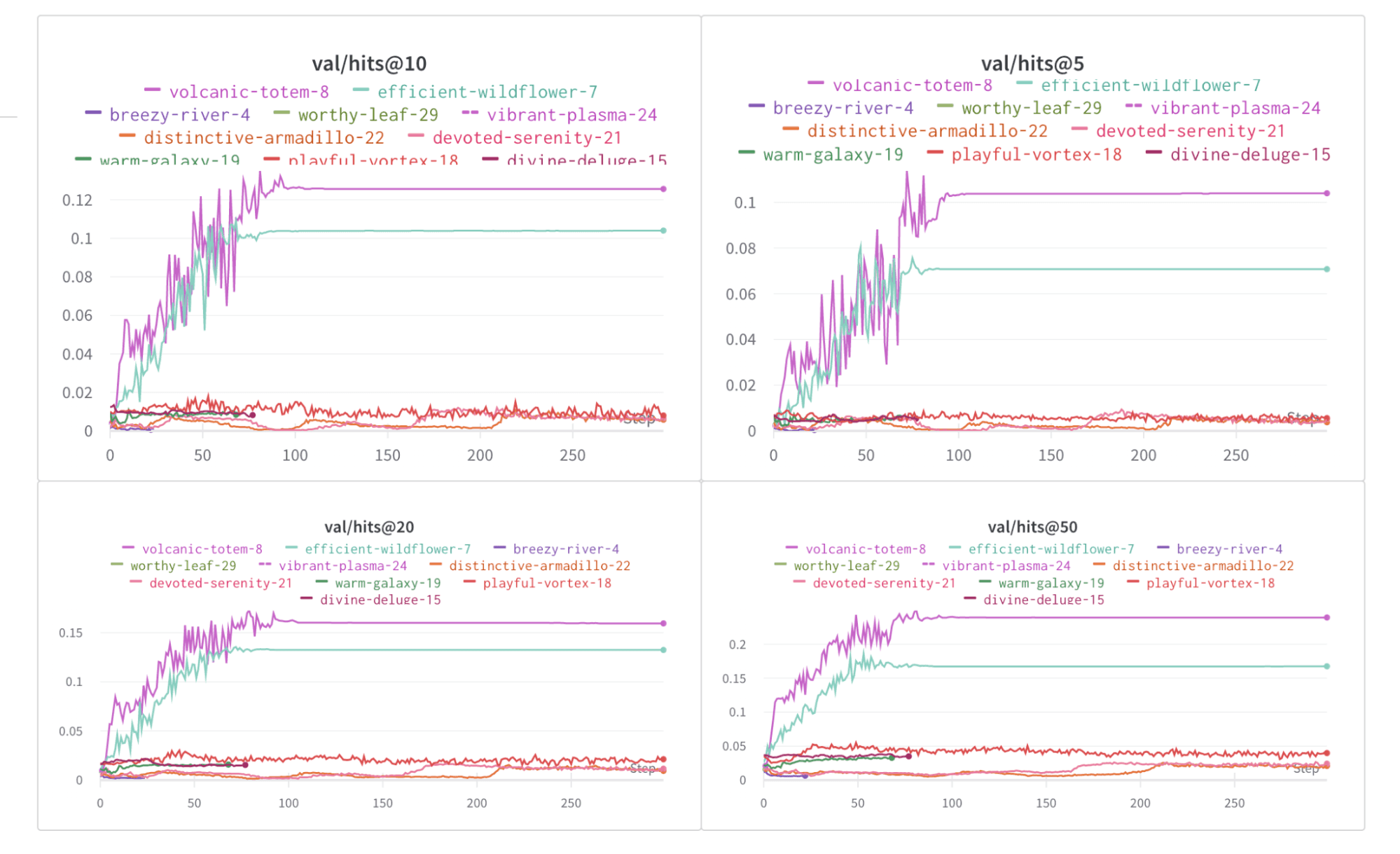
wandb library, visualize PyG graphs with PyVis or Plotly, and log training metrics from your PyG workflows. Use it to track experiments and share graph visualizations in Weights & Biases.
After you install PyTorch Geometric, follow these steps to get started.
Sign up and create an API key
An API key authenticates your machine to Weights & Biases. You can generate an API key from your user profile.For a more streamlined approach, go to User settings and create an API key. Copy the API key immediately and save it in a secure location such as a password manager.
- Click the account selector in the upper-right corner.
- Select User settings, then scroll to the API keys section.
Install the wandb library and log in
To install the wandb library locally and log in:
- Command Line
- Python
- Python notebook
-
Set the
WANDB_API_KEYenvironment variable to your API key. Replace values enclosed in<>with your own: -
Install the
wandblibrary and log in.
Visualize the graphs
After you log in, you can begin sending graph visualizations and run data to Weights & Biases. You can save details about the input graphs, including number of edges, number of nodes, and more. Weights & Biases supports logging Plotly charts and HTML panels, so you can also log any visualizations you create for your graph to Weights & Biases. The following sections show two common approaches: PyVis for interactive HTML visualizations and Plotly for chart-based visualizations.Use PyVis
The following snippet shows how to do that with PyVis and HTML.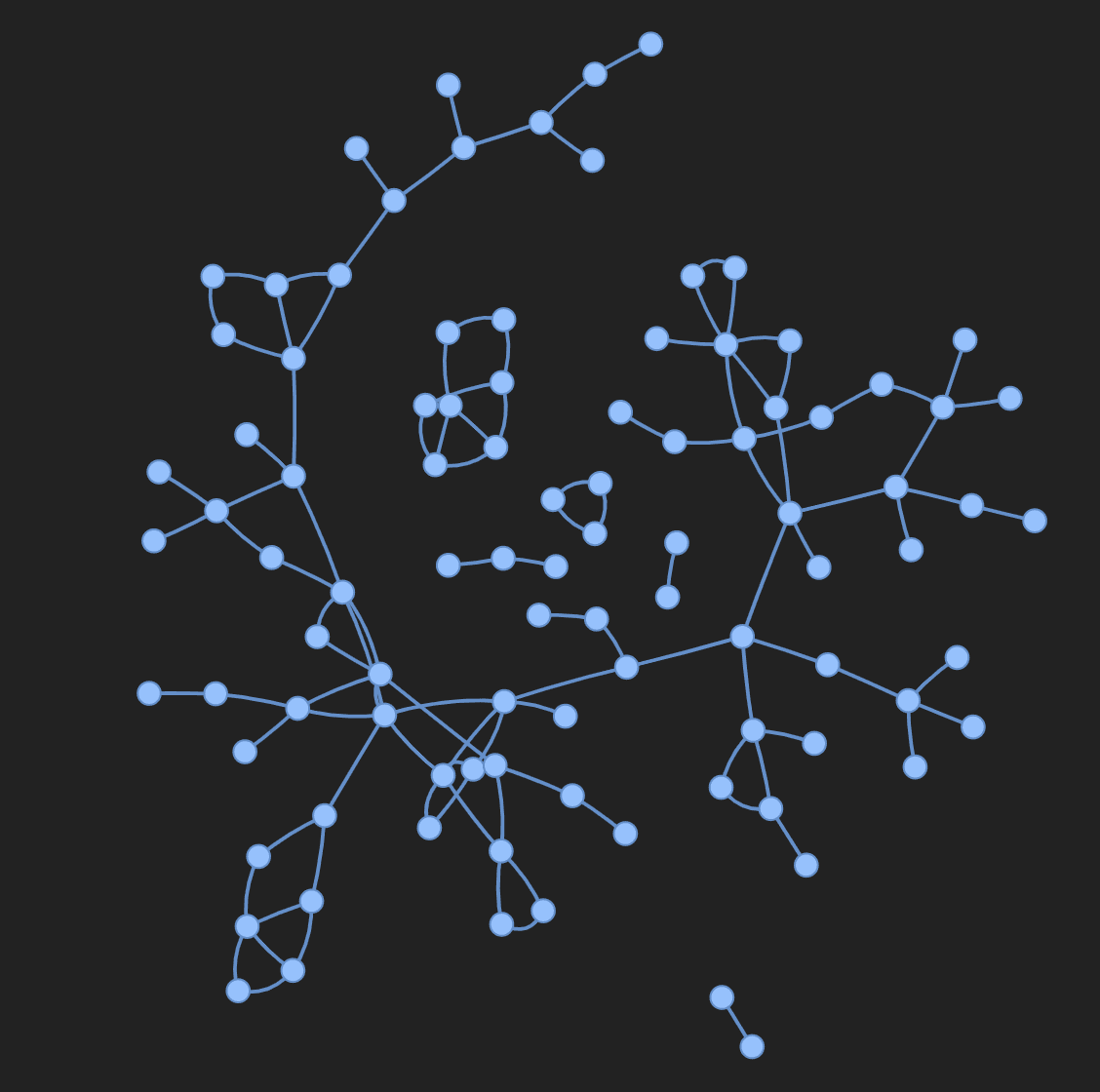
Use Plotly
To use Plotly to create a graph visualization, first convert the PyG graph to a networkx object. Then create Plotly scatter plots for both nodes and edges. Use the following snippet for this task.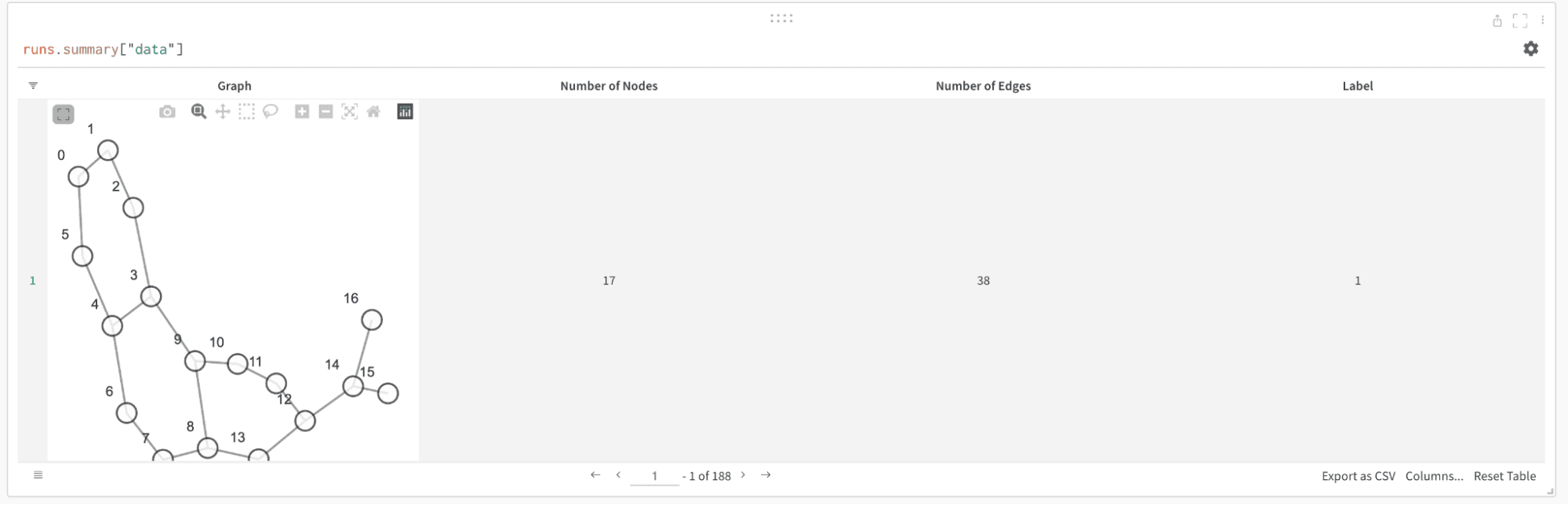
Log metrics
In addition to graph visualizations, you can use Weights & Biases to track your experiments and related metrics, such as loss functions, accuracy, and more. Add the following lines to your training loop: