

code Command Line Interface (CLI) on your workstation. A tunnel lets you edit code on the compute node directly, keep your development environment close to your data and GPUs, and avoid copying files back and forth between your workstation and the cluster.
This guide walks through the steps required to set up a VS Code Tunnel to connect to your Slurm compute nodes. By the end, you have the code CLI installed in your cluster’s shared storage, an interactive Slurm allocation on a compute node, and an active tunnel you can open in either VS Code in the browser or VS Code Desktop.
Prerequisites
To follow along with this guide, you need:- An active CoreWeave account and an existing Slurm cluster.
- A GitHub or Microsoft account to connect to VS Code Tunnel.
- The Microsoft Remote Tunnels extension installed and enabled in VS Code to connect to the compute node from a remote workstation.
VS Code CLI
Thecode CLI is the component that creates and manages the tunnel on the compute node. Install it once into your cluster’s shared storage so it is available from any compute node you allocate.
Download and install the VS Code CLI
The commands in the following examples demonstrate the process for a GPU node with an Intel processor.
-
Navigate to the Visual Studio Code Downloads page and select the appropriate option for your architecture. To download the
codeCLI as a standalone without the VS Code UI, select from the files on the line labeled CLI.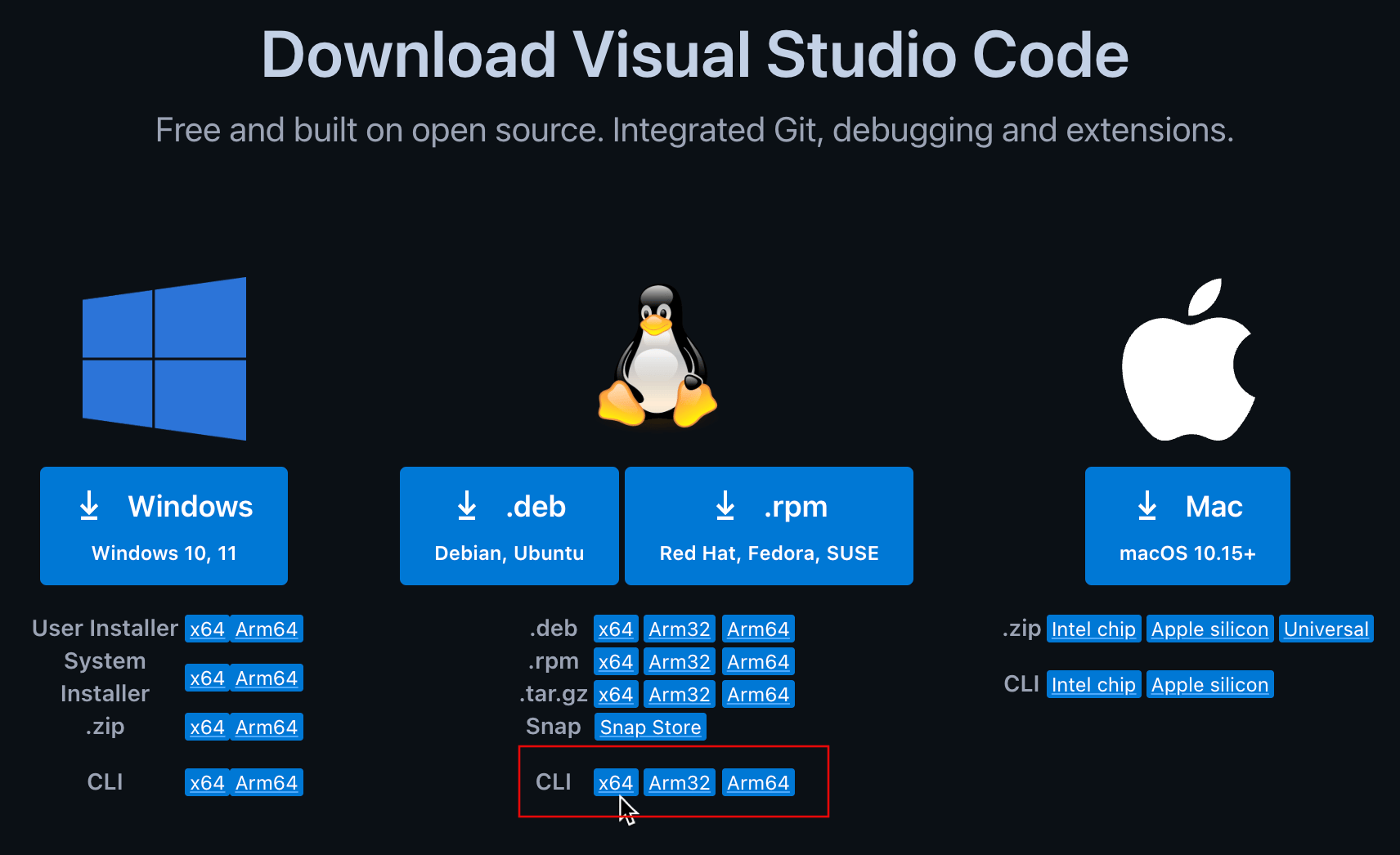
-
Click the
x64download link for CLI in the Linux section. The file downloads to your local workstation’s download directory, but you can ignore or delete this copy. -
Click the direct download link in the banner at the top of the screen and copy the URL. This is the URL you paste into the following
curlcommand.
-
Navigate to your desired location in your cluster’s shared storage, such as the home directory or
/mnt/data. -
Download the file with
curlusing the URL obtained from the direct download link in Step 3. -
Make a
/bindirectory in your$HOMEfolder, if it does not already exist. -
Unpack the file into the
$HOME/bindirectory. -
Export
$HOME/binto your$PATH. This step ensures that thecodeexecutable is in your system path every time you log in.
Connect to the compute node with a tunnel
With thecode CLI installed in shared storage, you can now allocate a compute node through Slurm and start a tunnel on it.
- Log in to your Slurm cluster’s login node.
-
Use
srunto create an interactive session to a compute node of your choice. The following example specifies one node in theh100partition and launchesbash.-p h100specifies theh100partition.-N 1specifies one node as the target.--pty bash -ilaunchesbashwith an interactive session on the specified Slurm node.
-
Create the tunnel on the compute node. Authenticate with your choice of GitHub or Microsoft, and provide a name for the machine. The default name is the name of the compute node.
VS Code in browser
After you run thecode tunnel command, the CLI returns a URL to the remote machine, similar to the following:
VS Code Desktop
After creating the tunnel with thecode tunnel command, you can connect to it with VS Code from your local machine for ease of development. The Desktop version of VS Code requires the Microsoft Remote - Tunnels extension for VS Code to use this functionality.
You can interact with the Remote-Tunnels functionality through either the Remote Explorer tab or the Command Palette. The following sections describe both approaches. Choose whichever fits your workflow.
Remote Explorer
You can view and connect to tunnels with the Remote Explorer in VS Code.-
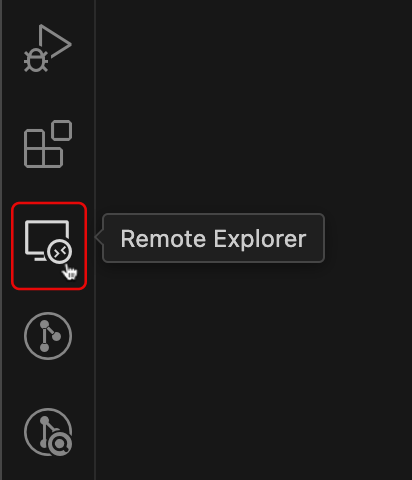
Click the Remote Explorer icon on the VS Code Activity Bar.
-
When prompted, specify whether you used GitHub or Microsoft to authenticate.
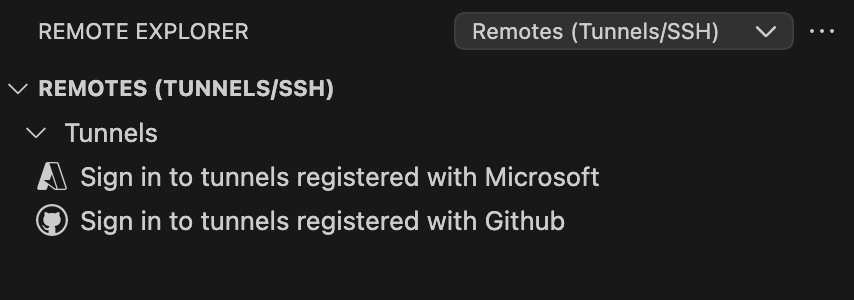
- After you authenticate with the appropriate service, select the node you want to connect to.
Command Palette
Access the Remote Tunnels functionality with VS Code’s Command Palette.-
Open the Command Palette with
Ctrl-Shift-Pfor Windows and Linux, orShift-Command-Pon macOS. -
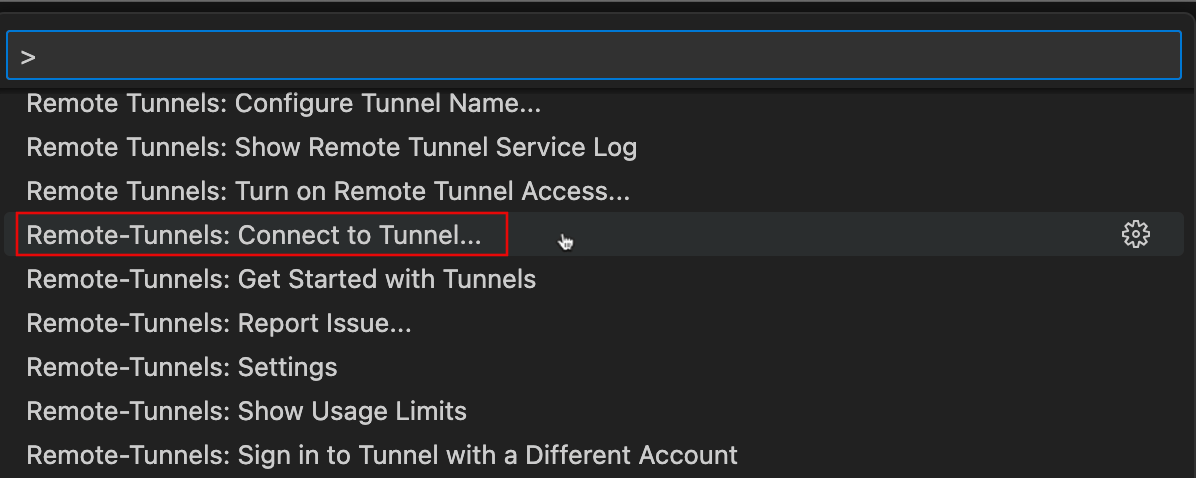
Click Remote-Tunnels: Connect to Tunnel in the Command Palette.
-
When prompted, specify whether you used GitHub or Microsoft to authenticate.

- After you authenticate with the appropriate service, select the node you want to connect to.