> ## Documentation Index
> Fetch the complete documentation index at: https://docs.coreweave.com/llms.txt
> Use this file to discover all available pages before exploring further.
# Manage users
> Manage users and user permissions in CoreWeave organizations
This page explains how to set up the first administrator account for a CoreWeave organization, invite additional users, configure individual user accounts, and deactivate users when needed. It's intended for organization administrators and for users who are setting up their own CoreWeave account for the first time.
For more information about user permissions, see [IAM Access Policies](/security/iam/access-policies) and [Legacy User Permissions](/security/iam/access-policies/legacy-permissions).
## Create first administrator account
In a new CoreWeave organization, the first user to create a CoreWeave account becomes the first administrator by default. No resources (such as CKS clusters) or additional access policies can be created without an administrator.
The first administrator has the following IAM roles by default:
* IAM Admin
* CKS Admin
* Object Storage Admin
* Access Token Admin
* Access Request Approver
The first administrator can assign admin roles to other users through the Cloud Console by creating new [IAM Access Policies](/security/iam/access-policies).
 ## Invite new users
After the administrator sets up an account, they can access all the features of the Cloud Console. For users with the `IAM Admin` role (or the `admin` legacy group), this includes the ability to invite other users to their organization's namespace through the Cloud Console [Users](https://console.coreweave.com/organization/users) page.
## Invite new users
After the administrator sets up an account, they can access all the features of the Cloud Console. For users with the `IAM Admin` role (or the `admin` legacy group), this includes the ability to invite other users to their organization's namespace through the Cloud Console [Users](https://console.coreweave.com/organization/users) page.
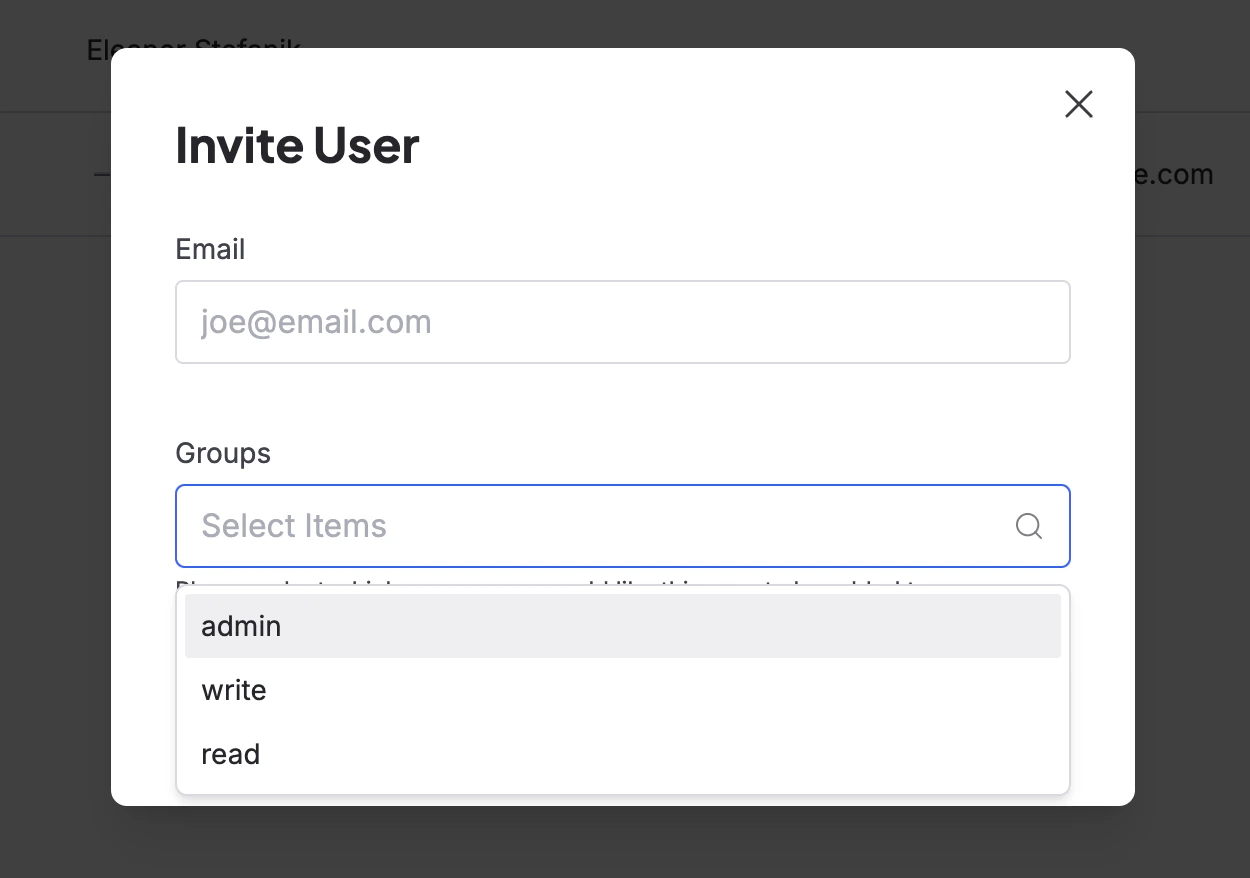
 When an `IAM Admin` user clicks the **Invite User** button, a modal opens, prompting them to enter information for the user to invite and to decide which permission groups the user is in. After entering the new user's email, the administrator can then select any desired [permission groups](/security/iam/access-policies/legacy-permissions) from the drop-down menu:
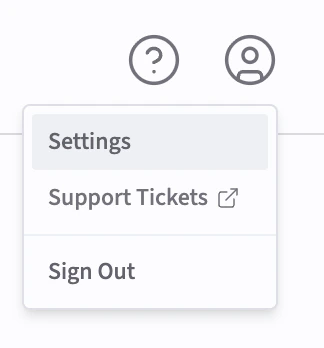
 Each user has a dedicated [Settings](https://console.coreweave.com/account/settings) page on the Cloud Console, which is accessible from the user icon in the top left corner of the Console window.
 ## Set up a new user account
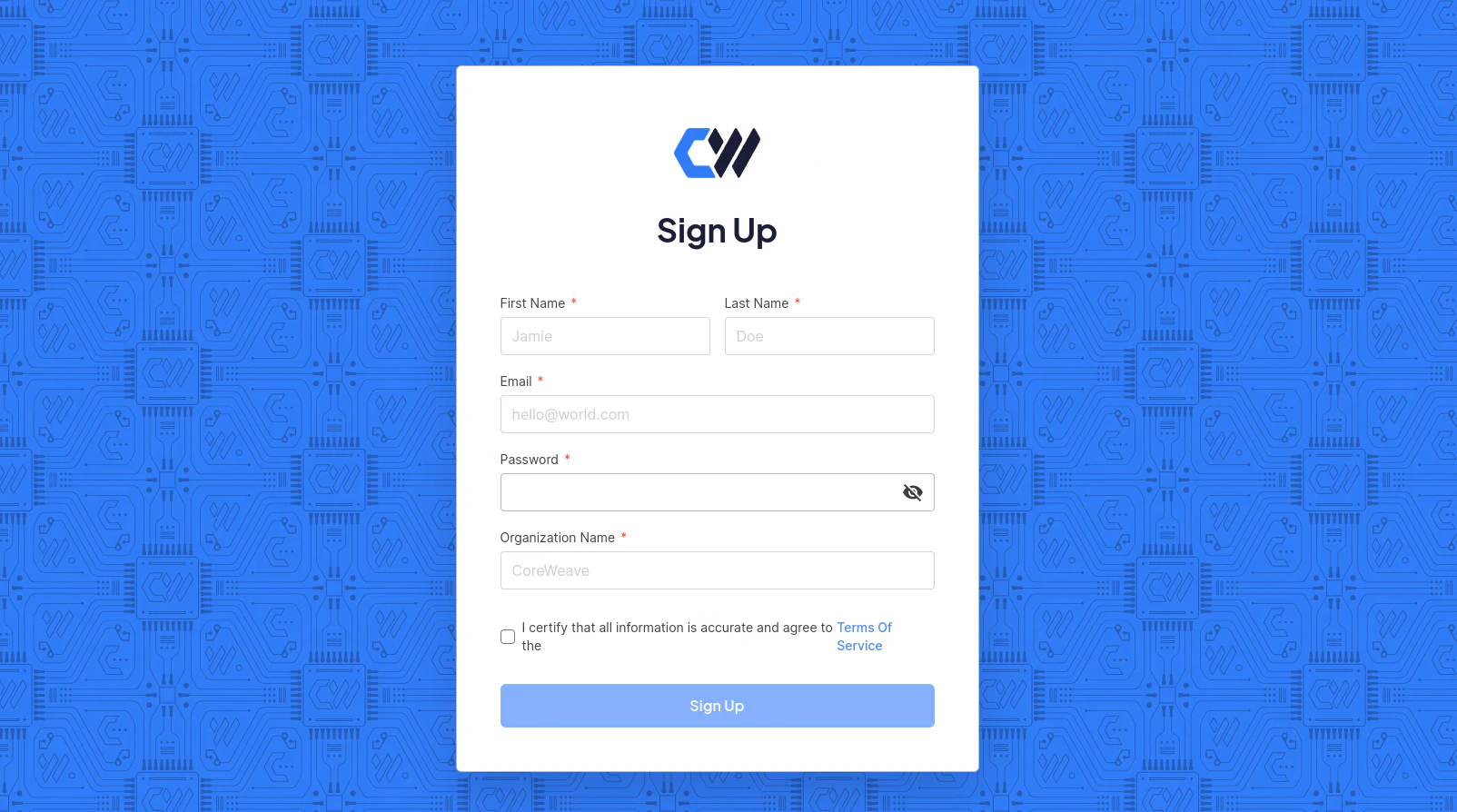
After an administrator invites you to an organization, you complete account setup from the invitation email so you can sign in to the Cloud Console.
To set up your user account, click the link sent to you by your administrator. You can log in with an email and password combination, a linked social media account, or SAML-based Single Sign-On (SSO) if your administrator has configured it for the organization.
## Set up a new user account
After an administrator invites you to an organization, you complete account setup from the invitation email so you can sign in to the Cloud Console.
To set up your user account, click the link sent to you by your administrator. You can log in with an email and password combination, a linked social media account, or SAML-based Single Sign-On (SSO) if your administrator has configured it for the organization.
 ### Sign in with email and password
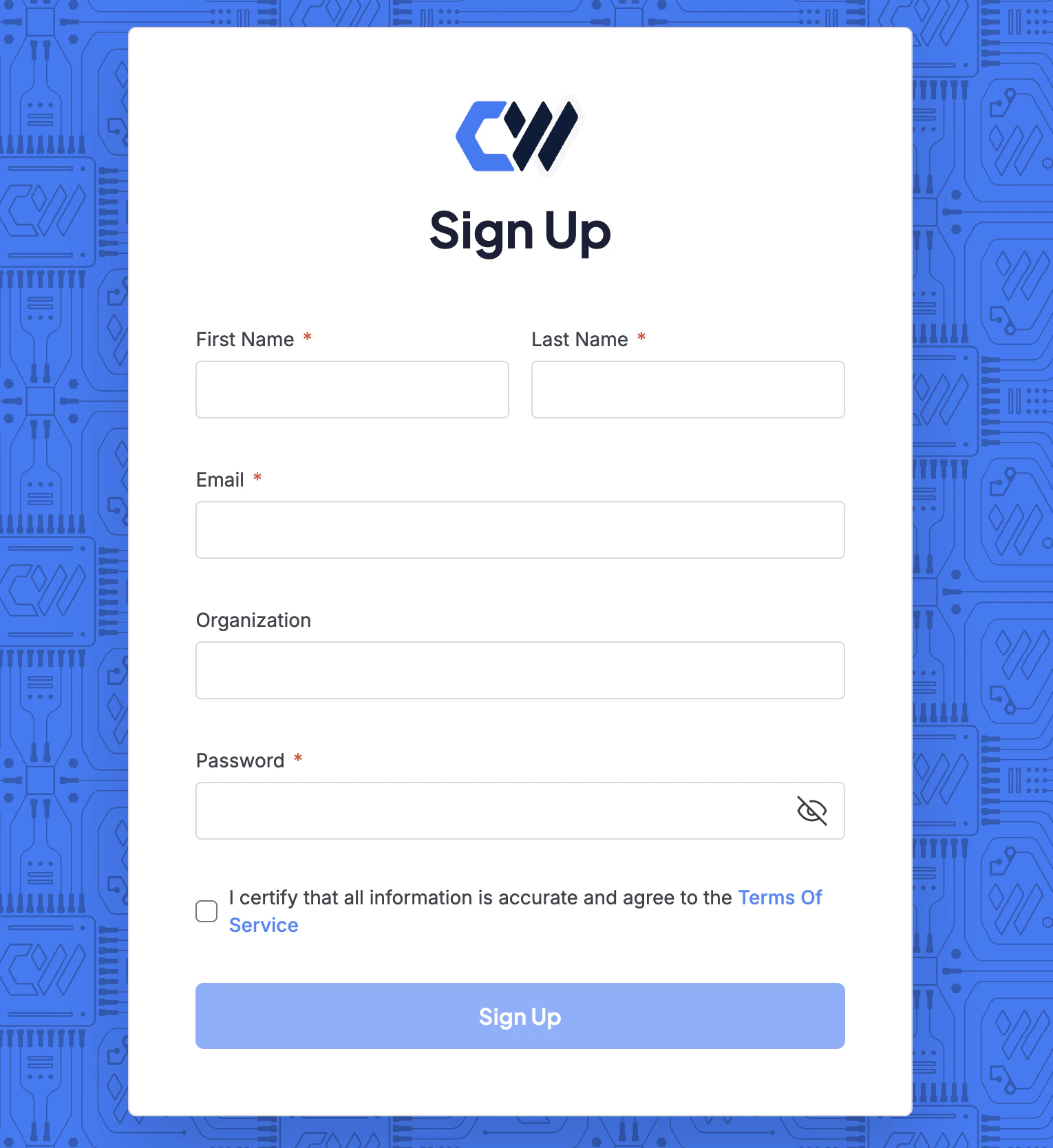
You can create and authenticate an account using the email address your administrator used to invite you, and a secure password.
### Sign in with email and password
You can create and authenticate an account using the email address your administrator used to invite you, and a secure password.
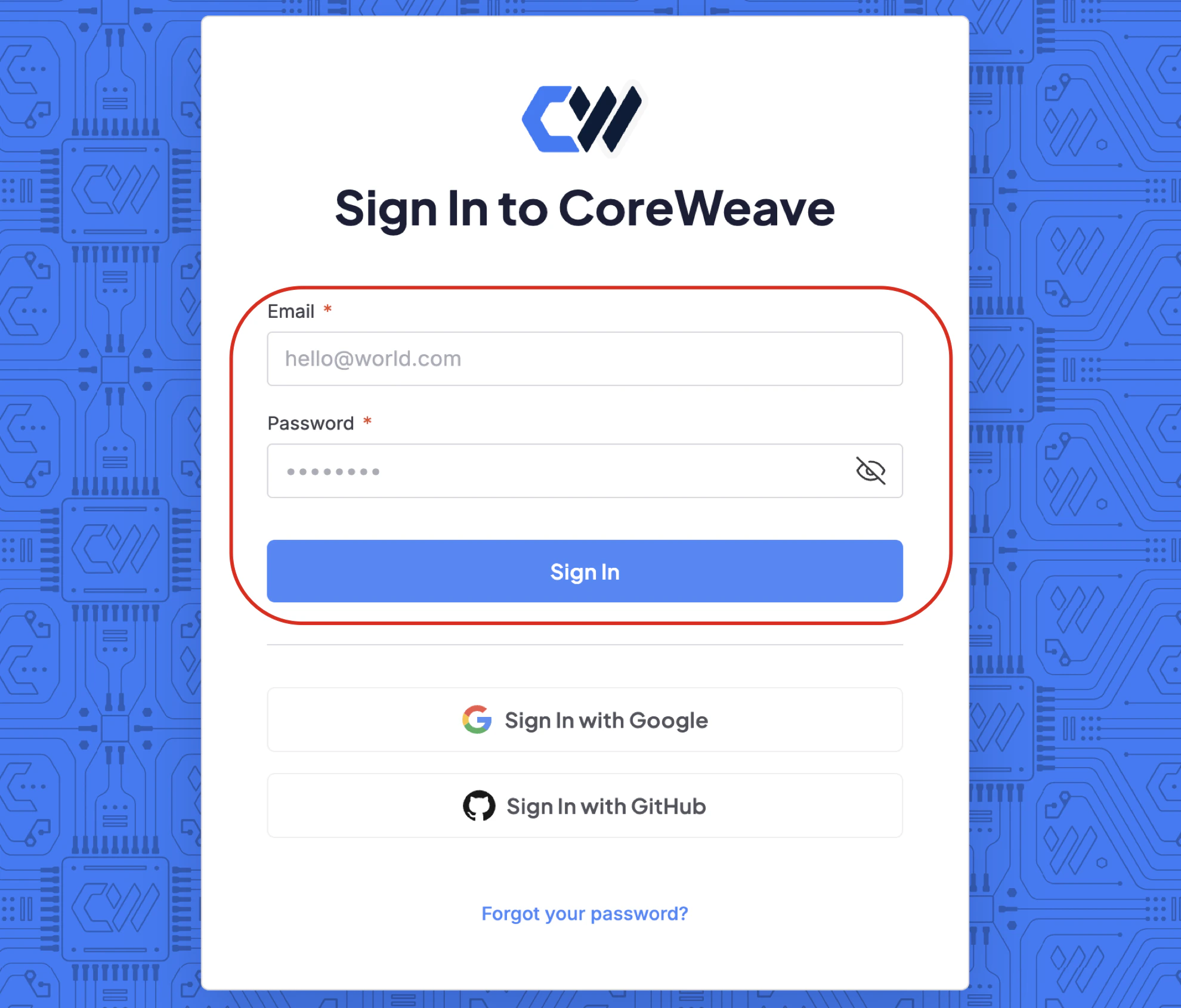 ### Sign in with social sign-in
If you decide to use email or a pre-existing social media credential, you'll be prompted to link your account to your organization later.
GitHub or Gmail can be used as social sign-on only if the email address for those accounts matches the one used for your CoreWeave invitation.
The Cloud Console login is integrated with Google Workspace and GitHub, so you can also access the Cloud Console using either account.
CoreWeave supports SAML so users can perform SSO logins. Users with [administrator privileges](/security/authn-authz/orgs-users#administrators) can enable, configure, and manage SAML settings within their organizations from the Cloud Console.
## Change user account settings
The following sections describe the per-user settings available from the Cloud Console Settings page.
### Update account password
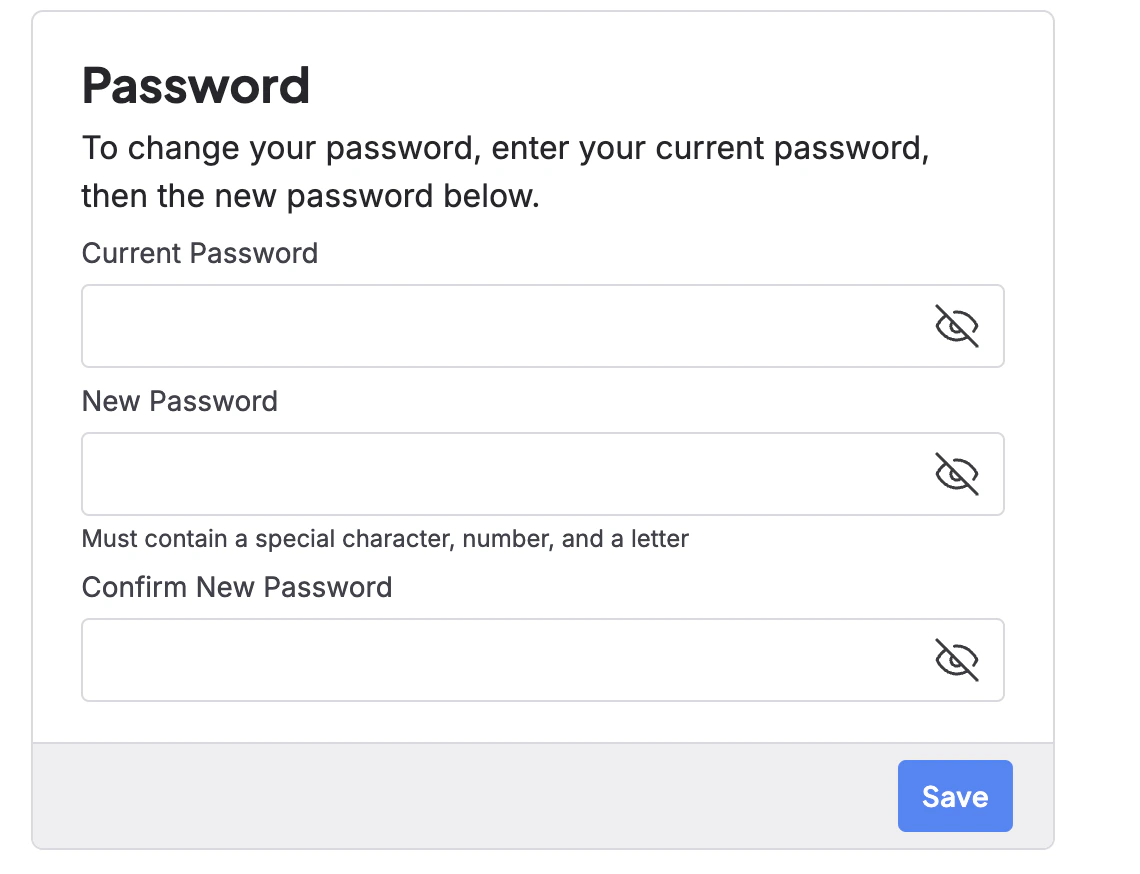
You update your password from the **Passwords** section of the settings page. After you enter the information and click **Save**, you receive a confirmation email. If you enter an incorrect current password, your password doesn't change.
### Sign in with social sign-in
If you decide to use email or a pre-existing social media credential, you'll be prompted to link your account to your organization later.
GitHub or Gmail can be used as social sign-on only if the email address for those accounts matches the one used for your CoreWeave invitation.
The Cloud Console login is integrated with Google Workspace and GitHub, so you can also access the Cloud Console using either account.
CoreWeave supports SAML so users can perform SSO logins. Users with [administrator privileges](/security/authn-authz/orgs-users#administrators) can enable, configure, and manage SAML settings within their organizations from the Cloud Console.
## Change user account settings
The following sections describe the per-user settings available from the Cloud Console Settings page.
### Update account password
You update your password from the **Passwords** section of the settings page. After you enter the information and click **Save**, you receive a confirmation email. If you enter an incorrect current password, your password doesn't change.
 ### Update Cloud Console theme
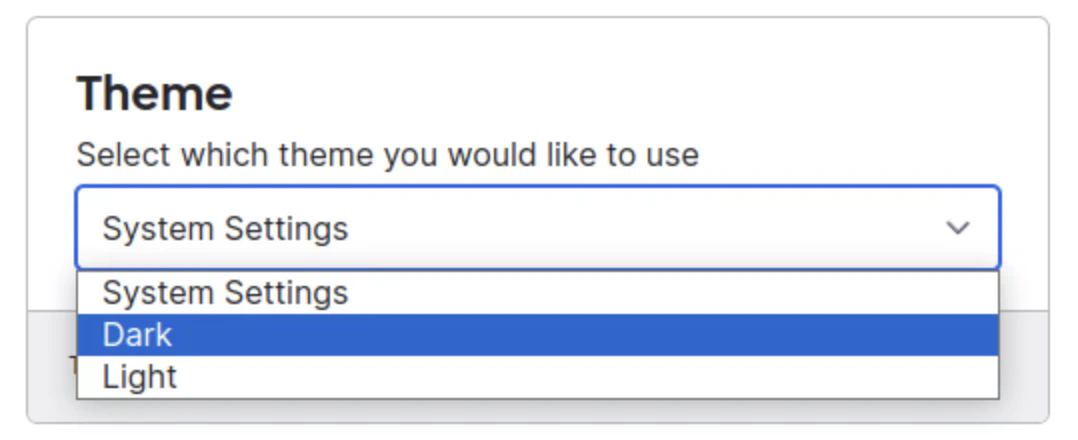
You can also change the theme of the Cloud Console from light to dark mode. This option appears in a drop-down window:
### Update Cloud Console theme
You can also change the theme of the Cloud Console from light to dark mode. This option appears in a drop-down window:
 ### Two-factor authentication (2FA)
At the bottom of the [User Settings](https://console.coreweave.com/account/settings) page you can enable two-factor authentication for your CoreWeave account.
### Two-factor authentication (2FA)
At the bottom of the [User Settings](https://console.coreweave.com/account/settings) page you can enable two-factor authentication for your CoreWeave account.
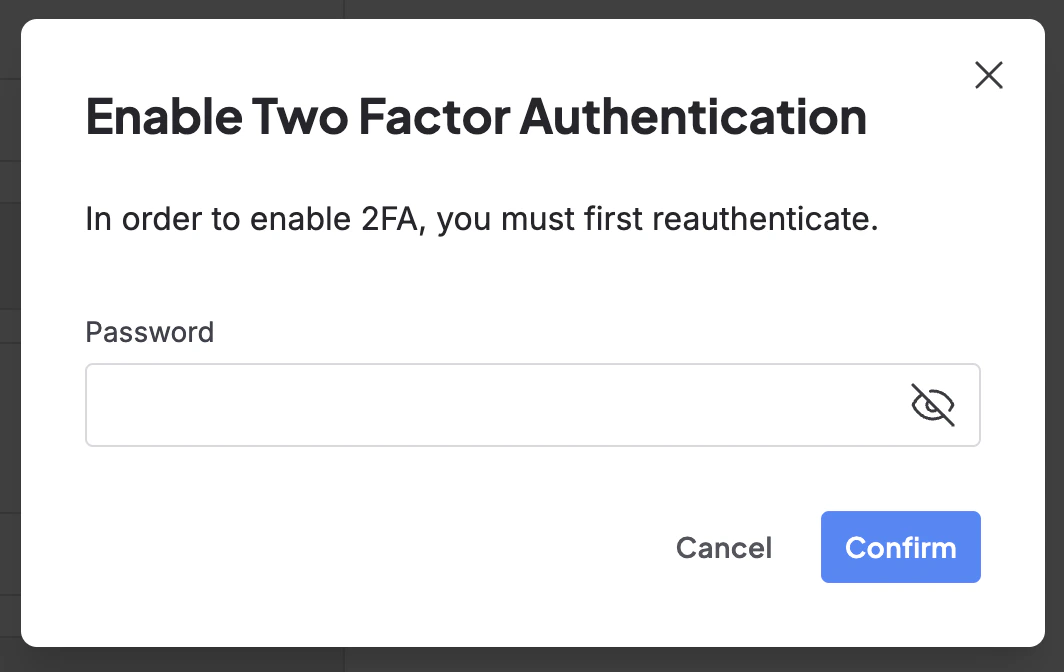 When you click this slider, a modal prompts you to re-authenticate by entering your password. After you enter your password, a modal prompts you to scan a QR code in the 2FA app of your choice on another device.
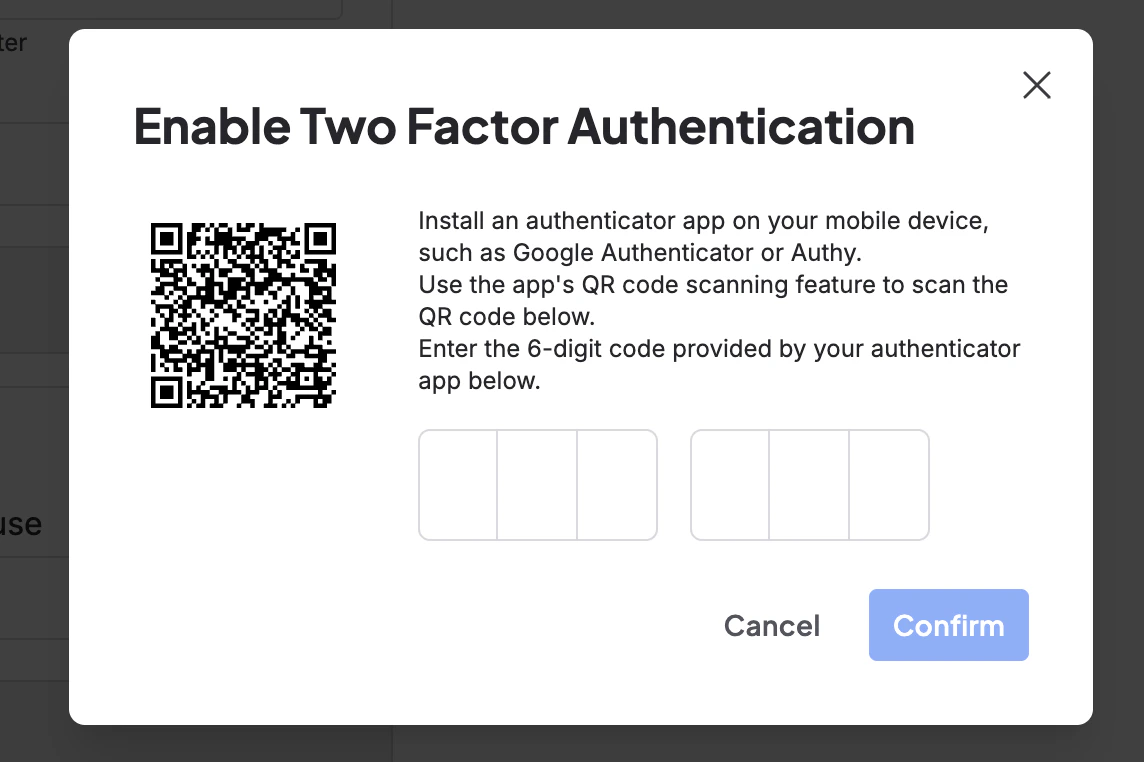 After you enter the code and set up 2FA with your device, the Cloud Console prompts you to re-authenticate with your OTP every time you log in.
To disable 2FA, turn the slider to the "off" position. A pop-up confirms the action.
## Deactivate user accounts
Users with the `IAM Admin` role (or the `admin` legacy group) can deactivate user accounts, including other accounts with `IAM Admin` privileges. Deactivated accounts can't access the Cloud Console and aren't authorized to perform any actions outside of the Console.
Deactivated accounts are **not** deleted from the organization. IAM Admins can re-activate a deactivated user account at any time.
After you enter the code and set up 2FA with your device, the Cloud Console prompts you to re-authenticate with your OTP every time you log in.
To disable 2FA, turn the slider to the "off" position. A pop-up confirms the action.
## Deactivate user accounts
Users with the `IAM Admin` role (or the `admin` legacy group) can deactivate user accounts, including other accounts with `IAM Admin` privileges. Deactivated accounts can't access the Cloud Console and aren't authorized to perform any actions outside of the Console.
Deactivated accounts are **not** deleted from the organization. IAM Admins can re-activate a deactivated user account at any time.