> ## Documentation Index
> Fetch the complete documentation index at: https://docs.coreweave.com/llms.txt
> Use this file to discover all available pages before exploring further.
# Run GitHub Actions runners on SUNK
> Deploy self-hosted GitHub Actions runners using Actions Runner Controller (ARC)
This guide shows you how to deploy self-hosted GitHub Actions runners on SUNK using [Actions Runner Controller](https://github.com/actions/actions-runner-controller) (ARC). By the end, you have ARC installed in your cluster and one or more runner scale sets registered with your GitHub organization, so workflow jobs can run on your SUNK CPU and GPU nodes instead of GitHub-hosted runners. This lets you take advantage of CoreWeave compute, such as H100 GPUs scheduled through SUNK, for your CI/CD jobs.
This tutorial is intended for cluster administrators and platform engineers who manage SUNK clusters and want to integrate them with GitHub Actions workflows.
**Controller version**
This documentation describes deploying ARC version 0.13.0, which uses the autoscaling architecture with `AutoscalingRunnerSet` resources. This is the approach maintained by GitHub.
## Prerequisites
* Access to a SUNK cluster with Kubernetes.
* Cluster admin access or permissions to create namespaces and deploy applications.
* A [GitHub](https://github.com/) organization or repository where you want to register runners.
* GitHub organization admin permissions (for creating GitHub Apps).
* For GPU runners: A SUNK cluster with the [SUNK Pod Scheduler deployed](/products/sunk/run_workloads/schedule-kubernetes-pods).
## Create a GitHub App
ARC authenticates to GitHub using a GitHub App, which provides the credentials the controller uses to register runners and receive job events. Follow these steps to create one:
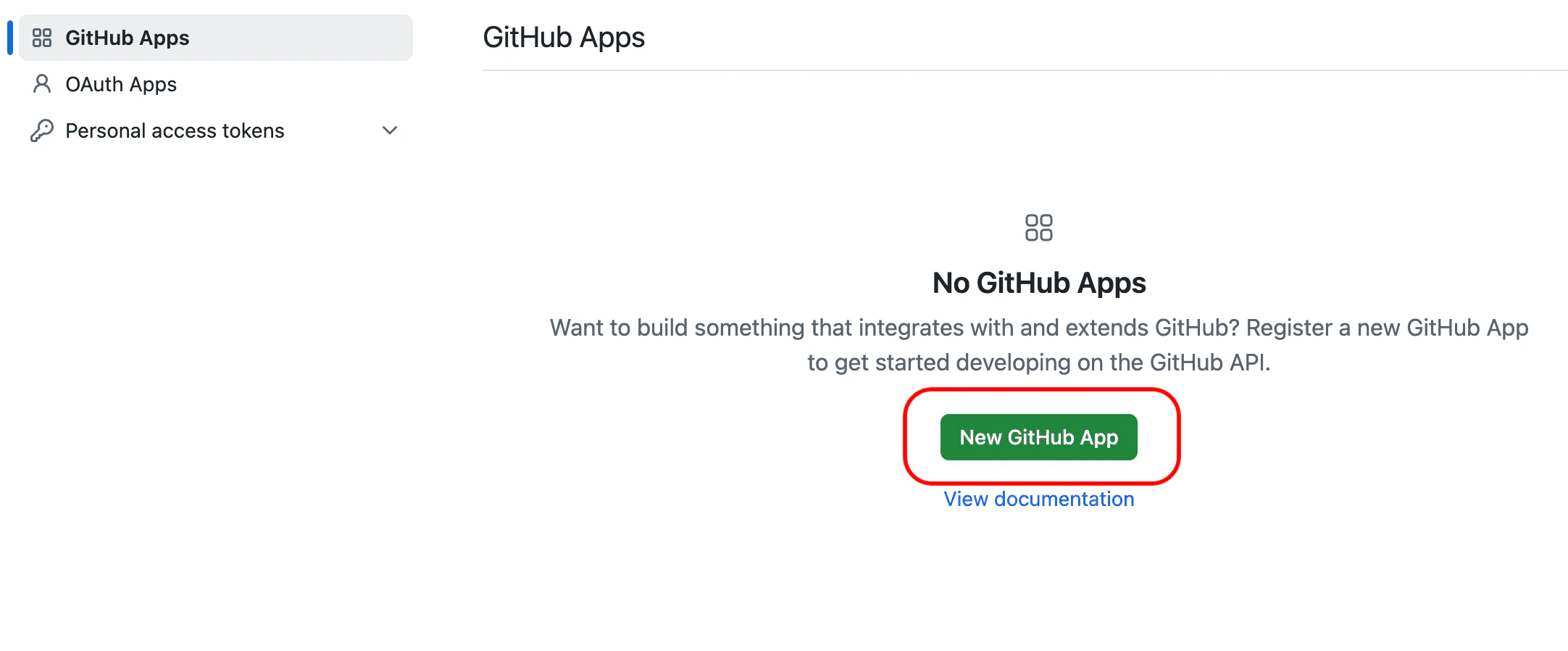
1. Navigate to your GitHub organization settings, select **Developer settings**, then **GitHub Apps**, and then select **New GitHub App**:
 2. Configure the GitHub App with the following values:
* **GitHub App name**: Choose a name, for example, `arc-controller`.
* **Homepage URL**: Use your organization URL.
* **Webhook**: Clear "Active" (not needed for basic setup).
3. Set the following permissions:
**Repository permissions**
| Permission | Access Level | Notes |
| -------------- | ------------ | ------------------------------------------ |
| Actions | Read | |
| Administration | Read & write | Required for managing self-hosted runners. |
| Metadata | Read | |
**Organization permissions**
| Permission | Access Level | Notes |
| ------------------- | -------------- | ---------------------------------------- |
| Self-hosted runners | Read and write | Required for organization-level runners. |
4. Select **Create GitHub App**.
5. Note and save the **App ID** from the app details page.
6. Generate and download a private key by going to the **Private keys** section and selecting **Generate a private key**. Save the downloaded `.pem` file.
7. Install the GitHub App:
* In the left sidebar, select **Install App**.
* Select your organization.
* Choose **All repositories** or specific repositories.
* Note the **Installation ID** from the URL. For example, in `https://github.com/organizations/[ORG-NAME]/settings/installations/12345678`, the number is your **Installation ID**.
## Deploy the ARC controller
With the GitHub App in place, deploy the ARC controller into your cluster. The controller monitors GitHub workflow jobs and creates ephemeral runner pods on demand. Create the configuration files for deploying the ARC controller in your GitOps repository.
1. Create the namespace configuration file at `namespaces/actions-runner-system.yaml`:
```yaml title="namespaces/actions-runner-system.yaml" theme={"system"}
apiVersion: v1
kind: Namespace
metadata:
name: actions-runner-system
```
2. Deploy the manifest:
```bash theme={"system"}
kubectl apply -f actions-runner-system.yaml
```
3. Create an Authentication Secret with your GitHub App credentials at `secrets/arc/controller-manager.yaml`:
```yaml title="secrets/arc/controller-manager.yaml" theme={"system"}
apiVersion: v1
kind: Secret
metadata:
name: controller-manager
namespace: actions-runner-system
type: Opaque
stringData:
github_app_id: "[APP-ID]"
github_app_installation_id: "[INSTALLATION-ID]"
github_app_private_key: |
[PRIVATE-KEY-CONTENT]
```
Replace the following with your values:
* `[APP-ID]` with your GitHub App ID.
* `[INSTALLATION-ID]` with the installation ID from the URL.
* `[PRIVATE-KEY-CONTENT]` with your actual private key content.
4. Create the Helm values file for the controller at `arc/controller-values.yaml`:
```yaml title="arc/controller-values.yaml" theme={"system"}
affinity:
nodeAffinity:
requiredDuringSchedulingIgnoredDuringExecution:
nodeSelectorTerms:
- matchExpressions:
- key: node.coreweave.cloud/class
operator: In
values:
- cpu
resources:
requests:
cpu: 100m
memory: 90Mi
limits:
cpu: 16
memory: 64Gi
```
5. Add the ARC controller to your ArgoCD Applications manifest:
```yaml title="Apps.yaml" theme={"system"}
arc-controller:
enabled: true
namespace: actions-runner-system
clusters:
- name: your-cluster-name
source:
repoURL: "ghcr.io/actions/actions-runner-controller-charts"
chart: "gha-runner-scale-set-controller"
targetRevision: "0.13.0"
helm:
releaseName: "arc-controller"
valueFiles:
- "arc/controller-values.yaml"
```
6. Commit and push the changes to deploy the controller. Verify it's running:
```bash theme={"system"}
kubectl get pods -n actions-runner-system
```
You should see the controller pod with status `Running`.
## Configure runner scale sets
With the controller running, the next step is to register one or more runner scale sets that the controller manages. Each scale set maps a GitHub `runs-on` label to a pod template, so you can target different workload types from your workflows. You can deploy multiple runner scale sets for different workload types. The following sections describe examples for CPU and GPU runners.
### CPU runners
1. Create a values file for CPU runner scale sets at `arc/cpu-runner-values.yaml`:
```yaml title="arc/cpu-runner-values.yaml" theme={"system"}
githubConfigUrl: "https://github.com/[ORG-NAME]"
githubConfigSecret: "controller-manager"
template:
spec:
affinity:
nodeAffinity:
requiredDuringSchedulingIgnoredDuringExecution:
nodeSelectorTerms:
- matchExpressions:
- key: node.coreweave.cloud/class
operator: In
values:
- cpu
containers:
- name: runner
image: ghcr.io/actions/actions-runner:latest
command: ["/home/runner/run.sh"]
resources:
requests:
cpu: "16"
memory: 32Gi
limits:
cpu: "62"
memory: 220Gi
```
Replace the following with your values:
* `[ORG-NAME]` with your GitHub organization name.
* For repository-level runners, use `https://github.com/[USERNAME]/[REPO-NAME]`.
* For enterprise runners, use `https://github.com/enterprises/[ENTERPRISE-NAME]`.
2. Add the CPU runner scale set to your ArgoCD Applications:
```yaml title="Apps.yaml" theme={"system"}
arc-runner-cpu:
enabled: true
namespace: actions-runner-system
clusters:
- name: your-cluster-name
source:
repoURL: "ghcr.io/actions/actions-runner-controller-charts"
chart: "gha-runner-scale-set"
targetRevision: "0.13.0"
helm:
releaseName: "arc-runner-cpu"
valueFiles:
- "arc/cpu-runner-values.yaml"
```
### GPU runners with SUNK Pod Scheduler
GPU runners require an extra layer of configuration so that job pods are scheduled through the SUNK Pod Scheduler and request GPU resources correctly. For GPU workloads that require SUNK Pod Scheduler integration, create both a pod template ConfigMap and a values file.
1. Configure your SUNK Pod Scheduler name.
Replace `[SCHEDULER-NAME]` with your SUNK Pod Scheduler name. The default format is typically `--slurm-scheduler` (for example, `tenant-slurm-slurm-scheduler`).
To find your scheduler name, query the scheduler pod for its configured name:
```bash theme={"system"}
kubectl get pods -l app.kubernetes.io/name=sunk-scheduler -n tenant-slurm -o json | \
jq -r '.items[0].spec.containers[] | select(.name=="scheduler") | .args[] | select(startswith("--scheduler-name=")) | sub("^--scheduler-name="; "")'
```
For details on SUNK Pod Scheduler configuration and annotations, see [SUNK Pod Scheduler](/products/sunk/run_workloads/schedule-kubernetes-pods).
2. Create a pod template ConfigMap. ARC supports container hooks that let you customize the pod specification for job containers. Create a ConfigMap with pod templates at `arc/supporting/podtemplates.yaml`:
```yaml title="arc/supporting/podtemplates.yaml" highlight={9-13} theme={"system"}
apiVersion: v1
kind: ConfigMap
metadata:
name: arc-podtemplates
namespace: actions-runner-system
data:
gpu.yaml: |
metadata:
# These options are specific to SUNK and will need to be adjusted based on your environment.
annotations:
sunk.coreweave.com/account: root
sunk.coreweave.com/comment: github-actions
sunk.coreweave.com/partition: hpc-high
spec:
nodeName: "" # This is not a typo, leave this a blank string
schedulerName: [SCHEDULER-NAME] # Replace with your scheduler's name.
nodeSelector:
node.coreweave.cloud/class: gpu
affinity:
nodeAffinity:
requiredDuringSchedulingIgnoredDuringExecution:
nodeSelectorTerms:
- matchExpressions:
- key: gpu.nvidia.com/class
operator: In
values:
- H100 # Update to whatever GPU class you have in your cluster
tolerations:
- key: is_gpu_compute
operator: Exists
containers:
- name: $job # This needs to be the literal string '$job'
resources:
requests:
cpu: "16"
memory: "32Gi"
nvidia.com/gpu: "8"
limits:
cpu: "64"
memory: "256Gi"
nvidia.com/gpu: "8"
```
3. Add this as a supporting application to deploy the ConfigMap:
```yaml title="Apps.yaml" theme={"system"}
arc-supporting:
enabled: true
namespace: actions-runner-system
clusters:
- name: your-cluster-name
source:
repoURL: "your-gitops-repo-url"
path: arc/supporting
targetRevision: "main"
directory:
recurse: true
syncPolicy:
automated:
prune: true
selfHeal: true
```
4. Create a values file for GPU runners. This configuration uses ARC's container mode with Kubernetes container hooks to apply the SUNK scheduler pod template to job containers:
```yaml title="arc/gpu-runner-values.yaml" theme={"system"}
githubConfigUrl: "https://github.com/[ORG-NAME]"
githubConfigSecret: "controller-manager"
containerMode:
type: "kubernetes"
kubernetesModeWorkVolumeClaim:
accessModes:
- ReadWriteMany
resources:
requests:
storage: 10Gi # How much scratch space each runner has by default
storageClassName: shared-vast
template:
spec:
containers:
- name: runner
image: ghcr.io/actions/actions-runner:latest
command: ["/home/runner/run.sh"]
env:
- name: ACTIONS_RUNNER_CONTAINER_HOOKS
value: /home/runner/k8s/index.js
- name: ACTIONS_RUNNER_CONTAINER_HOOK_TEMPLATE
value: /etc/arc/gpu.yaml
- name: ACTIONS_RUNNER_REQUIRE_JOB_CONTAINER
value: "true"
volumeMounts:
- name: arc-podtemplates
mountPath: /etc/arc
readOnly: true
volumes:
- name: arc-podtemplates
configMap:
name: arc-podtemplates
```
The container mode configuration enables the following:
| Value | Description |
| ---------------------------------------- | ---------------------------------------------------------------------------------------------------------------------------------------------------------------------------------------------------------------------------------------------------------------------------------------------------- |
| `ACTIONS_RUNNER_CONTAINER_HOOKS` | Activates Kubernetes container hooks for the runner. |
| `ACTIONS_RUNNER_CONTAINER_HOOK_TEMPLATE` | Points to the pod template that contains SUNK scheduler configuration. |
| `ACTIONS_RUNNER_REQUIRE_JOB_CONTAINER` | Ensures jobs run in containers with the pod template applied. This requires you to use the `container:` feature in your workflow. You can read more at [Running jobs in a container](https://docs.github.com/en/actions/how-tos/write-workflows/choose-where-workflows-run/run-jobs-in-a-container). |
| `kubernetesModeWorkVolumeClaim` | Provides persistent storage for job workspaces. |
This allows GitHub Actions jobs to run as separate pods with SUNK scheduler annotations and GPU resources applied through the pod template.
5. Add the GPU runner scale set to your ArgoCD Applications:
```yaml title="Apps.yaml" theme={"system"}
arc-runner-gpu:
enabled: true
namespace: actions-runner-system
clusters:
- name: your-cluster-name
source:
repoURL: "ghcr.io/actions/actions-runner-controller-charts"
chart: "gha-runner-scale-set"
targetRevision: "0.13.0"
helm:
releaseName: "arc-runner-gpu"
valueFiles:
- "arc/gpu-runner-values.yaml"
```
6. Commit and push to deploy the runner scale sets.
At this point, the ARC controller, the CPU runner scale set, and the GPU runner scale set are deployed and registered with your GitHub organization.
## Use runners in workflows
With the scale sets registered, you can now route GitHub Actions jobs to them from any workflow in your organization. Target your self-hosted runners in GitHub Actions workflows using the `runs-on` key with the runner scale set name.
**Runner scale set names**
The `runs-on` value must match your Helm release name:
* `arc-runner-cpu` corresponds to `helm install arc-runner-cpu ...`.
* `arc-runner-gpu` corresponds to `helm install arc-runner-gpu ...`.
**CPU runners:**
```yaml theme={"system"}
name: CPU Runner
on: [push]
jobs:
sample:
runs-on: arc-runner-cpu # Name of RunnerSet
steps:
- uses: actions/checkout@v5
- run: echo "Running on CPU runner"
```
**GPU runners:**
```yaml theme={"system"}
name: GPU Runner
on: [push]
jobs:
sample:
runs-on: arc-runner-gpu # Name of RunnerSet
container:
image: "nvidia/cuda:13.0.1-cudnn-devel-ubuntu24.04"
steps:
- uses: actions/checkout@v5
- name: nvidia-smi
run: |
nvidia-smi
- name: Install the latest version of uv
uses: astral-sh/setup-uv@v7
- name: Test PyTorch GPU Access
if: always()
run: |
UV_TORCH_BACKEND=auto uv run --with torch python -c "import torch; print(f'PyTorch version: {torch.__version__}'); print(f'CUDA available: {torch.cuda.is_available()}'); print(f'CUDA device count: {torch.cuda.device_count()}'); [print(f'GPU {i}: {torch.cuda.get_device_name(i)}') for i in range(torch.cuda.device_count())] if torch.cuda.is_available() else print('No GPUs detected by PyTorch')"
```
## Verify the installation
Use the following checks to confirm that the controller is running, the listener is connected to GitHub, and runner pods are created when a workflow runs. Check that the runner scale set is deployed:
```bash theme={"system"}
kubectl get autoscalingrunnersets -n actions-runner-system
```
Check the listener pod:
```bash theme={"system"}
kubectl get pods -n actions-runner-system -l app.kubernetes.io/name=gha-rs-listener
```
View listener logs to verify GitHub connection:
```bash theme={"system"}
kubectl logs -n actions-runner-system -l app.kubernetes.io/name=gha-rs-listener --tail=20
```
When a workflow is triggered, you should see ephemeral runner pods created:
```bash theme={"system"}
kubectl get pods -n actions-runner-system -w
```
For GPU runners, verify the SUNK scheduler is working:
```bash theme={"system"}
kubectl get pods -n actions-runner-system -l app.kubernetes.io/component=runner -o yaml
```
Check that pods created by GPU workflows have the `schedulerName` set to your SUNK scheduler.
## Scaling configuration
This section describes how runner scale sets respond to workflow demand and how to tune the minimum and maximum runner counts. Runner scale sets automatically scale based on workflow job demand:
| Setting | Value |
| --------------------------- | -------------------------------------------------------- |
| **Default minimum runners** | `0` (no idle runners) |
| **Default maximum runners** | Unlimited |
| **Scaling behavior** | Runners are ephemeral and terminate after job completion |
To customize scaling limits, add to your values file:
```yaml theme={"system"}
minRunners: 0
maxRunners: 10
```
## Additional resources
* [Actions Runner Controller GitHub repository](https://github.com/actions/actions-runner-controller)
* [GitHub Actions documentation](https://docs.github.com/en/actions)
* [ARC documentation](https://docs.github.com/en/actions/tutorials/use-actions-runner-controller)
* [Schedule Kubernetes pods with Slurm](/products/sunk/run_workloads/schedule-kubernetes-pods). SUNK scheduler configuration and annotations.
2. Configure the GitHub App with the following values:
* **GitHub App name**: Choose a name, for example, `arc-controller`.
* **Homepage URL**: Use your organization URL.
* **Webhook**: Clear "Active" (not needed for basic setup).
3. Set the following permissions:
**Repository permissions**
| Permission | Access Level | Notes |
| -------------- | ------------ | ------------------------------------------ |
| Actions | Read | |
| Administration | Read & write | Required for managing self-hosted runners. |
| Metadata | Read | |
**Organization permissions**
| Permission | Access Level | Notes |
| ------------------- | -------------- | ---------------------------------------- |
| Self-hosted runners | Read and write | Required for organization-level runners. |
4. Select **Create GitHub App**.
5. Note and save the **App ID** from the app details page.
6. Generate and download a private key by going to the **Private keys** section and selecting **Generate a private key**. Save the downloaded `.pem` file.
7. Install the GitHub App:
* In the left sidebar, select **Install App**.
* Select your organization.
* Choose **All repositories** or specific repositories.
* Note the **Installation ID** from the URL. For example, in `https://github.com/organizations/[ORG-NAME]/settings/installations/12345678`, the number is your **Installation ID**.
## Deploy the ARC controller
With the GitHub App in place, deploy the ARC controller into your cluster. The controller monitors GitHub workflow jobs and creates ephemeral runner pods on demand. Create the configuration files for deploying the ARC controller in your GitOps repository.
1. Create the namespace configuration file at `namespaces/actions-runner-system.yaml`:
```yaml title="namespaces/actions-runner-system.yaml" theme={"system"}
apiVersion: v1
kind: Namespace
metadata:
name: actions-runner-system
```
2. Deploy the manifest:
```bash theme={"system"}
kubectl apply -f actions-runner-system.yaml
```
3. Create an Authentication Secret with your GitHub App credentials at `secrets/arc/controller-manager.yaml`:
```yaml title="secrets/arc/controller-manager.yaml" theme={"system"}
apiVersion: v1
kind: Secret
metadata:
name: controller-manager
namespace: actions-runner-system
type: Opaque
stringData:
github_app_id: "[APP-ID]"
github_app_installation_id: "[INSTALLATION-ID]"
github_app_private_key: |
[PRIVATE-KEY-CONTENT]
```
Replace the following with your values:
* `[APP-ID]` with your GitHub App ID.
* `[INSTALLATION-ID]` with the installation ID from the URL.
* `[PRIVATE-KEY-CONTENT]` with your actual private key content.
4. Create the Helm values file for the controller at `arc/controller-values.yaml`:
```yaml title="arc/controller-values.yaml" theme={"system"}
affinity:
nodeAffinity:
requiredDuringSchedulingIgnoredDuringExecution:
nodeSelectorTerms:
- matchExpressions:
- key: node.coreweave.cloud/class
operator: In
values:
- cpu
resources:
requests:
cpu: 100m
memory: 90Mi
limits:
cpu: 16
memory: 64Gi
```
5. Add the ARC controller to your ArgoCD Applications manifest:
```yaml title="Apps.yaml" theme={"system"}
arc-controller:
enabled: true
namespace: actions-runner-system
clusters:
- name: your-cluster-name
source:
repoURL: "ghcr.io/actions/actions-runner-controller-charts"
chart: "gha-runner-scale-set-controller"
targetRevision: "0.13.0"
helm:
releaseName: "arc-controller"
valueFiles:
- "arc/controller-values.yaml"
```
6. Commit and push the changes to deploy the controller. Verify it's running:
```bash theme={"system"}
kubectl get pods -n actions-runner-system
```
You should see the controller pod with status `Running`.
## Configure runner scale sets
With the controller running, the next step is to register one or more runner scale sets that the controller manages. Each scale set maps a GitHub `runs-on` label to a pod template, so you can target different workload types from your workflows. You can deploy multiple runner scale sets for different workload types. The following sections describe examples for CPU and GPU runners.
### CPU runners
1. Create a values file for CPU runner scale sets at `arc/cpu-runner-values.yaml`:
```yaml title="arc/cpu-runner-values.yaml" theme={"system"}
githubConfigUrl: "https://github.com/[ORG-NAME]"
githubConfigSecret: "controller-manager"
template:
spec:
affinity:
nodeAffinity:
requiredDuringSchedulingIgnoredDuringExecution:
nodeSelectorTerms:
- matchExpressions:
- key: node.coreweave.cloud/class
operator: In
values:
- cpu
containers:
- name: runner
image: ghcr.io/actions/actions-runner:latest
command: ["/home/runner/run.sh"]
resources:
requests:
cpu: "16"
memory: 32Gi
limits:
cpu: "62"
memory: 220Gi
```
Replace the following with your values:
* `[ORG-NAME]` with your GitHub organization name.
* For repository-level runners, use `https://github.com/[USERNAME]/[REPO-NAME]`.
* For enterprise runners, use `https://github.com/enterprises/[ENTERPRISE-NAME]`.
2. Add the CPU runner scale set to your ArgoCD Applications:
```yaml title="Apps.yaml" theme={"system"}
arc-runner-cpu:
enabled: true
namespace: actions-runner-system
clusters:
- name: your-cluster-name
source:
repoURL: "ghcr.io/actions/actions-runner-controller-charts"
chart: "gha-runner-scale-set"
targetRevision: "0.13.0"
helm:
releaseName: "arc-runner-cpu"
valueFiles:
- "arc/cpu-runner-values.yaml"
```
### GPU runners with SUNK Pod Scheduler
GPU runners require an extra layer of configuration so that job pods are scheduled through the SUNK Pod Scheduler and request GPU resources correctly. For GPU workloads that require SUNK Pod Scheduler integration, create both a pod template ConfigMap and a values file.
1. Configure your SUNK Pod Scheduler name.
Replace `[SCHEDULER-NAME]` with your SUNK Pod Scheduler name. The default format is typically `--slurm-scheduler` (for example, `tenant-slurm-slurm-scheduler`).
To find your scheduler name, query the scheduler pod for its configured name:
```bash theme={"system"}
kubectl get pods -l app.kubernetes.io/name=sunk-scheduler -n tenant-slurm -o json | \
jq -r '.items[0].spec.containers[] | select(.name=="scheduler") | .args[] | select(startswith("--scheduler-name=")) | sub("^--scheduler-name="; "")'
```
For details on SUNK Pod Scheduler configuration and annotations, see [SUNK Pod Scheduler](/products/sunk/run_workloads/schedule-kubernetes-pods).
2. Create a pod template ConfigMap. ARC supports container hooks that let you customize the pod specification for job containers. Create a ConfigMap with pod templates at `arc/supporting/podtemplates.yaml`:
```yaml title="arc/supporting/podtemplates.yaml" highlight={9-13} theme={"system"}
apiVersion: v1
kind: ConfigMap
metadata:
name: arc-podtemplates
namespace: actions-runner-system
data:
gpu.yaml: |
metadata:
# These options are specific to SUNK and will need to be adjusted based on your environment.
annotations:
sunk.coreweave.com/account: root
sunk.coreweave.com/comment: github-actions
sunk.coreweave.com/partition: hpc-high
spec:
nodeName: "" # This is not a typo, leave this a blank string
schedulerName: [SCHEDULER-NAME] # Replace with your scheduler's name.
nodeSelector:
node.coreweave.cloud/class: gpu
affinity:
nodeAffinity:
requiredDuringSchedulingIgnoredDuringExecution:
nodeSelectorTerms:
- matchExpressions:
- key: gpu.nvidia.com/class
operator: In
values:
- H100 # Update to whatever GPU class you have in your cluster
tolerations:
- key: is_gpu_compute
operator: Exists
containers:
- name: $job # This needs to be the literal string '$job'
resources:
requests:
cpu: "16"
memory: "32Gi"
nvidia.com/gpu: "8"
limits:
cpu: "64"
memory: "256Gi"
nvidia.com/gpu: "8"
```
3. Add this as a supporting application to deploy the ConfigMap:
```yaml title="Apps.yaml" theme={"system"}
arc-supporting:
enabled: true
namespace: actions-runner-system
clusters:
- name: your-cluster-name
source:
repoURL: "your-gitops-repo-url"
path: arc/supporting
targetRevision: "main"
directory:
recurse: true
syncPolicy:
automated:
prune: true
selfHeal: true
```
4. Create a values file for GPU runners. This configuration uses ARC's container mode with Kubernetes container hooks to apply the SUNK scheduler pod template to job containers:
```yaml title="arc/gpu-runner-values.yaml" theme={"system"}
githubConfigUrl: "https://github.com/[ORG-NAME]"
githubConfigSecret: "controller-manager"
containerMode:
type: "kubernetes"
kubernetesModeWorkVolumeClaim:
accessModes:
- ReadWriteMany
resources:
requests:
storage: 10Gi # How much scratch space each runner has by default
storageClassName: shared-vast
template:
spec:
containers:
- name: runner
image: ghcr.io/actions/actions-runner:latest
command: ["/home/runner/run.sh"]
env:
- name: ACTIONS_RUNNER_CONTAINER_HOOKS
value: /home/runner/k8s/index.js
- name: ACTIONS_RUNNER_CONTAINER_HOOK_TEMPLATE
value: /etc/arc/gpu.yaml
- name: ACTIONS_RUNNER_REQUIRE_JOB_CONTAINER
value: "true"
volumeMounts:
- name: arc-podtemplates
mountPath: /etc/arc
readOnly: true
volumes:
- name: arc-podtemplates
configMap:
name: arc-podtemplates
```
The container mode configuration enables the following:
| Value | Description |
| ---------------------------------------- | ---------------------------------------------------------------------------------------------------------------------------------------------------------------------------------------------------------------------------------------------------------------------------------------------------- |
| `ACTIONS_RUNNER_CONTAINER_HOOKS` | Activates Kubernetes container hooks for the runner. |
| `ACTIONS_RUNNER_CONTAINER_HOOK_TEMPLATE` | Points to the pod template that contains SUNK scheduler configuration. |
| `ACTIONS_RUNNER_REQUIRE_JOB_CONTAINER` | Ensures jobs run in containers with the pod template applied. This requires you to use the `container:` feature in your workflow. You can read more at [Running jobs in a container](https://docs.github.com/en/actions/how-tos/write-workflows/choose-where-workflows-run/run-jobs-in-a-container). |
| `kubernetesModeWorkVolumeClaim` | Provides persistent storage for job workspaces. |
This allows GitHub Actions jobs to run as separate pods with SUNK scheduler annotations and GPU resources applied through the pod template.
5. Add the GPU runner scale set to your ArgoCD Applications:
```yaml title="Apps.yaml" theme={"system"}
arc-runner-gpu:
enabled: true
namespace: actions-runner-system
clusters:
- name: your-cluster-name
source:
repoURL: "ghcr.io/actions/actions-runner-controller-charts"
chart: "gha-runner-scale-set"
targetRevision: "0.13.0"
helm:
releaseName: "arc-runner-gpu"
valueFiles:
- "arc/gpu-runner-values.yaml"
```
6. Commit and push to deploy the runner scale sets.
At this point, the ARC controller, the CPU runner scale set, and the GPU runner scale set are deployed and registered with your GitHub organization.
## Use runners in workflows
With the scale sets registered, you can now route GitHub Actions jobs to them from any workflow in your organization. Target your self-hosted runners in GitHub Actions workflows using the `runs-on` key with the runner scale set name.
**Runner scale set names**
The `runs-on` value must match your Helm release name:
* `arc-runner-cpu` corresponds to `helm install arc-runner-cpu ...`.
* `arc-runner-gpu` corresponds to `helm install arc-runner-gpu ...`.
**CPU runners:**
```yaml theme={"system"}
name: CPU Runner
on: [push]
jobs:
sample:
runs-on: arc-runner-cpu # Name of RunnerSet
steps:
- uses: actions/checkout@v5
- run: echo "Running on CPU runner"
```
**GPU runners:**
```yaml theme={"system"}
name: GPU Runner
on: [push]
jobs:
sample:
runs-on: arc-runner-gpu # Name of RunnerSet
container:
image: "nvidia/cuda:13.0.1-cudnn-devel-ubuntu24.04"
steps:
- uses: actions/checkout@v5
- name: nvidia-smi
run: |
nvidia-smi
- name: Install the latest version of uv
uses: astral-sh/setup-uv@v7
- name: Test PyTorch GPU Access
if: always()
run: |
UV_TORCH_BACKEND=auto uv run --with torch python -c "import torch; print(f'PyTorch version: {torch.__version__}'); print(f'CUDA available: {torch.cuda.is_available()}'); print(f'CUDA device count: {torch.cuda.device_count()}'); [print(f'GPU {i}: {torch.cuda.get_device_name(i)}') for i in range(torch.cuda.device_count())] if torch.cuda.is_available() else print('No GPUs detected by PyTorch')"
```
## Verify the installation
Use the following checks to confirm that the controller is running, the listener is connected to GitHub, and runner pods are created when a workflow runs. Check that the runner scale set is deployed:
```bash theme={"system"}
kubectl get autoscalingrunnersets -n actions-runner-system
```
Check the listener pod:
```bash theme={"system"}
kubectl get pods -n actions-runner-system -l app.kubernetes.io/name=gha-rs-listener
```
View listener logs to verify GitHub connection:
```bash theme={"system"}
kubectl logs -n actions-runner-system -l app.kubernetes.io/name=gha-rs-listener --tail=20
```
When a workflow is triggered, you should see ephemeral runner pods created:
```bash theme={"system"}
kubectl get pods -n actions-runner-system -w
```
For GPU runners, verify the SUNK scheduler is working:
```bash theme={"system"}
kubectl get pods -n actions-runner-system -l app.kubernetes.io/component=runner -o yaml
```
Check that pods created by GPU workflows have the `schedulerName` set to your SUNK scheduler.
## Scaling configuration
This section describes how runner scale sets respond to workflow demand and how to tune the minimum and maximum runner counts. Runner scale sets automatically scale based on workflow job demand:
| Setting | Value |
| --------------------------- | -------------------------------------------------------- |
| **Default minimum runners** | `0` (no idle runners) |
| **Default maximum runners** | Unlimited |
| **Scaling behavior** | Runners are ephemeral and terminate after job completion |
To customize scaling limits, add to your values file:
```yaml theme={"system"}
minRunners: 0
maxRunners: 10
```
## Additional resources
* [Actions Runner Controller GitHub repository](https://github.com/actions/actions-runner-controller)
* [GitHub Actions documentation](https://docs.github.com/en/actions)
* [ARC documentation](https://docs.github.com/en/actions/tutorials/use-actions-runner-controller)
* [Schedule Kubernetes pods with Slurm](/products/sunk/run_workloads/schedule-kubernetes-pods). SUNK scheduler configuration and annotations.