> ## Documentation Index
> Fetch the complete documentation index at: https://docs.coreweave.com/llms.txt
> Use this file to discover all available pages before exploring further.
# Topology and block scheduling in Slurm
> Configure topology and block scheduling in Slurm for optimized job placement on NVLink-connected GPU systems
CoreWeave's [GB200 and GB300 NVL72-powered instances](/platform/instances/nvl72) use NVIDIA's Grace Blackwell Superchip and NVLink Switch System, integrated within a single rack. The NVLink fabric enables direct memory access between GPUs, which allows high-speed communication and efficient data sharing.
To fully take advantage of the NVL72 architecture, CoreWeave recommends the Topology/Block Plugin with Slurm. This plugin improves job scheduling because it places Nodes from the same job within the same rack whenever possible, which maximizes NVLink fabric performance. Optimized job placement within the NVLink domain increases resource efficiency and enhances GPU communication, critical for large-scale distributed workloads where minimal processing time is essential.
This guide is for SUNK cluster operators and users submitting jobs to NVL72-powered systems. It explains the concepts behind the Topology/Block Plugin, shows example job placement scenarios, and describes how to identify idle Nodes available for scheduling.
## Concepts
The Slurm Topology/Block Plugin adds new features for managing job placement within NVLink domains. Key concepts include **Blocks**, **Segments**, and the `--exclusive=topo` option.
When SUNK auto-generates the topology file, it defines Blocks based on the `ds.coreweave.com/nvlink.domain` label on CKS Nodes. For [GB200 and GB300 NVL72-powered Nodes](/platform/instances/nvl72), this label is a globally unique rack identifier, for example, `DH4-016-US-EAST-02A`.
In clusters with both NVLink-enabled multi-Node systems and standard Nodes, SUNK creates a topology.conf file that includes Block and switch definitions. This configuration doesn't affect behavior unless you explicitly enable the Topology/Block Plugin, which ensures safe integration and runtime flexibility.
### Blocks
A **Block** is a group of Nodes in the same Slurm cluster, defined in the `topology.conf` file. SUNK automatically generates this file, so you don't need to create or manage it manually. It specifies which Nodes belong to each Block and defines the **Block size**, the minimum number of Nodes in a Block.
Each Block has a unique ID and cannot overlap with others. CoreWeave dynamically updates the topology configuration to reflect changes in Node availability. By default, each [GB200 or GB300 NVL72-based](/platform/instances/nvl72) system corresponds to a Block containing 18 Nodes in the same NVLink domain. If any Nodes become unhealthy, the CoreWeave platform removes them from the SUNK cluster. However, the block size stays fixed at 18. As a result, some Blocks may temporarily have fewer than 18 available Nodes.
### Segments
A Segment is a set of Nodes within a Block that Slurm allocates together. It must fit within a single Block and cannot cross Block boundaries. Segments reduce resource fragmentation because they keep allocations intact. If a job spans multiple Blocks, Slurm schedules equal-sized Segments in each Block. A Block can hold multiple Segments if space allows.
By default, if you don't provide a segment size, Slurm uses the full Block size.
The following are best practices when configuring segment size:
* When you select a segment size for your job, default to `--segment=1`. This makes your job more flexible because it can run on any available Nodes across all Blocks, which improves scheduling efficiency.
* On GB200 NVL72 systems, don't use a segment size larger than `--segment=16`. This gives a buffer for Nodes to fail on a rack before it becomes unusable for your job.
* Balance segment sizes across jobs on your cluster with factors of 16 (8, 4, 2, 1). This minimizes the number of idle Nodes on each rack left unavailable to your jobs.
* Always set the segment size explicitly. If you omit the segment size, Slurm defaults to `--segment=18`. This adds additional scheduling constraints and can cause submission failures.
All examples in this guide follow these best practices by specifying the segment size to ensure reliable scheduling.
### Exclusive option
The `--exclusive=topo` option ensures that only the job being submitted runs in a Block. The job won't share a Block with any other job, and no new jobs can be placed there until the original job completes. Unused Nodes in the Block remain idle. Use this option for benchmarking or to avoid resource competition.
Using `--exclusive=topo` can result in idle Nodes if your job doesn't fill the entire Block. To avoid wasting resources, apply this option only when needed, such as for benchmarking or when your workload requires exclusive access to a Block without sharing with other jobs.
## Example scenarios
The following scenarios show how to use the Topology/Block Plugin to optimize job placement within [GB200 and GB300 NVL72-based systems](/platform/instances/nvl72). Use them as reference patterns when sizing your own jobs and choosing segment sizes. Each diagram shows multiple 18-Node NVL72 systems (Blocks). Node colors represent status:
* **Green**: Nodes running the requested job (light green indicates a second job or Segment)
* **Gray**: Unavailable: drained, down, or running unrelated jobs
* **White**: Idle
### A job that fits in a Block
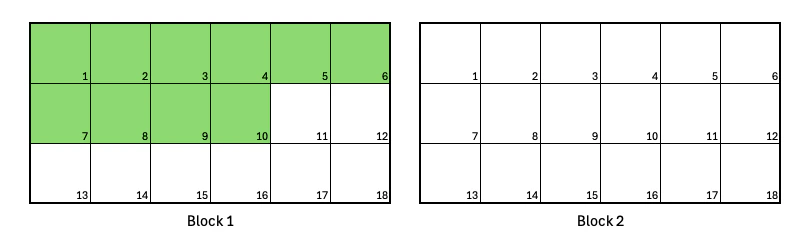
A job requests **10** Nodes, which is less than the Block size. The segment size is set to **1**, following [best practice](#segments).
```bash theme={"system"}
srun --nodes=10 --segment=1 ...
```
The plugin allocates **10** Nodes from Block 1. The rest of Block 1 and Block 2 remain idle.
 ### Jobs larger than the Block size
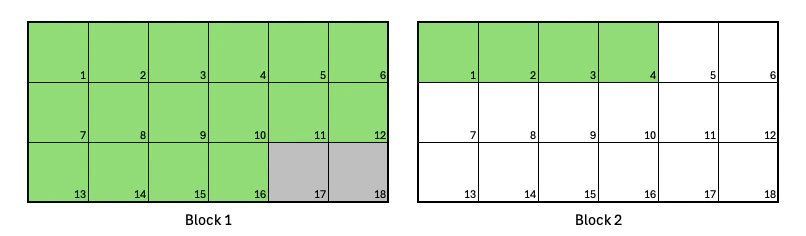
A job requests **20** Nodes, which exceeds the Block size of **18**. The segment size is set to **1**, following [best practice](#segments).
```bash theme={"system"}
srun --nodes=20 --segment=1 ...
```
Two Nodes are unavailable in Block 1, so the plugin allocates **16** Nodes from Block 1 and **4** Nodes from Block 2. The rest of Block 2 remains idle.
### Jobs larger than the Block size
A job requests **20** Nodes, which exceeds the Block size of **18**. The segment size is set to **1**, following [best practice](#segments).
```bash theme={"system"}
srun --nodes=20 --segment=1 ...
```
Two Nodes are unavailable in Block 1, so the plugin allocates **16** Nodes from Block 1 and **4** Nodes from Block 2. The rest of Block 2 remains idle.
 ### Two jobs in a single Block
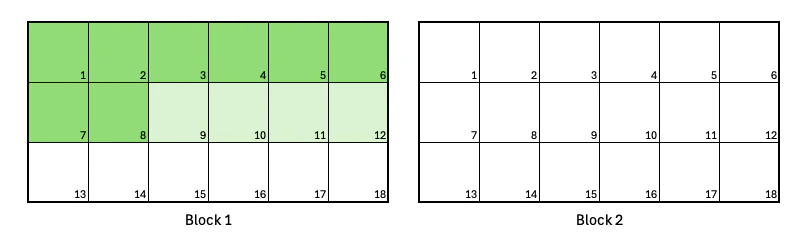
You submit two jobs. The first requests **8** Nodes, and the second requests **4**. The segment size is set to **1** for both jobs, following [best practice](#segments).
```bash theme={"system"}
srun --nodes=8 --segment=1 ... && srun --nodes=4 --segment=1 ...
```
The plugin places both jobs in Block 1. The rest of Block 1 and Block 2 remain idle.
### Two jobs in a single Block
You submit two jobs. The first requests **8** Nodes, and the second requests **4**. The segment size is set to **1** for both jobs, following [best practice](#segments).
```bash theme={"system"}
srun --nodes=8 --segment=1 ... && srun --nodes=4 --segment=1 ...
```
The plugin places both jobs in Block 1. The rest of Block 1 and Block 2 remain idle.
 ### Realistic training example: A job with two Segments
A job requests **32** Nodes, divided into two Segments of **16** Nodes each.
```bash theme={"system"}
srun --nodes=32 --segment=16 ...
```
The plugin places the first Segment in Block 1 and the second Segment in Block 2.
Two Nodes are left idle in Block 1 because Segments cannot span Blocks.
### Realistic training example: A job with two Segments
A job requests **32** Nodes, divided into two Segments of **16** Nodes each.
```bash theme={"system"}
srun --nodes=32 --segment=16 ...
```
The plugin places the first Segment in Block 1 and the second Segment in Block 2.
Two Nodes are left idle in Block 1 because Segments cannot span Blocks.
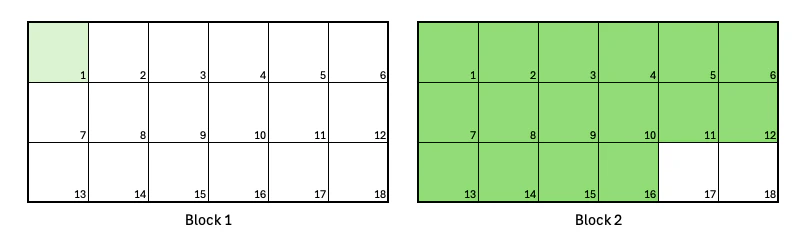
 ### Exclusive jobs
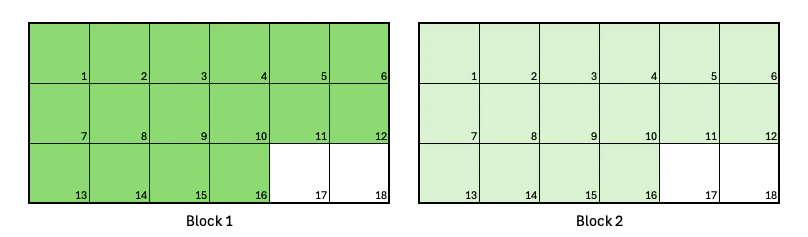
A job requests **16** Nodes with the `--exclusive=topo` option. The segment size is set to **1**, following [best practice](#segments).
```bash theme={"system"}
srun --nodes=16 --segment=1 --exclusive=topo ...
```
The plugin places the job in Block 2 because `--exclusive=topo` prevents it from running in Block 1 while a competing job (light green) is active. The rest of Block 2 remains idle, and no other jobs can run there until this job completes.
### Exclusive jobs
A job requests **16** Nodes with the `--exclusive=topo` option. The segment size is set to **1**, following [best practice](#segments).
```bash theme={"system"}
srun --nodes=16 --segment=1 --exclusive=topo ...
```
The plugin places the job in Block 2 because `--exclusive=topo` prevents it from running in Block 1 while a competing job (light green) is active. The rest of Block 2 remains idle, and no other jobs can run there until this job completes.
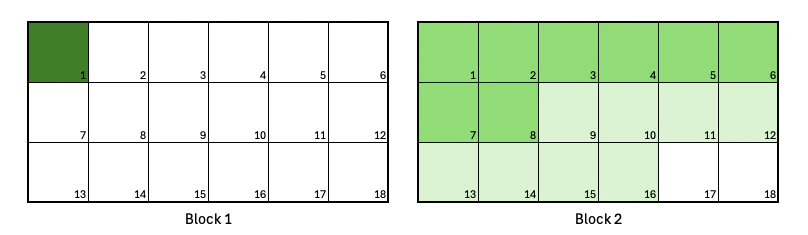
 ### Combining Segments and the exclusive option
A job requests **16** Nodes, divided into two **8**-Node Segments, using `--exclusive=topo`.
```bash theme={"system"}
srun --nodes=16 --segment=8 --exclusive=topo ...
```
The plugin places both Segments (green and light green) in Block 2 because Block 1 is unavailable because of an existing job (dark green). The rest of Block 2 remains idle, and no other jobs can run there until both job Segments complete.
### Combining Segments and the exclusive option
A job requests **16** Nodes, divided into two **8**-Node Segments, using `--exclusive=topo`.
```bash theme={"system"}
srun --nodes=16 --segment=8 --exclusive=topo ...
```
The plugin places both Segments (green and light green) in Block 2 because Block 1 is unavailable because of an existing job (dark green). The rest of Block 2 remains idle, and no other jobs can run there until both job Segments complete.
 ## Identify idle Nodes in a Block
Before you submit a job, you can check how many Nodes are currently idle in each Block to choose a segment size that schedules promptly. Use the script at `/usr/share/sunk/bin/segment-calc.sh` on the Slurm login node to check for idle Nodes within a Block. By default, it reports idle Nodes per topology Block. You can optionally provide the `--segment N` argument to report only those Blocks with at least `N` idle Nodes available.
### Example usage
```bash theme={"system"}
./segment-calc.sh --segment 6
```
Example output:
```text theme={"system"}
Block IDLE / SIZE
----------------------------------- ------ -----
block_DH4-004-US-EAST-02A 8 / 18
block_DH4-012-US-EAST-02A 8 / 18
block_DH4-013-US-EAST-02A 8 / 18
block_DH4-017-US-EAST-02A 8 / 18
block_DH4-043-US-EAST-02A 18 / 18
Blocks with ≥ 6 idle nodes : 5
Whole segments schedulable : 7
Total nodes those segments consume : 42
```
This output shows the Blocks with at least 6 idle Nodes, along with the total number of whole segments Slurm can schedule and the total Nodes those segments would consume.
## More information
To learn more about the Topology/Block Plugin for Slurm, including configuration options and advanced usage, see the [Slurm documentation](https://slurm.schedmd.com/topology.html). For help configuring the plugin on your [NVL72-powered instances](/platform/instances/nvl72), contact CoreWeave Support.
## Identify idle Nodes in a Block
Before you submit a job, you can check how many Nodes are currently idle in each Block to choose a segment size that schedules promptly. Use the script at `/usr/share/sunk/bin/segment-calc.sh` on the Slurm login node to check for idle Nodes within a Block. By default, it reports idle Nodes per topology Block. You can optionally provide the `--segment N` argument to report only those Blocks with at least `N` idle Nodes available.
### Example usage
```bash theme={"system"}
./segment-calc.sh --segment 6
```
Example output:
```text theme={"system"}
Block IDLE / SIZE
----------------------------------- ------ -----
block_DH4-004-US-EAST-02A 8 / 18
block_DH4-012-US-EAST-02A 8 / 18
block_DH4-013-US-EAST-02A 8 / 18
block_DH4-017-US-EAST-02A 8 / 18
block_DH4-043-US-EAST-02A 18 / 18
Blocks with ≥ 6 idle nodes : 5
Whole segments schedulable : 7
Total nodes those segments consume : 42
```
This output shows the Blocks with at least 6 idle Nodes, along with the total number of whole segments Slurm can schedule and the total Nodes those segments would consume.
## More information
To learn more about the Topology/Block Plugin for Slurm, including configuration options and advanced usage, see the [Slurm documentation](https://slurm.schedmd.com/topology.html). For help configuring the plugin on your [NVL72-powered instances](/platform/instances/nvl72), contact CoreWeave Support.