> ## Documentation Index
> Fetch the complete documentation index at: https://docs.coreweave.com/llms.txt
> Use this file to discover all available pages before exploring further.
# Manage buckets
> How to manage CoreWeave AI Object Storage buckets with popular S3 clients.
CoreWeave AI Object Storage stores data as objects consisting of the data itself, its metadata, and a unique identifier. These objects are organized into containers called **buckets**, which provide a namespace for objects to ensure that object names are unique within a bucket. Additionally, buckets can have specific configurations and policies to manage the data lifecycle and security.
You can create and delete buckets programmatically using the [S3-compatible Object Storage API](/products/storage/object-storage/reference/object-storage-s3) or various S3-compatible tools.
This guide explains how to manage CoreWeave AI Object Storage buckets [with Cloud Console](#manage-buckets-with-cloud-console) and [using three popular clients](#manage-buckets-programmatically): S3cmd, AWS CLI, and Boto3.
## Prerequisites
This guide assumes that you have followed the steps in [Get started with AI Object Storage](/products/storage/object-storage/get-started-caios). Before you begin, ensure that you have completed the following tasks:
1. [Set up Workload Identity Federation](/products/storage/object-storage/get-started-caios#configure-authentication) for your organization.
2. [Create Access Keys](/products/storage/object-storage/auth-access/manage-access-keys/about) with either SAML/SSO assertions or an API access token.
3. [Create a bucket](/products/storage/object-storage/get-started-caios#create-a-bucket) to store data.
4. [Set organization and bucket access policies](/products/storage/object-storage/get-started-caios#set-an-organization-access-policy) to control access, lifecycle, and auditing.
5. [Set up your endpoints](/products/storage/object-storage/using-object-storage/configure-endpoints) to ensure you're using the required virtual-hosted addressing style, and the correct endpoints for AI Object Storage.
## About LOTA (Local Object Transport Accelerator)
To use [LOTA](/products/storage/object-storage/improving-performance/about-lota), clients must point their requests to the **LOTA endpoint** instead of the **primary endpoint**. No other changes are required for S3-compatible clients.
* Use the LOTA endpoint, `http://cwlota.com`, when running inside a CoreWeave cluster. The LOTA endpoint routes to the LOTA path for best performance.
* Use the primary endpoint, `https://cwobject.com`, when running outside of a CoreWeave cluster.
Learn more [about LOTA](/products/storage/object-storage/improving-performance/about-lota). You can also [pre-stage objects into the LOTA cache](/products/storage/object-storage/improving-performance/prestage-cache) to eliminate cold-start latency.
## Bucket considerations
The following requirements and constraints apply when creating and naming buckets in CoreWeave AI Object Storage.
### Bucket creation
**You can't create a bucket without a valid API access key**. Anonymous requests are never allowed to create buckets. To obtain an API access key, see [How-To: Manage Access Keys](/products/storage/object-storage/auth-access/manage-access-keys/about).
**When you create a bucket**, you automatically become the bucket owner. The bucket owner has full control over the bucket and its contents.
### Bucket naming
Bucket names must be globally unique, and adhere to the following rules:
* **Length:** 3 to 63 characters.
* **Characters:** Only lowercase letters (`a-z`), numbers (`0-9`), and hyphens (`-`). No dots, uppercase letters, underscores, spaces, or other special characters.
* **Start and end:** Must begin and end with a letter or number. Cannot start or end with a hyphen (`-`).
* **Prohibited patterns:** Cannot start with `xn--`.
* **Reserved:** Must not begin with `cw-`, `vip-`, or `log-stitcher-ch-`. Must not be the exact name `int`. These are reserved for internal use.
If you try to create a bucket with a name that already exists in another location, or that doesn't adhere to these rules, you receive an error.
### Endpoint configuration
**All requests to CoreWeave AI Object Storage endpoints must be in DNS (virtual-hosted) style**, where the bucket name is part of the domain name in the URL.
* Use `http://[BUCKET-NAME].cwlota.com` **if using the LOTA endpoint**.
* Use `https://[BUCKET-NAME].cwobject.com` **if using the primary endpoint**.
* Set your S3 configuration to [specify a virtual addressing style](/products/storage/object-storage/using-object-storage/configure-endpoints#set-virtual-addressing-style).
## Manage buckets with Cloud Console
The [**Buckets** section](https://console.coreweave.com/object-storage/buckets) lets you manage your buckets. You can create and delete buckets, and view their total size and the number of objects in them. To [browse, upload, download, or delete the objects](/products/storage/object-storage/using-object-storage/manage-objects) within a bucket, select the bucket to open it.
The Grafana link at the top of the page leads to a Grafana dashboard for all buckets in your organization.
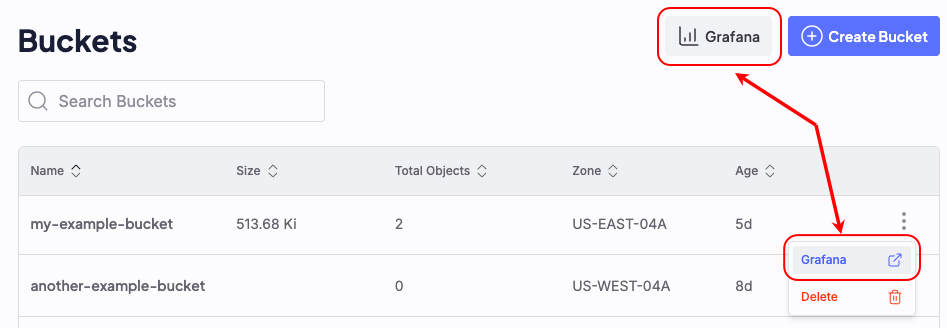 For each bucket, the vertical dot menu on the right allows you to view the Grafana dashboard for that bucket, or delete the bucket.
## Availability Zones
S3cmd, AWS CLI, and Boto3 use the term **"region"** to define the location of the object storage service. However, at CoreWeave, **Regions** are larger constructs that are organized into **Availability Zones** (AZs). When configuring your client, use a CoreWeave [Availability Zone](/platform/regions/about-regions-and-azs) in place of the traditional AWS "region".
When you create a new bucket, specify the Availability Zone in which the bucket is created.
* When creating a bucket with **S3cmd**, use `--bucket-location` with the Availability Zone.
* When creating a bucket with **AWS CLI or Boto3**, use `LocationConstraint`.
The examples that follow demonstrate proper use.
## Manage buckets programmatically
The following examples show how to manage buckets with the AWS CLI, s3cmd, and Boto3.
* The AWS CLI is a command-line tool that manages AWS services. It provides a consistent interface to interact with S3-compatible services, including CoreWeave AI Object Storage. Follow these steps to install and configure the AWS CLI, then use it to create and delete buckets in CoreWeave AI Object Storage.
* S3cmd is a command-line tool that manages objects in S3-compatible object storage services. You can use it to create, delete, and manage buckets, as well as upload, download, and manage objects within those buckets. S3cmd is available for Linux and macOS.
* Boto3 is the AWS SDK for Python. It lets you interact with AWS services programmatically using Python. Follow these steps to install and configure Boto3, then use it to create and delete buckets in CoreWeave AI Object Storage.
* For high-performance and bulk operations, you can use the [CoreWeave fork of s5cmd](https://github.com/coreweave/s5cmd). See [Migrate data to AI Object Storage](/products/storage/object-storage/migrate-data#migrate-data-with-s5cmd) for installation and usage.
### Install tools
AWS CLI supports macOS, Linux, and Windows. See [the official installation procedures](https://docs.aws.amazon.com/cli/latest/userguide/getting-started-install.html#getting-started-install-instructions) for your operating system in the AWS CLI User Guide.
The preferred S3cmd installation method is to [download the latest version from GitHub](https://s3tools.org/download). Alternatively, you can install it with the package manager for your system. For example, **macOS** can use [Homebrew](https://brew.sh/).
```bash title="macOS Example" theme={"system"}
brew install s3cmd
```
**Linux** distributions can use their native package manager. For example:
```bash title="Debian example" theme={"system"}
sudo apt install s3cmd
```
The version of S3cmd available in these package managers may not be the latest version. If you require the latest version, download it from the [S3cmd GitHub repository](https://s3tools.org/download).
Boto3 supports any platform that can run Python. To install Boto3, [follow the steps in the official documentation](https://docs.aws.amazon.com/boto3/latest/guide/quickstart.html#installation).
### Configure tools
To set up your AWS configuration for CoreWeave AI Object Storage, create a new credentials file and profile in your CoreWeave configuration directory. Using a separate profile for CoreWeave AI Object Storage is recommended to avoid conflicts with your other AWS profiles and S3-compatible services.
1. Create a new profile called `cw` and a credentials file located at `~/.coreweave/cw.credentials`:
```bash title="Configure a CoreWeave credentials file and profile" theme={"system"}
AWS_SHARED_CREDENTIALS_FILE=~/.coreweave/cw.credentials aws configure --profile cw
```
2. When prompted for information, provide the following values:
| Field | Value |
| --------------------- | -------------------------------------------------------------------------------------------------------------------------- |
| AWS Access Key ID | The CoreWeave AI Object Storage [access key](/products/storage/object-storage/auth-access/manage-access-keys/create-keys). |
| AWS Secret Key | The CoreWeave AI Object Storage secret key. |
| Default region name | Optional. To set a default region, see the [CoreWeave Availability Zones](#availability-zones). |
| Default output format | Use `json` for JSON output. |
3. Set the endpoint URL to the appropriate endpoint for your use case:
| Endpoint URL | Description |
| ---------------------- | ------------------------------------------------------------------------------------------------------------------------------------------------------------------------------------------------------------------ |
| `https://cwobject.com` | The primary endpoint for CoreWeave AI Object Storage. Use this when running outside of a CoreWeave cluster. |
| `http://cwlota.com` | The [LOTA endpoint](/products/storage/object-storage/improving-performance/about-lota), which routes to the LOTA cache for best performance. Always use the LOTA endpoint when running inside a CoreWeave cluster. |
```bash title="Set the LOTA endpoint URL in your CoreWeave configuration file" theme={"system"}
AWS_CONFIG_FILE=~/.coreweave/cw.config aws configure set endpoint_url http://cwlota.com --profile cw
```
```bash title="Set the primary endpoint URL in your CoreWeave configuration file" theme={"system"}
AWS_CONFIG_FILE=~/.coreweave/cw.config aws configure set endpoint_url https://cwobject.com --profile cw
```
4. Set the default addressing style to `virtual` in your CoreWeave configuration file. This is required for CoreWeave AI Object Storage, as it uses virtual-hosted style URLs.
```bash title="Set virtual addressing style in your CoreWeave configuration file" theme={"system"}
AWS_CONFIG_FILE=~/.coreweave/cw.config aws configure set default.s3.addressing_style virtual --profile cw
```
S3cmd requires your API token, default Region, endpoint and other information to use CoreWeave AI Object Storage. To configure S3cmd, run the following command:
```bash title="Configure S3cmd" theme={"system"}
s3cmd --configure
```
When prompted, provide the following values:
| Field | Value |
| ---------------------- | -------------------------------------------------------------------------------------------------------------------------------------------------------------------------------------- |
| Access Key | The [Access Key](/products/storage/object-storage/auth-access/manage-access-keys/create-keys) created by the CoreWeave AI Object Storage API. |
| Secret Key | The Secret Key created by the CoreWeave AI Object Storage API. |
| Default Region | The CoreWeave **Availability Zone** is found in the [Availability Zones](#availability-zones) table. |
| S3 Endpoint | • **`cwobject.com`** is the primary endpoint.
For each bucket, the vertical dot menu on the right allows you to view the Grafana dashboard for that bucket, or delete the bucket.
## Availability Zones
S3cmd, AWS CLI, and Boto3 use the term **"region"** to define the location of the object storage service. However, at CoreWeave, **Regions** are larger constructs that are organized into **Availability Zones** (AZs). When configuring your client, use a CoreWeave [Availability Zone](/platform/regions/about-regions-and-azs) in place of the traditional AWS "region".
When you create a new bucket, specify the Availability Zone in which the bucket is created.
* When creating a bucket with **S3cmd**, use `--bucket-location` with the Availability Zone.
* When creating a bucket with **AWS CLI or Boto3**, use `LocationConstraint`.
The examples that follow demonstrate proper use.
## Manage buckets programmatically
The following examples show how to manage buckets with the AWS CLI, s3cmd, and Boto3.
* The AWS CLI is a command-line tool that manages AWS services. It provides a consistent interface to interact with S3-compatible services, including CoreWeave AI Object Storage. Follow these steps to install and configure the AWS CLI, then use it to create and delete buckets in CoreWeave AI Object Storage.
* S3cmd is a command-line tool that manages objects in S3-compatible object storage services. You can use it to create, delete, and manage buckets, as well as upload, download, and manage objects within those buckets. S3cmd is available for Linux and macOS.
* Boto3 is the AWS SDK for Python. It lets you interact with AWS services programmatically using Python. Follow these steps to install and configure Boto3, then use it to create and delete buckets in CoreWeave AI Object Storage.
* For high-performance and bulk operations, you can use the [CoreWeave fork of s5cmd](https://github.com/coreweave/s5cmd). See [Migrate data to AI Object Storage](/products/storage/object-storage/migrate-data#migrate-data-with-s5cmd) for installation and usage.
### Install tools
AWS CLI supports macOS, Linux, and Windows. See [the official installation procedures](https://docs.aws.amazon.com/cli/latest/userguide/getting-started-install.html#getting-started-install-instructions) for your operating system in the AWS CLI User Guide.
The preferred S3cmd installation method is to [download the latest version from GitHub](https://s3tools.org/download). Alternatively, you can install it with the package manager for your system. For example, **macOS** can use [Homebrew](https://brew.sh/).
```bash title="macOS Example" theme={"system"}
brew install s3cmd
```
**Linux** distributions can use their native package manager. For example:
```bash title="Debian example" theme={"system"}
sudo apt install s3cmd
```
The version of S3cmd available in these package managers may not be the latest version. If you require the latest version, download it from the [S3cmd GitHub repository](https://s3tools.org/download).
Boto3 supports any platform that can run Python. To install Boto3, [follow the steps in the official documentation](https://docs.aws.amazon.com/boto3/latest/guide/quickstart.html#installation).
### Configure tools
To set up your AWS configuration for CoreWeave AI Object Storage, create a new credentials file and profile in your CoreWeave configuration directory. Using a separate profile for CoreWeave AI Object Storage is recommended to avoid conflicts with your other AWS profiles and S3-compatible services.
1. Create a new profile called `cw` and a credentials file located at `~/.coreweave/cw.credentials`:
```bash title="Configure a CoreWeave credentials file and profile" theme={"system"}
AWS_SHARED_CREDENTIALS_FILE=~/.coreweave/cw.credentials aws configure --profile cw
```
2. When prompted for information, provide the following values:
| Field | Value |
| --------------------- | -------------------------------------------------------------------------------------------------------------------------- |
| AWS Access Key ID | The CoreWeave AI Object Storage [access key](/products/storage/object-storage/auth-access/manage-access-keys/create-keys). |
| AWS Secret Key | The CoreWeave AI Object Storage secret key. |
| Default region name | Optional. To set a default region, see the [CoreWeave Availability Zones](#availability-zones). |
| Default output format | Use `json` for JSON output. |
3. Set the endpoint URL to the appropriate endpoint for your use case:
| Endpoint URL | Description |
| ---------------------- | ------------------------------------------------------------------------------------------------------------------------------------------------------------------------------------------------------------------ |
| `https://cwobject.com` | The primary endpoint for CoreWeave AI Object Storage. Use this when running outside of a CoreWeave cluster. |
| `http://cwlota.com` | The [LOTA endpoint](/products/storage/object-storage/improving-performance/about-lota), which routes to the LOTA cache for best performance. Always use the LOTA endpoint when running inside a CoreWeave cluster. |
```bash title="Set the LOTA endpoint URL in your CoreWeave configuration file" theme={"system"}
AWS_CONFIG_FILE=~/.coreweave/cw.config aws configure set endpoint_url http://cwlota.com --profile cw
```
```bash title="Set the primary endpoint URL in your CoreWeave configuration file" theme={"system"}
AWS_CONFIG_FILE=~/.coreweave/cw.config aws configure set endpoint_url https://cwobject.com --profile cw
```
4. Set the default addressing style to `virtual` in your CoreWeave configuration file. This is required for CoreWeave AI Object Storage, as it uses virtual-hosted style URLs.
```bash title="Set virtual addressing style in your CoreWeave configuration file" theme={"system"}
AWS_CONFIG_FILE=~/.coreweave/cw.config aws configure set default.s3.addressing_style virtual --profile cw
```
S3cmd requires your API token, default Region, endpoint and other information to use CoreWeave AI Object Storage. To configure S3cmd, run the following command:
```bash title="Configure S3cmd" theme={"system"}
s3cmd --configure
```
When prompted, provide the following values:
| Field | Value |
| ---------------------- | -------------------------------------------------------------------------------------------------------------------------------------------------------------------------------------- |
| Access Key | The [Access Key](/products/storage/object-storage/auth-access/manage-access-keys/create-keys) created by the CoreWeave AI Object Storage API. |
| Secret Key | The Secret Key created by the CoreWeave AI Object Storage API. |
| Default Region | The CoreWeave **Availability Zone** is found in the [Availability Zones](#availability-zones) table. |
| S3 Endpoint | • **`cwobject.com`** is the primary endpoint.
• **`cwlota.com`** is [the LOTA endpoint](/products/storage/object-storage/improving-performance/about-lota). |
| DNS-style template | • **`%(bucket)s.cwobject.com`** is the primary template.
• **`%(bucket)s.cwlota.com`** is [the LOTA template](/products/storage/object-storage/improving-performance/about-lota). |
| Path to GPG program | Defaults to `/usr/bin/gpg`. |
| Use HTTPS protocol | Boolean value indicating whether you're using the HTTPS protocol. Defaults to `True`. |
| HTTP Proxy server name | Name of HTTP Proxy server. |
| HTTP Proxy server port | Port number of HTTP Proxy server. |
When you use secure HTTPS protocol, all communication with Amazon S3 servers is protected from third-party eavesdropping. This method is slower than plain HTTP,
and can only be proxied with Python 2.7 or newer.
On some networks, all internet access must go through a HTTP proxy. Try setting the name and port here if you can't connect to S3 directly.
Leave the remaining fields blank or press `Enter` to accept the default values. Test and save the configuration when prompted.
By default, S3cmd stores its configuration in `$HOME/.s3cfg`.
Boto3 uses the same configuration files as the AWS CLI. If you have already configured the AWS CLI, you can skip this step. Otherwise, configure Boto3 by following the steps in the AWS CLI Configuration tab within this section.
Boto3 can also use a `Config` object or the environment to override the AWS CLI configuration. See [this example](/products/storage/object-storage/using-object-storage/configure-endpoints#full-configuration-examples) for more details.
### Create a bucket
Use the `aws s3api` command to create a new bucket. For example:
Replace `[BUCKET-NAME]` with your desired bucket name and `[AVAILABILITY-ZONE]` with a CoreWeave [Availability Zone](#availability-zones).
```bash title="Create a bucket with AWS CLI" theme={"system"}
aws s3api create-bucket \
--bucket [BUCKET-NAME] \
--region [AVAILABILITY-ZONE] \
--create-bucket-configuration LocationConstraint=[AVAILABILITY-ZONE]
```
* The `LocationConstraint` parameter is **required**.
* {/* Single source of truth for bucket naming rules. When adding or changing reserved prefixes or exact names, edit the "Reserved" bullet below. Call this snippet on its own line (not inline) so local mint dev and deployment behave consistently. */}
Bucket names must be globally unique and adhere to the following rules:
* **Length:** 3 to 63 characters.
* **Characters:** Only lowercase letters (`a-z`), numbers (`0-9`), and hyphens (`-`). No dots, uppercase letters, underscores, spaces, or other special characters.
* **Start and end:** Must begin and end with a letter or number. Cannot start or end with a hyphen (`-`).
* **Prohibited patterns:** Cannot start with `xn--`.
* **Reserved:** Must not begin with `cw-`, `vip-`, or `log-stitcher-ch-`. Must not be the exact name `int`. CoreWeave reserves these for internal use.
To create a bucket with S3cmd, use the `mb` (make bucket) command as shown below.
Replace `[AVAILABILITY-ZONE]` with a CoreWeave [Availability Zone](#availability-zones) and `[BUCKET-NAME]` with a globally-unique name.
```bash title="Make a bucket with S3cmd" theme={"system"}
s3cmd mb --bucket-location=[AVAILABILITY-ZONE] s3://[BUCKET-NAME]
```
* The `--bucket-location` parameter is **required**.
* {/* Single source of truth for bucket naming rules. When adding or changing reserved prefixes or exact names, edit the "Reserved" bullet below. Call this snippet on its own line (not inline) so local mint dev and deployment behave consistently. */}
Bucket names must be globally unique and adhere to the following rules:
* **Length:** 3 to 63 characters.
* **Characters:** Only lowercase letters (`a-z`), numbers (`0-9`), and hyphens (`-`). No dots, uppercase letters, underscores, spaces, or other special characters.
* **Start and end:** Must begin and end with a letter or number. Cannot start or end with a hyphen (`-`).
* **Prohibited patterns:** Cannot start with `xn--`.
* **Reserved:** Must not begin with `cw-`, `vip-`, or `log-stitcher-ch-`. Must not be the exact name `int`. CoreWeave reserves these for internal use.
1. Set environment variables for your CoreWeave credentials:
```bash theme={"system"}
export ACCESS_KEY_ID="[ACCESS-KEY-ID]"
export SECRET_ACCESS_KEY="[SECRET-ACCESS-KEY]"
```
Alternatively, configure your CoreWeave credentials to work with the AWS CLI.
We recommend using a separate profile for CoreWeave AI Object Storage to avoid conflicts with your other AWS profiles and S3-compatible services. If you don't set up this configuration, you might encounter errors when using AI Object Storage.
1. Create a new credentials file and profile in your CoreWeave configuration directory.
```bash title="Create a new credentials file and profile" theme={"system"}
AWS_SHARED_CREDENTIALS_FILE=~/.coreweave/cw.credentials aws configure --profile cw
```
2. When prompted, provide the following values:
* **AWS Access Key ID**: The [Access Key](/products/storage/object-storage/auth-access/manage-access-keys/create-keys) ID of your CoreWeave AI Object Storage Access Key.
* **AWS Secret Access Key**: The Secret Key of your CoreWeave AI Object Storage Access Key.
* **Default region name** (Optional): To set a default region, see [CoreWeave Availability Zones](/products/storage/object-storage/buckets/manage-buckets#availability-zones).
* **Default output format**: Use `json` for JSON output.
3. Set the default endpoint URL to the appropriate endpoint for your use case:
* The primary endpoint, `https://cwobject.com`, for use outside a CoreWeave cluster.
* The LOTA endpoint, `http://cwlota.com`, for use inside a CoreWeave cluster. The LOTA endpoint routes to the LOTA path for best performance.
```bash title="Set the primary endpoint for local development" theme={"system"}
AWS_CONFIG_FILE=~/.coreweave/cw.config aws configure set endpoint_url https://cwobject.com --profile cw
```
4. Set the S3 `addressing_style` to `virtual`:
```bash title="Set virtual addressing style" theme={"system"}
AWS_CONFIG_FILE=~/.coreweave/cw.config aws configure set s3.addressing_style virtual --profile cw
```
If you set `endpoint_url` and `s3.addressing_style` directly in your code (for example, in a Boto3 `Config` object), you can skip steps 3 and 4. The profile only needs the access key, secret key, and region.
2. Use the `create_bucket` method to create a bucket. Replace `[BUCKET-NAME]` with your desired bucket name and `[AVAILABILITY-ZONE]` with a CoreWeave [Availability Zone](#availability-zones).
```python title="Create a bucket with Boto3" theme={"system"}
import os
import boto3
from botocore.client import Config
boto_config = Config(
region_name='US-EAST-04A',
s3={'addressing_style': 'virtual'}
)
s3 = boto3.client(
's3',
endpoint_url='https://cwobject.com',
aws_access_key_id=os.environ['ACCESS_KEY_ID'],
aws_secret_access_key=os.environ['SECRET_ACCESS_KEY'],
config=boto_config
)
response = s3.create_bucket(
Bucket='[BUCKET-NAME]',
CreateBucketConfiguration={
'LocationConstraint': '[AVAILABILITY-ZONE]',
},
)
print(response)
```
* The `LocationConstraint` parameter is **required**.
* {/* Single source of truth for bucket naming rules. When adding or changing reserved prefixes or exact names, edit the "Reserved" bullet below. Call this snippet on its own line (not inline) so local mint dev and deployment behave consistently. */}
Bucket names must be globally unique and adhere to the following rules:
* **Length:** 3 to 63 characters.
* **Characters:** Only lowercase letters (`a-z`), numbers (`0-9`), and hyphens (`-`). No dots, uppercase letters, underscores, spaces, or other special characters.
* **Start and end:** Must begin and end with a letter or number. Cannot start or end with a hyphen (`-`).
* **Prohibited patterns:** Cannot start with `xn--`.
* **Reserved:** Must not begin with `cw-`, `vip-`, or `log-stitcher-ch-`. Must not be the exact name `int`. CoreWeave reserves these for internal use.
### Delete a bucket
Only empty buckets can be deleted. Remove all objects, object versions, delete markers, and incomplete multipart uploads before deleting a bucket. See [Empty and delete a bucket](/products/storage/object-storage/buckets/empty-and-delete-bucket) for the complete cleanup procedure.
To delete a bucket, use the `delete-bucket` sub-command as shown. **Only empty buckets can be deleted**. Remove all objects, object versions, and delete markers before deleting a bucket.
Replace `[BUCKET-NAME]` with the name of the bucket to delete.
```bash title="Delete a bucket with AWS CLI" theme={"system"}
aws s3api delete-bucket --bucket [BUCKET-NAME]
```
To delete a bucket with S3cmd, use the `rb` (remove bucket) command as shown below. **Only empty buckets can be deleted**. Remove all objects, object versions, and delete markers before deleting a bucket.
Replace `[BUCKET-NAME]` with the name of your bucket.
```bash title="Remove a bucket with S3cmd" theme={"system"}
s3cmd rb s3://[BUCKET-NAME]
```
To delete a bucket with Boto3, use the `delete_bucket` method. **Only empty buckets can be deleted**. Remove all objects, object versions, and delete markers before deleting a bucket.
1. Set environment variables for your CoreWeave credentials:
```bash theme={"system"}
export ACCESS_KEY_ID="[ACCESS-KEY-ID]"
export SECRET_ACCESS_KEY="[SECRET-ACCESS-KEY]"
```
Alternatively, configure your CoreWeave credentials to work with the AWS CLI.
We recommend using a separate profile for CoreWeave AI Object Storage to avoid conflicts with your other AWS profiles and S3-compatible services. If you don't set up this configuration, you might encounter errors when using AI Object Storage.
1. Create a new credentials file and profile in your CoreWeave configuration directory.
```bash title="Create a new credentials file and profile" theme={"system"}
AWS_SHARED_CREDENTIALS_FILE=~/.coreweave/cw.credentials aws configure --profile cw
```
2. When prompted, provide the following values:
* **AWS Access Key ID**: The [Access Key](/products/storage/object-storage/auth-access/manage-access-keys/create-keys) ID of your CoreWeave AI Object Storage Access Key.
* **AWS Secret Access Key**: The Secret Key of your CoreWeave AI Object Storage Access Key.
* **Default region name** (Optional): To set a default region, see [CoreWeave Availability Zones](/products/storage/object-storage/buckets/manage-buckets#availability-zones).
* **Default output format**: Use `json` for JSON output.
3. Set the default endpoint URL to the appropriate endpoint for your use case:
* The primary endpoint, `https://cwobject.com`, for use outside a CoreWeave cluster.
* The LOTA endpoint, `http://cwlota.com`, for use inside a CoreWeave cluster. The LOTA endpoint routes to the LOTA path for best performance.
```bash title="Set the primary endpoint for local development" theme={"system"}
AWS_CONFIG_FILE=~/.coreweave/cw.config aws configure set endpoint_url https://cwobject.com --profile cw
```
4. Set the S3 `addressing_style` to `virtual`:
```bash title="Set virtual addressing style" theme={"system"}
AWS_CONFIG_FILE=~/.coreweave/cw.config aws configure set s3.addressing_style virtual --profile cw
```
If you set `endpoint_url` and `s3.addressing_style` directly in your code (for example, in a Boto3 `Config` object), you can skip steps 3 and 4. The profile only needs the access key, secret key, and region.
2. Replace `[BUCKET-NAME]` with the name of the bucket to delete.
```python title="Delete a bucket with Boto3" theme={"system"}
import os
import boto3
from botocore.client import Config
boto_config = Config(
region_name='US-EAST-04A',
s3={'addressing_style': 'virtual'}
)
s3 = boto3.client(
's3',
endpoint_url='https://cwobject.com',
aws_access_key_id=os.environ['ACCESS_KEY_ID'],
aws_secret_access_key=os.environ['SECRET_ACCESS_KEY'],
config=boto_config
)
response = s3.delete_bucket(Bucket='[BUCKET-NAME]')
print(response)
```
### Report usage
To report the usage of a bucket, use `aws s3` with the `ls` sub-command. Use the `--recursive`, `--human-readable`, and `--summarize` parameters to view information in an easier-to-understand format.
Replace `[BUCKET-NAME]` with the name of your bucket.
```bash title="Report bucket usage with AWS CLI" theme={"system"}
aws s3 ls s3://[BUCKET-NAME] --recursive --human-readable --summarize
```
To report the usage of a bucket, use the `du` (disk usage) command. Use the `--human-readable-sizes` parameter to view information in an easier-to-understand format.
Replace `[BUCKET-NAME]` with the name of your bucket.
```bash title="Report bucket usage with S3cmd" theme={"system"}
s3cmd du --human-readable-sizes s3://[BUCKET-NAME]
```
1. Set environment variables for your CoreWeave credentials:
```bash theme={"system"}
export ACCESS_KEY_ID="[ACCESS-KEY-ID]"
export SECRET_ACCESS_KEY="[SECRET-ACCESS-KEY]"
```
Alternatively, configure your CoreWeave credentials to work with the AWS CLI.
We recommend using a separate profile for CoreWeave AI Object Storage to avoid conflicts with your other AWS profiles and S3-compatible services. If you don't set up this configuration, you might encounter errors when using AI Object Storage.
1. Create a new credentials file and profile in your CoreWeave configuration directory.
```bash title="Create a new credentials file and profile" theme={"system"}
AWS_SHARED_CREDENTIALS_FILE=~/.coreweave/cw.credentials aws configure --profile cw
```
2. When prompted, provide the following values:
* **AWS Access Key ID**: The [Access Key](/products/storage/object-storage/auth-access/manage-access-keys/create-keys) ID of your CoreWeave AI Object Storage Access Key.
* **AWS Secret Access Key**: The Secret Key of your CoreWeave AI Object Storage Access Key.
* **Default region name** (Optional): To set a default region, see [CoreWeave Availability Zones](/products/storage/object-storage/buckets/manage-buckets#availability-zones).
* **Default output format**: Use `json` for JSON output.
3. Set the default endpoint URL to the appropriate endpoint for your use case:
* The primary endpoint, `https://cwobject.com`, for use outside a CoreWeave cluster.
* The LOTA endpoint, `http://cwlota.com`, for use inside a CoreWeave cluster. The LOTA endpoint routes to the LOTA path for best performance.
```bash title="Set the primary endpoint for local development" theme={"system"}
AWS_CONFIG_FILE=~/.coreweave/cw.config aws configure set endpoint_url https://cwobject.com --profile cw
```
4. Set the S3 `addressing_style` to `virtual`:
```bash title="Set virtual addressing style" theme={"system"}
AWS_CONFIG_FILE=~/.coreweave/cw.config aws configure set s3.addressing_style virtual --profile cw
```
If you set `endpoint_url` and `s3.addressing_style` directly in your code (for example, in a Boto3 `Config` object), you can skip steps 3 and 4. The profile only needs the access key, secret key, and region.
2. Use the `list_objects_v2` method to sum the size of all objects in the bucket. Replace `[BUCKET-NAME]` with the name of your bucket.
```python title="Report bucket usage with Boto3" theme={"system"}
import os
import boto3
from botocore.client import Config
boto_config = Config(
region_name='US-EAST-04A',
s3={'addressing_style': 'virtual'}
)
s3 = boto3.client(
's3',
endpoint_url='https://cwobject.com',
aws_access_key_id=os.environ['ACCESS_KEY_ID'],
aws_secret_access_key=os.environ['SECRET_ACCESS_KEY'],
config=boto_config
)
response = s3.list_objects_v2(Bucket='[BUCKET-NAME]')
if 'Contents' in response:
bucket_size = sum(obj['Size'] for obj in response['Contents'])
print(f"Total size: {bucket_size} bytes ({len(response['Contents'])} objects)")
else:
print("Bucket is empty.")
```
## Next steps
Now that you've installed and configured an S3-compatible client, and created a bucket, you can:
* [Add files and objects to buckets](/products/storage/object-storage/using-object-storage/manage-objects).
* [Apply a bucket lifecycle policy](/products/storage/object-storage/buckets/lifecycle-policies) to automate object expiration and prevent incomplete multipart uploads from accumulating.
* [Empty and delete a bucket](/products/storage/object-storage/buckets/empty-and-delete-bucket) when you no longer need it.