> ## Documentation Index
> Fetch the complete documentation index at: https://docs.coreweave.com/llms.txt
> Use this file to discover all available pages before exploring further.
# Create buckets
> Create CoreWeave AI Object Storage buckets with Cloud Console or CLI clients.
Buckets are the primary organizational unit that stores object data in CoreWeave AI Object Storage. They're similar to folders in a file system.
This guide explains how to create a bucket with the CoreWeave Cloud Console or CLI clients such as S3cmd, AWS CLI, and Boto3. You can also use the [CoreWeave fork of s5cmd](https://github.com/coreweave/s5cmd). Upstream s5cmd uses path-style addressing, which AI Object Storage doesn't support.
## Prerequisites
* You must [generate an Access Key](/products/storage/object-storage/get-started-caios) before you create a bucket. When you use the Cloud Console, use an [API access token](/products/storage/object-storage/auth-access/manage-access-keys/about#static-access-keys) to generate the Access Key. [Workload Identity Federation](/products/storage/object-storage/auth-access/manage-access-keys/about#workload-identity-federation) is supported with CLI clients.
* To create a bucket with the Cloud Console, you must have `s3:CreateBucket` and `cwobject:CreateAccessKey` permissions granted to your user or group by an [organization access policy](/products/storage/object-storage/auth-access/organization-policies/manage).
* Make sure your configuration uses the [correct endpoint URL](/products/storage/object-storage/using-object-storage/configure-endpoints#set-endpoint-url) and [has virtual-hosted addressing enabled](/products/storage/object-storage/using-object-storage/configure-endpoints#set-virtual-addressing-style).
## Create a bucket with Cloud Console
To create a bucket with the CoreWeave Cloud Console, follow these steps:
1. In the Cloud Console, navigate to the [Buckets](https://console.coreweave.com/object-storage/buckets) page.
2. Click the **Create Bucket** button at the top right corner of the page.
3. In the dialog, enter a **Bucket Name**.
{/* Single source of truth for bucket naming rules. When adding or changing reserved prefixes or exact names, edit the "Reserved" bullet below. Call this snippet on its own line (not inline) so local mint dev and deployment behave consistently. */}
Bucket names must be globally unique and adhere to the following rules:
* **Length:** 3 to 63 characters.
* **Characters:** Only lowercase letters (`a-z`), numbers (`0-9`), and hyphens (`-`). No dots, uppercase letters, underscores, spaces, or other special characters.
* **Start and end:** Must begin and end with a letter or number. Cannot start or end with a hyphen (`-`).
* **Prohibited patterns:** Cannot start with `xn--`.
* **Reserved:** Must not begin with `cw-`, `vip-`, or `log-stitcher-ch-`. Must not be the exact name `int`. CoreWeave reserves these for internal use.
4. Select an **Availability Zone**.
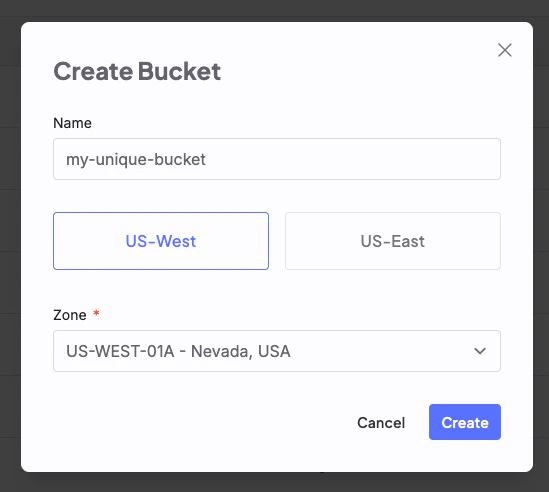 5. Click **Create**.
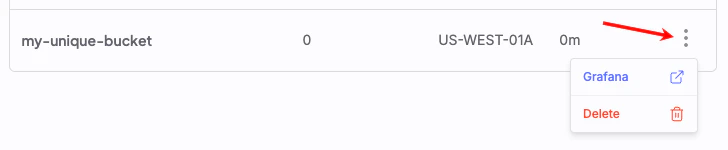
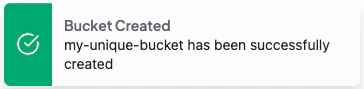 6. Click **More options** to view information in Grafana, or to delete the bucket.
 ## Create a bucket with CLI clients
CoreWeave AI Object Storage is compatible with S3-compatible clients, including S3cmd, the AWS CLI, Boto3, and the [CoreWeave fork of s5cmd](https://github.com/coreweave/s5cmd).
**Use the CoreWeave fork of `s5cmd` with AI Object Storage**
The upstream [`s5cmd`](https://github.com/peak/s5cmd) uses path-style addressing with custom endpoint URLs. AI Object Storage doesn't support path-style addressing and requires virtual-hosted style URLs. Use the [CoreWeave fork of `s5cmd`](https://github.com/coreweave/s5cmd), which is compatible with AI Object Storage and can safely replace any existing `s5cmd` installation. For setup and usage, see [Migrate data to AI Object Storage](/products/storage/object-storage/migrate-data#migrate-data-with-s5cmd).
Before you create a bucket, [configure your client](/products/storage/object-storage/buckets/manage-buckets#configure-tools). The primary endpoint, `https://cwobject.com`, requires TLS v1.3. Make sure your S3-compatible tools and OpenSSL use TLS v1.3.
The following sections describe how to create a bucket with each supported CLI client. Replace these placeholders in the examples:
* `[BUCKET-NAME]`: A globally unique name for your bucket. Follow the naming rules:
{/* Single source of truth for bucket naming rules. When adding or changing reserved prefixes or exact names, edit the "Reserved" bullet below. Call this snippet on its own line (not inline) so local mint dev and deployment behave consistently. */}
Bucket names must be globally unique and adhere to the following rules:
* **Length:** 3 to 63 characters.
* **Characters:** Only lowercase letters (`a-z`), numbers (`0-9`), and hyphens (`-`). No dots, uppercase letters, underscores, spaces, or other special characters.
* **Start and end:** Must begin and end with a letter or number. Cannot start or end with a hyphen (`-`).
* **Prohibited patterns:** Cannot start with `xn--`.
* **Reserved:** Must not begin with `cw-`, `vip-`, or `log-stitcher-ch-`. Must not be the exact name `int`. CoreWeave reserves these for internal use.
* `[AVAILABILITY-ZONE]`: A CoreWeave Availability Zone that supports AI Object Storage (for example, `US-EAST-04A`). S3-compatible tools use the term "region" to define the location of the storage service, but at CoreWeave, Regions are larger constructs organized into Availability Zones. Use a CoreWeave [Availability Zone](/platform/regions/about-regions-and-azs) that supports AI Object Storage:
* `US-CENTRAL-05A`
* `US-CENTRAL-06A`
* `US-CENTRAL-07A`
* `US-CENTRAL-08A`
* `US-CENTRAL-08B`
* `US-EAST-01A`
* `US-EAST-02A`
* `US-EAST-03A`
* `US-EAST-04A`
* `US-EAST-04B`
* `US-EAST-06A`
* `US-EAST-08A`
* `US-EAST-13A`
* `US-EAST-14A`
* `RNO2A`
* `US-WEST-01A`
* `US-WEST-04A`
* `US-WEST-09B`
* `US-WEST-10A`
* `CA-EAST-01A`
* `EU-NORTH-05A`
* `EU-SOUTH-03B`
* `EU-SOUTH-04A`
Learn more about [Regions and Availability Zones](/platform/regions/about-regions-and-azs).
**Bucket creation delay**
When you create a bucket with an S3-compatible client, it takes about one minute before the bucket becomes available due to DNS caching. You might see the following error immediately after bucket creation: `An error occurred (InvalidRegion) when calling the ListObjects operation: Region does not match.` Wait one minute, then try again.
This delay doesn't occur when you create buckets in the Cloud Console.
To create a bucket with AWS CLI, use the `aws s3api` command. The `LocationConstraint` parameter is required.
```bash title="Create a bucket with AWS CLI" theme={"system"}
aws s3api create-bucket \
--bucket [BUCKET-NAME] \
--region [AVAILABILITY-ZONE] \
--create-bucket-configuration LocationConstraint=[AVAILABILITY-ZONE]
```
If you need to install or configure the AWS CLI for AI Object Storage, see [Manage buckets with AWS CLI](/products/storage/object-storage/buckets/manage-buckets#install-tools).
To create a bucket with S3cmd, use the `mb` (make bucket) subcommand. The `--bucket-location` parameter is required.
```bash title="Create a bucket with S3cmd" theme={"system"}
s3cmd mb --bucket-location=[AVAILABILITY-ZONE] s3://[BUCKET-NAME]
```
If you need to configure S3cmd for AI Object Storage, see [Manage buckets with S3cmd](/products/storage/object-storage/buckets/manage-buckets#configure-tools).
To create a bucket with Boto3, use the `create_bucket` method. The `LocationConstraint` parameter is required.
1. Set environment variables for your CoreWeave credentials:
```bash theme={"system"}
export ACCESS_KEY_ID="[ACCESS-KEY-ID]"
export SECRET_ACCESS_KEY="[SECRET-ACCESS-KEY]"
```
Alternatively, configure your CoreWeave credentials to work with the AWS CLI.
We recommend using a separate profile for CoreWeave AI Object Storage to avoid conflicts with your other AWS profiles and S3-compatible services. If you don't set up this configuration, you might encounter errors when using AI Object Storage.
1. Create a new credentials file and profile in your CoreWeave configuration directory.
```bash title="Create a new credentials file and profile" theme={"system"}
AWS_SHARED_CREDENTIALS_FILE=~/.coreweave/cw.credentials aws configure --profile cw
```
2. When prompted, provide the following values:
* **AWS Access Key ID**: The [Access Key](/products/storage/object-storage/auth-access/manage-access-keys/create-keys) ID of your CoreWeave AI Object Storage Access Key.
* **AWS Secret Access Key**: The Secret Key of your CoreWeave AI Object Storage Access Key.
* **Default region name** (Optional): To set a default region, see [CoreWeave Availability Zones](/products/storage/object-storage/buckets/manage-buckets#availability-zones).
* **Default output format**: Use `json` for JSON output.
3. Set the default endpoint URL to the appropriate endpoint for your use case:
* The primary endpoint, `https://cwobject.com`, for use outside a CoreWeave cluster.
* The LOTA endpoint, `http://cwlota.com`, for use inside a CoreWeave cluster. The LOTA endpoint routes to the LOTA path for best performance.
```bash title="Set the primary endpoint for local development" theme={"system"}
AWS_CONFIG_FILE=~/.coreweave/cw.config aws configure set endpoint_url https://cwobject.com --profile cw
```
4. Set the S3 `addressing_style` to `virtual`:
```bash title="Set virtual addressing style" theme={"system"}
AWS_CONFIG_FILE=~/.coreweave/cw.config aws configure set s3.addressing_style virtual --profile cw
```
If you set `endpoint_url` and `s3.addressing_style` directly in your code (for example, in a Boto3 `Config` object), you can skip steps 3 and 4. The profile only needs the access key, secret key, and region.
2. Replace `[BUCKET-NAME]` with the name of the bucket and `[AVAILABILITY-ZONE]` with a CoreWeave Availability Zone.
```python title="Create a bucket with Boto3" theme={"system"}
import os
import boto3
from botocore.client import Config
boto_config = Config(
region_name='US-EAST-04A',
s3={'addressing_style': 'virtual'}
)
s3 = boto3.client(
's3',
endpoint_url='https://cwobject.com',
aws_access_key_id=os.environ['ACCESS_KEY_ID'],
aws_secret_access_key=os.environ['SECRET_ACCESS_KEY'],
config=boto_config
)
response = s3.create_bucket(
Bucket='[BUCKET-NAME]',
CreateBucketConfiguration={
'LocationConstraint': '[AVAILABILITY-ZONE]',
},
)
print(response)
```
If you need to configure Boto3 for AI Object Storage, see [Manage buckets with Boto3](/products/storage/object-storage/buckets/manage-buckets#configure-tools).
## Versioned buckets
If you need a versioned bucket, you must enable versioning at creation time. You can't enable versioning on an existing bucket after you create it, so decide whether you need versioning before you create the bucket.
To create and configure a versioned bucket, see [Versioned buckets](/products/storage/object-storage/buckets/rclone-versioned-buckets).
## Next steps
After you create a bucket, you must [set an organization access policy](/products/storage/object-storage/get-started-caios#set-an-organization-access-policy) to control access to the Object Storage S3-compatible API. Without an access policy, users and applications can't interact with the bucket.
## Create a bucket with CLI clients
CoreWeave AI Object Storage is compatible with S3-compatible clients, including S3cmd, the AWS CLI, Boto3, and the [CoreWeave fork of s5cmd](https://github.com/coreweave/s5cmd).
**Use the CoreWeave fork of `s5cmd` with AI Object Storage**
The upstream [`s5cmd`](https://github.com/peak/s5cmd) uses path-style addressing with custom endpoint URLs. AI Object Storage doesn't support path-style addressing and requires virtual-hosted style URLs. Use the [CoreWeave fork of `s5cmd`](https://github.com/coreweave/s5cmd), which is compatible with AI Object Storage and can safely replace any existing `s5cmd` installation. For setup and usage, see [Migrate data to AI Object Storage](/products/storage/object-storage/migrate-data#migrate-data-with-s5cmd).
Before you create a bucket, [configure your client](/products/storage/object-storage/buckets/manage-buckets#configure-tools). The primary endpoint, `https://cwobject.com`, requires TLS v1.3. Make sure your S3-compatible tools and OpenSSL use TLS v1.3.
The following sections describe how to create a bucket with each supported CLI client. Replace these placeholders in the examples:
* `[BUCKET-NAME]`: A globally unique name for your bucket. Follow the naming rules:
{/* Single source of truth for bucket naming rules. When adding or changing reserved prefixes or exact names, edit the "Reserved" bullet below. Call this snippet on its own line (not inline) so local mint dev and deployment behave consistently. */}
Bucket names must be globally unique and adhere to the following rules:
* **Length:** 3 to 63 characters.
* **Characters:** Only lowercase letters (`a-z`), numbers (`0-9`), and hyphens (`-`). No dots, uppercase letters, underscores, spaces, or other special characters.
* **Start and end:** Must begin and end with a letter or number. Cannot start or end with a hyphen (`-`).
* **Prohibited patterns:** Cannot start with `xn--`.
* **Reserved:** Must not begin with `cw-`, `vip-`, or `log-stitcher-ch-`. Must not be the exact name `int`. CoreWeave reserves these for internal use.
* `[AVAILABILITY-ZONE]`: A CoreWeave Availability Zone that supports AI Object Storage (for example, `US-EAST-04A`). S3-compatible tools use the term "region" to define the location of the storage service, but at CoreWeave, Regions are larger constructs organized into Availability Zones. Use a CoreWeave [Availability Zone](/platform/regions/about-regions-and-azs) that supports AI Object Storage:
* `US-CENTRAL-05A`
* `US-CENTRAL-06A`
* `US-CENTRAL-07A`
* `US-CENTRAL-08A`
* `US-CENTRAL-08B`
* `US-EAST-01A`
* `US-EAST-02A`
* `US-EAST-03A`
* `US-EAST-04A`
* `US-EAST-04B`
* `US-EAST-06A`
* `US-EAST-08A`
* `US-EAST-13A`
* `US-EAST-14A`
* `RNO2A`
* `US-WEST-01A`
* `US-WEST-04A`
* `US-WEST-09B`
* `US-WEST-10A`
* `CA-EAST-01A`
* `EU-NORTH-05A`
* `EU-SOUTH-03B`
* `EU-SOUTH-04A`
Learn more about [Regions and Availability Zones](/platform/regions/about-regions-and-azs).
**Bucket creation delay**
When you create a bucket with an S3-compatible client, it takes about one minute before the bucket becomes available due to DNS caching. You might see the following error immediately after bucket creation: `An error occurred (InvalidRegion) when calling the ListObjects operation: Region does not match.` Wait one minute, then try again.
This delay doesn't occur when you create buckets in the Cloud Console.
To create a bucket with AWS CLI, use the `aws s3api` command. The `LocationConstraint` parameter is required.
```bash title="Create a bucket with AWS CLI" theme={"system"}
aws s3api create-bucket \
--bucket [BUCKET-NAME] \
--region [AVAILABILITY-ZONE] \
--create-bucket-configuration LocationConstraint=[AVAILABILITY-ZONE]
```
If you need to install or configure the AWS CLI for AI Object Storage, see [Manage buckets with AWS CLI](/products/storage/object-storage/buckets/manage-buckets#install-tools).
To create a bucket with S3cmd, use the `mb` (make bucket) subcommand. The `--bucket-location` parameter is required.
```bash title="Create a bucket with S3cmd" theme={"system"}
s3cmd mb --bucket-location=[AVAILABILITY-ZONE] s3://[BUCKET-NAME]
```
If you need to configure S3cmd for AI Object Storage, see [Manage buckets with S3cmd](/products/storage/object-storage/buckets/manage-buckets#configure-tools).
To create a bucket with Boto3, use the `create_bucket` method. The `LocationConstraint` parameter is required.
1. Set environment variables for your CoreWeave credentials:
```bash theme={"system"}
export ACCESS_KEY_ID="[ACCESS-KEY-ID]"
export SECRET_ACCESS_KEY="[SECRET-ACCESS-KEY]"
```
Alternatively, configure your CoreWeave credentials to work with the AWS CLI.
We recommend using a separate profile for CoreWeave AI Object Storage to avoid conflicts with your other AWS profiles and S3-compatible services. If you don't set up this configuration, you might encounter errors when using AI Object Storage.
1. Create a new credentials file and profile in your CoreWeave configuration directory.
```bash title="Create a new credentials file and profile" theme={"system"}
AWS_SHARED_CREDENTIALS_FILE=~/.coreweave/cw.credentials aws configure --profile cw
```
2. When prompted, provide the following values:
* **AWS Access Key ID**: The [Access Key](/products/storage/object-storage/auth-access/manage-access-keys/create-keys) ID of your CoreWeave AI Object Storage Access Key.
* **AWS Secret Access Key**: The Secret Key of your CoreWeave AI Object Storage Access Key.
* **Default region name** (Optional): To set a default region, see [CoreWeave Availability Zones](/products/storage/object-storage/buckets/manage-buckets#availability-zones).
* **Default output format**: Use `json` for JSON output.
3. Set the default endpoint URL to the appropriate endpoint for your use case:
* The primary endpoint, `https://cwobject.com`, for use outside a CoreWeave cluster.
* The LOTA endpoint, `http://cwlota.com`, for use inside a CoreWeave cluster. The LOTA endpoint routes to the LOTA path for best performance.
```bash title="Set the primary endpoint for local development" theme={"system"}
AWS_CONFIG_FILE=~/.coreweave/cw.config aws configure set endpoint_url https://cwobject.com --profile cw
```
4. Set the S3 `addressing_style` to `virtual`:
```bash title="Set virtual addressing style" theme={"system"}
AWS_CONFIG_FILE=~/.coreweave/cw.config aws configure set s3.addressing_style virtual --profile cw
```
If you set `endpoint_url` and `s3.addressing_style` directly in your code (for example, in a Boto3 `Config` object), you can skip steps 3 and 4. The profile only needs the access key, secret key, and region.
2. Replace `[BUCKET-NAME]` with the name of the bucket and `[AVAILABILITY-ZONE]` with a CoreWeave Availability Zone.
```python title="Create a bucket with Boto3" theme={"system"}
import os
import boto3
from botocore.client import Config
boto_config = Config(
region_name='US-EAST-04A',
s3={'addressing_style': 'virtual'}
)
s3 = boto3.client(
's3',
endpoint_url='https://cwobject.com',
aws_access_key_id=os.environ['ACCESS_KEY_ID'],
aws_secret_access_key=os.environ['SECRET_ACCESS_KEY'],
config=boto_config
)
response = s3.create_bucket(
Bucket='[BUCKET-NAME]',
CreateBucketConfiguration={
'LocationConstraint': '[AVAILABILITY-ZONE]',
},
)
print(response)
```
If you need to configure Boto3 for AI Object Storage, see [Manage buckets with Boto3](/products/storage/object-storage/buckets/manage-buckets#configure-tools).
## Versioned buckets
If you need a versioned bucket, you must enable versioning at creation time. You can't enable versioning on an existing bucket after you create it, so decide whether you need versioning before you create the bucket.
To create and configure a versioned bucket, see [Versioned buckets](/products/storage/object-storage/buckets/rclone-versioned-buckets).
## Next steps
After you create a bucket, you must [set an organization access policy](/products/storage/object-storage/get-started-caios#set-an-organization-access-policy) to control access to the Object Storage S3-compatible API. Without an access policy, users and applications can't interact with the bucket.