> ## Documentation Index
> Fetch the complete documentation index at: https://docs.coreweave.com/llms.txt
> Use this file to discover all available pages before exploring further.
# Create Distributed File Storage volumes
> Deploy distributed file storage volumes using PVCs on CKS
This page explains how to create Distributed File Storage volumes on CoreWeave Kubernetes Service (CKS) so that your workloads can share persistent file storage across Pods. It's intended for cluster operators and application developers who need shared, expandable file storage for CKS workloads.
Deploy **Distributed File Volumes** as Persistent Volumes using [Persistent Volume Claims (PVCs)](https://kubernetes.io/docs/concepts/storage/persistent-volumes/).
To create a Persistent Volume for a Distributed File Storage volume, configure the PVC with the following settings:
* Set the `accessMode` for the PVC as `ReadWriteMany`.
* Set the storage class as `shared-vast`.
* Set the size to the desired size.
* Specify the namespace in the manifest, as PVCs are [created and scoped to a namespace](https://kubernetes.io/docs/concepts/storage/persistent-volumes/#a-note-on-namespaces).
To create a Distributed File Storage volume in Cloud Console, you need access to an active CKS cluster. If you don't have any clusters or don't have access to any clusters, you see the following message:
 1. If you have access to an active CKS cluster, navigate to the [PVCs](https://console.coreweave.com/pvcs) page.
2. Click the **Create PVC** button at the top right corner of the page.
The **Create PVC** editor includes both regular text fields and a manifest editor on the right side of the page. You can edit the manifest directly, or use the text fields to configure the PVC. Any changes you make in one are reflected in the other.
1. If you have access to an active CKS cluster, navigate to the [PVCs](https://console.coreweave.com/pvcs) page.
2. Click the **Create PVC** button at the top right corner of the page.
The **Create PVC** editor includes both regular text fields and a manifest editor on the right side of the page. You can edit the manifest directly, or use the text fields to configure the PVC. Any changes you make in one are reflected in the other.
 1. Enter the desired name for the PVC in the **Name** field.
2. Select the cluster where you want to deploy the PVC in the **Cluster** field.
3. Select the namespace for the PVC in the **Namespace** field.
4. The **Disk Class** dropdown may be pre-selected depending on the cluster you selected. If not, select the desired disk class from the dropdown.
5. Set the size to the desired size in the **Size** field.
6. Add labels to the PVC in the **Labels** field (Optional).
7. Click **Submit**.
The following example shows a PVC manifest for deploying a Distributed File Storage volume:
```yaml title="sample-shared-fs.yaml" highlight={7-8,12} theme={"system"}
apiVersion: v1
kind: PersistentVolumeClaim
metadata:
name: new-pvc
namespace: default
spec:
accessModes:
- ReadWriteMany
resources:
requests:
storage: 1Gi
storageClassName: shared-vast
```
After you create and configure the manifest as desired, apply it using `kubectl`. For example:
```bash theme={"system"}
kubectl apply -f sample-shared-fs.yaml
```
## Attach volumes to Pods
After you create your PVC, the next step is to make it available to a workload by attaching it to a Pod.
You must create and provision storage volumes before they can be attached to a Pod.
To attach a Distributed File volume to a Pod, specify the `mountPath` and `name` under the `volumeMounts` stanza. Then, specify the `volumes.name` and the `persistentVolumeClaim.claimName` as shown in the following example:
```yaml title="sample-shared-fs-pod.yaml" highlight={10-11,13,15} theme={"system"}
apiVersion: v1
kind: Pod
metadata:
name: filesystem-storage-example
spec:
containers:
- image: nginx:1.14.2
name: nginx
volumeMounts:
- mountPath: /storage
name: filesystem-storage
volumes:
- name: filesystem-storage
persistentVolumeClaim:
claimName: new-pvc
```
After you create and configure the manifest as desired, apply it using `kubectl`:
```bash theme={"system"}
kubectl apply -f sample-shared-fs-pod.yaml
```
After the Pod is created, verify that the volume is attached by running:
```bash theme={"system"}
kubectl describe pod filesystem-storage-example
```
This command shows the volume attached to the Pod in the `Volumes` section.
## Change volume sizes
Storage needs change over time. After a volume is created and deployed, you can expand it or migrate to a smaller volume.
You can't reduce existing volumes in size. To use a smaller volume, create a new, smaller PVC and migrate your data manually.
### Expand volumes
You can expand deployed Distributed Filesystem Volumes without disrupting running workloads. After you've expanded a volume, you can't downsize it.
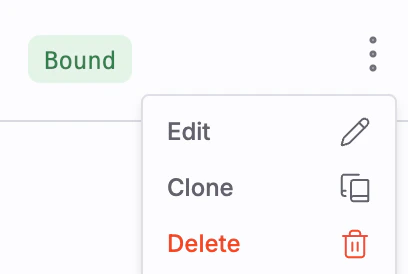
To expand a volume in Cloud Console, open the overflow menu (⋮) for the volume, then click **Edit**.
1. Enter the desired name for the PVC in the **Name** field.
2. Select the cluster where you want to deploy the PVC in the **Cluster** field.
3. Select the namespace for the PVC in the **Namespace** field.
4. The **Disk Class** dropdown may be pre-selected depending on the cluster you selected. If not, select the desired disk class from the dropdown.
5. Set the size to the desired size in the **Size** field.
6. Add labels to the PVC in the **Labels** field (Optional).
7. Click **Submit**.
The following example shows a PVC manifest for deploying a Distributed File Storage volume:
```yaml title="sample-shared-fs.yaml" highlight={7-8,12} theme={"system"}
apiVersion: v1
kind: PersistentVolumeClaim
metadata:
name: new-pvc
namespace: default
spec:
accessModes:
- ReadWriteMany
resources:
requests:
storage: 1Gi
storageClassName: shared-vast
```
After you create and configure the manifest as desired, apply it using `kubectl`. For example:
```bash theme={"system"}
kubectl apply -f sample-shared-fs.yaml
```
## Attach volumes to Pods
After you create your PVC, the next step is to make it available to a workload by attaching it to a Pod.
You must create and provision storage volumes before they can be attached to a Pod.
To attach a Distributed File volume to a Pod, specify the `mountPath` and `name` under the `volumeMounts` stanza. Then, specify the `volumes.name` and the `persistentVolumeClaim.claimName` as shown in the following example:
```yaml title="sample-shared-fs-pod.yaml" highlight={10-11,13,15} theme={"system"}
apiVersion: v1
kind: Pod
metadata:
name: filesystem-storage-example
spec:
containers:
- image: nginx:1.14.2
name: nginx
volumeMounts:
- mountPath: /storage
name: filesystem-storage
volumes:
- name: filesystem-storage
persistentVolumeClaim:
claimName: new-pvc
```
After you create and configure the manifest as desired, apply it using `kubectl`:
```bash theme={"system"}
kubectl apply -f sample-shared-fs-pod.yaml
```
After the Pod is created, verify that the volume is attached by running:
```bash theme={"system"}
kubectl describe pod filesystem-storage-example
```
This command shows the volume attached to the Pod in the `Volumes` section.
## Change volume sizes
Storage needs change over time. After a volume is created and deployed, you can expand it or migrate to a smaller volume.
You can't reduce existing volumes in size. To use a smaller volume, create a new, smaller PVC and migrate your data manually.
### Expand volumes
You can expand deployed Distributed Filesystem Volumes without disrupting running workloads. After you've expanded a volume, you can't downsize it.
To expand a volume in Cloud Console, open the overflow menu (⋮) for the volume, then click **Edit**.
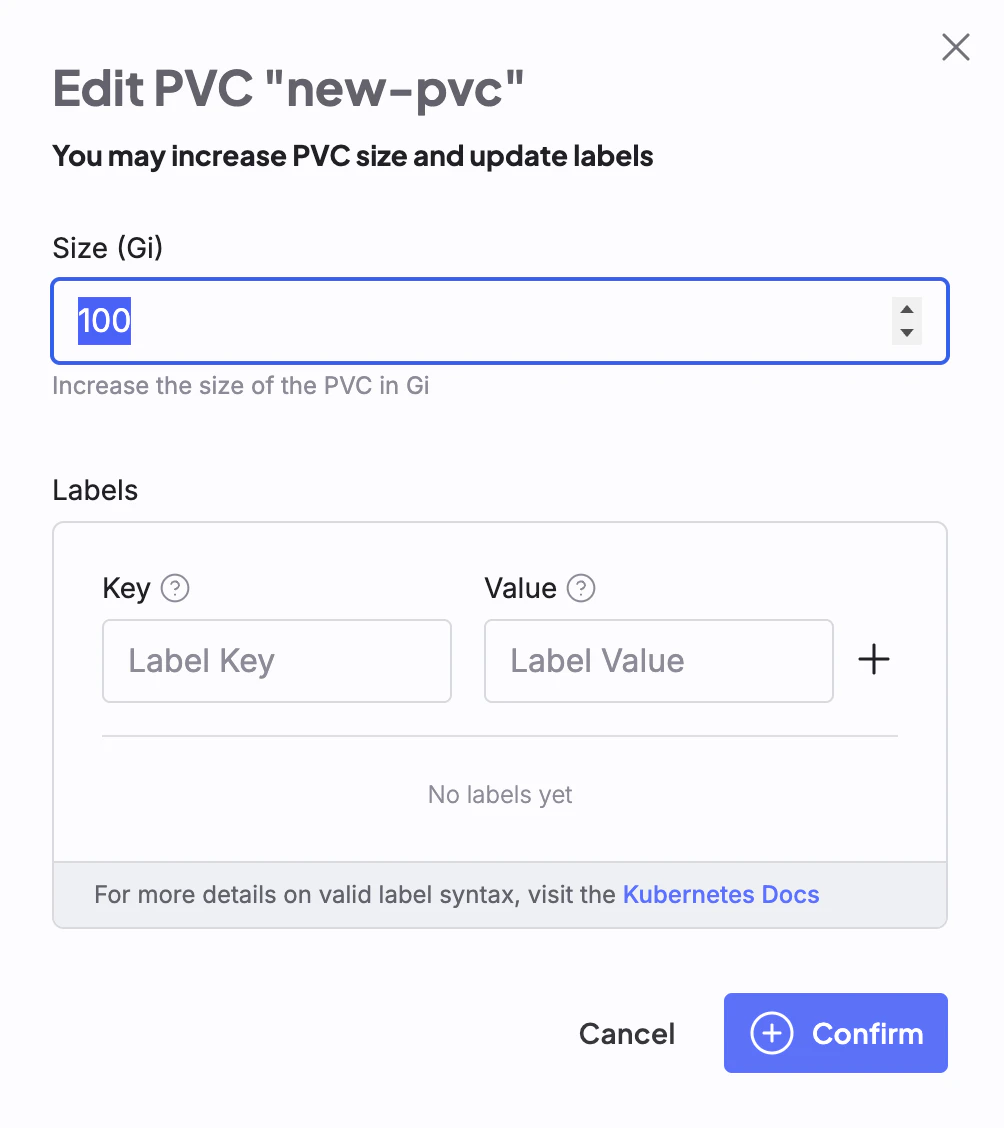
 Enter the desired size in the **Size** field, then click **Confirm** to expand the volume.
 To expand a volume using `kubectl`, use `kubectl patch` to patch the existing volume manifest. For example, to expand a volume to 500Gi, run the following command. Replace `[PVC-NAME]` with the name of the PVC to expand.
```bash theme={"system"}
kubectl patch pvc [PVC-NAME] -p \
'{"spec":{"resources":{"requests":{"storage": "500Gi"}}}}'
```
To expand a volume using `kubectl`, use `kubectl patch` to patch the existing volume manifest. For example, to expand a volume to 500Gi, run the following command. Replace `[PVC-NAME]` with the name of the PVC to expand.
```bash theme={"system"}
kubectl patch pvc [PVC-NAME] -p \
'{"spec":{"resources":{"requests":{"storage": "500Gi"}}}}'
```