> ## Documentation Index
> Fetch the complete documentation index at: https://docs.coreweave.com/llms.txt
> Use this file to discover all available pages before exploring further.
# Try models in the Playground UI
> Access Serverless Inference models through the web interface
Learn how to use the Serverless Inference service through the web UI. This guide shows you how to access the service, browse and compare available models, and try them out in the Playground. Use the UI when you want to explore models interactively without writing code.
## Prerequisites
Before you use the UI, complete the following:
* [Create an account](/products/wandb/quickstart#create-an-account).
* [Create an API key](/products/wandb/quickstart#create-an-api-key).
* A Weights & Biases project. Create a project in your CoreWeave Forge account to track usage. If you don't specify a project, Serverless Inference uses your default team and the project name `inference`.
## Access the Serverless Inference service
Get started using Serverless Inference at [https://forge.coreweave.com/inference](https://forge.coreweave.com/inference).
### Models
To see available Serverless Inference models, choose `Models` from the Serverless Inference sidebar menu or navigate to [https://forge.coreweave.com/inference/models](https://forge.coreweave.com/inference/models).
Double-click the model name to view model details, including pricing, features, and example code for usage.
From the model details page, you can:
* Click `Compare` to view a side-by-side, complete comparison of model details to one or more other models.
* Click `Playground` to interact directly with this model in the Playground.
You can also compare models directly in the Models table by using the action menu for the model's row.
### Playground
To try out Serverless Inference models, choose `Playground` from the Serverless Inference sidebar menu or navigate to [https://forge.coreweave.com/inference/playground](https://forge.coreweave.com/inference/playground).
Select the model you want to test using the model dropdown in the title toolbar.
The Playground can also connect to a [Dedicated Inference](/products/inference/dedicated) deployment, if you have one configured.
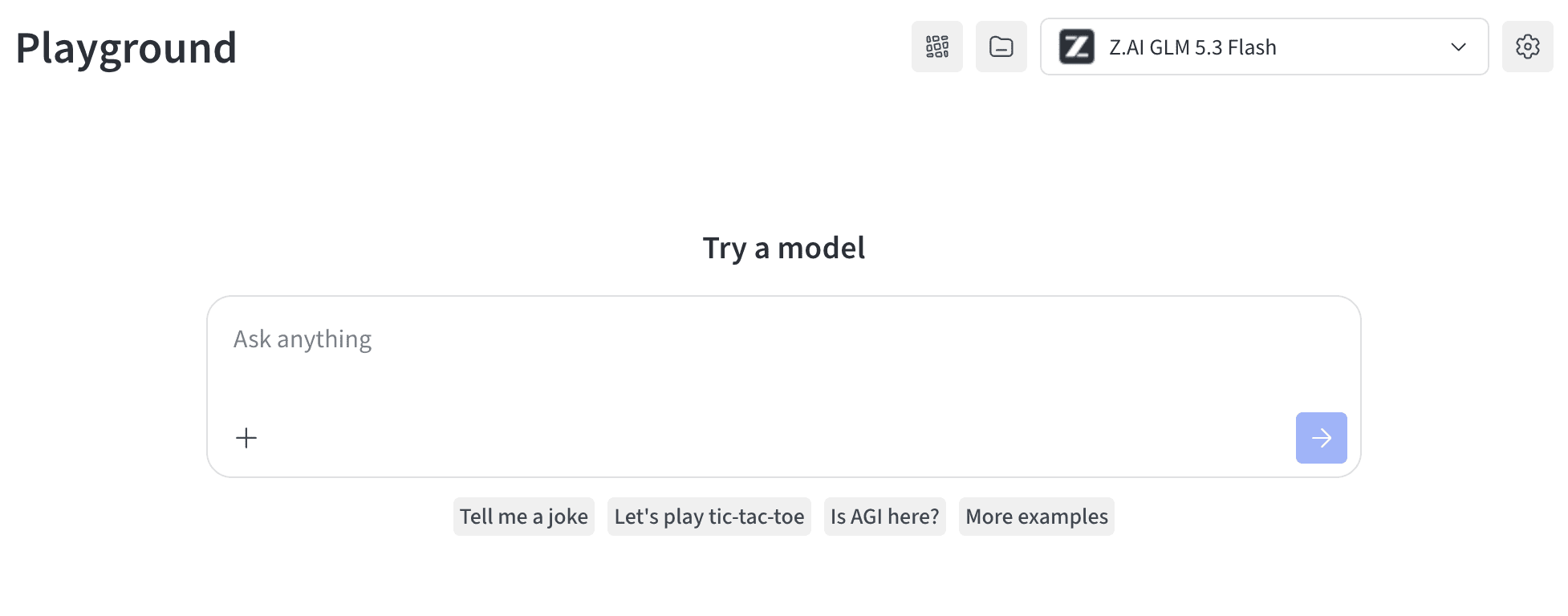 Additionally from the Playground title toolbar you can:
* Enable and disable Weave tracing. This records your conversation to Weave for later analysis and exploration.
* When enabled, a `View call` link appears under each message that opens the trace tree for the chat.
* Select a project. This is the project linked to your Playground conversation. If unset, it defaults to `inference`.
* [Modify Playground settings](#modify-playground-settings).
After you select a model, you can test it in the Playground to evaluate its responses and tune its behavior before you integrate it elsewhere. You can add, edit, and delete messages.\
In the `Add a message` entry box you can also:
* `Add image`: Upload an image from file.
* `Add image URL`: Link to an image.
* `Specify role`: Specify the role of the message being defined (`System`, `Assistant`, or `User` role).
## Modify Playground settings
Click the **Settings** icon in the title toolbar to open the settings drawer. The drawer is organized into four collapsible sections:
Additionally from the Playground title toolbar you can:
* Enable and disable Weave tracing. This records your conversation to Weave for later analysis and exploration.
* When enabled, a `View call` link appears under each message that opens the trace tree for the chat.
* Select a project. This is the project linked to your Playground conversation. If unset, it defaults to `inference`.
* [Modify Playground settings](#modify-playground-settings).
After you select a model, you can test it in the Playground to evaluate its responses and tune its behavior before you integrate it elsewhere. You can add, edit, and delete messages.\
In the `Add a message` entry box you can also:
* `Add image`: Upload an image from file.
* `Add image URL`: Link to an image.
* `Specify role`: Specify the role of the message being defined (`System`, `Assistant`, or `User` role).
## Modify Playground settings
Click the **Settings** icon in the title toolbar to open the settings drawer. The drawer is organized into four collapsible sections:
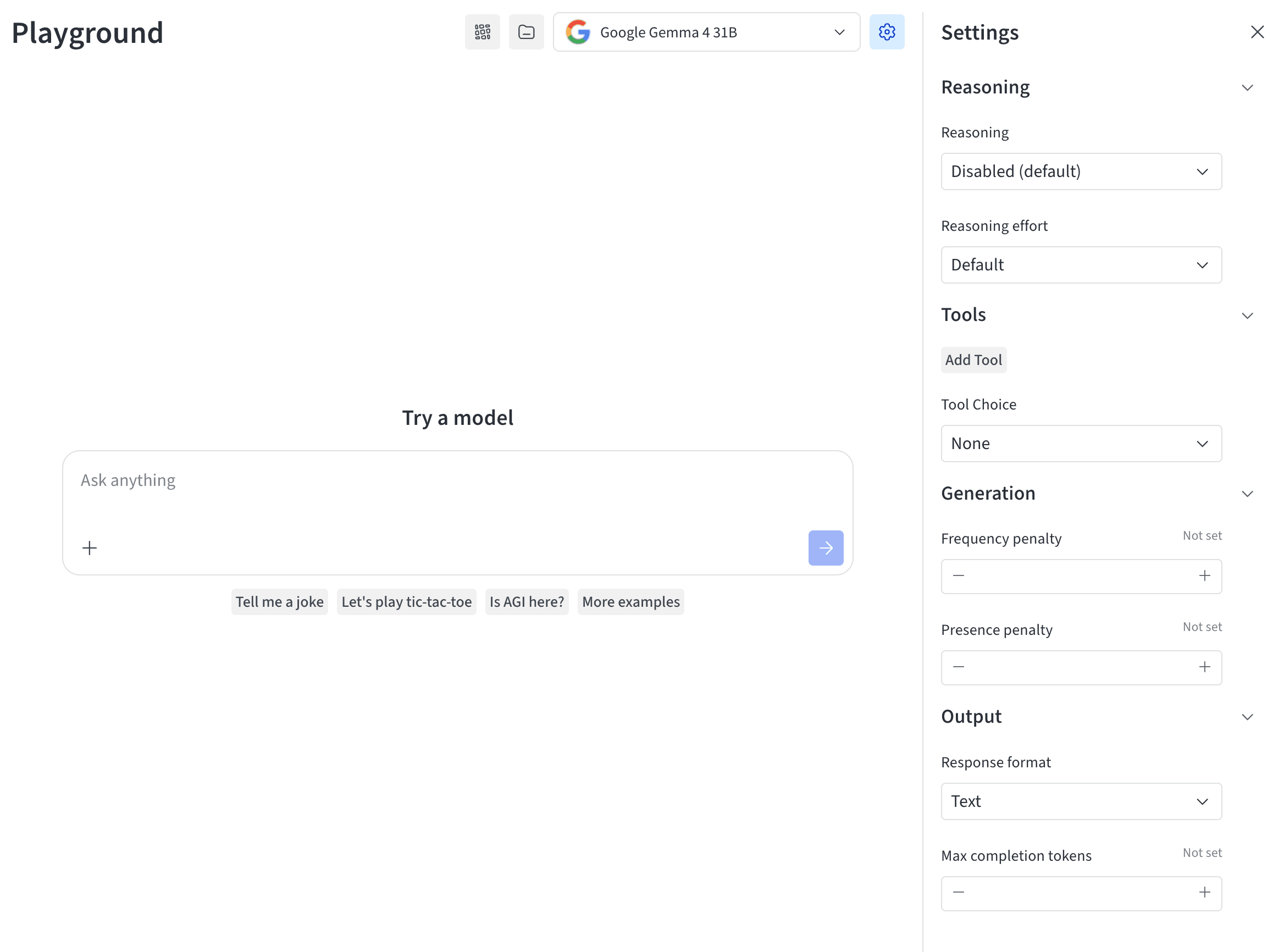 **Reasoning**
* **Reasoning**: Controls whether the model produces reasoning before its final answer. Not configurable for models that are always on or don't support reasoning.
* **Reasoning effort**: Controls how much reasoning the model uses. Higher effort can increase latency and token usage.
**Tools**
* **Add Tool**: Define a function, with a name, description, and JSON Schema parameters, that the model can call.
* **Tool Choice**: Controls whether the model can't call tools, may choose to call them, or must call one.
**Generation**
* **Frequency penalty**: Penalizes tokens in proportion to how often they already appear. Positive values reduce verbatim repetition; negative values encourage it.
* **Presence penalty**: Penalizes tokens that have appeared at least once. Positive values encourage new topics; negative values encourage returning to existing topics.
**Output**
* **Response format**: Controls whether the model returns normal text, a valid JSON object, or output matching a supplied JSON Schema.
* **Max completion tokens**: Sets an upper bound on generated tokens, including visible output and reasoning tokens.
## Next steps
* Track your [billing and usage](/products/inference/serverless/usage-limits#view-billing-and-usage-information).
* Review [available models](/products/inference/serverless/models) to find the best one for your needs.
* Try the [API](/products/inference/serverless/api-reference) for programmatic access.
* See [usage examples](/products/inference/serverless/examples) for code samples.
## Related topics
- [Serverless Inference](/products/inference/serverless.md)
**Reasoning**
* **Reasoning**: Controls whether the model produces reasoning before its final answer. Not configurable for models that are always on or don't support reasoning.
* **Reasoning effort**: Controls how much reasoning the model uses. Higher effort can increase latency and token usage.
**Tools**
* **Add Tool**: Define a function, with a name, description, and JSON Schema parameters, that the model can call.
* **Tool Choice**: Controls whether the model can't call tools, may choose to call them, or must call one.
**Generation**
* **Frequency penalty**: Penalizes tokens in proportion to how often they already appear. Positive values reduce verbatim repetition; negative values encourage it.
* **Presence penalty**: Penalizes tokens that have appeared at least once. Positive values encourage new topics; negative values encourage returning to existing topics.
**Output**
* **Response format**: Controls whether the model returns normal text, a valid JSON object, or output matching a supplied JSON Schema.
* **Max completion tokens**: Sets an upper bound on generated tokens, including visible output and reasoning tokens.
## Next steps
* Track your [billing and usage](/products/inference/serverless/usage-limits#view-billing-and-usage-information).
* Review [available models](/products/inference/serverless/models) to find the best one for your needs.
* Try the [API](/products/inference/serverless/api-reference) for programmatic access.
* See [usage examples](/products/inference/serverless/examples) for code samples.
## Related topics
- [Serverless Inference](/products/inference/serverless.md)