> ## Documentation Index
> Fetch the complete documentation index at: https://docs.coreweave.com/llms.txt
> Use this file to discover all available pages before exploring further.
# Deploy an open source LLM on CKS
> Step-by-step guide for deploying Meta's Llama 3.1 model on CKS with cluster and Node Pool setup
This tutorial walks you through deploying Meta's Llama 3.1 8B Instruct open source LLM on CoreWeave Kubernetes Service (CKS), so you can run inference against a hosted model from your own cluster. It's for developers and ML practitioners who are new to CKS and want a complete, end-to-end example of provisioning GPU infrastructure and serving a model.
You'll complete the following steps:
* Create a cluster in CKS.
* Create a Node Pool.
* Interact with clusters and Pods using `kubectl`.
* Deploy and interact with an LLM using [Open WebUI](https://docs.openwebui.com/).
## Before you begin
Before completing the steps in this guide, you must have the following:
* `kubectl` installed on your machine. `kubectl` is the command-line tool for interacting with Kubernetes clusters. If needed, see the [kubectl installation instructions](https://kubernetes.io/docs/tasks/tools/).
* Access to the CoreWeave Cloud Console. For more information, see [Activate and sign in to your CoreWeave organization](/security/authn-authz/activate-org).
* A Hugging Face access token. See the Hugging Face instructions at [User access tokens](https://huggingface.co/docs/hub/en/security-tokens). Be sure to copy and store the token in a secure location. You will need it later in this guide.
* Access to the `Llama-3.1-8B-Instruct` model at Hugging Face. Go to [meta-llama/Llama-3.1-8B-Instruct](https://huggingface.co/meta-llama/Llama-3.1-8B-Instruct) and request access. Note that approval for restricted models can take a few hours or longer.
**Cost and security disclaimer**
* Using resources, such as compute, incurs charges. Monitor your resource usage to avoid unexpected charges.
* CoreWeave is not responsible for the security of the Llama model provided by Hugging Face or the Open Web UI container image.
## Create a CKS cluster and Node Pool
CKS clusters and Node Pools are the core infrastructure for running and managing workloads. To create a cluster and Node Pool, complete the following steps:
Log in to the Cloud Console and navigate to the [Clusters](https://console.coreweave.com/clusters) page.
Click the **Create Cluster** button.
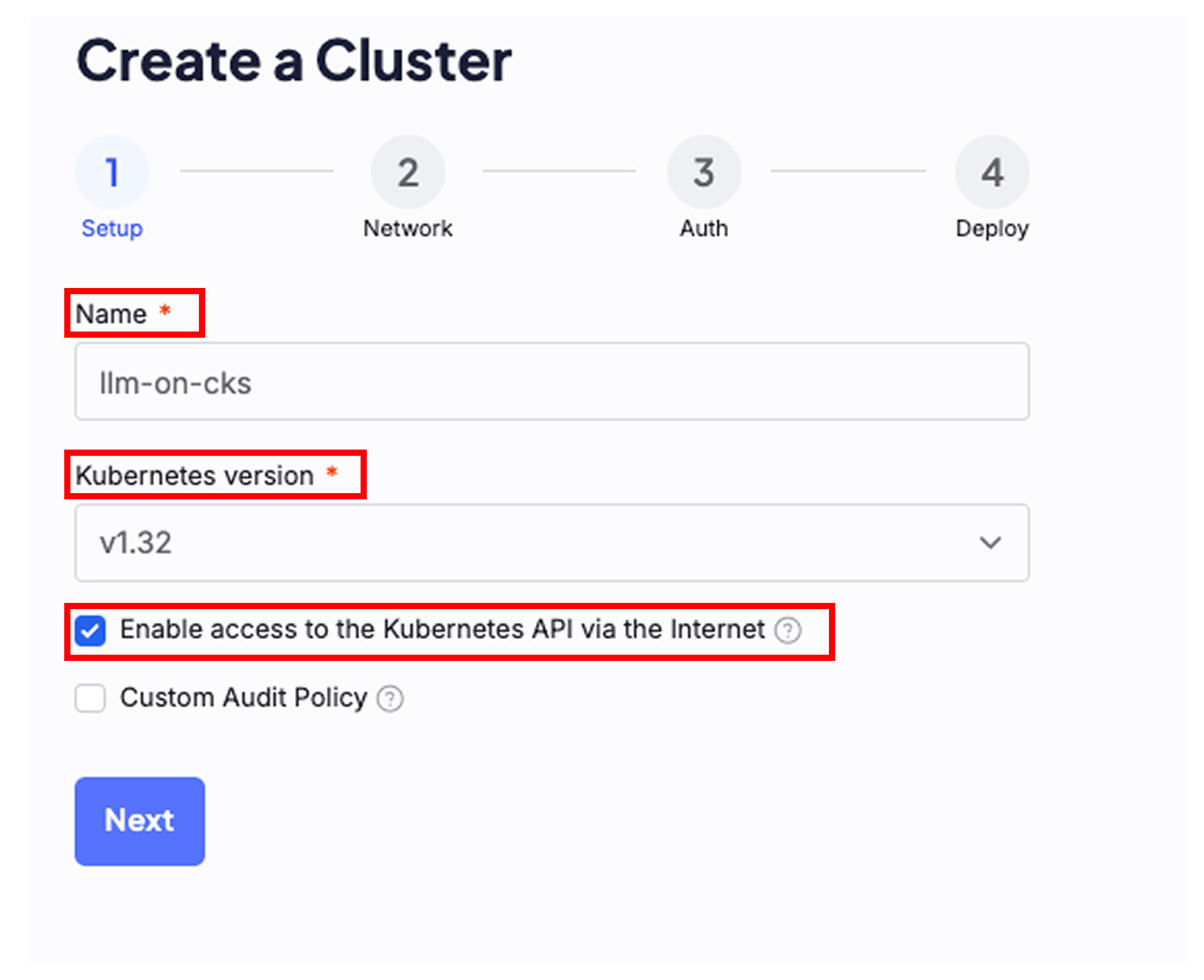
In the **Create a Cluster** dialog, give the cluster a name, select the latest Kubernetes version, and verify the box is checked for **Enable access to the Kubernetes API via the Internet**. Click **Next**.
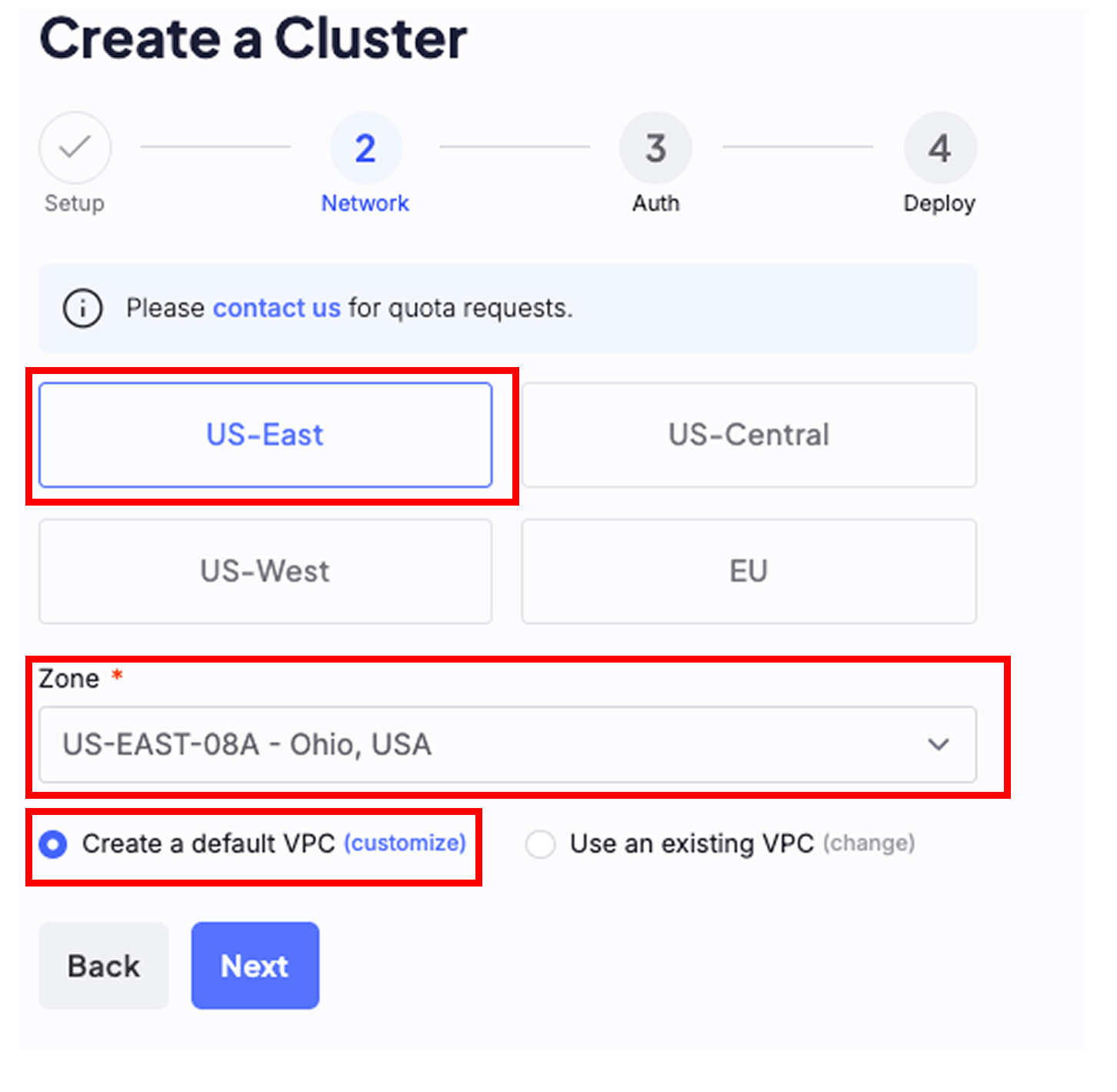
 Create the cluster where you have GPU quota available. Verify the box is checked for **Create a default VPC**, and then click **Next**.
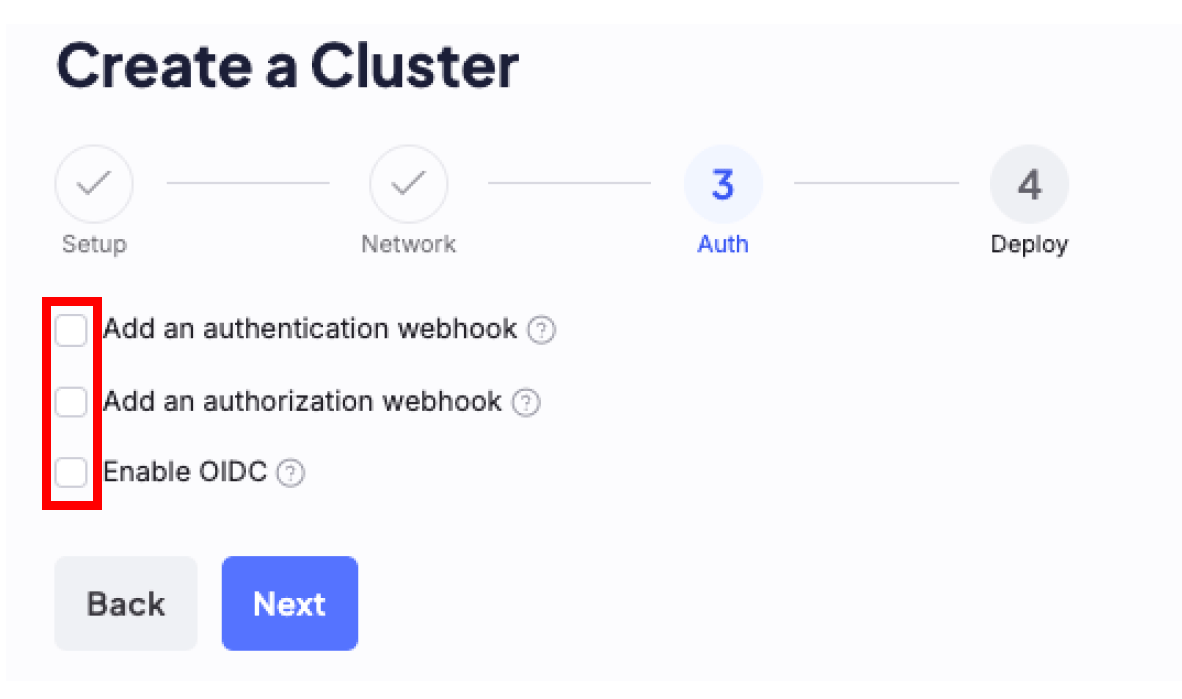
 Leave the authentication boxes unchecked and click **Next**.
 On the deploy page, click **Submit**.
On the **Success!** dialog box, click **Create a Node Pool**.
Verify the cluster you just created is selected, and do the following:
* Name the Node Pool.
* Pick a GPU instance.
* Set **Target Nodes** to `1`.
* Leave all other fields empty.
* Click **Submit**.
Node Pool creation can be delayed while the cluster is being created. Then, Node Pool provisioning can take up to 30 minutes. When the Node Pool status is `Healthy`, your cluster has GPU capacity ready to serve the model, and you can continue to the following steps.
#### Do not install the NVIDIA GPU Operator on CKS clusters
CoreWeave manages the [NVIDIA GPU Operator](https://docs.nvidia.com/datacenter/cloud-native/gpu-operator/latest/getting-started.html) on your behalf. Do not install the NVIDIA GPU Operator on CKS clusters. Doing so conflicts with the platform-managed deployment and is not supported.
## Generate a CoreWeave access token
Access tokens let you authenticate to your Kubernetes resources through `kubectl`. You must create one for the cluster you just provisioned before you can run commands against it.
To create an access token, complete the following steps:
In the Cloud Console, navigate to the [Tokens](https://console.coreweave.com/tokens) page and click the **Create Token** button.
Enter a name and expiration and then click **Create**.
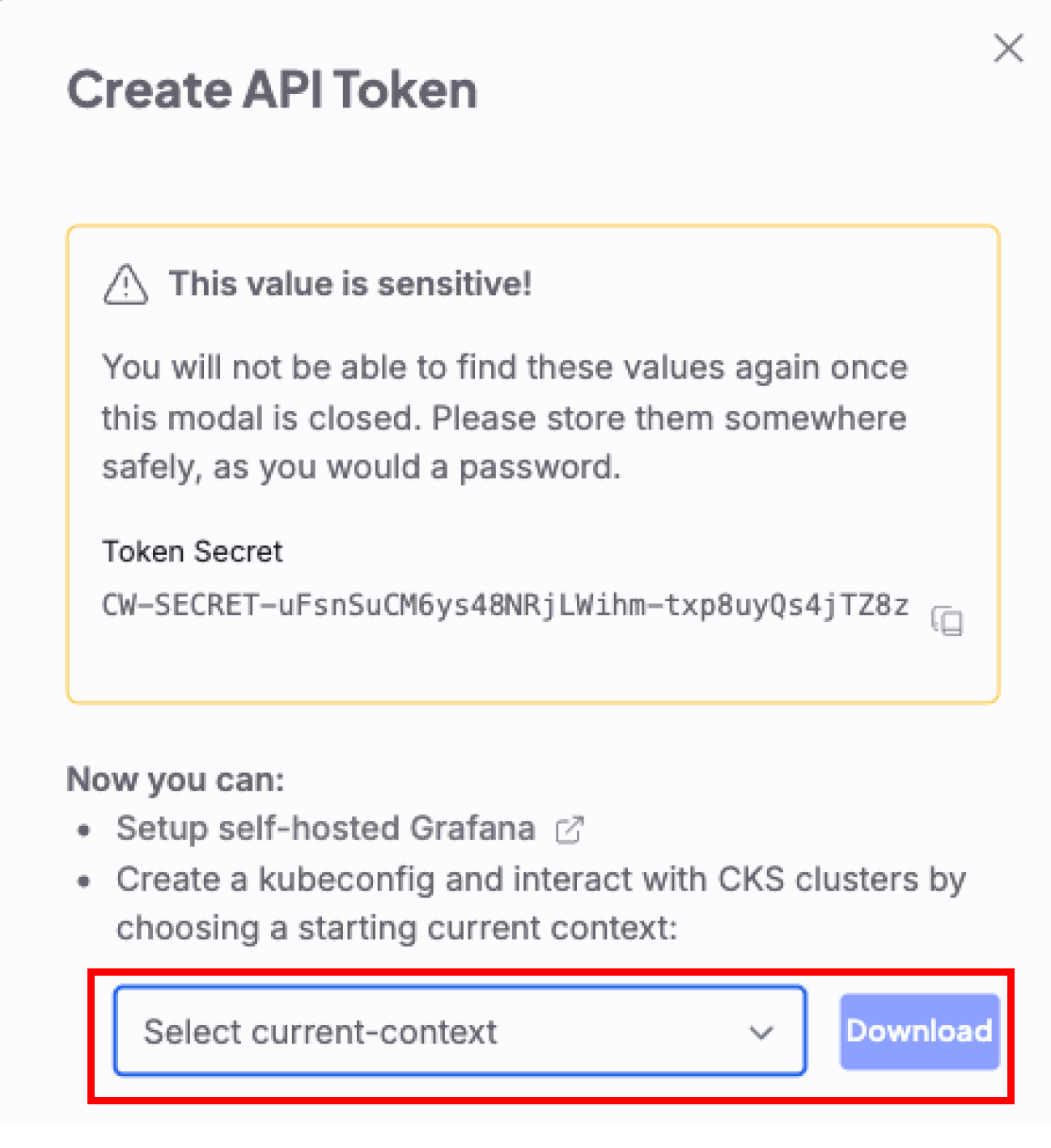
In the **Create API Token** dialog, select the cluster you just created from the **Select current-context** dropdown menu, and then click **Download**.
On the deploy page, click **Submit**.
On the **Success!** dialog box, click **Create a Node Pool**.
Verify the cluster you just created is selected, and do the following:
* Name the Node Pool.
* Pick a GPU instance.
* Set **Target Nodes** to `1`.
* Leave all other fields empty.
* Click **Submit**.
Node Pool creation can be delayed while the cluster is being created. Then, Node Pool provisioning can take up to 30 minutes. When the Node Pool status is `Healthy`, your cluster has GPU capacity ready to serve the model, and you can continue to the following steps.
#### Do not install the NVIDIA GPU Operator on CKS clusters
CoreWeave manages the [NVIDIA GPU Operator](https://docs.nvidia.com/datacenter/cloud-native/gpu-operator/latest/getting-started.html) on your behalf. Do not install the NVIDIA GPU Operator on CKS clusters. Doing so conflicts with the platform-managed deployment and is not supported.
## Generate a CoreWeave access token
Access tokens let you authenticate to your Kubernetes resources through `kubectl`. You must create one for the cluster you just provisioned before you can run commands against it.
To create an access token, complete the following steps:
In the Cloud Console, navigate to the [Tokens](https://console.coreweave.com/tokens) page and click the **Create Token** button.
Enter a name and expiration and then click **Create**.
In the **Create API Token** dialog, select the cluster you just created from the **Select current-context** dropdown menu, and then click **Download**.
 ## Use `kubectl` with your cluster
To communicate with your cluster using `kubectl`, complete the following steps:
Make a `KUBECONFIG` environment variable that points to the `kubeconfig` file you just downloaded, for example:
```bash theme={"system"}
export KUBECONFIG=~/Downloads/[CW-KUBECONFIG-FILENAME]
```
Confirm you can connect to the cluster with the following command:
```bash theme={"system"}
kubectl cluster-info
```
You should see cluster information like the following:
```text theme={"system"}
Kubernetes Control Plane is running at https://****.k8s.us-east-02a.coreweave.com
CoreDNS is running at https://****.k8s.us-east-02a.coreweave.com/api/v1/namespaces/kube-system/services/coredns:dns/proxy
node-local-dns is running at https://****.k8s.us-east-02a.coreweave.com/api/v1/namespaces/kube-system/services/node-local-dns:dns/proxy
```
## Create a Hugging Face secret
For CKS to download the `llama-3.1-8B-Instruct` model from Hugging Face, you must create a Kubernetes secret that holds your Hugging Face access token. The model deployment in the next section reads this secret at runtime to authenticate with Hugging Face.
Complete the following steps to create the secret:
Run the following command to create a Hugging Face secret:
```bash theme={"system"}
kubectl create secret generic hf-token-secret --from-literal=api_token=[HUGGING-FACE-TOKEN]
```
* `[HUGGING-FACE-TOKEN]`: This is the token Hugging Face provides you. For more information about creating a Hugging Face token, see [User access tokens](https://huggingface.co/docs/hub/en/security-tokens).
## Download and apply a YAML configuration file
Kubernetes uses YAML files to configure resources. The [example manifest](https://raw.githubusercontent.com/coreweave/doc-examples/refs/heads/main/cks/llm-on-cks.yaml) defines four resources that together deploy the model and a chat interface, so you can create them all with a single command:
* **`llama-3-1-8b-deployment`** runs the model. Its `vllm-server` container starts the [vLLM](https://docs.vllm.ai/en/latest/) inference server with `vllm serve`, loads the model named in the `MODEL` environment variable (`meta-llama/Llama-3.1-8B-Instruct`), and reads your Hugging Face token from the `hf-token-secret` you created. The container requests one GPU and mounts a 2Gi `/dev/shm` volume that vLLM uses for shared memory.
* **`llama-3-1-8b-svc`** is a `ClusterIP` Service that exposes the model inside the cluster on port `11434` and forwards to the container's port `8000`. Open WebUI reaches the model through this Service at `http://llama-3-1-8b-svc:11434/v1`.
* **`open-webui`** runs the [Open WebUI](https://docs.openwebui.com/) chat interface. Its environment variables point it at the model Service, so the UI sends inference requests to the deployed model.
* **`open-webui-svc`** is a `ClusterIP` Service that exposes Open WebUI inside the cluster on port `80` and forwards to the container's port `8080`.
Both Services use the default `ClusterIP` type, so they're reachable only from inside the cluster. Later steps use `kubectl port-forward` to reach Open WebUI from your machine. To expose it on the internet instead, see [Expose Open WebUI publicly](#expose-open-webui-publicly-optional).
The `vllm-server` container uses the `ghcr.io/coreweave/ml-containers/vllm-tensorizer` image, which CoreWeave builds in the [`ml-containers`](https://github.com/coreweave/ml-containers) repository. It packages the open source [vLLM](https://github.com/vllm-project/vllm) inference server on CoreWeave's CUDA and PyTorch base image and integrates CoreWeave's [tensorizer](https://github.com/coreweave/tensorizer) library for fast model loading from storage.
The model container also sets `nvidia.com/gpu: 1` under both `requests` and `limits`. This requests one GPU for the Pod, which schedules it onto a GPU Node in your Node Pool. Without a GPU request, the scheduler can place the Pod on a Node that has no GPU.
To deploy the `Llama-3.1-8B-Instruct` model, complete the following steps:
Use `kubectl` to apply the file by running the following command:
Before running the command, confirm you have access to the `Llama-3.1-8B` model. Visit the [`meta-llama/Llama-3.1-8B-Instruct` page](https://huggingface.co/meta-llama/Llama-3.1-8B-Instruct) to verify your access.
```bash theme={"system"}
kubectl apply -f https://raw.githubusercontent.com/coreweave/doc-examples/refs/heads/main/cks/llm-on-cks.yaml
```
Confirm Kubernetes deployed the resources by running the following commands:
```bash theme={"system"}
kubectl get pods
```
Verify all Pods are ready and running. The output should look like the following:
```text theme={"system"}
NAME READY STATUS RESTARTS AGE
llama-3-1-8b-deployment-77f4559f9f-wdvpj 1/1 Running 0 2m53s
open-webui-5b464664d8-942cg 1/1 Running 0 2m53s
```
**Pod creation time**
Creating Pods can take up to five minutes.
Verify the services are working by running the following commands:
```bash theme={"system"}
kubectl logs [LLAMA-POD-NAME]
```
* `[LLAMA-POD-NAME]`: The Pod name beginning with `llama-*` that `kubectl get pods` returns.
* In the logs, look for the following line: `INFO: Application startup complete.`
## Verify the model endpoint
The model runs an OpenAI-compatible inference server. Before you open Open WebUI, confirm the model responds to a chat completion request. The model Service (`llama-3-1-8b-svc`) is a `ClusterIP` Service, so you can only reach it from inside the cluster. The following command runs a temporary Pod that sends a request to the in-cluster Service:
```bash theme={"system"}
kubectl run curl-test --rm -i --restart=Never \
--image=curlimages/curl -- \
curl -s http://llama-3-1-8b-svc:11434/v1/chat/completions \
-H 'Content-Type: application/json' \
-d '{
"model": "meta-llama/Llama-3.1-8B-Instruct",
"messages": [{"role": "user", "content": "What is CoreWeave in one sentence?"}],
"max_tokens": 128
}'
```
You should see a JSON response similar to the following:
```text theme={"system"}
{
"id": "chatcmpl-abc123",
"object": "chat.completion",
"model": "meta-llama/Llama-3.1-8B-Instruct",
"choices": [
{
"index": 0,
"message": {
"role": "assistant",
"content": "CoreWeave is a cloud platform that provides GPU-accelerated infrastructure for AI, machine learning, and other compute-intensive workloads."
},
"finish_reason": "stop"
}
],
"usage": {
"prompt_tokens": 19,
"total_tokens": 78,
"completion_tokens": 59
}
}
```
A response with a `choices` array confirms the model is serving inference. If the request fails, recheck the Pod status and logs from the previous step before continuing.
## Get the Open WebUI endpoint
The Open WebUI service is not exposed to the internet. To access [Open WebUI](https://docs.openwebui.com/) from your machine, use port-forwarding:
Run the following command to forward local port 8080 to the Open WebUI service:
```bash theme={"system"}
kubectl port-forward svc/open-webui-svc 8080:80
```
Leave the command running and open `http://localhost:8080` in your browser.
The UI and model remain accessible only from the machine running the port-forward, not from the internet.
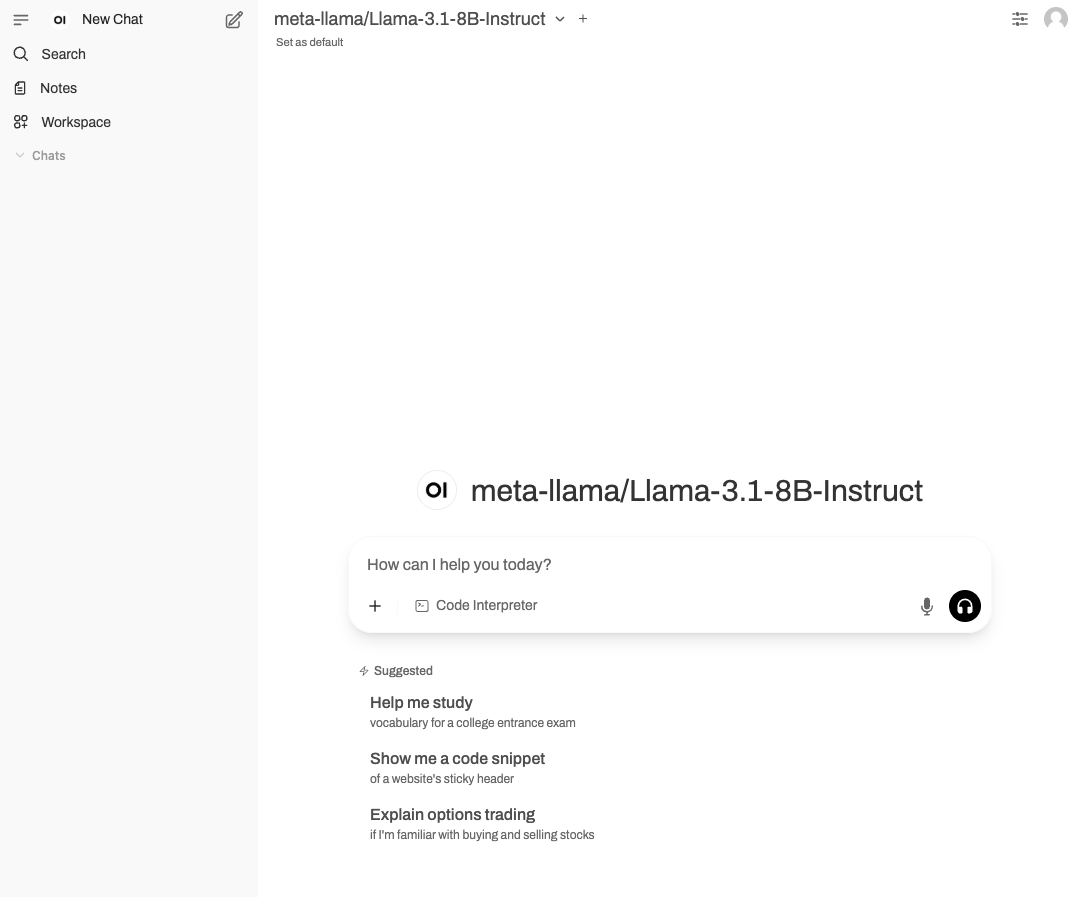
You should now see the Open WebUI site, where you can chat with the deployed Llama 3.1 model:
## Use `kubectl` with your cluster
To communicate with your cluster using `kubectl`, complete the following steps:
Make a `KUBECONFIG` environment variable that points to the `kubeconfig` file you just downloaded, for example:
```bash theme={"system"}
export KUBECONFIG=~/Downloads/[CW-KUBECONFIG-FILENAME]
```
Confirm you can connect to the cluster with the following command:
```bash theme={"system"}
kubectl cluster-info
```
You should see cluster information like the following:
```text theme={"system"}
Kubernetes Control Plane is running at https://****.k8s.us-east-02a.coreweave.com
CoreDNS is running at https://****.k8s.us-east-02a.coreweave.com/api/v1/namespaces/kube-system/services/coredns:dns/proxy
node-local-dns is running at https://****.k8s.us-east-02a.coreweave.com/api/v1/namespaces/kube-system/services/node-local-dns:dns/proxy
```
## Create a Hugging Face secret
For CKS to download the `llama-3.1-8B-Instruct` model from Hugging Face, you must create a Kubernetes secret that holds your Hugging Face access token. The model deployment in the next section reads this secret at runtime to authenticate with Hugging Face.
Complete the following steps to create the secret:
Run the following command to create a Hugging Face secret:
```bash theme={"system"}
kubectl create secret generic hf-token-secret --from-literal=api_token=[HUGGING-FACE-TOKEN]
```
* `[HUGGING-FACE-TOKEN]`: This is the token Hugging Face provides you. For more information about creating a Hugging Face token, see [User access tokens](https://huggingface.co/docs/hub/en/security-tokens).
## Download and apply a YAML configuration file
Kubernetes uses YAML files to configure resources. The [example manifest](https://raw.githubusercontent.com/coreweave/doc-examples/refs/heads/main/cks/llm-on-cks.yaml) defines four resources that together deploy the model and a chat interface, so you can create them all with a single command:
* **`llama-3-1-8b-deployment`** runs the model. Its `vllm-server` container starts the [vLLM](https://docs.vllm.ai/en/latest/) inference server with `vllm serve`, loads the model named in the `MODEL` environment variable (`meta-llama/Llama-3.1-8B-Instruct`), and reads your Hugging Face token from the `hf-token-secret` you created. The container requests one GPU and mounts a 2Gi `/dev/shm` volume that vLLM uses for shared memory.
* **`llama-3-1-8b-svc`** is a `ClusterIP` Service that exposes the model inside the cluster on port `11434` and forwards to the container's port `8000`. Open WebUI reaches the model through this Service at `http://llama-3-1-8b-svc:11434/v1`.
* **`open-webui`** runs the [Open WebUI](https://docs.openwebui.com/) chat interface. Its environment variables point it at the model Service, so the UI sends inference requests to the deployed model.
* **`open-webui-svc`** is a `ClusterIP` Service that exposes Open WebUI inside the cluster on port `80` and forwards to the container's port `8080`.
Both Services use the default `ClusterIP` type, so they're reachable only from inside the cluster. Later steps use `kubectl port-forward` to reach Open WebUI from your machine. To expose it on the internet instead, see [Expose Open WebUI publicly](#expose-open-webui-publicly-optional).
The `vllm-server` container uses the `ghcr.io/coreweave/ml-containers/vllm-tensorizer` image, which CoreWeave builds in the [`ml-containers`](https://github.com/coreweave/ml-containers) repository. It packages the open source [vLLM](https://github.com/vllm-project/vllm) inference server on CoreWeave's CUDA and PyTorch base image and integrates CoreWeave's [tensorizer](https://github.com/coreweave/tensorizer) library for fast model loading from storage.
The model container also sets `nvidia.com/gpu: 1` under both `requests` and `limits`. This requests one GPU for the Pod, which schedules it onto a GPU Node in your Node Pool. Without a GPU request, the scheduler can place the Pod on a Node that has no GPU.
To deploy the `Llama-3.1-8B-Instruct` model, complete the following steps:
Use `kubectl` to apply the file by running the following command:
Before running the command, confirm you have access to the `Llama-3.1-8B` model. Visit the [`meta-llama/Llama-3.1-8B-Instruct` page](https://huggingface.co/meta-llama/Llama-3.1-8B-Instruct) to verify your access.
```bash theme={"system"}
kubectl apply -f https://raw.githubusercontent.com/coreweave/doc-examples/refs/heads/main/cks/llm-on-cks.yaml
```
Confirm Kubernetes deployed the resources by running the following commands:
```bash theme={"system"}
kubectl get pods
```
Verify all Pods are ready and running. The output should look like the following:
```text theme={"system"}
NAME READY STATUS RESTARTS AGE
llama-3-1-8b-deployment-77f4559f9f-wdvpj 1/1 Running 0 2m53s
open-webui-5b464664d8-942cg 1/1 Running 0 2m53s
```
**Pod creation time**
Creating Pods can take up to five minutes.
Verify the services are working by running the following commands:
```bash theme={"system"}
kubectl logs [LLAMA-POD-NAME]
```
* `[LLAMA-POD-NAME]`: The Pod name beginning with `llama-*` that `kubectl get pods` returns.
* In the logs, look for the following line: `INFO: Application startup complete.`
## Verify the model endpoint
The model runs an OpenAI-compatible inference server. Before you open Open WebUI, confirm the model responds to a chat completion request. The model Service (`llama-3-1-8b-svc`) is a `ClusterIP` Service, so you can only reach it from inside the cluster. The following command runs a temporary Pod that sends a request to the in-cluster Service:
```bash theme={"system"}
kubectl run curl-test --rm -i --restart=Never \
--image=curlimages/curl -- \
curl -s http://llama-3-1-8b-svc:11434/v1/chat/completions \
-H 'Content-Type: application/json' \
-d '{
"model": "meta-llama/Llama-3.1-8B-Instruct",
"messages": [{"role": "user", "content": "What is CoreWeave in one sentence?"}],
"max_tokens": 128
}'
```
You should see a JSON response similar to the following:
```text theme={"system"}
{
"id": "chatcmpl-abc123",
"object": "chat.completion",
"model": "meta-llama/Llama-3.1-8B-Instruct",
"choices": [
{
"index": 0,
"message": {
"role": "assistant",
"content": "CoreWeave is a cloud platform that provides GPU-accelerated infrastructure for AI, machine learning, and other compute-intensive workloads."
},
"finish_reason": "stop"
}
],
"usage": {
"prompt_tokens": 19,
"total_tokens": 78,
"completion_tokens": 59
}
}
```
A response with a `choices` array confirms the model is serving inference. If the request fails, recheck the Pod status and logs from the previous step before continuing.
## Get the Open WebUI endpoint
The Open WebUI service is not exposed to the internet. To access [Open WebUI](https://docs.openwebui.com/) from your machine, use port-forwarding:
Run the following command to forward local port 8080 to the Open WebUI service:
```bash theme={"system"}
kubectl port-forward svc/open-webui-svc 8080:80
```
Leave the command running and open `http://localhost:8080` in your browser.
The UI and model remain accessible only from the machine running the port-forward, not from the internet.
You should now see the Open WebUI site, where you can chat with the deployed Llama 3.1 model:
 ### Expose Open WebUI publicly (optional)
Port-forwarding keeps Open WebUI reachable only from your machine. To reach it over the internet instead, change `open-webui-svc` to a public `LoadBalancer` Service:
In the manifest, set the Service `type` to `LoadBalancer` and add the CoreWeave public load balancer annotation:
```yaml theme={"system"}
apiVersion: v1
kind: Service
metadata:
name: open-webui-svc
annotations:
service.beta.kubernetes.io/coreweave-load-balancer-type: public
spec:
type: LoadBalancer
selector:
app: open-webui
ports:
- protocol: TCP
port: 80
targetPort: 8080
```
Reapply the manifest, then get the Service's external address:
```bash theme={"system"}
kubectl get service open-webui-svc
```
The `coreweave-load-balancer-type: public` annotation provisions a public IP for the Service. For more detail, including how to assign a public DNS name, see [Expose a Service](/products/networking/ingress-service/expose-service-dns).
The example manifest sets `WEBUI_AUTH=false`, which disables Open WebUI authentication. Don't expose Open WebUI publicly without enabling authentication, or anyone with the address can use your model.
## Use a different model
This guide deploys `Llama-3.1-8B-Instruct`, but the same manifest works for other models that vLLM serves. To deploy a different model, edit the [manifest](https://raw.githubusercontent.com/coreweave/doc-examples/refs/heads/main/cks/llm-on-cks.yaml) before you apply it:
In the `llama-3-1-8b-deployment`, change the `MODEL` environment variable to the Hugging Face model ID you want to serve. If the model is gated, make sure the Hugging Face token in your `hf-token-secret` has access to it.
For a larger model that needs more than one GPU, raise `TENSOR_PARALLEL_SIZE` to the number of GPUs to shard the model across, and set the `nvidia.com/gpu` `requests` and `limits` to the same number. Choose a Node Pool GPU instance that provides those GPUs.
In the `open-webui` deployment, the `OPENAI_API_BASE_URL` environment variable points at the model Service (`http://llama-3-1-8b-svc:11434/v1`). Update it only if you rename the model Service or change its port.
The Deployment and Service names in the manifest, such as `llama-3-1-8b-svc`, are labels only. You can keep them as-is for any model, or rename them for clarity. If you rename the model Service, update the endpoint references in the `open-webui` deployment to match.
## Next steps
You've deployed an LLM on CKS and confirmed it serves inference. Consider these next steps:
* **Monitor your workload.** Use CoreWeave's managed Grafana to track GPU usage and model performance. See [Managed Grafana](/observability/managed-grafana).
* **Scale your cluster.** Add Node autoscaling so capacity grows and shrinks with demand. See [Node autoscaling](/products/cks/nodes/autoscaling).
* **Run batch and burst workloads.** Use CoreWeave SUNK to run Slurm on Kubernetes for training and HPC jobs. See [SUNK](/products/sunk).
* **Manage infrastructure as code.** Provision clusters and Node Pools with Terraform. See [Terraform](/platform/terraform).
* **Learn more about CKS clusters.** See [Introduction to clusters](/products/cks/clusters/introduction).
* **Learn more about Node Pools.** See [Introduction to Node Pools](/products/cks/nodes/nodes-and-node-pools).
### Expose Open WebUI publicly (optional)
Port-forwarding keeps Open WebUI reachable only from your machine. To reach it over the internet instead, change `open-webui-svc` to a public `LoadBalancer` Service:
In the manifest, set the Service `type` to `LoadBalancer` and add the CoreWeave public load balancer annotation:
```yaml theme={"system"}
apiVersion: v1
kind: Service
metadata:
name: open-webui-svc
annotations:
service.beta.kubernetes.io/coreweave-load-balancer-type: public
spec:
type: LoadBalancer
selector:
app: open-webui
ports:
- protocol: TCP
port: 80
targetPort: 8080
```
Reapply the manifest, then get the Service's external address:
```bash theme={"system"}
kubectl get service open-webui-svc
```
The `coreweave-load-balancer-type: public` annotation provisions a public IP for the Service. For more detail, including how to assign a public DNS name, see [Expose a Service](/products/networking/ingress-service/expose-service-dns).
The example manifest sets `WEBUI_AUTH=false`, which disables Open WebUI authentication. Don't expose Open WebUI publicly without enabling authentication, or anyone with the address can use your model.
## Use a different model
This guide deploys `Llama-3.1-8B-Instruct`, but the same manifest works for other models that vLLM serves. To deploy a different model, edit the [manifest](https://raw.githubusercontent.com/coreweave/doc-examples/refs/heads/main/cks/llm-on-cks.yaml) before you apply it:
In the `llama-3-1-8b-deployment`, change the `MODEL` environment variable to the Hugging Face model ID you want to serve. If the model is gated, make sure the Hugging Face token in your `hf-token-secret` has access to it.
For a larger model that needs more than one GPU, raise `TENSOR_PARALLEL_SIZE` to the number of GPUs to shard the model across, and set the `nvidia.com/gpu` `requests` and `limits` to the same number. Choose a Node Pool GPU instance that provides those GPUs.
In the `open-webui` deployment, the `OPENAI_API_BASE_URL` environment variable points at the model Service (`http://llama-3-1-8b-svc:11434/v1`). Update it only if you rename the model Service or change its port.
The Deployment and Service names in the manifest, such as `llama-3-1-8b-svc`, are labels only. You can keep them as-is for any model, or rename them for clarity. If you rename the model Service, update the endpoint references in the `open-webui` deployment to match.
## Next steps
You've deployed an LLM on CKS and confirmed it serves inference. Consider these next steps:
* **Monitor your workload.** Use CoreWeave's managed Grafana to track GPU usage and model performance. See [Managed Grafana](/observability/managed-grafana).
* **Scale your cluster.** Add Node autoscaling so capacity grows and shrinks with demand. See [Node autoscaling](/products/cks/nodes/autoscaling).
* **Run batch and burst workloads.** Use CoreWeave SUNK to run Slurm on Kubernetes for training and HPC jobs. See [SUNK](/products/sunk).
* **Manage infrastructure as code.** Provision clusters and Node Pools with Terraform. See [Terraform](/platform/terraform).
* **Learn more about CKS clusters.** See [Introduction to clusters](/products/cks/clusters/introduction).
* **Learn more about Node Pools.** See [Introduction to Node Pools](/products/cks/nodes/nodes-and-node-pools).