> ## Documentation Index
> Fetch the complete documentation index at: https://docs.coreweave.com/llms.txt
> Use this file to discover all available pages before exploring further.
# Apps
> Create an App from a notebook to automate scheduled workflow runs and track run history.
# Using an App
## Description
Apps allow you to automate the execution of workflows on a scheduled basis. If your input data changes regularly but your workflow remains consistent, an App enables you to automate re-runs while capturing results over time in a structured run history.
***
## Application
Use an App when:
* You want to **repeatedly run the same notebook** with new or updated data.
* You need a **versioned history of results** across multiple data states.
* You want to **eliminate manual runs** by scheduling workflow execution.
Each run creates a snapshot of the results, allowing you to track changes, monitor consistency, and perform time-based analysis.
***
## How to Use and Configure an App
### 1. Prepare a Notebook
Build a notebook containing your desired workflow using supported **manipulators**:
* **Import**
* **Transform**
* **Apply**
> ⚠️ **Note:**
>
> * **Do not use Model** manipulators (model training) in Apps. Apps that contain a Model step will fail to run.
> * **Explore** manipulators are partially supported—these won't appear in run history but won't break your App.
***
### 2. Create an App from a Notebook
1. Open the notebook in the editor.
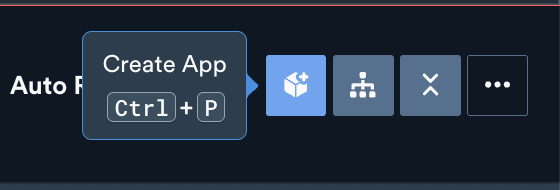
2. Click **"Create App"** in the top-right corner, or press **Ctrl + P**.
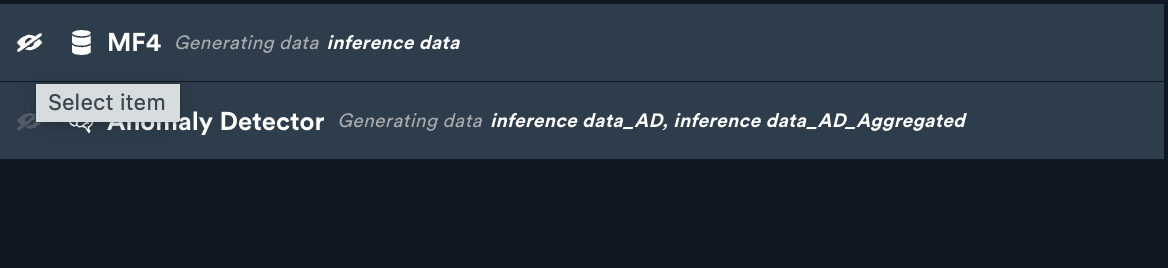
 3. A modal will open, allowing you to **select which manipulators to show or hide** in run history.
* This only controls visibility, not execution.
* Currently you cannot change these settings later via the app configuration.
3. A modal will open, allowing you to **select which manipulators to show or hide** in run history.
* This only controls visibility, not execution.
* Currently you cannot change these settings later via the app configuration.
 4. **Enter a name** for your app.
 5. Click **"Create."**
After creation:
* You'll see a confirmation message and a summary view of the manipulators you selected.
5. Click **"Create."**
After creation:
* You'll see a confirmation message and a summary view of the manipulators you selected.
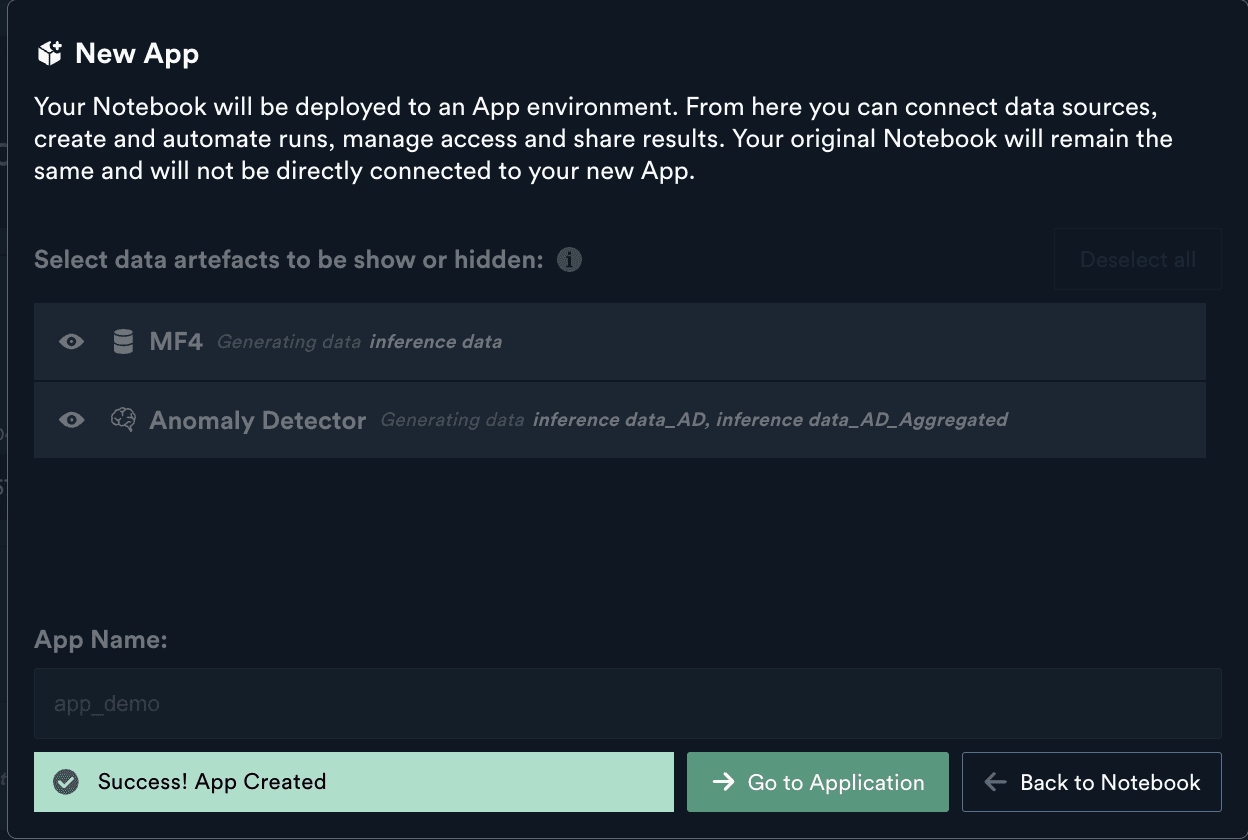 * Choose whether to **go to the App** page or return to the notebook.
***
### 3. Set Up Automation
There are two ways to access your App
* From the **confirmation screen**, click **"Go to Application"**.
* Or, navigate to **"My Content"** and open the App (it will be in the same folder as its source notebook).
To configure automation:
1. Click **"Setup Automation"** in the top-right corner of the App view.
* Choose whether to **go to the App** page or return to the notebook.
***
### 3. Set Up Automation
There are two ways to access your App
* From the **confirmation screen**, click **"Go to Application"**.
* Or, navigate to **"My Content"** and open the App (it will be in the same folder as its source notebook).
To configure automation:
1. Click **"Setup Automation"** in the top-right corner of the App view.
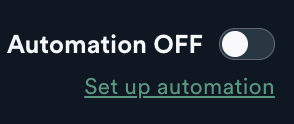 2. In the automation modal, configure the following:
#### Automation Settings
* **Run Frequency**:
* **Minimum frequency:** Every **30 minutes**\
This is the shortest interval currently supported by the platform.
* *Need more frequent runs? Contact the support team to explore custom configurations.*
* **Recommended maximum:** Between **12 to 48 hours**\
This range balances automation usefulness with system efficiency and reliability.
* **Technical maximum:** There is **no enforced upper limit** — you can schedule runs at intervals of **hundreds of hours**, though this is rarely necessary in practice.
* **Start and End Times**:
* Define when the automation should **start** (today or a future date).
* Optionally set an **end time** (must be after the start time).
* Select the Enable Automation toggle
3. Click **"Save changes"** to apply the schedule.
***
### 4. Monitor Run History
* Your App will run based on the schedule.
* Visit the **Run History** tab after the first scheduled time (e.g., 3:00 PM today).
* A **spinner icon** will appear for runs in progress on the right-hand side of the run list.
* You'll be able to track results and compare past runs at any time.
***
## Supported Manipulator Types in Apps
*Use this guide to determine whether your notebook is compatible with App creation.*\
Only certain manipulator types are supported in Apps. Notebooks that include unsupported types (like Model) will fail when run as an App.
| Manipulator | Supported in Apps | Notes |
| ------------- | ----------------- | --------------------------------------------------------------------------------------------------------------------------------------------------------------------------------------------- |
| **Import** | ✅ Yes | Fully supported |
| **Explore** | ⚠️ Partial | Will not appear in run history, but won't break the App |
| **Transform** | ✅ Yes | Fully supported |
| **Model** | ❌ Not Supported | Model training cannot run inside an App. Train your model in a separate notebook, then create an App from a notebook that uses Apply manipulators to make predictions with the trained model. |
| **Apply** | ✅ Yes | Fully supported |
## Editing an App
### How to Access and Edit an App
You can modify the **automation settings** of an App, but not the manipulators displayed in the run history.
1. Go to **"My Content"** and locate the App (in the same folder as the original notebook).
> 📝 *Note: Apps cannot currently be moved, renamed, or deleted.*
2. Open the App.
3. Click **"Change"** in the top-right corner of the App view.
4. A modal will appear showing the current App settings:
* **Edit run frequency, start time, or end time** as needed.
5. Click **"Save Changes"** to apply updates, or **"Cancel"** to discard them.
> ⚠️ **Note**: You cannot modify which manipulators are shown or hidden in the run history after creation. This setting is fixed during the initial setup.
2. In the automation modal, configure the following:
#### Automation Settings
* **Run Frequency**:
* **Minimum frequency:** Every **30 minutes**\
This is the shortest interval currently supported by the platform.
* *Need more frequent runs? Contact the support team to explore custom configurations.*
* **Recommended maximum:** Between **12 to 48 hours**\
This range balances automation usefulness with system efficiency and reliability.
* **Technical maximum:** There is **no enforced upper limit** — you can schedule runs at intervals of **hundreds of hours**, though this is rarely necessary in practice.
* **Start and End Times**:
* Define when the automation should **start** (today or a future date).
* Optionally set an **end time** (must be after the start time).
* Select the Enable Automation toggle
3. Click **"Save changes"** to apply the schedule.
***
### 4. Monitor Run History
* Your App will run based on the schedule.
* Visit the **Run History** tab after the first scheduled time (e.g., 3:00 PM today).
* A **spinner icon** will appear for runs in progress on the right-hand side of the run list.
* You'll be able to track results and compare past runs at any time.
***
## Supported Manipulator Types in Apps
*Use this guide to determine whether your notebook is compatible with App creation.*\
Only certain manipulator types are supported in Apps. Notebooks that include unsupported types (like Model) will fail when run as an App.
| Manipulator | Supported in Apps | Notes |
| ------------- | ----------------- | --------------------------------------------------------------------------------------------------------------------------------------------------------------------------------------------- |
| **Import** | ✅ Yes | Fully supported |
| **Explore** | ⚠️ Partial | Will not appear in run history, but won't break the App |
| **Transform** | ✅ Yes | Fully supported |
| **Model** | ❌ Not Supported | Model training cannot run inside an App. Train your model in a separate notebook, then create an App from a notebook that uses Apply manipulators to make predictions with the trained model. |
| **Apply** | ✅ Yes | Fully supported |
## Editing an App
### How to Access and Edit an App
You can modify the **automation settings** of an App, but not the manipulators displayed in the run history.
1. Go to **"My Content"** and locate the App (in the same folder as the original notebook).
> 📝 *Note: Apps cannot currently be moved, renamed, or deleted.*
2. Open the App.
3. Click **"Change"** in the top-right corner of the App view.
4. A modal will appear showing the current App settings:
* **Edit run frequency, start time, or end time** as needed.
5. Click **"Save Changes"** to apply updates, or **"Cancel"** to discard them.
> ⚠️ **Note**: You cannot modify which manipulators are shown or hidden in the run history after creation. This setting is fixed during the initial setup.