> ## Documentation Index
> Fetch the complete documentation index at: https://docs.coreweave.com/llms.txt
> Use this file to discover all available pages before exploring further.
# 작업 입력 관리
> W&B Launch 작업의 하이퍼파라미터, 파일 기반 설정 등 작업 입력을 프로그래밍 방식으로 관리하고 설정합니다.
Launch의 핵심은 하이퍼파라미터, 데이터셋 등 다양한 작업 입력을 바꿔 가며 실험하고, 이러한 작업을 적절한 하드웨어로 라우팅하는 것입니다. 작업을 생성하고 나면 원래 작성자뿐 아니라 다른 사용자도 W\&B UI 또는 CLI에서 이러한 입력을 조정할 수 있습니다. CLI 또는 UI에서 작업을 실행할 때 입력을 설정하는 방법은 [작업을 큐에 추가하기](/ko/products/wandb/platform/launch/add-job-to-queue) 가이드를 참조하세요.
이 가이드에서는 작업에서 조정할 수 있는 입력을 프로그래밍 방식으로 제어하여, 최종 사용자가 변경할 수 있도록 하려는 매개변수만 노출하는 방법을 설명합니다. 기본적으로 W\&B 작업은 `Run.config` 전체를 작업 입력으로 캡처하지만, Launch SDK에서 제공하는 함수를 사용하면 run 설정의 특정 키만 제어하거나 JSON 또는 YAML 파일을 입력으로 지정할 수 있습니다.
Launch SDK 함수를 사용하려면 `wandb-core`가 필요합니다. 자세한 내용은 [`wandb-core` README](https://github.com/wandb/wandb/blob/main/core/README)를 참조하세요.
기본적으로 작업에서 `wandb.init()`이 반환하는 `Run` 객체는 재설정할 수 있습니다. Launch SDK를 사용하면 작업을 실행할 때 `Run.config` 객체 중 재설정할 수 있는 부분을 사용자 지정할 수 있습니다. 이렇게 하면 내부 설정은 숨기고 최종 사용자에게 중요한 매개변수만 노출할 수 있습니다.
```python theme={"system"}
import wandb
from wandb.sdk import launch
# Launch SDK를 사용하려면 필요합니다.
wandb.require("core")
config = {
"trainer": {
"learning_rate": 0.01,
"batch_size": 32,
"model": "resnet",
"dataset": "cifar10",
"private": {
"key": "value",
},
},
"seed": 42,
}
with wandb.init(config=config):
launch.manage_wandb_config(
include=["trainer"],
exclude=["trainer.private"],
)
# 이하 생략
```
`launch.manage_wandb_config()` 함수는 `Run.config` 객체에 대한 입력 값을 받도록 작업을 설정합니다. 선택 옵션인 `include`와 `exclude`에는 중첩된 설정 객체 내의 경로 접두사를 지정합니다. 예를 들어 작업에서 사용하는 라이브러리의 옵션을 최종 사용자에게 노출하고 싶지 않을 때 유용합니다.
`include` 접두사를 지정하면 설정 내에서 `include` 접두사와 일치하는 경로만 입력 값을 받습니다. `exclude` 접두사를 지정하면 `exclude` 목록과 일치하는 경로는 입력 값에서 제외됩니다. 경로가 `include` 접두사와 `exclude` 접두사에 모두 일치하면 `exclude` 접두사가 우선 적용됩니다.
앞의 예시에서 경로 `["trainer.private"]`는 `trainer` 객체의 `private` 키를 제외하고, 경로 `["trainer"]`는 `trainer` 객체 아래에 있지 않은 모든 키를 제외합니다.
이름에 `.`이 포함된 키를 제외하려면 `\`로 이스케이프한 `.`을 사용하세요.
예를 들어 `r"trainer\.private"`는 `trainer` 객체 아래의 `private` 키가 아니라 `trainer.private` 키를 제외합니다.
앞의 예시에서 `r` 접두사는 원시 문자열(raw string)을 나타냅니다.
앞의 코드를 패키징하여 작업으로 실행하면 작업의 입력 유형은 다음과 같습니다.
```json theme={"system"}
{
"trainer": {
"learning_rate": "float",
"batch_size": "int",
"model": "str",
"dataset": "str",
},
}
```
W\&B CLI 또는 UI에서 작업을 실행할 때는 `trainer` 매개변수 네 개만 재정의할 수 있습니다.
run 설정 입력값으로 실행된 작업은 `Run.config`를 통해 입력값에 액세스할 수 있습니다. 작업 코드에서 `wandb.init()`이 반환하는 `Run`에는 입력값이 자동으로 설정됩니다. 작업 코드의 어느 위치에서든 run 설정 입력값을 불러오려면 `launch.load_wandb_config()`를 사용하세요.
```python theme={"system"}
from wandb.sdk import launch
run_config_overrides = launch.load_wandb_config()
```
Launch SDK는 작업 코드의 설정 파일에 저장된 입력 값도 관리할 수 있습니다. 이 [torchtune](https://github.com/meta-pytorch/torchtune/blob/main/recipes/configs/llama3/8B_lora.yaml) 예시나 [Axolotl 설정](https://github.com/OpenAccess-AI-Collective/axolotl/blob/main/examples/llama-3/qlora-fsdp-70b.yaml)처럼, 이는 딥러닝 및 대규모 언어 모델의 여러 사용 사례에서 흔히 쓰이는 패턴입니다.
[Launch의 스윕](/ko/products/wandb/platform/launch/sweeps-on-launch)에서는 설정 파일 입력을 스윕 매개변수로 사용할 수 없습니다. 스윕 매개변수는 `Run.config` 객체를 통해 제어해야 합니다.
`launch.manage_config_file()` 함수를 사용하여 설정 파일을 Launch 작업의 입력으로 추가하세요. 이렇게 하면 작업을 실행할 때 설정 파일의 값을 편집할 수 있습니다.
`launch.manage_config_file()`을 사용하면 기본적으로 run 설정 입력이 캡처되지 않습니다. `launch.manage_wandb_config()`를 호출하면 이 동작을 재정의할 수 있습니다.
다음 예시를 살펴보세요.
```python theme={"system"}
import yaml
import wandb
from wandb.sdk import launch
# Launch SDK를 사용하려면 필요합니다.
wandb.require("core")
launch.manage_config_file("config.yaml")
with open("config.yaml", "r") as f:
config = yaml.safe_load(f)
with wandb.init(config=config):
# 이하 생략.
pass
```
`config.yaml` 파일이 같은 디렉터리에 있는 상태에서 코드를 실행한다고 가정해 보겠습니다.
```yaml theme={"system"}
learning_rate: 0.01
batch_size: 32
model: resnet
dataset: cifar10
```
`launch.manage_config_file()`을 호출하면 `config.yaml` 파일이 작업의 입력으로 추가되므로, W\&B CLI 또는 UI에서 작업을 실행할 때 이 파일의 설정을 변경할 수 있습니다.
`launch.manage_wandb_config()`와 마찬가지로 `include` 및 `exclude` 키워드 인수를 사용하여 설정 파일에서 허용할 입력 키를 필터링하세요.
Launch로 생성된 run에서 `launch.manage_config_file()`을 호출하면 `launch`가 입력값을 반영하도록 설정 파일의 내용을 패치합니다. 패치된 설정 파일은 작업 환경에서 사용할 수 있습니다.
입력값이 제대로 적용되도록 작업 코드에서 설정 파일을 읽기 전에 `launch.manage_config_file()`을 호출하세요.
작업의 launch drawer UI 사용자 지정하기
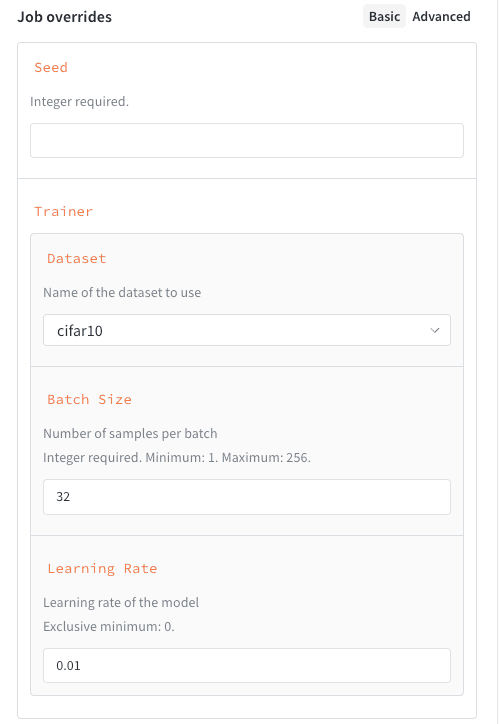
노출할 입력을 필터링하는 것 외에도, 작업 입력의 스키마를 정의하면 작업 실행용 맞춤형 UI를 만들 수 있습니다. 스키마를 정의하면 launch drawer에 자유 형식 텍스트 입력란 대신 구조화된 필드, 검증 힌트, 드롭다운이 표시됩니다. 작업의 스키마를 정의하려면 `launch.manage_wandb_config()` 또는 `launch.manage_config_file()`을 호출할 때 스키마를 함께 전달하세요. 스키마는 [JSON 스키마](https://json-schema.org/understanding-json-schema/reference) 형식의 Python `dict` 또는 Pydantic 모델 클래스로 작성할 수 있습니다.
작업 입력 스키마는 입력값을 검증하지 않으며, launch drawer의 UI만 정의합니다.
다음 예시는 아래와 같은 속성으로 구성된 스키마입니다.
* `seed`: 정수입니다.
* `trainer`: 일부 키가 지정된 딕셔너리입니다.
* `trainer.learning_rate`: 0보다 큰 float입니다.
* `trainer.batch_size`: 16, 64, 256 중 하나인 정수입니다.
* `trainer.dataset`: `cifar10` 또는 `cifar100` 중 하나인 문자열입니다.
```python theme={"system"}
schema = {
"type": "object",
"properties": {
"seed": {
"type": "integer"
}
"trainer": {
"type": "object",
"properties": {
"learning_rate": {
"type": "number",
"description": "Learning rate of the model",
"exclusiveMinimum": 0,
},
"batch_size": {
"type": "integer",
"description": "Number of samples per batch",
"enum": [16, 64, 256]
},
"dataset": {
"type": "string",
"description": "Name of the dataset to use",
"enum": ["cifar10", "cifar100"]
}
}
}
}
}
launch.manage_wandb_config(
include=["seed", "trainer"],
exclude=["trainer.private"],
schema=schema,
)
```
일반적으로 다음 JSON 스키마 속성을 지원합니다.
| 속성 | 필수 | 참고 |
| - | - | - |
| `type` | 예 | `number`, `integer`, `string`, `object` 중 하나여야 합니다 |
| `title` | 아니요 | 속성의 표시 이름을 재정의합니다 |
| `description` | 아니요 | 속성의 도움말 텍스트를 지정합니다 |
| `enum` | 아니요 | 자유 형식 텍스트 입력란 대신 드롭다운 선택 목록을 만듭니다 |
| `minimum` | 아니요 | `type`이 `number` 또는 `integer`인 경우에만 사용할 수 있습니다 |
| `maximum` | 아니요 | `type`이 `number` 또는 `integer`인 경우에만 사용할 수 있습니다 |
| `exclusiveMinimum` | 아니요 | `type`이 `number` 또는 `integer`인 경우에만 사용할 수 있습니다 |
| `exclusiveMaximum` | 아니요 | `type`이 `number` 또는 `integer`인 경우에만 사용할 수 있습니다 |
| `properties` | 아니요 | `type`이 `object`인 경우 중첩된 설정을 정의합니다 |
다음 예시는 아래와 같은 속성으로 구성된 스키마입니다.
* `seed`: 정수입니다.
* `trainer`: 일부 하위 속성이 지정된 스키마입니다.
* `trainer.learning_rate`: 0보다 큰 float입니다.
* `trainer.batch_size`: 1 이상 256 이하인 정수입니다.
* `trainer.dataset`: `cifar10` 또는 `cifar100` 중 하나인 문자열입니다.
```python theme={"system"}
class DatasetEnum(str, Enum):
cifar10 = "cifar10"
cifar100 = "cifar100"
class Trainer(BaseModel):
learning_rate: float = Field(gt=0, description="Learning rate of the model")
batch_size: int = Field(ge=1, le=256, description="Number of samples per batch")
dataset: DatasetEnum = Field(title="Dataset", description="Name of the dataset to use")
class Schema(BaseModel):
seed: int
trainer: Trainer
launch.manage_wandb_config(
include=["seed", "trainer"],
exclude=["trainer.private"],
schema=Schema,
)
```
클래스의 인스턴스를 전달할 수도 있습니다.
```python theme={"system"}
t = Trainer(learning_rate=0.01, batch_size=32, dataset=DatasetEnum.cifar10)
s = Schema(seed=42, trainer=t)
launch.manage_wandb_config(
include=["seed", "trainer"],
exclude=["trainer.private"],
input_schema=s,
)
```
작업 입력 스키마를 추가하면 작업을 실행하는 사용자에게 launch drawer에서 구조화된 양식이 제공됩니다.