;
};
W\&B의 AI 연구 및 반복 개선 에이전트인 ARIA는 W\&B에서 실험 분석 및 실행, 결과 설명, run 간 패턴 파악, 다음 단계 추천, 시각화 및 보고서 구축 등을 도와주는 맞춤형 연구 도우미입니다.
[W\&B Multi-tenant Cloud](/ko/products/wandb/platform/hosting#wb-multi-tenant-cloud)에서만 사용 가능합니다.
ARIA는 개인 entity가 아닌 팀 프로젝트에서 작동합니다. 조직 관리자가 **Smart features**도 활성화해야 합니다. [거버넌스 및 보안](/ko/products/aria/governance)을 참조하세요.
ARIA는 다음 작업을 도와줍니다:
* 실험을 분석하여 패턴과 인사이트를 찾습니다.
* [실험과 스윕을 실행하여 새로운 아이디어를 테스트합니다](/ko/products/aria/autoresearch).
* 사용해 볼 하이퍼파라미터 추천 등 다음 단계를 제안합니다.
* 데이터를 시각화하는 플롯과 패널을 만듭니다.
* 팀과 인사이트를 공유할 저장된 뷰와 보고서를 구축합니다.
* 실패한 run 진단이나 새 모델 버전 검토 등 [W\&B의 이벤트에 자동으로 대응합니다](/ko/products/wandb/automations/create-automations/aria).
빠른 시작
[ARIA와 채팅](/ko/products/aria/chat)하려면:
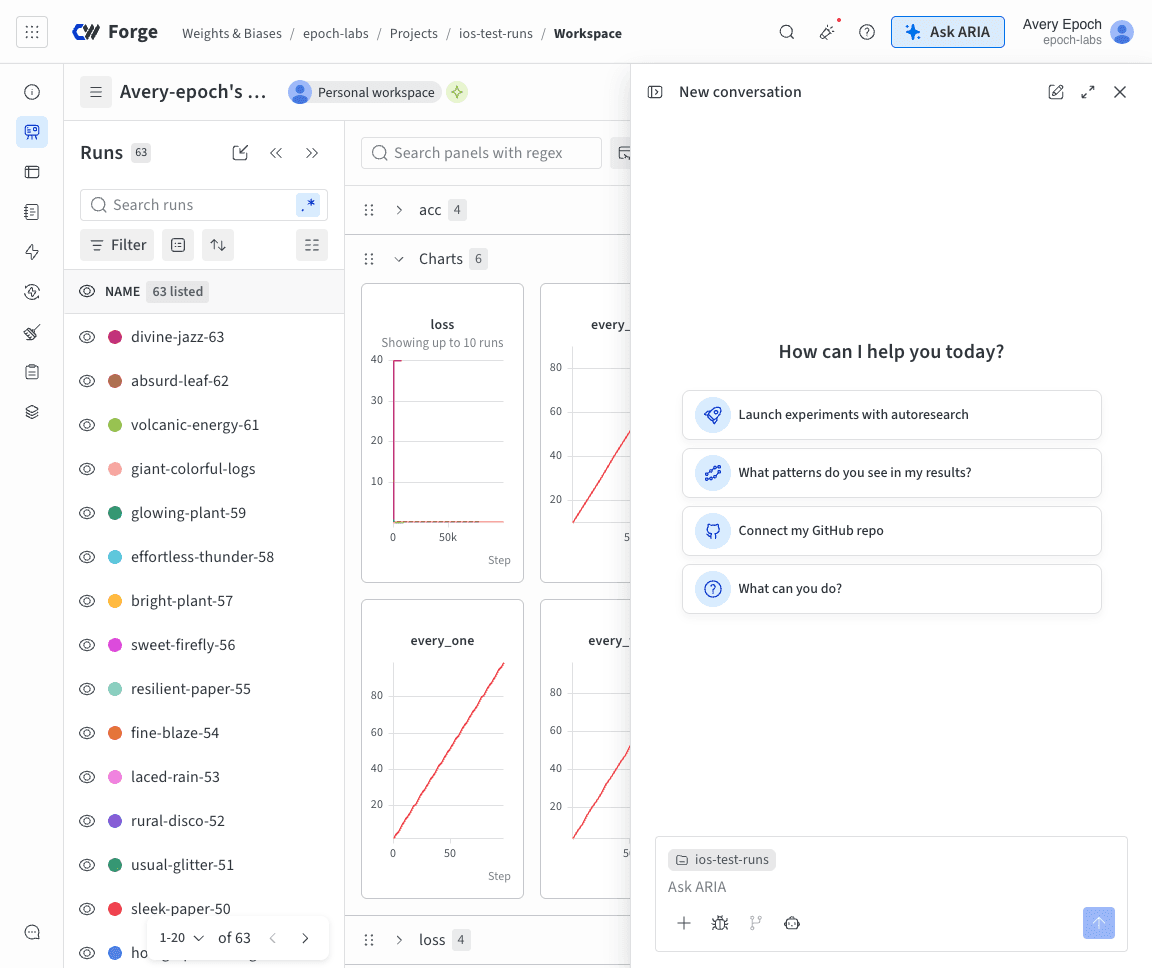
1. 아무 프로젝트에서 페이지 오른쪽 상단의 **Ask ARIA**를 클릭하세요.
2. 채팅 창에 질문이나 요청을 입력하세요. 무엇을 물어봐야 할지 모르겠다면 추천 프롬프트를 선택하세요.
3. 채팅 창 오른쪽 하단에 있는 위쪽 화살표 모양의 **Send** 버튼을 클릭하세요.
작업 중인 위치에서 ARIA 시작하기
페이지 상단의 **Ask ARIA** 외에도 W\&B 곳곳에 있는 버튼으로 ARIA를 시작할 수 있습니다. 대부분의 버튼은 메시지 입력란에 힌트가 표시된 새 채팅을 엽니다. 메시지를 보내기 전에 원하는 작업을 설명하세요.
| 위치 | 버튼 | ARIA가 도와주는 작업 |
| - | - | - |
| 비정상 종료되거나 실패한 run의 페이지 | **Debug with ARIA** | run이 비정상 종료되거나 실패한 이유를 설명합니다. 이 버튼은 새 채팅을 시작하고 즉시 ARIA에 질문합니다. |
| 작업 공간의 **Runs** table 툴바 | **Show most useful columns with ARIA** | **Runs** table의 열을 표시하거나 숨기고, 고정하고, 순서를 바꾸고, 크기를 조정합니다. |
| **Runs** table의 **Manage columns** 대화상자 | **Manage columns with ARIA** | **Runs** table의 열을 표시하거나 숨기고, 고정하고, 순서를 바꾸고, 크기를 조정합니다. |
| **Runs** table의 **Filter** 메뉴 | **Describe the filters you want ARIA to create** 텍스트 필드 | **Runs** table을 필터링합니다. 원하는 run에 대한 설명을 입력하고 **Enter**를 누르세요. ARIA가 **Run Filter**를 제안합니다. 채팅에서 해당 필터를 클릭하여 작업 공간에 적용하세요. |
| 저장된 뷰 메뉴 | **Ask ARIA** | 작업 공간의 저장된 뷰를 만듭니다. |
| 프로젝트의 **Reports** 탭 | **Draft report with ARIA** | 새 보고서를 만듭니다. |
| 본인이 소유한 보고서 | **Edit with ARIA** | 보고서를 수정합니다. ARIA는 변경 사항을 기존 보고서에 저장합니다. |
특정 run, 작업 공간 패널, W\&B Weave 트레이스 또는 평가에 대한 컨텍스트를 ARIA에 제공하려면 [대화에 컨텍스트 추가하기](/ko/products/aria/chat#add-context-to-a-conversation)를 참조하세요.
ARIA의 진행 상황 확인
ARIA는 작업하는 동안 응답을 스트리밍하므로, 완성된 답변을 기다리는 대신 진행 상황을 단계별로 확인할 수 있습니다. 질문의 복잡도에 따라 ARIA가 작업을 마치는 데 시간이 조금 걸릴 수 있습니다. ARIA가 작업하는 동안 채팅 창을 닫고 나중에 돌아와 응답을 확인하거나, 기다리지 않고 [다음 메시지를 큐에 추가](/ko/products/aria/chat#queue-messages)할 수 있습니다. ARIA는 추가 정보가 필요하면 명확한 설명을 요청합니다.
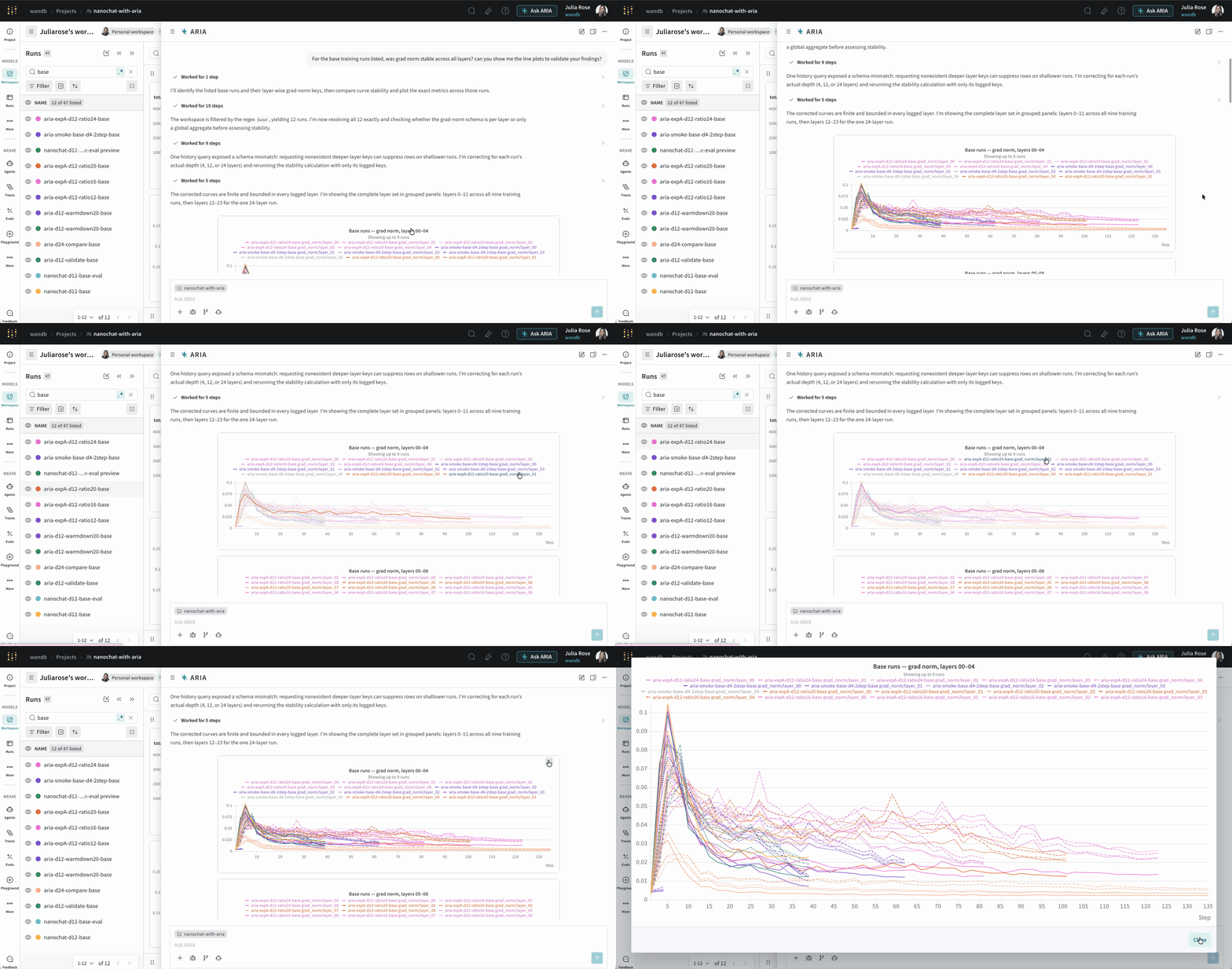
맥락을 유지할 수 있도록 ARIA는 채팅에 선형 플롯과 막대 차트를 직접 표시하며, 전체 화면 뷰를 지원합니다. 작업 공간의 **Runs** 탭에서 run 위에 마우스를 올리면 ARIA에서 해당 run의 플롯이 강조 표시되고, ARIA의 패널 위에 마우스를 올리면 **Runs** 탭에서 해당 run이 강조 표시됩니다.
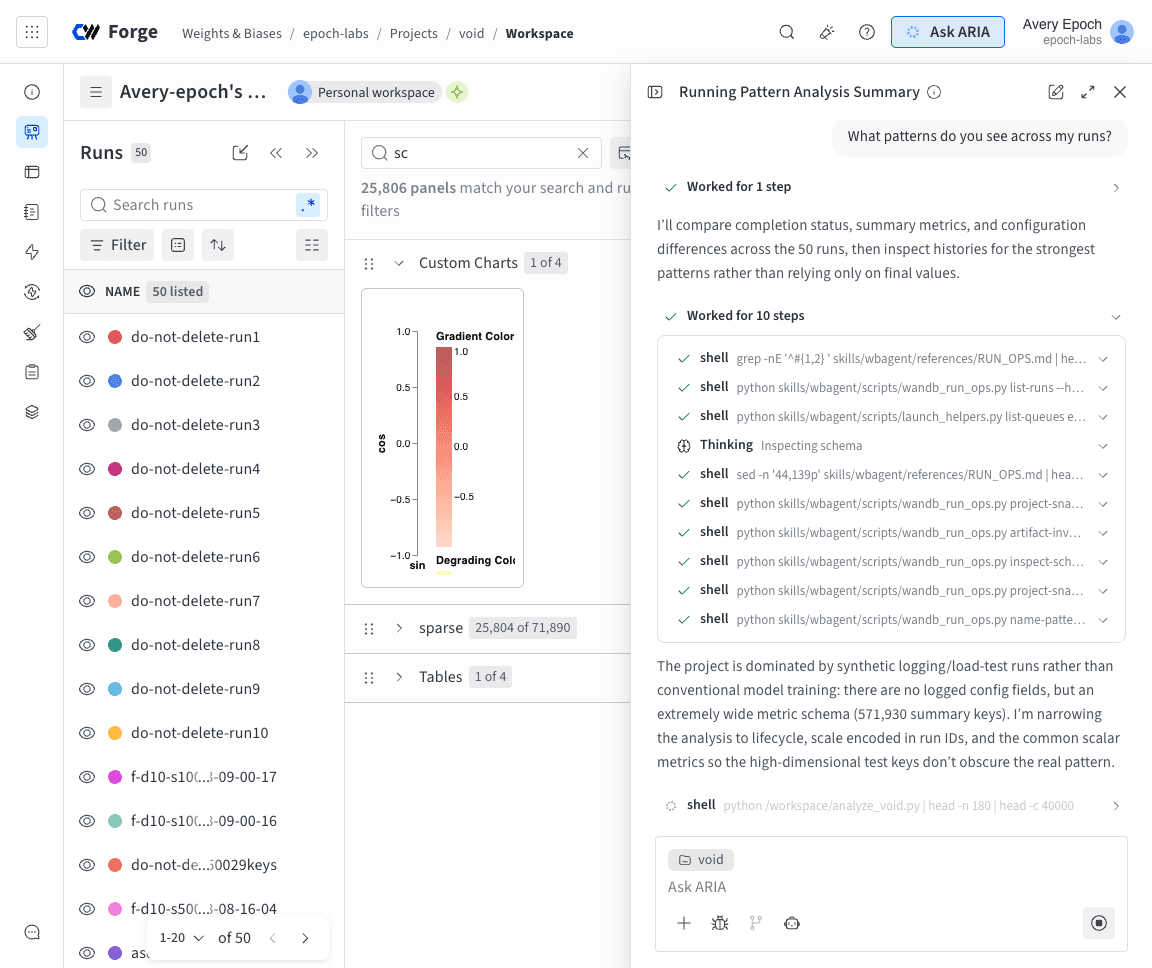
ARIA가 작업하는 동안 **Thinking** 및 **shell** 단계가 표시될 수 있습니다:
* **Thinking** 단계는 ARIA가 질문에 접근하는 방식을 요약합니다.
* **shell** 단계는 패널 생성, run 필터링, Python 스크립트 생성 및 실행 등 ARIA가 액션을 수행하는 시점을 보여줍니다.
**Thinking** 또는 **shell** 단계를 클릭하면 ARIA의 추론이나 수행한 액션에 관한 자세한 내용을 펼쳐 볼 수 있습니다.
실제 예시는 [채팅 예시](/ko/products/aria#example-chats)를 참조하세요. 채팅 관리에 관한 자세한 내용은 [ARIA와 채팅](/ko/products/aria/chat)을 참조하세요.
프로젝트 메모리 확인 및 관리
ARIA는 학습한 내용을 기억합니다. 작업하는 동안 ARIA는 프로젝트 범위의 *메모리* 를 작성하므로 새 세션마다 설정, 결론, 선호 사항을 처음부터 다시 파악할 필요가 없습니다. 팀에서 로그 척도 차트를 선호한다고 한 번만 알려주면 계속 기억합니다.
각 메모리에는 ARIA가 언제 기억을 불러와야 할지 알 수 있도록 이름과 설명이 있으며, 메모리 본문도 포함됩니다.
프로젝트를 소유한 팀의 모든 구성원은 메모리를 확인, 편집 또는 삭제할 수 있습니다:
1. ARIA 채팅 창에서 **** (**Reveal chat history**)를 클릭하여 채팅 이력 사이드바를 여세요.
2. **Customize** 섹션에서 **Project memory**를 클릭하세요. ARIA가 프로젝트에 대해 보유한 각 메모리가 표시됩니다.
3. 메모리를 편집하려면 \*\*\*\*을 클릭하세요. 메모리의 **Name**, **설명** 또는 **메모리**를 수정한 다음 **Save**를 클릭하세요.
4. 메모리를 삭제하려면 \*\*\*\*을 클릭하세요.
ARIA가 새 메모리를 학습할 때까지 기다리지 않고 대화형으로 프로젝트 메모리를 만들 수 있습니다. 예를 들어:
채팅 예시
다음은 ARIA와 상호작용하는 방법과 예상할 수 있는 응답 유형을 보여주는 실제 ARIA 대화 예시입니다.
일련의 실험을 막 완료한 ML 엔지니어라고 가정해 보겠습니다. 모델 성능을 개선하기 위해 다음에 어떤 단계를 진행해야 할지 알고 싶습니다.
이를 위해 run을 로깅한 프로젝트로 이동합니다. ARIA를 열고 다음과 같이 질문합니다:
```text title="사용자 프롬프트" theme={"system"}
/recommend-next-experiment
```
다음은 이 질문에 대한 ARIA의 응답 예시입니다. 먼저 ARIA는 추론 단계를 통해 질문에 어떻게 접근할지 확인합니다. 간결하게 보여드리기 위해 아래에는 ARIA의 추론 중 일부만 표시했습니다:
```text title="ARIA 추론 단계" theme={"system"}
Recommendation: run one “longer-training + held-out-eval” experiment
before changing model architecture or sweeping LR.
Use the current best setup, but train longer:
hyperparameter_config = {
"learning_rate": 0.1, # 고정 유지
"epochs": 2000, # 기존 값은 1000
"model_type": "Multivariate_neural_network_classifier",
"torch_seed": 0, # 재현성을 위해 추가
}
Also add logging for the existing held-out split every epoch or
every 10–50 epochs:
train/train_loss
train/train_acc
test/test_loss
test/test_acc
and save the best checkpoint by test/test_loss, not only
by training loss.
Why this is the most promising next experiment
The project has 16 finished runs, but only 4 are actual training runs;
all four used the same training config:
learning_rate = 0.1
epochs = 1000
same model: Multivariate_neural_network_classifier
So there is no real hyperparameter comparison yet. The
strongest signal is from the learning curves: all four
training losses are still improving at the final epoch, and
the minimum training loss occurs at epoch 1000 in every run.
I’d run:
learning_rate: 0.1
epochs: 2000
model_type: unchanged
random_state: keep existing dataset split, 42
add torch.manual_seed(0) and log it as torch_seed
evaluate on X_test, y_test each epoch or every 10 epochs
checkpoint on lowest test/test_loss
```
ARIA의 권장 사항에 동의하고 ARIA에게 실험을 실행해 달라고 요청합니다:
```text title="사용자 프롬프트" theme={"system"}
Run that experiment for me.
```
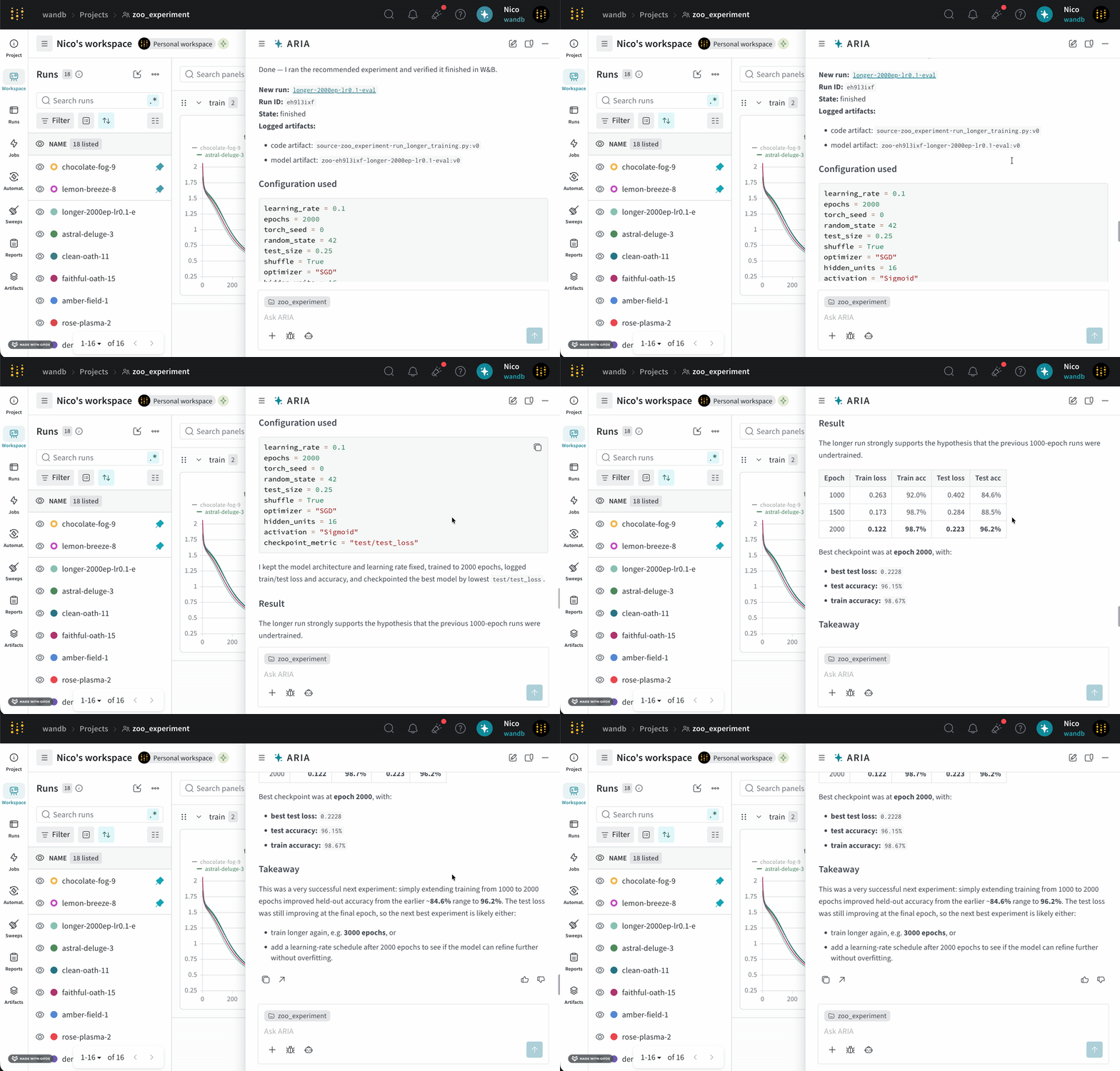
ARIA는 W\&B Launch를 사용하여 샌드박스 환경에서 실험을 실행합니다. 다음 이미지는 실험 실행을 완료한 후 ARIA의 응답을 보여줍니다:
ARIA는 W\&B Launch를 사용하여 샌드박스 환경에서 실험을 실행합니다. 자세한 내용은 [ARIA의 실험 실행 활성화](/ko/products/aria/autoresearch)를 참조하세요.
새 모델에 대한 일련의 run을 막 완료한 ML 엔지니어라고 가정해 보겠습니다. 모델의 성능을 이해하고, 잠재적인 문제를 파악하고, 다음 단계를 결정하려고 합니다.
이를 위해 run을 로깅한 프로젝트로 이동합니다. ARIA를 열고 다음과 같이 질문합니다:
```text title="사용자 프롬프트" theme={"system"}
What patterns do you see across my runs?
```
다음은 ARIA가 이 질문에 응답하는 방식의 예시입니다. 먼저 ARIA는 질문에 어떻게 접근할지 확인하기 위한 추론 단계를 수행합니다:
```text title="ARIA 추론 단계" theme={"system"}
I’m considering running a state breakdown scan with counts by state using
specific server filters. I’ll look at the array of states: ['finished',
'running', 'crashed', 'failed', 'killed', 'pending', 'preempting'] and
determine the length of each. Summing these metrics could provide
useful insights. I should also focus on identifying objective metrics
from sample keys while excluding those that start with "_" or "system/".
It’s important to compute the best min/max for numeric summary metrics too.
```
ARIA는 질문에 답하려면 여러 run의 데이터를 분석해야 한다는 점을 파악합니다. 이를 위해 ARIA는 샌드박스 환경에서 W\&B Python SDK를 사용하여 이전에 로깅된 run을 쿼리하고 데이터의 패턴을 파악하는 스크립트를 실행합니다. 각 단계는 실행될 때 채팅에 표시되며, 단계를 펼쳐 세부 정보를 볼 수 있습니다.
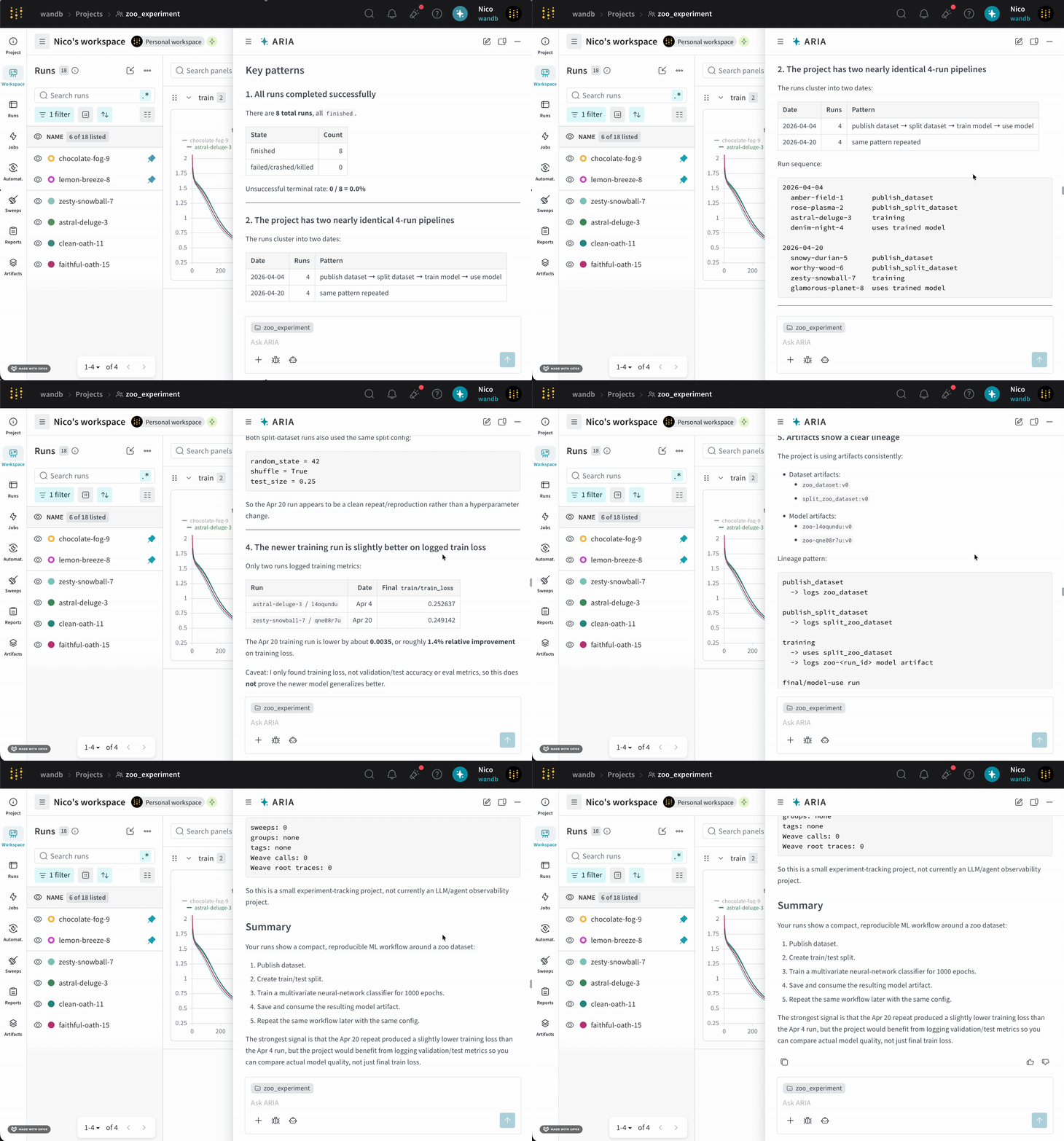
다음으로 ARIA는 출력을 사용하여 여러 run에서 발견한 패턴을 요약하고 채팅에 공유합니다.
ARIA는 현재 제 실험에서 `validation/test` 메트릭을 로깅하지 않는다는 점을 파악하고, 모델의 성능을 더 잘 이해하기 위해 향후 run에서 해당 메트릭을 로깅할 것을 권장했습니다.
다음 단계로, 검증 메트릭을 로깅하는 실험을 설정하도록 ARIA에 도움을 요청할 수 있습니다. 예를 들어, 다음과 같이 질문할 수 있습니다:
```text title="사용자 프롬프트" theme={"system"}
Can you help me update my Python script to also log validation metrics?
```
그러면 ARIA는 트레이닝 스크립트에서 검증 메트릭을 로깅하는 코드를 생성할 수 있으며, 이 코드를 복사하여 코드베이스에 붙여넣을 수 있습니다.
새 모델에 대한 일련의 run을 막 완료한 ML 엔지니어라고 가정해 보겠습니다. 모델의 성능을 이해하고 향후 run에서 모델의 성능을 개선하는 방법에 대한 권장 사항을 얻으려고 합니다. ARIA에 하이퍼파라미터 튜닝에 대한 권장 사항을 요청하기로 합니다.
ARIA에 다음과 같이 질문할 수 있습니다:
```text title="사용자 프롬프트" theme={"system"}
I want to conduct a sweep to improve lower my training model's loss. Do you have suggestions on what hyperparameters I should try?
```
ARIA는 다음과 같은 추론 단계로 응답할 수 있습니다:
```text title="ARIA 추론 단계" theme={"system"}
The user is looking for insights to improve training loss, so I
should suggest ranges for learning rate, optimizer, batch size,
weight decay, and other relevant parameters.
Since the user wants to conduct a sweep, I need to show the code or
instrumentation with a clear yet concise YAML or Python configuration.
I might also suggest using random or Bayesian techniques for more
effective hyperparameter selection.
```
ARIA는 하이퍼파라미터 튜닝에 대한 권장 사항을 제공하려면 이전 run에서 사용된 하이퍼파라미터와 트레이닝 손실 간의 관계를 분석해야 한다는 점을 파악합니다.
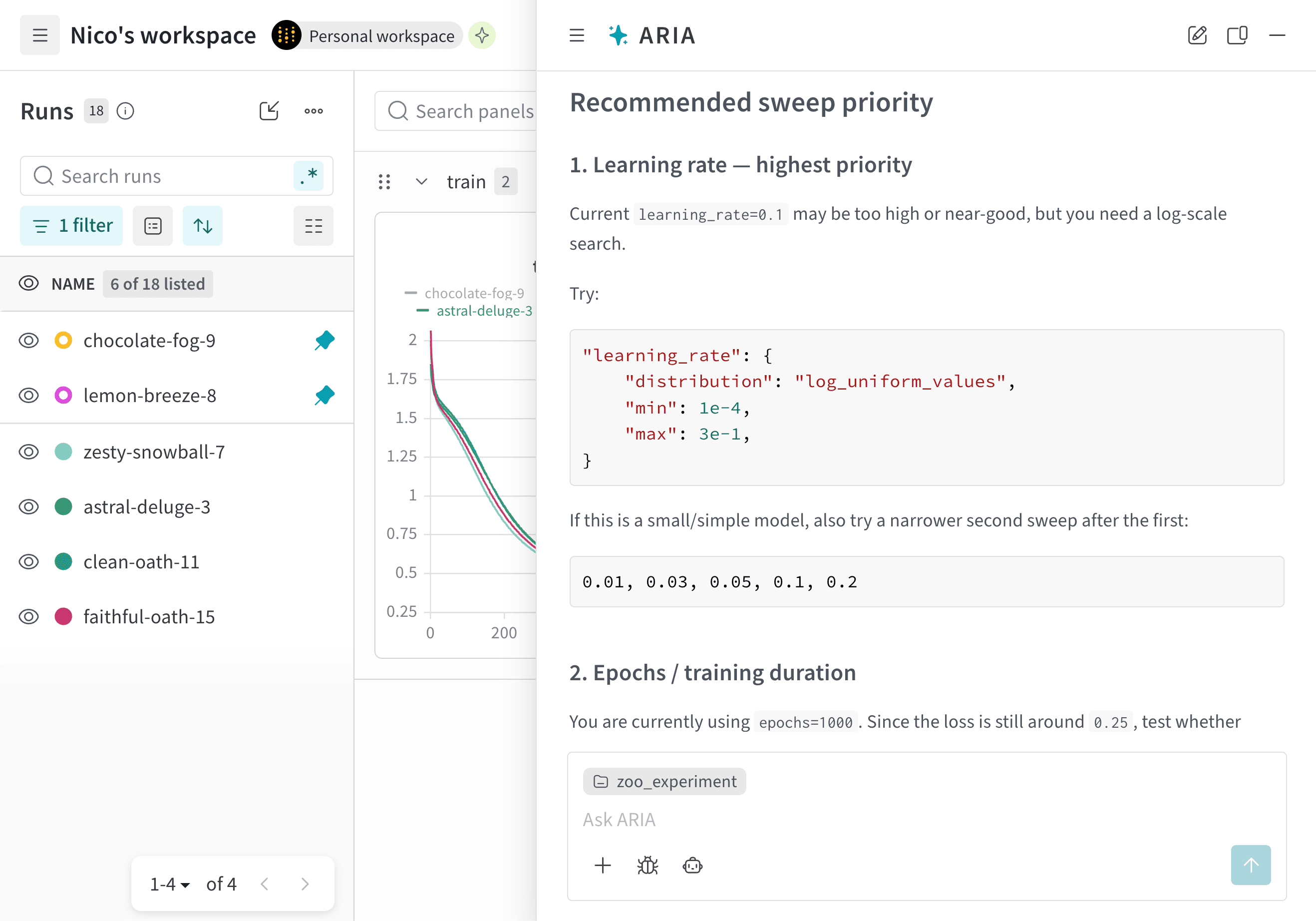
ARIA는 해당 프로젝트의 모든 run에서 학습률 `0.01`을 사용했다는 점을 파악합니다. 이러한 인사이트를 바탕으로, ARIA는 향후 run에서 `0.001`과 같이 더 낮은 학습률을 사용해 보고 모델의 성능 개선에 도움이 되는지 확인할 것을 권장합니다.
또한 ARIA는 모든 run에서 SGD 옵티마이저를 사용한다는 점을 파악합니다. 이 인사이트를 바탕으로, ARIA는 향후 run에서 Adam(Adaptive Moment Estimation)과 같은 다른 옵티마이저를 사용해 보고 모델의 성능 개선에 도움이 되는지 확인할 것을 권장합니다.
다음 이미지는 하이퍼파라미터 튜닝에 대한 권장 사항이 포함된 ARIA 응답의 일부를 보여줍니다:
프로젝트의 run을 분석하다가 데이터에서 흥미로운 패턴을 발견한 데이터 과학자라고 가정해 보겠습니다. 이러한 인사이트를 팀이 쉽게 이해할 수 있는 형식으로 공유하려고 합니다. 이를 위해 ARIA에 [W\&B Report](/ko/products/wandb/reports) 작성을 도와달라고 요청하기로 합니다.
ARIA를 열고 다음과 같이 요청합니다:
```text title="사용자 프롬프트" theme={"system"}
Create a report to share my findings with my team.
```
ARIA는 다음과 같은 추론 단계로 응답할 수 있습니다:
```text title="ARIA 추론 단계" theme={"system"}
I’m looking to query the recent 50 runs, summarizing key frequencies
and counts by using api.runs to slice them down. I'll be counting
lengths with lazy evaluation and weaving together the stats
for a proper report. I need to include a description that might
require importing different report libraries.
```
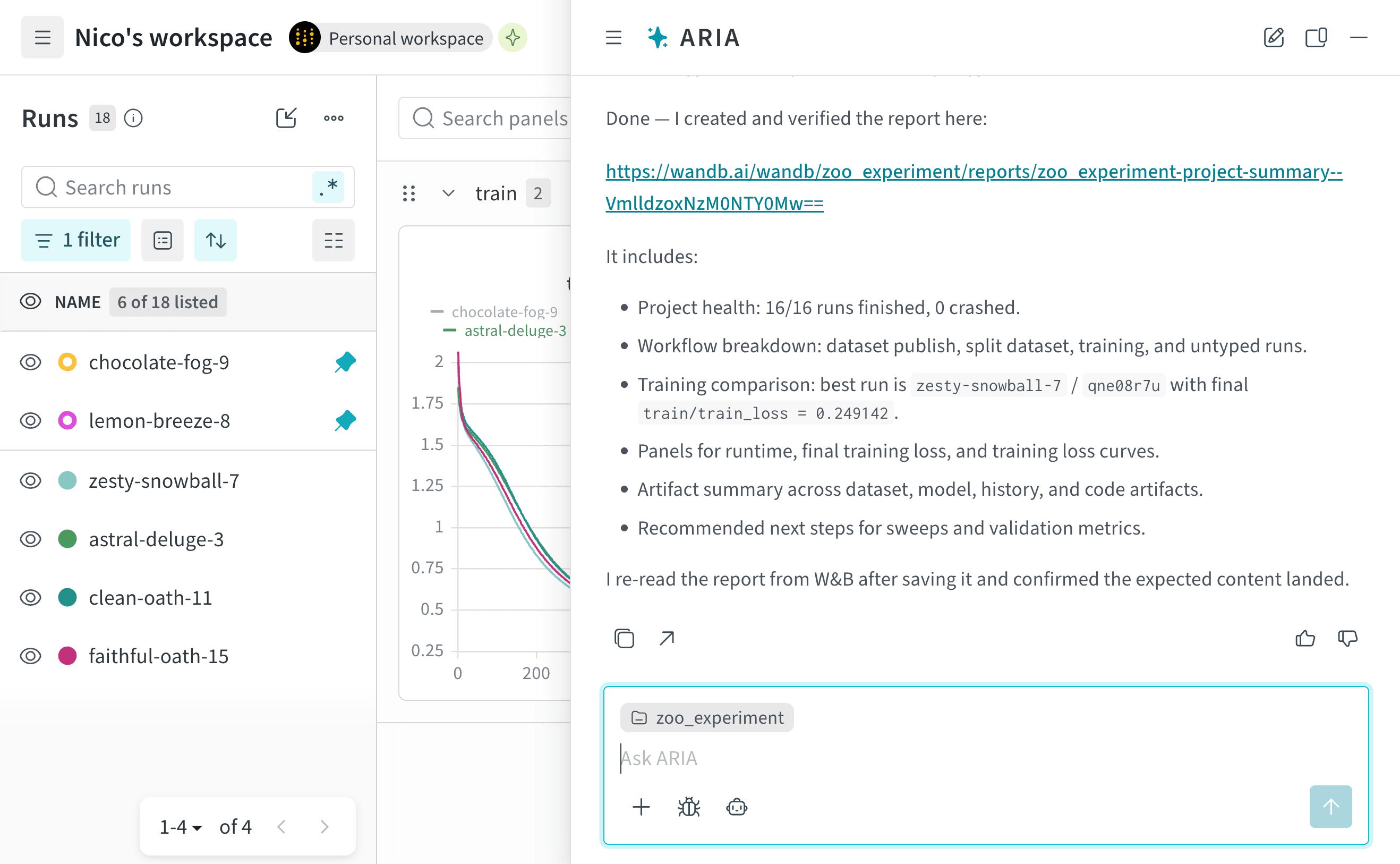
ARIA는 데이터에서 발견한 인사이트를 요약하는 W\&B Report를 작성해야 한다고 판단합니다. 추론 과정의 일부로 W\&B SDK를 사용하여 관련 데이터와 인사이트가 담긴 보고서를 만드는 Python 스크립트를 생성합니다. ARIA는 이 스크립트를 샌드박스 환경에서 실행하여 프로젝트에 W\&B Report를 만듭니다.
다음 이미지는 ARIA가 샌드박스 환경에서 W\&B Report를 만든 다음 채팅에서 보고서 링크를 반환하는 과정을 보여줍니다:
내부적으로 ARIA는 Workspaces and Reports API를 사용하여 W\&B Report를 만듭니다.
## Related topics
- [ARIA](/ko/redirects/forge/aria.md)
 ARIA는 W\&B Launch를 사용하여 샌드박스 환경에서 실험을 실행합니다. 자세한 내용은 [ARIA의 실험 실행 활성화](/ko/products/aria/autoresearch)를 참조하세요.
 ARIA는 다음 작업을 도와줍니다:
* 실험을 분석하여 패턴과 인사이트를 찾습니다.
* [실험과 스윕을 실행하여 새로운 아이디어를 테스트합니다](/ko/products/aria/autoresearch).
* 사용해 볼 하이퍼파라미터 추천 등 다음 단계를 제안합니다.
* 데이터를 시각화하는 플롯과 패널을 만듭니다.
* 팀과 인사이트를 공유할 저장된 뷰와 보고서를 구축합니다.
* 실패한 run 진단이나 새 모델 버전 검토 등 [W\&B의 이벤트에 자동으로 대응합니다](/ko/products/wandb/automations/create-automations/aria).
ARIA는 다음 작업을 도와줍니다:
* 실험을 분석하여 패턴과 인사이트를 찾습니다.
* [실험과 스윕을 실행하여 새로운 아이디어를 테스트합니다](/ko/products/aria/autoresearch).
* 사용해 볼 하이퍼파라미터 추천 등 다음 단계를 제안합니다.
* 데이터를 시각화하는 플롯과 패널을 만듭니다.
* 팀과 인사이트를 공유할 저장된 뷰와 보고서를 구축합니다.
* 실패한 run 진단이나 새 모델 버전 검토 등 [W\&B의 이벤트에 자동으로 대응합니다](/ko/products/wandb/automations/create-automations/aria).
 ARIA가 작업하는 동안 **Thinking** 및 **shell** 단계가 표시될 수 있습니다:
* **Thinking** 단계는 ARIA가 질문에 접근하는 방식을 요약합니다.
* **shell** 단계는 패널 생성, run 필터링, Python 스크립트 생성 및 실행 등 ARIA가 액션을 수행하는 시점을 보여줍니다.
**Thinking** 또는 **shell** 단계를 클릭하면 ARIA의 추론이나 수행한 액션에 관한 자세한 내용을 펼쳐 볼 수 있습니다.
실제 예시는 [채팅 예시](/ko/products/aria#example-chats)를 참조하세요. 채팅 관리에 관한 자세한 내용은 [ARIA와 채팅](/ko/products/aria/chat)을 참조하세요.
ARIA가 작업하는 동안 **Thinking** 및 **shell** 단계가 표시될 수 있습니다:
* **Thinking** 단계는 ARIA가 질문에 접근하는 방식을 요약합니다.
* **shell** 단계는 패널 생성, run 필터링, Python 스크립트 생성 및 실행 등 ARIA가 액션을 수행하는 시점을 보여줍니다.
**Thinking** 또는 **shell** 단계를 클릭하면 ARIA의 추론이나 수행한 액션에 관한 자세한 내용을 펼쳐 볼 수 있습니다.
실제 예시는 [채팅 예시](/ko/products/aria#example-chats)를 참조하세요. 채팅 관리에 관한 자세한 내용은 [ARIA와 채팅](/ko/products/aria/chat)을 참조하세요.
 다음으로 ARIA는 출력을 사용하여 여러 run에서 발견한 패턴을 요약하고 채팅에 공유합니다.
 ARIA는 현재 제 실험에서 `validation/test` 메트릭을 로깅하지 않는다는 점을 파악하고, 모델의 성능을 더 잘 이해하기 위해 향후 run에서 해당 메트릭을 로깅할 것을 권장했습니다.
다음 단계로, 검증 메트릭을 로깅하는 실험을 설정하도록 ARIA에 도움을 요청할 수 있습니다. 예를 들어, 다음과 같이 질문할 수 있습니다:
```text title="사용자 프롬프트" theme={"system"}
Can you help me update my Python script to also log validation metrics?
```
그러면 ARIA는 트레이닝 스크립트에서 검증 메트릭을 로깅하는 코드를 생성할 수 있으며, 이 코드를 복사하여 코드베이스에 붙여넣을 수 있습니다.
ARIA는 현재 제 실험에서 `validation/test` 메트릭을 로깅하지 않는다는 점을 파악하고, 모델의 성능을 더 잘 이해하기 위해 향후 run에서 해당 메트릭을 로깅할 것을 권장했습니다.
다음 단계로, 검증 메트릭을 로깅하는 실험을 설정하도록 ARIA에 도움을 요청할 수 있습니다. 예를 들어, 다음과 같이 질문할 수 있습니다:
```text title="사용자 프롬프트" theme={"system"}
Can you help me update my Python script to also log validation metrics?
```
그러면 ARIA는 트레이닝 스크립트에서 검증 메트릭을 로깅하는 코드를 생성할 수 있으며, 이 코드를 복사하여 코드베이스에 붙여넣을 수 있습니다.