以下は、ARIA との実際のチャット例です。ARIA とどのようにやり取りできるか、またどのような応答が返ってくるかを示しています。
一連の実験を終えたばかりの ML エンジニアを想定します。モデルのパフォーマンスを向上させるために、次に何をすべきかを知りたいと考えています。
そこで、run をログした project にアクセスし、ARIA を開いて次のように質問します。
```text title="ユーザー プロンプト" theme={"system"}
/recommend-next-experiment
```
以下は、この質問に対する ARIA の応答例です。ARIA はまず推論ステップを実行し、質問にどうアプローチするかを判断します。簡潔にするため、以下では ARIA の推論の一部のみを示します。
```text title="ARIA の推論ステップ" theme={"system"}
Recommendation: run one “longer-training + held-out-eval” experiment
before changing model architecture or sweeping LR.
Use the current best setup, but train longer:
hyperparameter_config = {
"learning_rate": 0.1, # 固定のまま
"epochs": 2000, # 以前は 1000
"model_type": "Multivariate_neural_network_classifier",
"torch_seed": 0, # 再現性のために追加
}
Also add logging for the existing held-out split every epoch or
every 10–50 epochs:
train/train_loss
train/train_acc
test/test_loss
test/test_acc
and save the best checkpoint by test/test_loss, not only
by training loss.
Why this is the most promising next experiment
The project has 16 finished runs, but only 4 are actual training runs;
all four used the same training config:
learning_rate = 0.1
epochs = 1000
same model: Multivariate_neural_network_classifier
So there is no real hyperparameter comparison yet. The
strongest signal is from the learning curves: all four
training losses are still improving at the final epoch, and
the minimum training loss occurs at epoch 1000 in every run.
I’d run:
learning_rate: 0.1
epochs: 2000
model_type: unchanged
random_state: keep existing dataset split, 42
add torch.manual_seed(0) and log it as torch_seed
evaluate on X_test, y_test each epoch or every 10 epochs
checkpoint on lowest test/test_loss
```
ARIA の推奨に納得したので、ARIA に実験の実行を依頼します。
```text title="ユーザー プロンプト" theme={"system"}
Run that experiment for me.
```
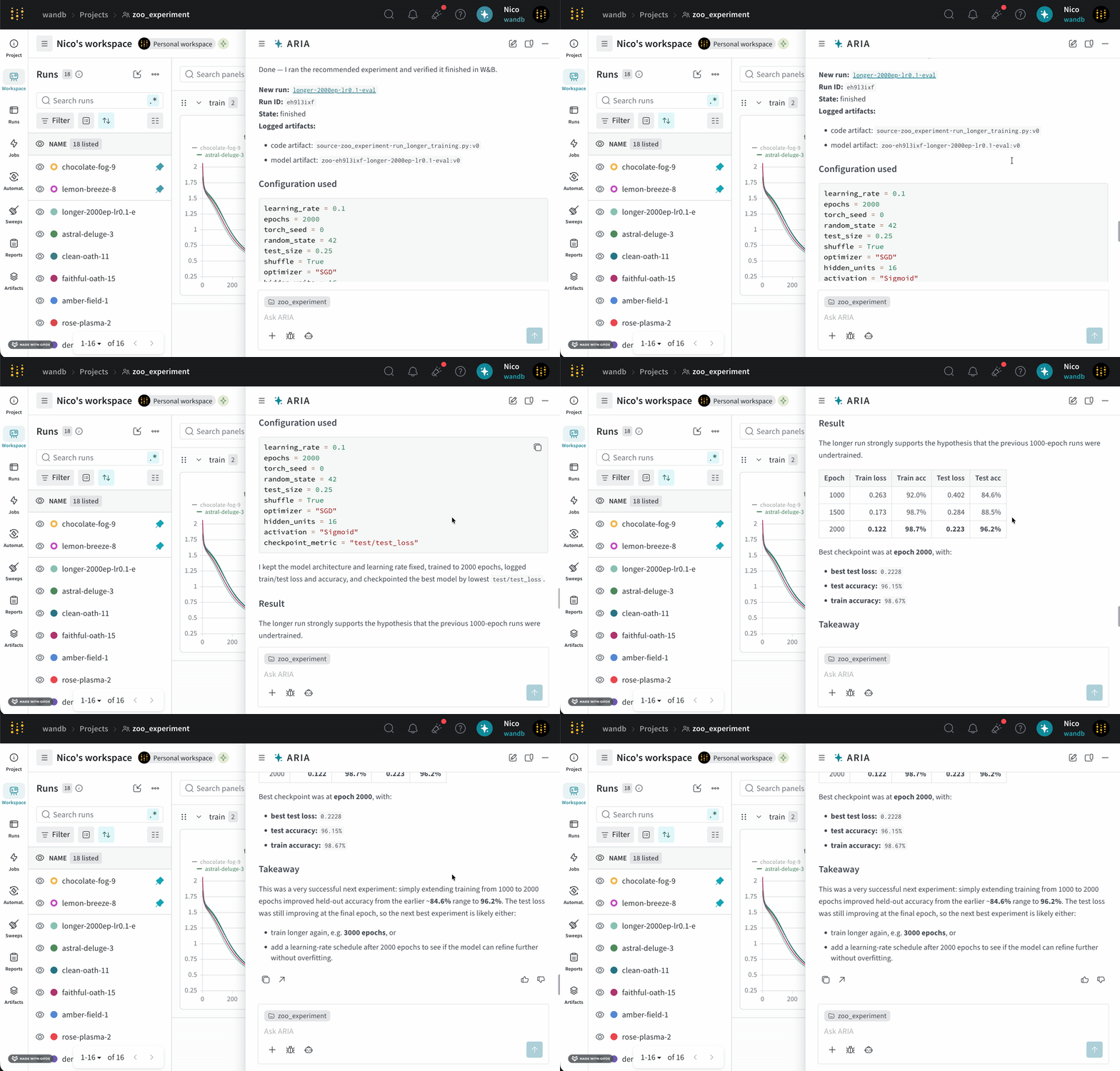
ARIA は W\&B Launch を使用して、サンドボックス環境で実験を実行します。次の画像は、実験の実行が完了した後の ARIA の応答を示しています。
ARIA は W\&B Launch を使用して、サンドボックス環境で実験を実行します。詳細については、[ARIA による実験の実行を有効にする](/ja/products/aria/autoresearch)を参照してください。
新しいモデルの一連の run を完了したばかりの ML エンジニアを想定します。モデルのパフォーマンスを把握し、潜在的な問題を特定したうえで、次のステップを決めたいと考えています。
そこで、run をログした project にアクセスします。ARIA を開き、次のように質問します。
```text title="ユーザー プロンプト" theme={"system"}
What patterns do you see across my runs?
```
以下は、この質問に対する ARIA の応答例です。まず、ARIA は推論ステップを実行して、質問にどうアプローチするかを判断します。
```text title="ARIA の推論ステップ" theme={"system"}
I’m considering running a state breakdown scan with counts by state using
specific server filters. I’ll look at the array of states: ['finished',
'running', 'crashed', 'failed', 'killed', 'pending', 'preempting'] and
determine the length of each. Summing these metrics could provide
useful insights. I should also focus on identifying objective metrics
from sample keys while excluding those that start with "_" or "system/".
It’s important to compute the best min/max for numeric summary metrics too.
```
ARIA は、質問に答えるには複数の run にわたるデータを分析する必要があると判断します。そこで、サンドボックス環境でスクリプトを実行し、W\&B Python SDK を使用して過去にログされた run をクエリし、データ内のパターンを特定します。各ステップは実行されるたびにチャットに表示され、ステップを展開すると詳細を確認できます。
次に、ARIA はその出力をもとに、run 全体で見つかったパターンの概要を生成し、チャットで共有します。
この例では、ARIA は現在の実験で `validation/test` メトリクスがログされていないことを特定し、モデルのパフォーマンスをより深く把握するために、今後の run ではこれらのメトリクスをログするよう推奨しました。
次のステップとして、検証メトリクスをログする実験の設定を ARIA に手伝ってもらうことができます。たとえば、次のように質問します。
```text title="ユーザー プロンプト" theme={"system"}
Can you help me update my Python script to also log validation metrics?
```
すると ARIA は、トレーニングスクリプトで検証メトリクスをログするためのコードを生成します。生成されたコードは、そのままコードベースにコピー&ペーストできます。
新しいモデルの一連の run を完了したばかりの ML エンジニアを想定します。モデルのパフォーマンスを把握し、今後の run でパフォーマンスを改善する方法について推奨事項を得たいと考えています。そこで、ハイパーパラメーター調整について ARIA に相談することにします。
たとえば、次のように ARIA に質問します。
```text title="ユーザー プロンプト" theme={"system"}
I want to conduct a sweep to improve lower my training model's loss. Do you have suggestions on what hyperparameters I should try?
```
ARIA は、たとえば次のような推論ステップで応答します。
```text title="ARIA の推論ステップ" theme={"system"}
The user is looking for insights to improve training loss, so I
should suggest ranges for learning rate, optimizer, batch size,
weight decay, and other relevant parameters.
Since the user wants to conduct a sweep, I need to show the code or
instrumentation with a clear yet concise YAML or Python configuration.
I might also suggest using random or Bayesian techniques for more
effective hyperparameter selection.
```
ARIA は、ハイパーパラメーター調整の推奨事項を示すには、過去の run で使用されたハイパーパラメーターとトレーニング損失の関係を分析する必要があると判断します。
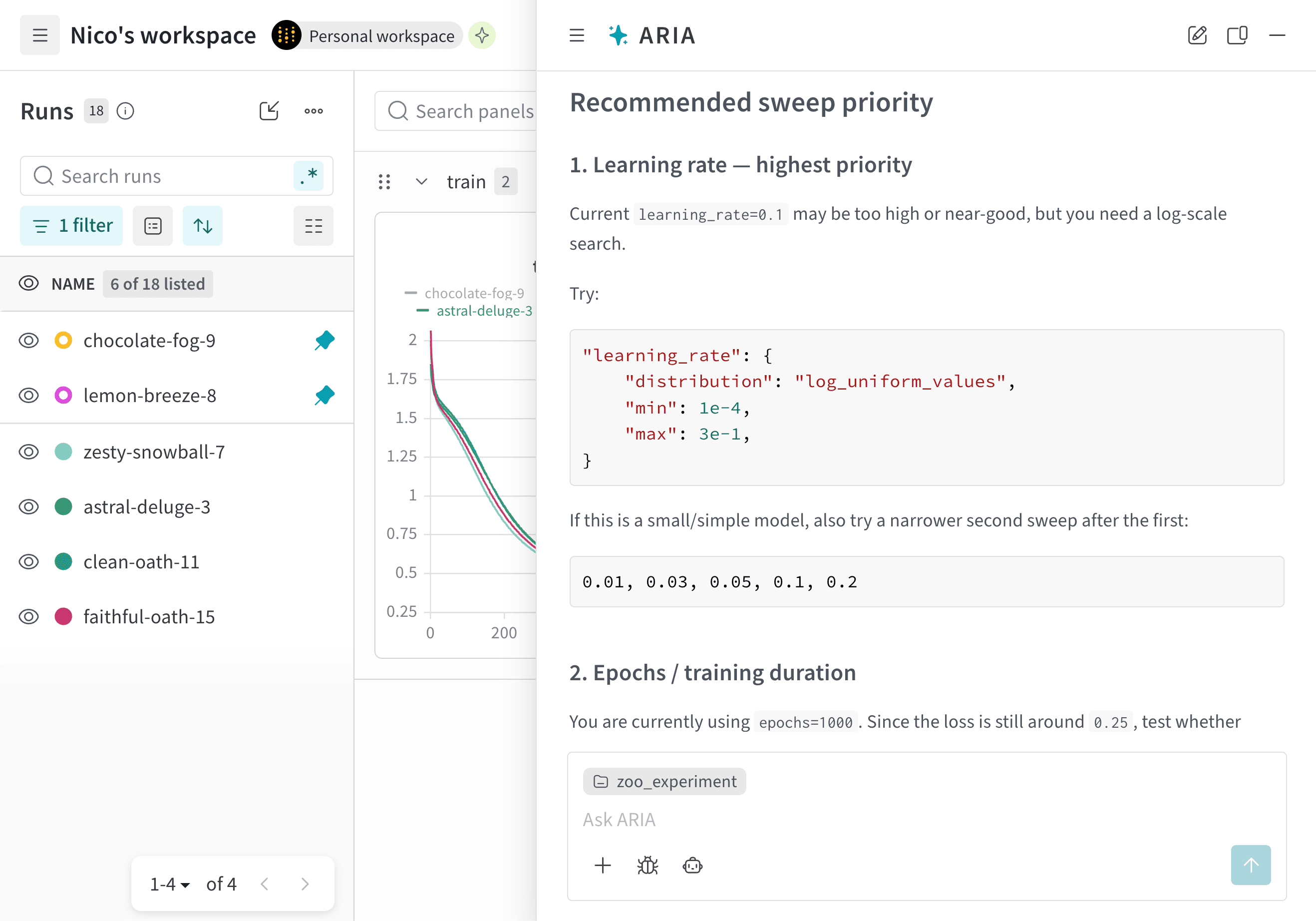
分析の結果、ARIA はこの project のすべての run で学習率 `0.01` が使用されていることを特定します。これを踏まえ、パフォーマンスが改善するかを確認するため、今後の run では `0.001` などのより低い学習率を試すよう推奨します。
また、すべての run で SGD オプティマイザーが使用されていることも特定します。これを踏まえ、パフォーマンスが改善するかを確認するため、今後の run では Adam (Adaptive Moment Estimation) などの別のオプティマイザーを試すよう推奨します。
次の画像は、ハイパーパラメーター調整の推奨事項を含む ARIA の応答の一部です。
あなたはデータサイエンティストで、project の run を分析した結果、データに興味深いパターンを見つけたとします。この知見を、わかりやすい形式でチームと共有したいと考えています。そこで、ARIA に [W\&B Report](/ja/products/wandb/reports) の作成を手伝ってもらうことにしました。
ARIA を開き、次のように依頼します。
```text title="ユーザー プロンプト" theme={"system"}
Create a report to share my findings with my team.
```
ARIA は、たとえば次のような推論ステップを示します。
```text title="ARIA の推論ステップ" theme={"system"}
I’m looking to query the recent 50 runs, summarizing key frequencies
and counts by using api.runs to slice them down. I'll be counting
lengths with lazy evaluation and weaving together the stats
for a proper report. I need to include a description that might
require importing different report libraries.
```
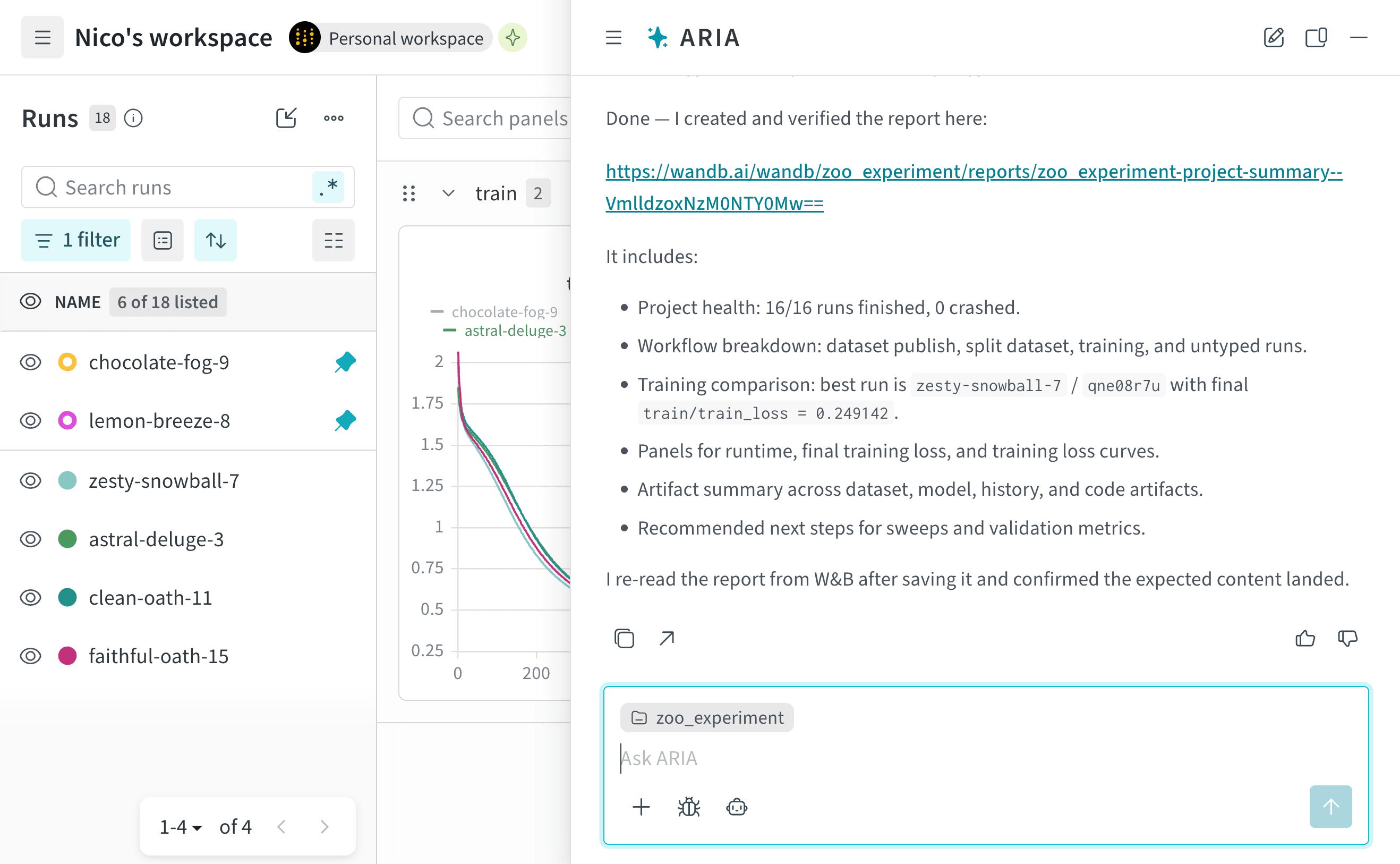
ARIA は、データから得られた知見をまとめた W\&B Report を作成する必要があると判断します。推論プロセスの一環として、W\&B SDK を使用して関連データと知見を盛り込んだ report を作成する Python スクリプトを生成します。ARIA がこのスクリプトをサンドボックス環境で実行すると、project 内に W\&B Report が作成されます。
次の画像は、ARIA がサンドボックス環境で W\&B Report を作成し、チャットで report へのリンクを返す様子を示しています。
内部的には、ARIA は Workspaces and Reports API を使用して W\&B Report を作成しています。
## Related topics
- [ARIA](/ja/redirects/forge/aria.md)
 ARIA は W\&B Launch を使用して、サンドボックス環境で実験を実行します。詳細については、[ARIA による実験の実行を有効にする](/ja/products/aria/autoresearch)を参照してください。
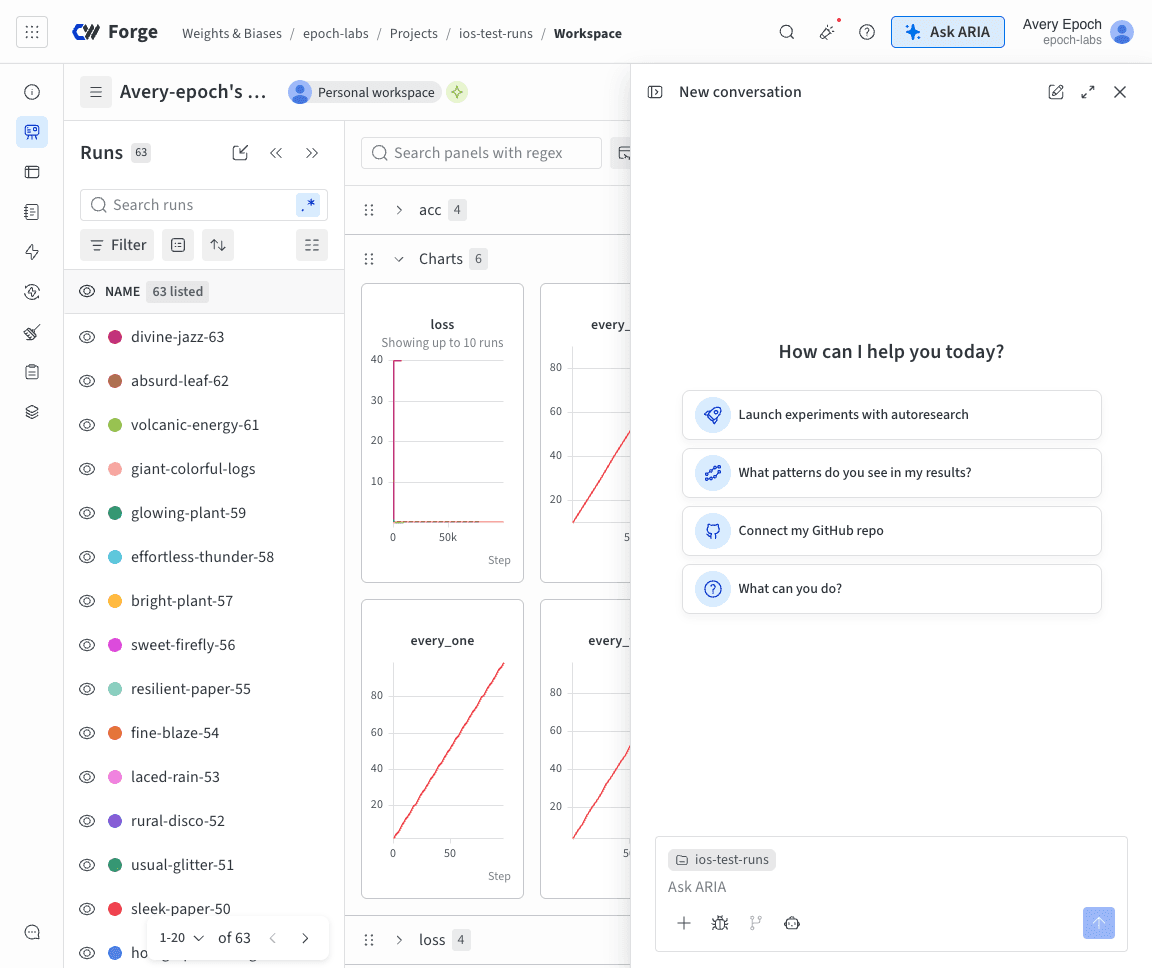 ARIA を使うと、次のことができます。
* 実験を分析して、パターンやインサイトを見つける。
* [実験や sweep を実行して、新しいアイデアを検証する](/ja/products/aria/autoresearch)。
* 試すべきハイパーパラメーターの推奨など、次のステップを提案する。
* プロットやパネルを作成して、データを可視化する。
* 保存済みビューや report を作成して、インサイトをチームと共有する。
* 失敗した run の診断や新しいモデルバージョンのレビューなど、[W\&B のイベントに自動で対応する](/ja/products/wandb/automations/create-automations/aria)。
ARIA を使うと、次のことができます。
* 実験を分析して、パターンやインサイトを見つける。
* [実験や sweep を実行して、新しいアイデアを検証する](/ja/products/aria/autoresearch)。
* 試すべきハイパーパラメーターの推奨など、次のステップを提案する。
* プロットやパネルを作成して、データを可視化する。
* 保存済みビューや report を作成して、インサイトをチームと共有する。
* 失敗した run の診断や新しいモデルバージョンのレビューなど、[W\&B のイベントに自動で対応する](/ja/products/wandb/automations/create-automations/aria)。
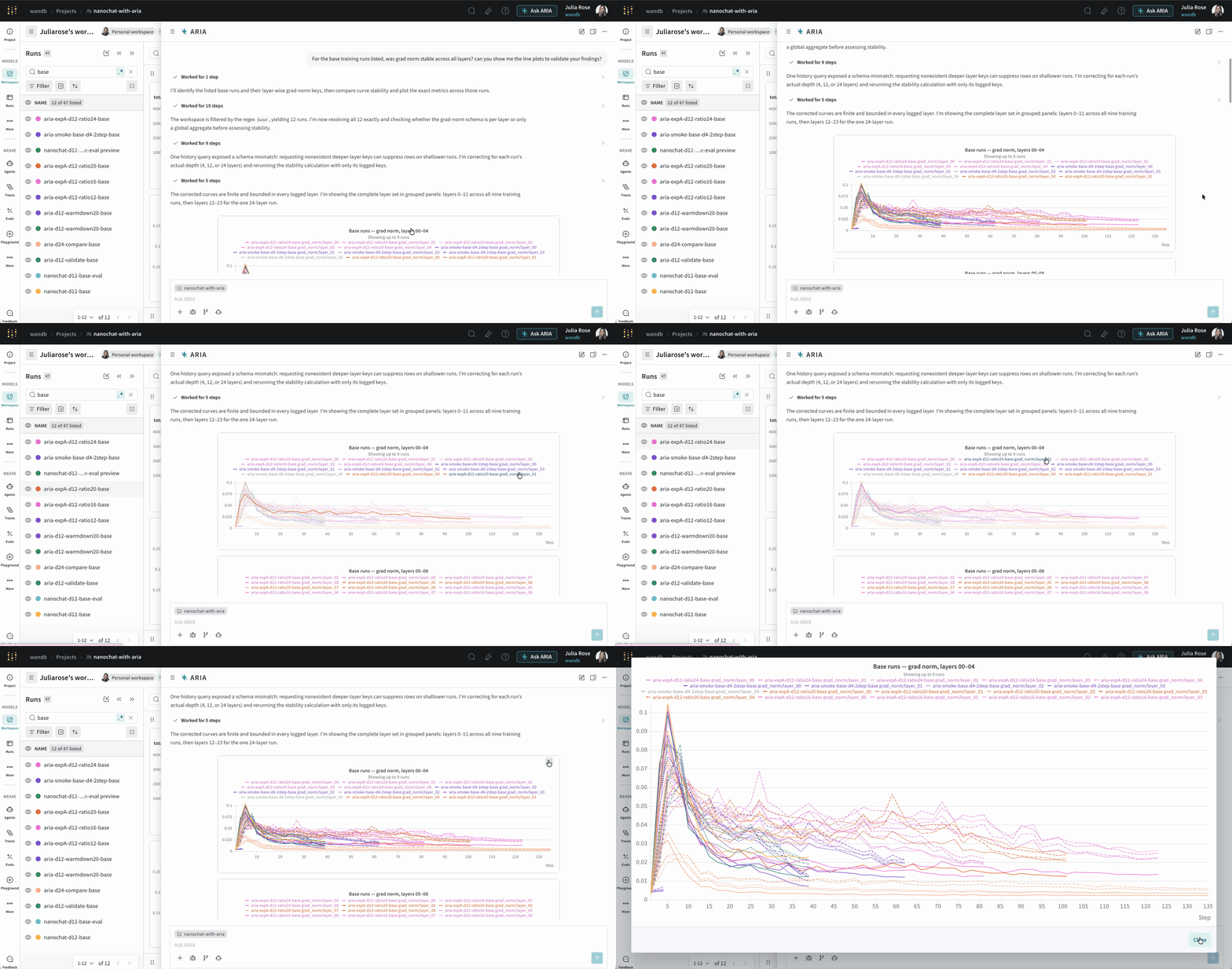 ARIA の作業中には、**Thinking** ステップと **shell** ステップが表示されることがあります。
* **Thinking** ステップには、ARIA が質問にどのように取り組んでいるかの概要が表示されます。
* **shell** ステップには、パネルの作成、run のフィルタリング、Python スクリプトの作成と実行など、ARIA が action を実行したことが表示されます。
**Thinking** または **shell** ステップをクリックすると、ARIA の推論や実行した action の詳細を展開して確認できます。
実際の使用例については、[チャット例](/ja/products/aria#example-chats)を参照してください。チャットの管理について詳しくは、[Chat with ARIA](/ja/products/aria/chat) を参照してください。
ARIA の作業中には、**Thinking** ステップと **shell** ステップが表示されることがあります。
* **Thinking** ステップには、ARIA が質問にどのように取り組んでいるかの概要が表示されます。
* **shell** ステップには、パネルの作成、run のフィルタリング、Python スクリプトの作成と実行など、ARIA が action を実行したことが表示されます。
**Thinking** または **shell** ステップをクリックすると、ARIA の推論や実行した action の詳細を展開して確認できます。
実際の使用例については、[チャット例](/ja/products/aria#example-chats)を参照してください。チャットの管理について詳しくは、[Chat with ARIA](/ja/products/aria/chat) を参照してください。
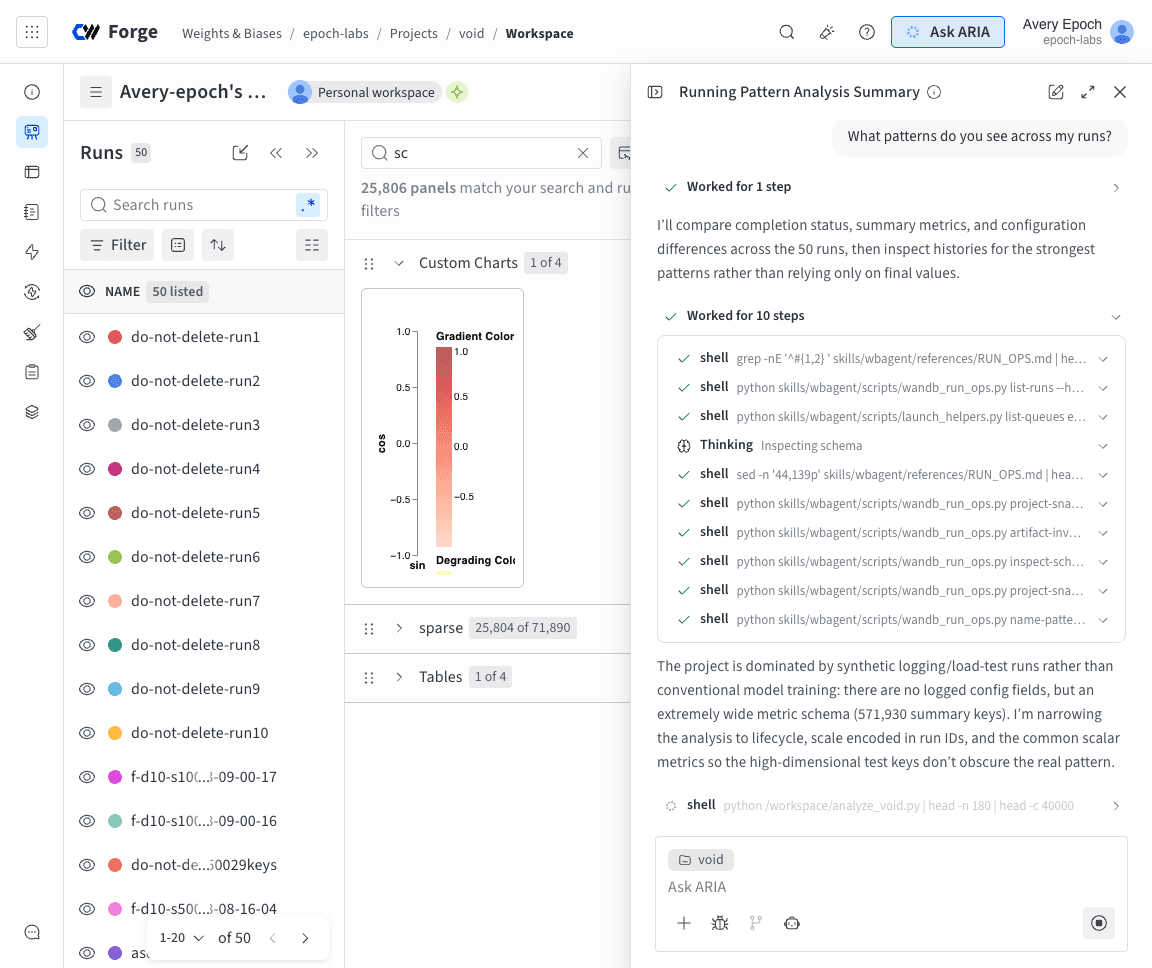 次に、ARIA はその出力をもとに、run 全体で見つかったパターンの概要を生成し、チャットで共有します。
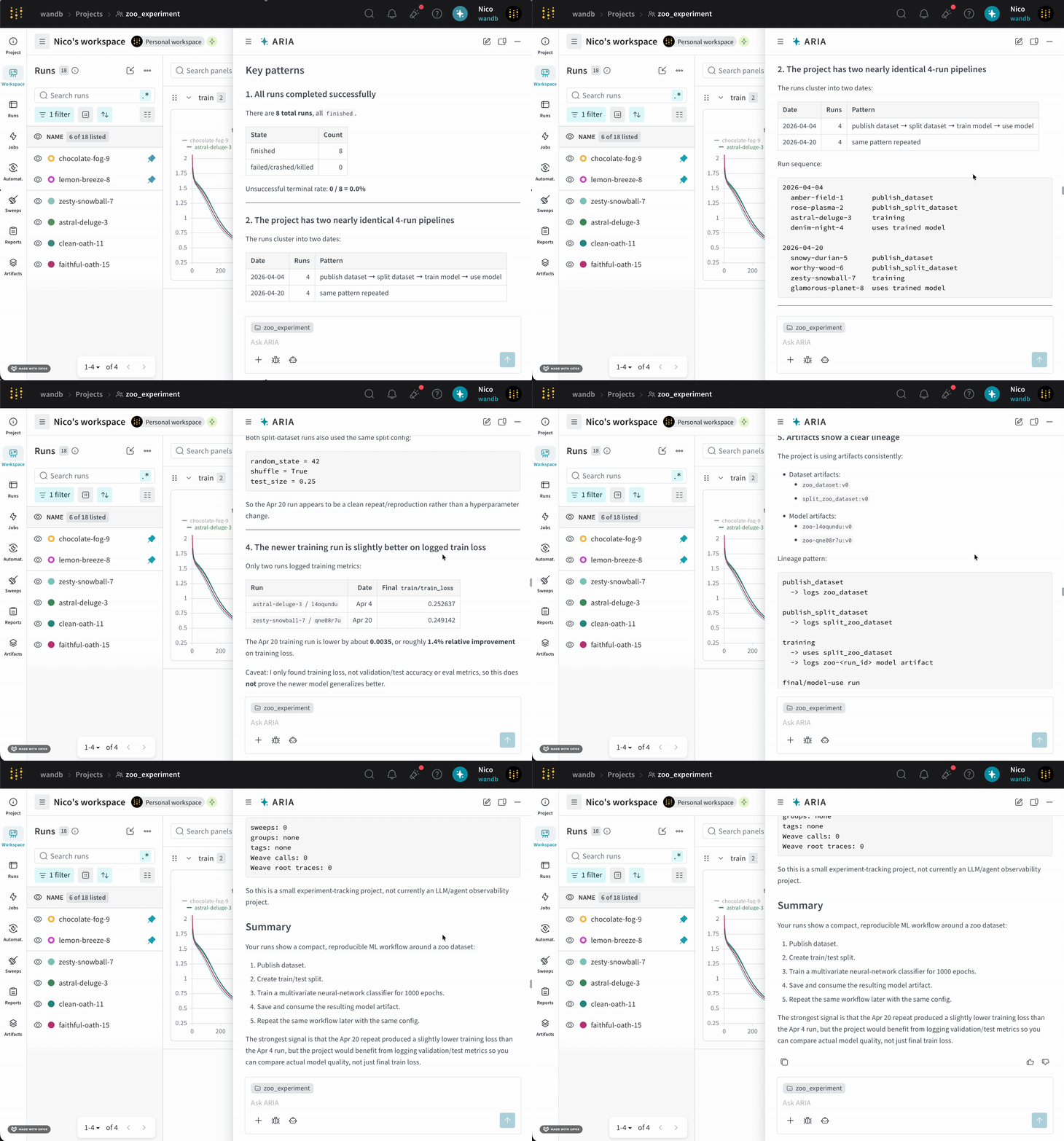 この例では、ARIA は現在の実験で `validation/test` メトリクスがログされていないことを特定し、モデルのパフォーマンスをより深く把握するために、今後の run ではこれらのメトリクスをログするよう推奨しました。
次のステップとして、検証メトリクスをログする実験の設定を ARIA に手伝ってもらうことができます。たとえば、次のように質問します。
```text title="ユーザー プロンプト" theme={"system"}
Can you help me update my Python script to also log validation metrics?
```
すると ARIA は、トレーニングスクリプトで検証メトリクスをログするためのコードを生成します。生成されたコードは、そのままコードベースにコピー&ペーストできます。
この例では、ARIA は現在の実験で `validation/test` メトリクスがログされていないことを特定し、モデルのパフォーマンスをより深く把握するために、今後の run ではこれらのメトリクスをログするよう推奨しました。
次のステップとして、検証メトリクスをログする実験の設定を ARIA に手伝ってもらうことができます。たとえば、次のように質問します。
```text title="ユーザー プロンプト" theme={"system"}
Can you help me update my Python script to also log validation metrics?
```
すると ARIA は、トレーニングスクリプトで検証メトリクスをログするためのコードを生成します。生成されたコードは、そのままコードベースにコピー&ペーストできます。